How to Fix Game Freezing for a Few Clicks or Seconds Every Few Minutes While Exploring Open-World Maps
There is nothing more immersion-breaking than riding a horse across a breathtaking open-world landscape in titles like Cyberpunk 2077, Elden Ring, Red Dead Redemption 2, or Starfield, only for your game to completely lock up or stutter for 2 to 5 seconds every time you cross a invisible sector boundary.
Your average frame rate counter might look healthy at a solid 90 FPS, but these periodic, rhythmic micro-freezes make smooth gameplay impossible.
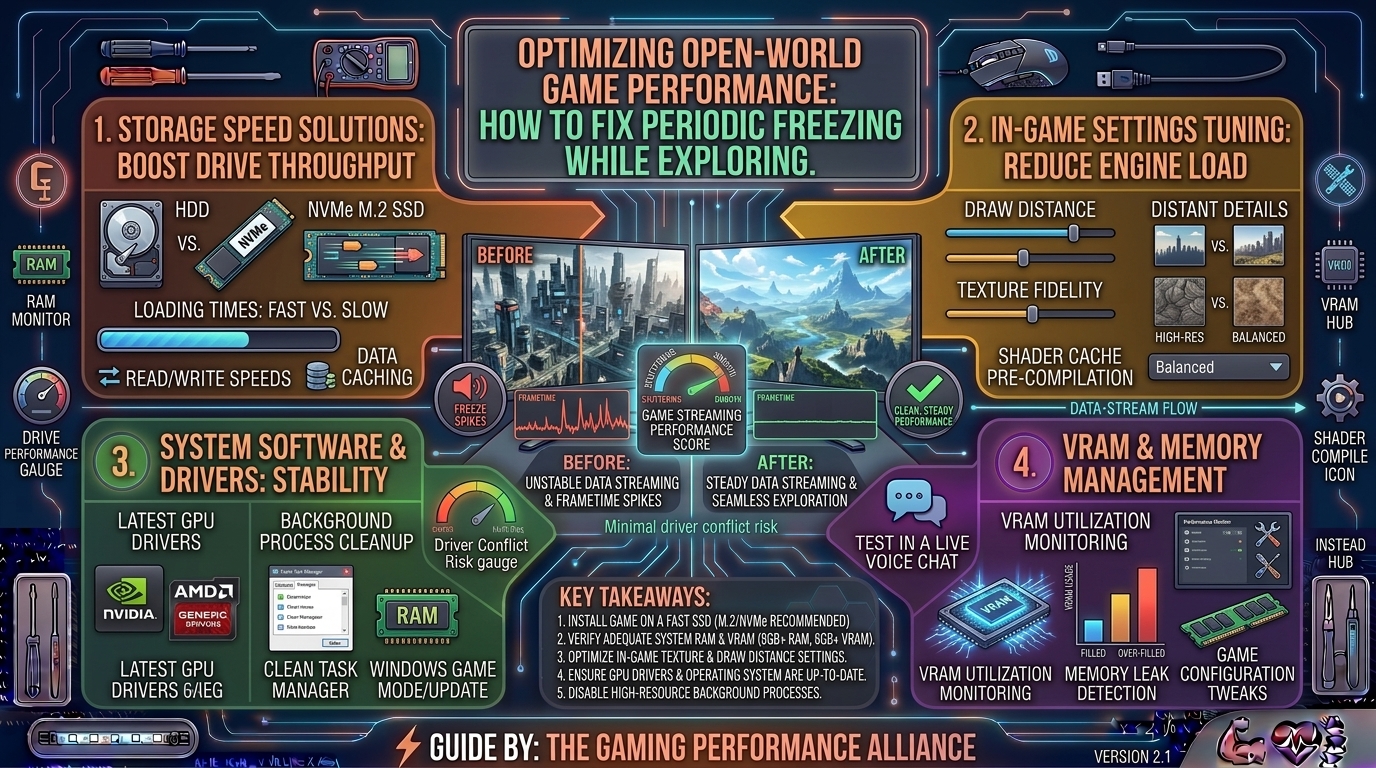
Unlike general low frame rates, periodic freezing during open-world exploration is almost always symptomatic of a data bottleneck or asset streaming failure. As you traverse a massive world, your hardware must pull thousands of textures, meshes, and high-detail geometry data from your storage drive, pipe it through your RAM and VRAM, and compile shaders on the fly. If any component in that pipeline chokes, the game engine freezes entirely while waiting for assets to load.
This exhaustive troubleshooting guide covers everything from hardware upgrades and driver optimization to advanced Windows tweaks designed to permanently eliminate open-world freezing.
1. The Core Culprit: Asset Streaming and Storage Bottlenecks
Modern open-world maps do not load all at once. Instead, they rely on dynamic asset streaming, pulling data continuously as your character moves.
+-------------------------------------------------------------------------+
|                  THE OPEN-WORLD STREAMING PIPELINE                      |
+-------------------------------------------------------------------------+
| Storage Drive (SSD/HDD) ──► System RAM ──► VRAM (GPU) ──► Shader Cache  |
|                                                                         |
| [X] Bottleneck: Slow mechanical HDD or saturated NVMe cache             |
| [X] Result: Engine pauses world generation to catch up (2-5s freeze)    |
+-------------------------------------------------------------------------+
- The Mechanical Hard Drive (HDD) Trap: If your game is installed on an old-fashioned HDD, it cannot read the sheer volume of scattered small files fast enough. When you sprint or drive fast, the game outruns the drive’s read speed and forces a hard pause.
- VRAM Overflows: If your graphics card runs out of Video RAM, the system spills texture data over into system RAM via the PCIe bus, causing severe stuttering and multi-second hitches.
2. Hardware and Storage Optimizations
Before digging into software settings, ensure your physical hardware pipeline is optimized for heavy data streaming.
+-------------------------------------------------------------------------+
|                  HARDWARE PERFORMANCE CHECKLIST                         |
+-------------------------------------------------------------------------+
| [X] Install game strictly on an NVMe or SATA Solid State Drive (SSD)   |
| [X] Enable XMP / EXPO in BIOS to run RAM at rated high speeds           |
| [X] Monitor thermal throttling (CPU/GPU temperatures below 85°C)        |
| [X] Verify dual-channel RAM configuration (2 or 4 matching sticks)      |
+-------------------------------------------------------------------------+
1. Move the Game to a Fast SSD
If your game is installed on a traditional mechanical HDD, moving it to a solid-state drive is mandatory. Even a budget SATA SSD is over 5x faster than an HDD, while modern NVMe M.2 SSDs (PCIe Gen 4 or Gen 5) deliver speeds exceeding 7,000 MB/s, completely eliminating drive-streaming hitches.
2. Enable XMP / EXPO in Your BIOS
Many gamers buy high-speed RAM (e.g., 3200MHz, 3600MHz, or 6000MHz) only to find it running at the default JEDEC speed of 2133MHz out of the box. Slow RAM creates a massive CPU bottleneck during open-world asset unpacking.
- Reboot your PC, enter your BIOS (by tapping
DeleteorF2), locate XMP (Intel) or EXPO/DOCP (AMD), and switch it to Profile 1. Save and exit.
3. In-Game Graphics Settings to Fix Streaming Hitches
Certain graphic settings place an extreme burden on your CPU and memory bus during movement. Lowering or turning off these specific settings provides instant relief:
- Lower Texture Quality by One Notch: If your graphics card has 8GB of VRAM and you play modern open-world games on “Ultra” textures, you will frequently exceed your VRAM limit. Dropping textures from Ultra to High frees up gigabytes of buffer room with virtually zero visual loss.
- Reduce Draw Distance / Object Level of Detail (LOD): High draw distances force the CPU and storage drive to unpack objects far away before you even reach them. Lowering draw distance reduces the sudden streaming load.
- Disable or Lower Volumetric Clouds and Fog: These features eat up massive amounts of compute power and memory bandwidth.
- Cap Your Frame Rate: Running uncapped frame rates causes GPU and CPU utilization to spike to 100%, leaving zero headroom for the engine to process background asset streaming. Use an in-game frame limiter or RTSS (RivaTuner Statistics Server) to cap your FPS 3 frames below your monitor’s maximum refresh rate (e.g., 141 FPS on a 144Hz display).
4. Software and Windows-Level Tweaks
If your hardware is fast but you still experience periodic freezes, background Windows operations or shader compilation issues may be to blame.
+-------------------------------------------------------------------------+
|                WINDOWS & DRIVER OPTIMIZATION PIPELINE                   |
+-------------------------------------------------------------------------+
| [1] Clear & Resize GPU Shader Cache (NVIDIA/AMD Control Panel)          |
| [2] Disable Resource-Heavy Overlays (Discord, Xbox Game Bar, Steam)     |
| [3] Adjust Virtual Memory (Page File) to prevent RAM exhaustion         |
| [4] Clean Install GPU Drivers using DDU in Safe Mode                    |
+-------------------------------------------------------------------------+
1. Clear and Expand Your GPU Shader Cache
Corrupted or small shader caches cause the game engine to stutter every time a new particle effect, weather system, or object enters your field of view.
- NVIDIA: Open NVIDIA Control Panel > Manage 3D Settings > Global Settings, find Shader Cache Size, and set it to Unlimited or at least 10GB. To clear it, navigate to
C:\Users\[Username]\AppData\Local\NVIDIA\DXCacheand delete old cache files. - AMD: Open AMD Software: Adrenalin Edition, go to Gaming > Graphics > Advanced, and select Reset Shader Cache.
2. Configure Windows Virtual Memory (Page File)
When physical RAM runs out during heavy open-world exploration, Windows uses your storage drive as overflow memory (Page File). If this is disabled or misconfigured on a slow drive, the game freezes.
- Press the Windows Key, type Advanced System Settings, and open View advanced system settings.
- Under the Advanced tab, click Settings under the Performance section.
- Go to the Advanced tab again, and click Change… under Virtual Memory.
- Uncheck “Automatically manage paging file size for all drives”. Select your fast NVMe SSD, choose System managed size, and click Set.
3. Disable Aggressive Background Overlays
Overlays from Discord, the Xbox Game Bar, GeForce Experience, and Steam hook directly into your game’s graphics API, occasionally causing hitching during asset transitions. Disable any overlays you do not actively use.
5. Summary Table: Troubleshooting Quick Reference
| Potential Cause | Symptoms | Best Fix |
| Game installed on HDD | 3-to-10 second freezes when riding fast vehicles | Move game to an NVMe SSD |
| VRAM Overflow | Stutters when panning camera quickly or entering new towns | Lower Texture Quality from Ultra to High |
| Disabled RAM XMP/EXPO | General choppy framerates and micro-freezes | Enable XMP/EXPO profile in BIOS |
| Corrupted Shader Cache | Periodic freezing during particle or weather changes | Clear DXCache / Set Shader Cache to Unlimited |
| RAM Full / Memory Leak | Freezes that grow worse the longer you play | Use ISLC (Intelligent Standby List Cleaner) or add more RAM |
6. Step-by-Step Ultimate Resolution Blueprint
If your open-world games keep hitching every few minutes, execute this diagnostic workflow:
- Verify Drive Health: Download CrystalDiskInfo and check that your SSD health status is “Good” and running on an active NVMe PCIe interface.
- Clean Driver Install: Boot into Safe Mode, run Display Driver Uninstaller (DDU) to wipe old graphics drivers completely, and install a fresh copy of your GPU manufacturer’s software.
- Check RAM Speeds: Confirm via Windows Task Manager (Performance > Memory) that your RAM is running at its advertised speed (e.g., 3200MHz+).
- Cap Your FPS: Lock your maximum frame rate just below your monitor’s refresh rate to maintain spare GPU headroom for asset streaming.
- Test With Background Apps Closed: Shut down web browsers, RGB software, and game launchers before launching your title.
7. Frequently Asked Questions (FAQ)
1. Why does my game freeze only when moving fast or riding a mount?
When you move slowly, the game engine has plenty of time to load assets in the background. When you sprint, drive, or ride a mount fast, you outpace the game’s streaming speed, causing the engine to halt execution temporarily until the next sector loads. Moving the game to an NVMe SSD solves this.
2. Can low system RAM cause multi-second open-world freezes?
Yes. If you have 16GB of RAM and are playing a modern open-world title, background apps can exhaust your memory pool, forcing Windows to dump data to your page file, resulting in severe multi-second stutter spikes. Upgrading to 32GB of RAM is increasingly recommended for modern titles.
3. Does turning down graphics settings fix storage streaming issues?
Lowering settings like texture resolution, shadow quality, and draw distance reduces the total volume of data that needs to be streamed from your storage drive and held in VRAM, making it an effective workaround for slower hardware.
4. What is the best tool to monitor what is causing my game to freeze?
Programs like MSI Afterburner (with RivaTuner Statistics Server) and HWiNFO64 allow you to track real-time graphs of your GPU usage, VRAM consumption, RAM usage, and individual core temperatures while you play to spot bottlenecks.
5. Why does my game stutter after playing for an hour, but run fine initially?
This is usually caused by thermal throttling (your CPU or GPU getting too hot and slowing down) or a memory leak (where the game fails to clear unused data from your RAM over time). Check your temperatures and restart the game if memory usage creeps up indefinitely.
6. Does Windows Game Mode help or hurt open-world stuttering?
In most modern Windows 10 and 11 builds, Game Mode helps by prioritizing system resources for the active game process. However, some users with specific background recording setups find toggling it off improves stability. Test both to see what works for your specific rig.
7. Can background web browsers like Google Chrome cause game freezes?
Yes. Google Chrome aggressively consumes system RAM and uses hardware acceleration that can compete with your GPU for processing cycles, resulting in micro-stutters during heavy open-world rendering. Always close your browser before launching demanding games.
8. What is shader compilation stutter, and how do I prevent it?
Shader compilation stutter happens when a game engine compiles graphical shaders in real-time during gameplay instead of pre-compiling them at launch. Letting games finish their initial “Optimizing Shaders” loading screen completely before playing prevents this.
9. Does resizing the Windows Page File eliminate stuttering?
Setting a custom, fixed-size Virtual Memory page file (e.g., minimum and maximum set to 10240MB) on a fast NVMe SSD prevents Windows from dynamically resizing the page file during gameplay, which can stop micro-hitches.
10. Are open-world stutters ever the game developer’s fault?
Yes. Some open-world titles launch with poor optimization, memory leaks, or faulty asset streaming code (e.g., notorious PC port stutter issues). In these cases, community-made optimization mods or official developer patches are often required to fix the underlying engine flaw.
Fixing rhythmic freezes and asset-streaming stutters while exploring open-world maps transforms your gaming experience from a frustrating slideshow into a seamless adventure. By shifting your game to a high-speed NVMe SSD, enabling proper RAM XMP profiles, expanding your shader caches, and managing background memory overhead, you ensure your hardware delivers consistent, buttery-smooth frame delivery across every mile of the map.
Leave a Reply