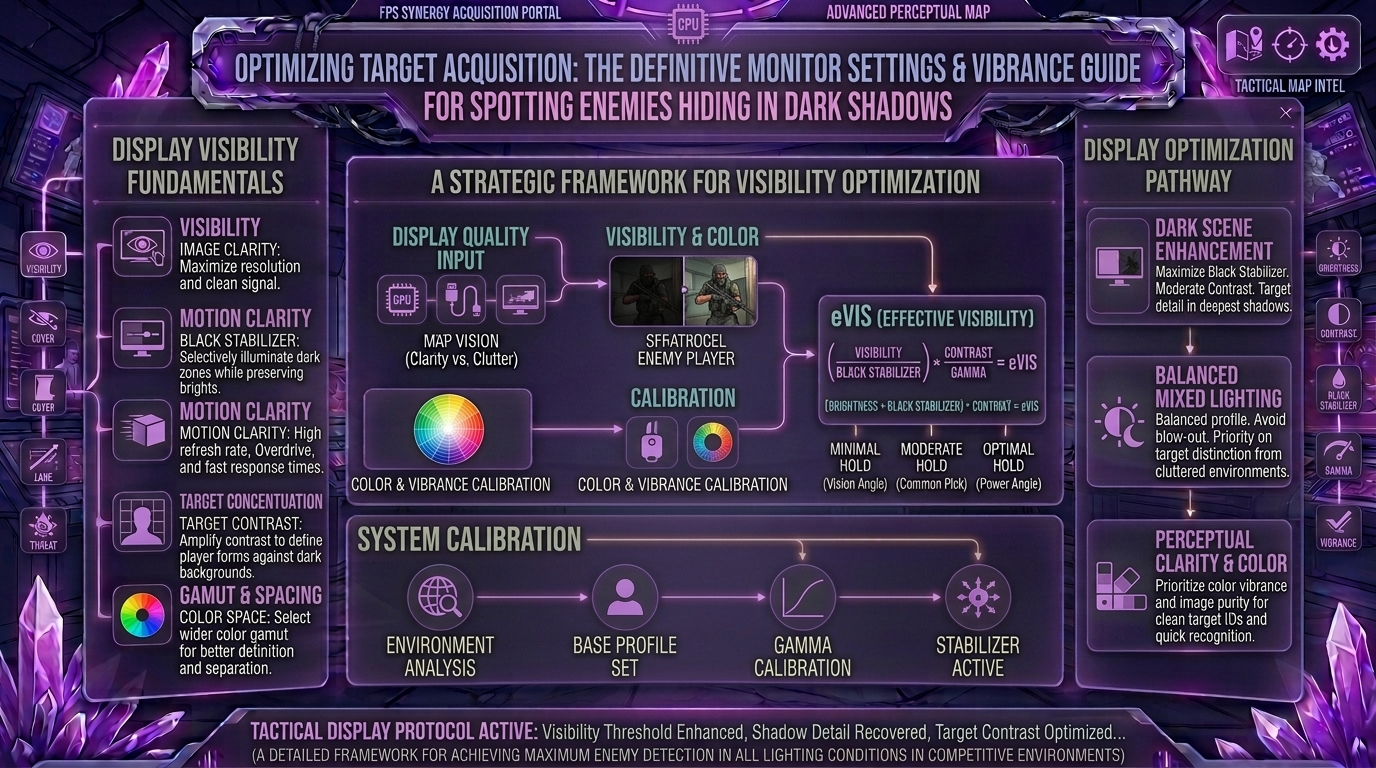
Welcome to The Gamer Buzz, your premier competitive performance and hardware tuning hub. Whether you are climbing the ranked ladder from high-performance setups in San Francisco, New York, and Seattle, or dialing in your display calibrations across Texas, California, and Washington, one frustrating experience unites all competitive gamers: clearing a room, missing an enemy tucked deep inside a dark corner, and only seeing them on the death recap screen.
In competitive first-person shooters (such as Counter-Strike 2, Valorant, Apex Legends, Call of Duty, and Rainbow Six Siege), map design relies heavily on realistic shadows, dim architectural archways, and moody interior lighting. While cinematic lighting looks incredible, it creates a massive competitive disadvantage.
If your monitor crushes dark grays into pure black, you are playing blind. In this exhaustive, master-level guide, we break down the exact monitor settings, specialized features like Black Equalizer, color vibrance metrics, and hardware adjustments required to instantly expose enemies hiding in dark shadows.
1. The Physics of Shadow Distortion: Why You Can’t See Enemies
To fix a visual problem, you first need to understand how monitors handle luminance.
Most stock monitor profiles are calibrated out-of-the-box for media consumption—movies and single-player games where deep, crushed blacks create a cinematic contrast. In these modes, the monitor maps darker RGB levels down to absolute black to make images look rich.
However, in a competitive shooter, crushed blacks mean a camouflage shield for enemy characters wearing dark tactical gear.
Contrast vs. Gamma vs. Black Level
- Contrast: Governs the distance between your monitor’s brightest white and darkest black. Setting contrast too high clips bright highlights (like window glare or skyboxes) while deepening shadows.
- Gamma: Controls how midtones and dark tones are distributed. A baseline gamma of 2.2 is standard, but lifting or shifting your local shadow curve exposes hidden midtone shapes without washing out the entire image.
- Black Equalizer / Shadow Boost: A specialized hardware-level feature found on modern gaming monitors that selectively brightens the darkest areas of an image without blowing out bright highlights or muzzle flashes.
2. Step-by-Step Monitor Calibration for Maximum Shadow Visibility
Stop relying on default “Game Mode” presets, which often over-sharpen the image or add artificial blue tints that strain your eyes. Follow this structured calibration protocol:
[Phase 1: Gamma Baseline] ➔ [Phase 2: Black Equalizer Tuning] ➔ [Phase 3: Color Vibrance Scaling] ➔ [Phase 4: In-Game Verification]
Phase 1: Establishing Your Gamma Baseline
- Access your monitor’s On-Screen Display (OSD) physical menu.
- Set your Gamma target to 2.2 or 2.3.
- Avoid pushing gamma to maximum values (like 2.6+), which crushes colors, or dropping it too low, which turns dark corridors into a milky gray fog.
Phase 2: Tuning Black Equalizer (Shadow Boost)
Different monitor brands call this feature different names (BenQ Black eQualizer, ASUS Shadow Boost, MSI Black Tuner, LG Black Stabilizer).
- The Sweet Spot: Set your Black Equalizer to a moderate value between 7 and 12 (on a standard 0-to-20 scale).
- The Danger Zone: Pushing Black Equalizer to maximum (20) ruins your monitor’s contrast ratio, making the screen look entirely washed out and making it difficult to distinguish enemy outlines against gray backgrounds.
Phase 3: Optimizing Color Vibrance
Color vibrance (or digital vibrance in GPU software) does not just make colors look pretty; it changes color saturation.
- In standard settings, a dark shadow mixed with earthy brown character models creates low contrast.
- By boosting Color Vibrance to between 12 and 15 (or 75% to 80% in software control panels), uniform khaki and black clothing separates sharply from environmental grays and browns, making enemy silhouettes pop out in your peripheral vision.
3. GPU-Level Adjustments: NVIDIA Control Panel vs. AMD Adrenalin
If your monitor lacks advanced hardware shadow controls, you can adjust color properties directly through your graphics card driver software.
NVIDIA Control Panel Settings
- Right-click your desktop and open the NVIDIA Control Panel.
- Navigate to Display ➔ Adjust desktop color settings.
- Scroll down to Choose how color is set and select Use NVIDIA settings.
- Adjust Digital Vibrance to roughly 65% to 75% (test in a custom match to find your comfort ceiling).
- Nudge the Gamma slider up slightly (to roughly 1.05 to 1.10) to lift shadow floors globally without washing out core textures.
AMD Software: Adrenalin Edition
- Open AMD Software and navigate to Gaming ➔ Display.
- Locate Color Saturation and bump it up to 130–140.
- Adjust custom brightness and contrast sliders conservatively to retain dark-room atmosphere while opening up shadow visibility.
4. Comprehensive Matrix: Monitor Settings for Competitive Advantage
| Setting Parameter | Recommended Target | Purpose / Impact |
| Monitor Brightness | 70% to 85% (Room Dependent) | Balances ambient light washout without causing eye fatigue. |
| Contrast Ratio | 45% to 50% (Default baseline) | Preserves white highlights while maintaining edge definition. |
| Gamma Curve | 2.2 | The universal standard for accurate midtone and shadow distribution. |
| Black Equalizer | Level 8 to 12 | Selectively reveals dark corners without destroying overall contrast. |
| Color Vibrance | 65% to 75% (GPU) / 12-15 (OSD) | Increases color saturation to make player models stand out from backgrounds. |
| Sharpness | 5 (Default mid-point) | Avoids artificial white halo artifacting around character models. |
| Response Time / Overdrive | Fast / High (Avoid max extreme) | Eliminates ghosting and motion blur so moving targets stay crisp. |
5. Common Calibration Mistakes to Avoid
- Maxing Out All Brightness Sliders: Turning your monitor brightness, in-game gamma, and GPU brightness all to maximum creates a blinding, flat white haze where edges blend together, destroying your ability to spot subtle pixel movements.
- Ignoring Room Ambient Lighting: If you calibrate your monitor in a pitch-black room using high black equalizer settings, stepping into a brightly lit room or playing during daytime sun will make your screen look washed out. Match your display tuning to your actual playing environment.
- Relying on HDR for Competitive Shooters: While HDR is stunning for cinematic single-player titles, standard dynamic range (SDR) with tuned black equalizers is vastly superior for competitive multiplayer games because it provides predictable, flat lighting without HDR tone-mapping delays.
10 Frequently Asked Questions (FAQ)
1. What is the difference between regular brightness and Black Equalizer?
Regular brightness raises the luminance of the entire screen uniformly, turning blacks into an ugly gray wash. Black Equalizer uses non-linear processing to lift only the darkest shadow tones while leaving bright highlights and skyboxes untouched.
2. Will high color vibrance hurt my eyes during long sessions?
Extremely high vibrance (100%) can cause eye fatigue over a multi-hour gaming session. Sticking to a balanced range of 65% to 75% provides the visibility benefit without burning your retinas.
3. Do expensive OLED monitors need Black Equalizer settings?
OLED panels feature infinite contrast and pixel-level black reproduction. While they handle dark scenes brilliantly, true black pixels can still hide dark-clothed enemies in pitch-black rooms, making slight shadow boost adjustments or in-game gamma tweaks helpful.
4. Why do professional esports players use low-end TN or Fast-IPS panels?
Pros prioritize motion clarity, rapid response times (1ms or lower), and high refresh rates (360Hz+) over cinematic color accuracy. Fast-IPS and TN panels prevent ghosting, ensuring enemies don’t blur when moving across dark backgrounds.
5. Can changing these monitor settings get me banned for cheating?
No. Black Equalizer, color vibrance, and hardware monitor settings are built directly into physical monitor firmware and official GPU control panels (NVIDIA/AMD). They are 100% legal and used universally in competitive esports.
6. How do I test if my new shadow settings are actually working?
Load up a custom game map, walk into the darkest indoor corner or tunnel, and check if you can clearly distinguish the outline of a stationary character model from 15 meters away without squinting.
7. Should I use dynamic contrast settings?
Disable dynamic contrast. Dynamic contrast constantly shifts backlight levels based on what’s currently on screen, causing distracting brightness jumps whenever you move your crosshair or open menus.
8. Does game-specific in-game brightness matter if my monitor is calibrated?
Yes. Use your monitor settings as your hardware baseline, then perform minor tweaks using the in-game brightness slider of individual titles to account for specific map lighting engines.
9. Why does my game look grainy or pixelated after boosting dark areas?
Lifting the black floor exposes compression artifacts, film grain, and shadow noise built into the game engine’s textures. If it looks too noisy, lower your Black Equalizer by 2 units and increase color vibrance instead.
10. Where can I find more display optimization and hardware guides?
Bookmark The Gamer Buzz and check back regularly for our comprehensive database of professional hardware settings, monitor reviews, and competitive improvement guides!
Conclusion
Spotting enemy players hiding in dark shadows is no longer a matter of luck—it is a science of hardware optimization. By locking in a proper gamma baseline, utilizing a moderate Black Equalizer setting, dialing in your color vibrance, and eliminating muddy display presets, you strip away the camouflage of dark maps. Tune your display settings, hop into a practice lobby, and ensure that no enemy ever hides from your crosshair again!
Leave a Reply