What Are the Best Ways to Record and Clip Your Best Competitive Esports Highlight Plays Without Performance Drops?
Capturing high-level gameplay highlights—whether dropping a 20-kill game in Apex Legends, pulling off a 1v5 clutch in VALORANT, or executing a frame-perfect combo in Street Fighter 6—is essential for content creators, esports athletes, and competitive gamers alike. However, running heavy recording software in the background can introduce severe performance drops: dropped frame rates, erratic frame timing, elevated input lag, and CPU/GPU thermal throttling.
In competitive esports, dropping from 240 FPS to 180 FPS during an intense team fight introduces input latency that can cost you the round. To capture crisp, high-bitrate clips without compromising system responsiveness, you must configure hardware-accelerated encoding, leverage light background buffer recorders, and optimize your operating system pipeline.
At The Gamer Buzz, we test performance hardware, streaming software, and esports optimization techniques. This comprehensive guide details how to configure hardware encoders, select low-overhead clipping tools, and capture your best plays smoothly.
Whether competing in LAN arenas across Texas, streaming from gaming hubs in California and San Francisco, recording gameplay in Washington, or building a content brand from New York, these capture techniques protect your competitive edge.
1. The Mechanics of Gameplay Capture: Hardware vs. Software Encoding
Understanding how screen recording impacts system resources is the key to preventing game stutter and input latency.
CPU (Software) vs. GPU (Hardware) Encoding
- Software Encoding (x264 / CPU): Uses your CPU to compress and encode video frames in real time. This places heavy stress on processor cores needed for high frame rate rendering, leading to CPU bottlenecks, stuttering, and frame drops.
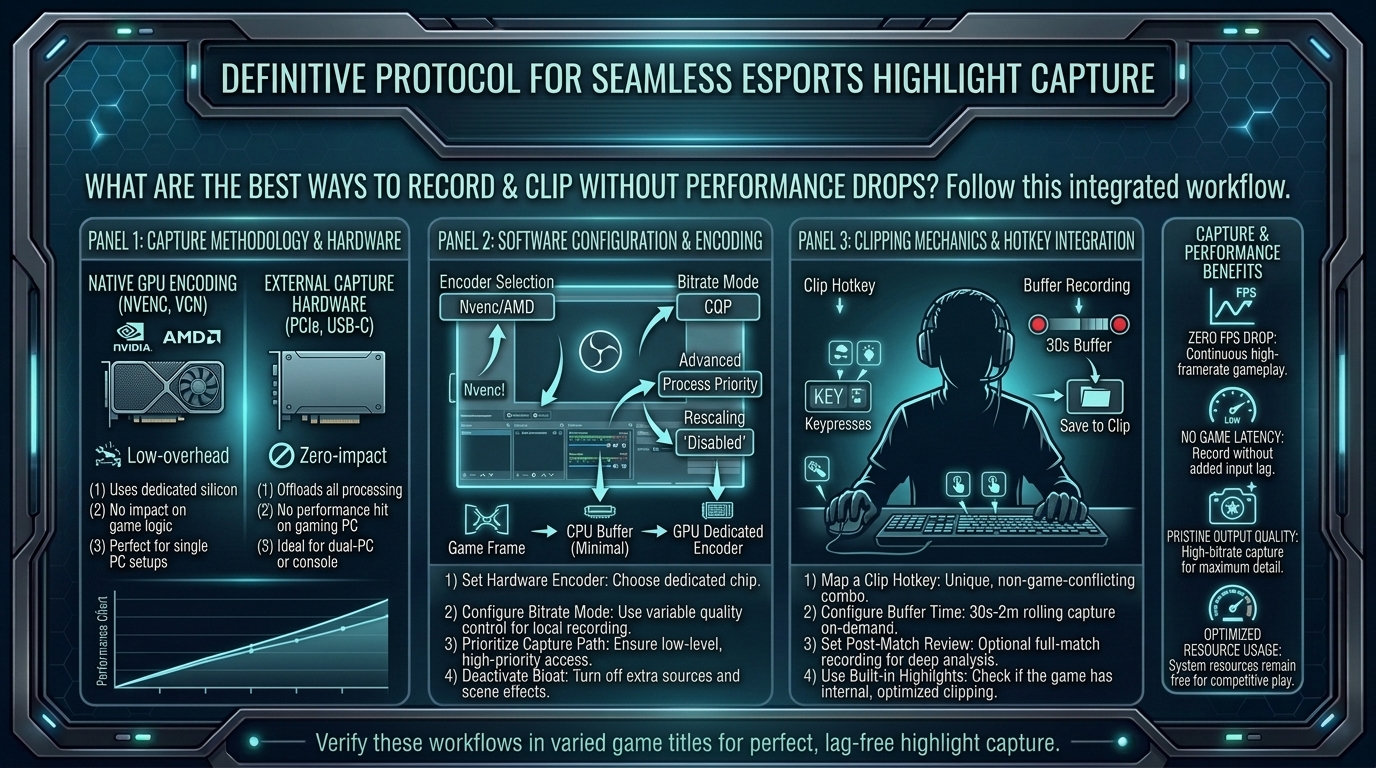
- Hardware Encoding (GPU Dedicated Chips): Modern GPUs include dedicated, physically separate hardware blocks engineered strictly for video encoding (Nvidia NVENC, AMD AMF/VCE, and Intel QuickSync/AV1). Because these chips operate independently of the main graphics processing cores, recording incurs negligible impact on game frame rates.
| Encoder Type | Hardware Block | CPU Impact | FPS Loss | Ideal Use Case |
| Nvidia NVENC (AV1 / HEVC / H.264) | Dedicated NVENC ASIC Chip | Near 0% | < 1–3% | Premier setup for Nvidia RTX GPU owners |
| AMD AMF (AV1 / HEVC / H.264) | Dedicated VCN / AMF Engine | Near 0% | < 2–4% | Best setup for AMD Radeon GPU users |
| Intel QuickSync (QSV / AV1) | Integrated GPU Encoder Block | 0% Main GPU | < 1% | Ideal dual-GPU or iGPU offload solution |
| x264 (CPU Software Encoding) | Main CPU Cores | Very High | 10–25% | Avoid for high-frame-rate competitive gaming |
2. Top Low-Overhead Clipping Tools for Esports
Selecting the right software keeps background memory consumption low and eliminates frame pacing spikes during gameplay.
1. OBS Studio (Replay Buffer)
The gold standard for esports recording. OBS Studio’s Replay Buffer feature keeps a rolling window of recent gameplay (e.g., 30 to 120 seconds) stored directly in system RAM. When you press a designated hotkey, OBS instantly writes the buffer to disk without continuous disk-writing overhead.
2. Nvidia ShadowPlay (GeForce Experience / Nvidia App)
Built directly into Nvidia GPU drivers, ShadowPlay utilizes NVENC hardware with minimal driver-level latency. It offers instant replay capturing with ultra-low overhead, making it an effortless option for Nvidia users.
3. SteelSeries Moments & Medal.tv
Third-party clip apps offer automated clip triggers (e.g., auto-clipping kills or wins via game integrations). While convenient, ensure overlay features, social feeds, and Discord integrations are trimmed down to prevent background RAM bloat.
3. Step-by-Step Configuration Guide for OBS Replay Buffer (Zero-Lag Setup)
Set up OBS Studio Replay Buffer to record high-bitrate 1080p/4K clips using hardware acceleration.
1.Run OBS Studio as Administrator:Ensures low-level system hardware access.
Right-click your OBS Studio shortcut, select Properties > Compatibility, and check “Run this program as an administrator.” This grants OBS GPU priority, preventing video stutter when games run at 100% GPU utilization.
2.Select Hardware Encoder (NVENC, AMF, or QSV):Bypasses CPU video compression.
Navigate to Settings > Output. Set Output Mode to Advanced. Under the Recording tab, set your Video Encoder to Nvidia NVENC (H.264/AV1), AMD AMF, or Intel QuickSync.
3.Configure Bitrate and Rate Control:Balancing visual quality with file size.
Set Rate Control to CBR or CQP. For high-speed 1080p 60FPS clips, set bitrate between 20,000 Kbps and 35,000 Kbps (or CQP level 18–20). For 1440p/4K, use 50,000 Kbps+.
4.Enable and Configure Replay Buffer:Allocates system memory for rolling clip saves.
Check the “Enable Replay Buffer” box. Set Maximum Replay Time to your desired clip length (e.g., 60 seconds). Under the Hotkeys tab, assign a simple keyboard shortcut (e.g., Alt + F10 or F12) to “Save Replay.”
5.Disable Extra Overlays and Unused Audio Tracks:Saves disk write cycles and CPU cycles.
Disable unnecessary browser docks, third-party overlays, and high-sample-rate audio filters inside OBS to keep background CPU usage under 1%.
4. Storage, Drive Speeds, and OS Optimizations
Capture bottlenecks don’t just happen at the GPU level; slow storage drives and Windows settings can cause micro-stutters during clip saving.
1. Dedicated Secondary Drive Storage
Never write clips to your primary Windows OS drive or the drive where your active game is installed. Writing heavy video data to the active game drive introduces disk I/O latency, leading to asset loading hitches in-game. Save clips to a dedicated NVMe M.2 SSD or fast secondary SATA SSD.
2. Windows Game Mode and Hardware-Accelerated GPU Scheduling (HAGS)
- Enable Windows Game Mode: Prioritizes game processes over background Windows tasks.
- Toggle HAGS: Test Hardware-Accelerated GPU Scheduling in Windows Display Settings. While HAGS optimizes GPU memory management, test your specific game—some esports titles (VALORANT, CS2) run smoother with HAGS enabled, while others show slight frame variance.
10 Frequently Asked Questions (FAQ)
1. Why does recording my gameplay cause frame stutters?
Frame stutters occur when software encoding overloads your CPU, or when recording software competes with your game for system memory and GPU rendering resources. Using dedicated GPU hardware encoders (NVENC/AMF) resolves this.
2. What is the best clip length to set for esports Replay Buffer?
A rolling buffer of 45 to 90 seconds is ideal. This captures the entire round setup, execution, and clutch play without filling your RAM or generating unnecessarily large video files.
3. Does running OBS as Administrator actually improve performance?
Yes! Windows prioritizes administrative processes. Running OBS as an administrator ensures the OS reserves GPU hardware resources for video encoding, preventing frame drops during intense graphical moments.
4. What is the difference between CBR, CQP, and VBR rate control?
- CBR (Constant Bitrate): Maintains a fixed data rate, ideal for predictable file sizes and streaming.
- CQP (Constant Rate Factor / Quality): Adjusts bitrate dynamically based on visual complexity, ensuring crisp quality during fast motion without wasting space on static screens.
5. Should I clip gameplay in 60 FPS or 120 FPS?
For social sharing (YouTube, TikTok, Twitter/X), 60 FPS is the gold standard. Recording at 120 FPS doubles encoder load and file sizes without providing visual benefits on platforms that cap video playback at 60 FPS.
6. Can I use my CPU’s integrated graphics (iGPU) to record gameplay?
Yes! Technologies like Intel QuickSync (QSV) allow OBS to encode video using your CPU’s integrated graphics chip, completely freeing up your main discrete GPU for game rendering.
7. Why are my saved clips blurry or pixelated during fast mouse turns?
Blurry video during fast motion is caused by insufficient bitrate. Increase your capture bitrate to 25,000–40,000 Kbps for 1080p or 50,000+ Kbps for 1440p, or switch to an AV1/HEVC encoder codec.
8. Does Nvidia ShadowPlay use less performance than OBS Studio?
Nvidia ShadowPlay runs at the driver level, making its baseline resource footprint slightly smaller than unoptimized OBS setups. However, a properly configured OBS Studio using NVENC delivers identical low-impact performance with much greater audio and video control.
9. Will saving clips to an external HDD cause in-game lag?
Saving directly to a mechanical external Hard Disk Drive (HDD) can cause brief lag spikes while the drive spins up to write files. Always write clips to an internal or high-speed external NVMe SSD.
10. How much RAM does OBS Replay Buffer consume?
A 60-second Replay Buffer running at 30,000 Kbps (1080p 60FPS) uses approximately 250 MB to 400 MB of RAM—a minimal amount on modern systems with 16GB or 32GB of RAM.
Conclusion
Recording and clipping your best competitive esports highlights doesn’t have to cost you precious frame rates or input responsiveness. By utilizing dedicated hardware encoders like NVENC, AMF, or QuickSync, configuring lightweight rolling RAM buffers in OBS Studio, and saving recordings to a secondary SSD drive, you can archive high-bitrate 60FPS plays while maintaining peak competitive system performance.
For more esports hardware guides, system optimization tutorials, and streaming performance analysis across Texas, California, San Francisco, Washington, and New York, stay tuned to The Gamer Buzz.
Leave a Reply