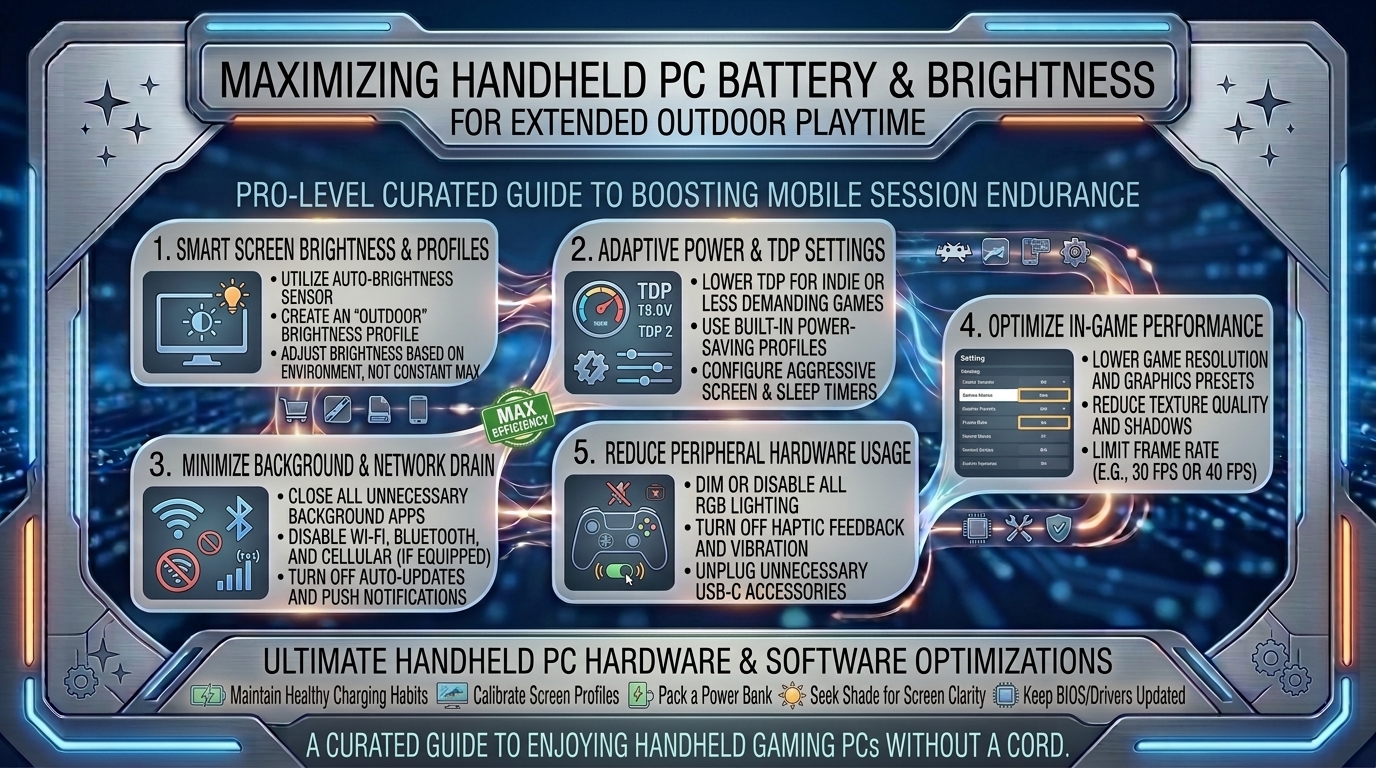
How to Optimize Battery Life and Screen Brightness on Handheld Gaming PCs to Get Longer Playtime Outdoors
Handheld gaming PCs—like the Valve Steam Deck OLED, ASUS ROG Ally X, Lenovo Legion Go, and MSI Claw—have revolutionized PC gaming by bringing AAA titles out of the home and into the real world. However, taking high-end PC hardware outside introduces two major challenges: harsh outdoor sunlight that washes out displays and rapid battery drain caused by demanding APU power draw.
Playing your favorite titles outdoors at full screen brightness and high performance settings can drain a handheld battery in as little as 60 to 90 minutes. Fortunately, with the right combination of display calibration, System-on-Chip (SoC) power management, thermal tuning, and outdoor accessories, you can dramatically extend your battery life without sacrificing visual readability.
At The Gamer Buzz, we test handheld performance, thermal dissipation, battery capacity, and outdoor display visibility across every major gaming handheld. This comprehensive guide breaks down step-by-step techniques to optimize your screen brightness, tune TDP (Thermal Design Power), configure refresh rates, and maximize your outdoor play sessions.
Whether playing under the bright sun in Texas and California, navigating parks in San Francisco and Washington, or gaming on long outdoor commutes in New York, this guide will keep your handheld running longer on a single charge.
1. The Science of Outdoor Battery Drain: Display vs. APU Power Draw
To maximize outdoor playtime, you must first understand where your handheld’s battery power actually goes. Total power consumption is measured as System Power Draw (W), which combines the power used by the display panel, processor (APU), memory, cooling fans, and wireless modules.
Breaking Down System Power Draw
+-------------------------------------------------------------------------+
|                    TOTAL SYSTEM POWER DRAW (WATTS)                      |
+-----------------------------------+-------------------------------------+
| 1. APU POWER DRAW (TDP)           | 5W - 30W                            |
|    CPU/GPU core processing power  | Primary battery consumer in AAA     |
+-----------------------------------+-------------------------------------+
| 2. DISPLAY BACKLIGHT & PANEL      | 1.5W - 5.5W                         |
|    100% Brightness vs 50%         | Doubles at max outdoor brightness   |
+-----------------------------------+-------------------------------------+
| 3. COOLING FANS & SYSTEM BUS      | 1W - 3.5W                           |
|    RPM scales with thermal load   | Higher heat = higher fan power draw |
+-----------------------------------+-------------------------------------+
- Display Backlight Load: Increasing screen brightness from 50% (approx. 200 nits) to 100% (500–1000 nits for outdoor readability) adds an extra 2.5W to 4.5W of continuous drain. On a 40Wh battery, this alone cuts total runtime by up to 45 minutes.
- APU Power Draw (TDP): Running demanding 3D games at unlocked 25W or 30W Turbo modes drains batteries rapidly regardless of screen brightness.
- Thermal Throttling & Fan Efficiency: Hot outdoor ambient temperatures force cooling fans to run at maximum RPM, adding an extra 1W to 2W of power consumption while raising internal temperatures.
| Handheld Model | Battery Capacity | Max Screen Brightness | Stock Outdoor Battery Life (30W/Max Brightness) | Optimized Outdoor Battery Life (TDP & Display Tuned) |
| Steam Deck OLED | 50 Wh | 1,000 nits (HDR) / 600 nits (SDR) | ~2.0 Hours | 4.5 to 7.0 Hours |
| ASUS ROG Ally X | 80 Wh | 500 nits | ~2.5 Hours | 5.5 to 9.0 Hours |
| Lenovo Legion Go | 49.2 Wh | 500 nits | ~1.1 Hours | 3.0 to 5.0 Hours |
| Steam Deck LCD | 40 Wh | 400 nits | ~1.2 Hours | 2.5 to 4.5 Hours |
2. Optimizing Screen Brightness & Outdoor Display Visibility
Blasting your screen at 100% brightness is the default reaction to direct sunlight, but it is the least power-efficient way to achieve readability. Use these display calibration steps instead:
1.Step 1: Install an Anti-Glare Matte Screen Protector:Eliminate glare without boosting display backlight wattage.
Harsh outdoor glare forces you to max out your screen brightness just to see through reflections. Installing a high-quality etched-glass matte screen protector diffuses ambient sunlight, drastically improving screen visibility at lower brightness levels (e.g., 60% to 70%), saving 1.5W to 2W of battery power continuously.
2.Step 2: Calibrate In-Game Gamma & Contrast Boost:Adjust display gamma to boost shadow visibility under sunlight.
Instead of raising system backlight brightness, open your game’s video settings and raise the In-Game Gamma / Brightness Slider by 10% to 15%. This brightens dark shadow areas in the game world natively without forcing the physical display backlight to draw more power from the battery.
3.Step 3: Disable Ambient Light Sensors (Auto-Brightness):Prevent unwanted brightness spikes under shifting outdoor light.
Automatic brightness features constantly adjust backlight levels when moving under trees, umbrellas, or cloud cover, often spiking the display to 100% unnecessarily. Disable Auto-Brightness in SteamOS or Windows 11 settings and manually lock your screen at the lowest comfortable readable percentage.
3. Power-Tuning the APU: TDP, Frame Limits, and Resolution Scaling
Lowering display power draw is only half the battle. Tuning your handheld’s APU (CPU/GPU) power settings delivers the largest battery life improvements.
1. Cap Your Frame Rate (The 30 FPS / 40 FPS Sweet Spot)
Running games at uncapped frame rates (70–90 FPS) wastes battery power on frames your eyes barely register outdoors.
- The 40Hz / 40 FPS Limit: On 120Hz or 90Hz displays (Steam Deck OLED, ROG Ally X), cap your refresh rate to 40Hz and lock frame rates to 40 FPS. This delivers significantly smoother visuals than 30 FPS while cutting APU power consumption by 30% to 40%.
- The 30 FPS Saver Limit: For heavy AAA games (Cyberpunk 2077, Elden Ring), lock the frame rate to 30 FPS. This lowers required APU wattage from 25W down to 12W–15W.
2. Manual Thermal Design Power (TDP) Tuning
Never leave your handheld in “Performance” or “Turbo” mode when playing outdoors on battery power.
- Indie / 2D Games: Set manual TDP limit to 5W – 8W (e.g., Balatro, Hollow Knight, Stardew Valley).
- Mid-Range / Older 3D Games: Set manual TDP limit to 9W – 12W (e.g., Fallout 4, GTA V, Skyrim).
- Modern AAA Titles: Cap manual TDP limit to 15W (Steam Deck) or 17W–20W (ROG Ally X / Legion Go).
3. Leverage Resolution Scaling (FSR / XeSS)
Render games at lower internal resolutions and let spatial upscalers sharpen the final image:
- Set in-game resolution to 720p (1280×720) or 800p (1280×800) instead of 1080p.
- Enable AMD FSR 3 / FSR 2 or Intel XeSS on Balanced or Quality mode. This reduces GPU workload, saving 3W to 6W of system power.
4. Outdoor Accessories: Power Banks, Sunshades, and Thermal Management
Smart accessory choices help maintain comfortable handheld temperatures and ensure continuous power while gaming outdoors.
1. High-Wattage TSA-Approved Power Banks
Internal batteries have physical size limits. Carrying a dedicated USB-C Power Delivery (PD) power bank extends your outdoor gaming sessions significantly.
- Minimum Specs: Look for power banks rated at 20,000mAh to 27,600mAh supporting 65W to 100W USB-C PD output.
- TSA Compliance Limit: Ensure your power bank is rated at or below 99.9Wh (the maximum capacity allowed on commercial flights without airline approval).
- Runtime Gain: A 24,000mAh (88Wh) battery bank can fully recharge a Steam Deck OLED or ROG Ally 1.5 to 2 times, providing up to 10 total hours of outdoor play.
2. Physical Sunshades & Clip-On Visors
Using a clip-on 3D-printed or folding fabric sunshade around your handheld creates a shaded pocket over your display. Blocked direct sunlight allows you to lower screen brightness from 100% to 50%, saving screen power while eliminating thermal heat soak on the device housing.
10 Frequently Asked Questions (FAQ)
1. Does playing handheld games in direct sunlight damage the screen?
Direct sunlight won’t immediately break your screen, but prolonged exposure causes heat accumulation, raising battery temperatures past safe thresholds (45°C+). OLED panels can also suffer accelerated degradation under extreme heat and UV exposure. Play in shaded areas whenever possible.
2. Is OLED more power-efficient than LCD for outdoor gaming?
Yes! OLED screens (like on the Steam Deck OLED) emit light per-pixel. Displaying dark themes, dark game environments, or lower black levels uses far less energy than an LCD backlight, which lights the entire panel regardless of on-screen colors.
3. How much battery life do I gain by dropping screen brightness from 100% to 50%?
Lowering brightness from 100% to 50% reduces display power draw by roughly 2W to 3.5W. Depending on your APU settings, this adds 30 to 60 minutes of additional playtime on a single charge.
4. What is the single most effective setting to save battery life on a handheld PC?
Lowering your APU TDP limit and capping your frame rate (e.g., locking to 30 FPS or 40 FPS at 12W–15W TDP) yields the largest battery savings, often doubling your device’s total runtime.
5. Why does my handheld battery drain faster outdoors even at the same settings?
Outdoor heat causes internal temperatures to rise. The system’s cooling fans must spin at maximum RPM, drawing extra power. If temperatures rise too high, thermal inefficiency can also increase power loss across system voltage regulators.
6. Can I use any mobile phone power bank to charge my gaming handheld outdoors?
No. Standard smartphone power banks only output 5W to 15W, which cannot charge a handheld while gaming. You need a power bank supporting USB-C Power Delivery (PD 3.0 or higher) with at least 45W to 65W output.
7. Does disabling Bluetooth and Wi-Fi extend outdoor battery life?
Yes. Turning on Airplane Mode disables background network scanning and wireless radios, saving approximately 0.5W to 1.5W of power—adding 15 to 30 extra minutes of offline gaming runtime.
8. Will using an anti-glare screen protector ruin screen clarity?
High-quality etched matte glass protectors slightly soften extreme micro-sharpness, but they eliminate direct mirror-like glare under sunlight. The ability to see your game clearly without maxing out screen brightness far outweighs the minor trade-off in grain.
9. What TDP setting should I use for 2D indie games outdoors?
For lightweight 2D games (Balatro, Dead Cells, Terraria), set your manual TDP limit to 5W to 7W. This allows your handheld to run for 5 to 8 hours on internal battery alone.
10. How do I prevent my handheld from overheating when playing outdoors in summer heat?
Play in shaded spots, avoid playing on hot asphalt surfaces, remove thick rubber protective cases that trap heat, keep air vents clear, and avoid fast-charging your device while actively playing high-TDP games in the heat.
Conclusion
Optimizing battery performance and display readability on handheld gaming PCs relies on balancing visual settings with smart power limits. By installing anti-glare matte protection, calibrating in-game gamma, locking frame rates to 30 or 40 FPS, enforcing manual TDP limits, and carrying a TSA-approved 65W+ USB-C Power Delivery power bank, you can double or triple your outdoor gaming sessions.
Leave a Reply