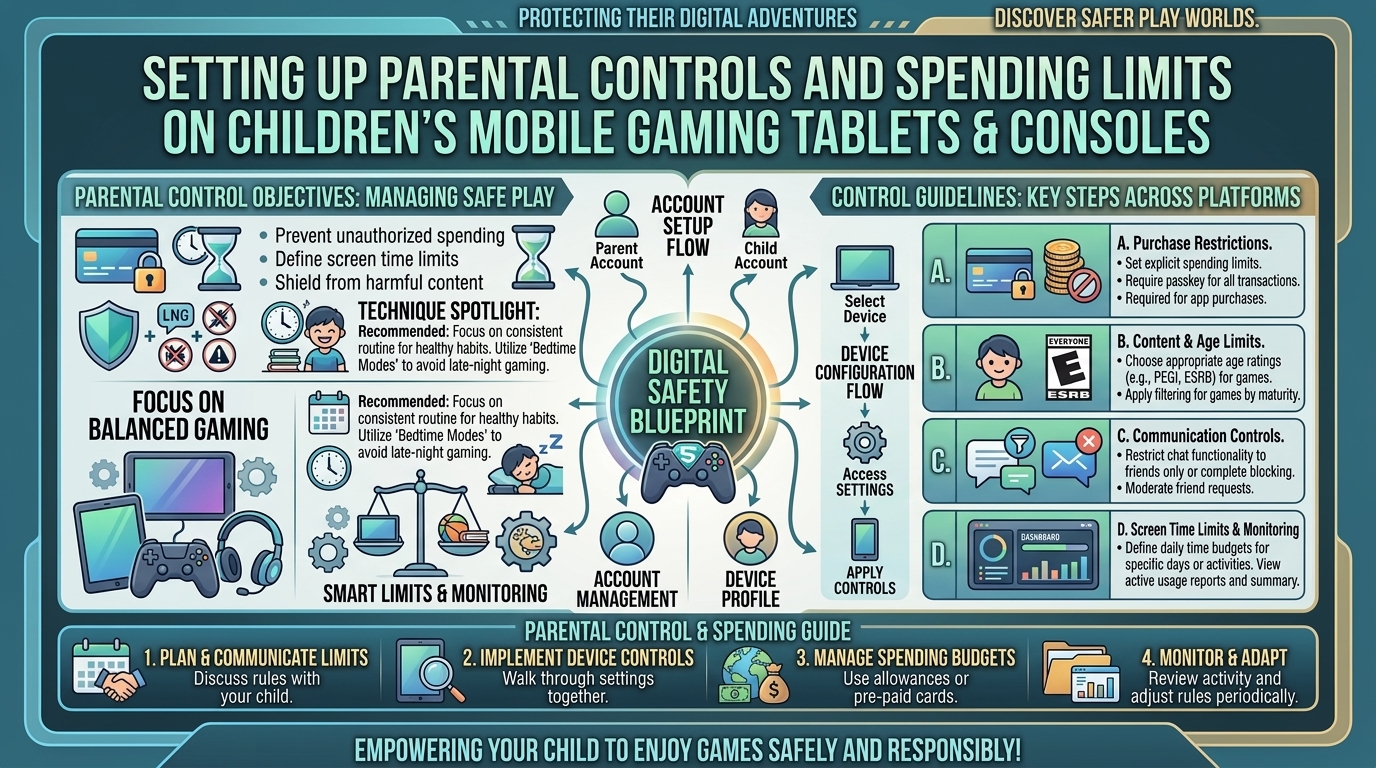
How to Set Up Parental Controls and Spending Limits on Children’s Mobile Gaming Tablets and Consoles
Mobile gaming tablets and modern video game consoles offer extraordinary entertainment, educational experiences, and creative outlets for children. However, unmonitored devices can quickly turn into financial hazards and digital safety liabilities. With free-to-play games using microtransactions, battle passes, loot boxes, and virtual currencies like Fortnite’s V-Bucks or Roblox’s Robux, children can inadvertently rack up hundreds or thousands of dollars in unauthorized charges within minutes.
Beyond financial risks, unmanaged screen time affects sleep quality, while open online communication features expose younger players to cyberbullying and inappropriate content.
At The Gamer Buzz, we prioritize practical solutions for technical setup, family cybersecurity, and gaming gear configuration. This comprehensive guide provides step-by-step instructions to lock down spending, manage screen time, and configure age-appropriate content filters across iOS, Android, Nintendo Switch, PlayStation 5, and Xbox devices.
Whether managing family devices in tech and media hubs across Texas and California, configuring tablets in San Francisco and Washington, or setting up consoles in New York, this guide ensures your children enjoy gaming safely without surprise credit card bills.
The Parental Control Landscape Across Major Platforms
Before configuring individual devices, it is essential to understand how ecosystem safety settings function across mobile and console environments:
+--------------------------------------------------------------------------+
|                 ECOSYSTEM PARENTAL CONTROL ARCHITECTURE                  |
+------------------------------------+-------------------------------------+
| 1. OS-LEVEL SECURITY PERMISSIONS   | Apple Screen Time & Google Family   |
|    Passcodes, biometric locks & PIN| Restricts OS app installs & stores  |
+------------------------------------+-------------------------------------+
| 2. ACCOUNT & FAMILY GROUPS         | Microsoft, Sony & Nintendo Accounts |
|    Master account -> Child profile | Controls wallet funds & age ratings |
+------------------------------------+-------------------------------------+
| 3. IN-GAME MICROTRANSACTION SHOCK  | Roblox, Fortnite & EA Account settings|
|    PIN-protected dynamic purchases | Prevents internal store bypasses    |
+------------------------------------+-------------------------------------+
Quick Reference: Platform Safeguards & Wallet Limits
| Platform / Device | Primary Remote App | In-App Purchase Blocking | Screen Time Schedules | Web Content Filtering |
| Apple iPad / iOS | Family Sharing (Screen Time) | “Ask to Buy” + Passcode | Daily Limits & Downtime | Built-in Safari Filters |
| Android / Amazon Fire | Google Family Link | Require PIN / Approval | Daily Limits & Bedtime | Google Chrome Filters |
| Nintendo Switch | Switch Parental Controls | Password Purchase Lock | Software Time Alarms | Eshop Restrictions |
| PlayStation 5 | PlayStation App | Monthly Wallet Caps ($0) | Play Time Controls | Web Browser Restrict |
| Xbox Series X/S | Xbox Family Settings App | “Ask to Buy” Toggle | Schedule & Day Limits | Edge Web Filtering |
1. Setting Up Controls on Mobile Gaming Tablets (iPad & Android)
Mobile tablets are typically the first gaming devices children interact with. Because mobile stores store credit cards by default, securing these devices is critical.
Apple iPad (iPadOS & iOS)
Apple integrates parental controls directly into its operating system via Family Sharing and Screen Time.
1.Step 1: Create a Dedicated Child Apple ID & Screen Time Passcode:Prevents children from bypassing controls using the main device passcode.
- Do not share your adult Apple account on your child’s iPad. Go to Settings > [Your Name] > Family Sharing > tap Add Member > Create Child Account.
- On the child’s iPad, open Settings > Screen Time.
- Tap Use Screen Time Passcode and set a unique 4-digit PIN known only to you.
2.Step 2: Require Approval for Purchases (‘Ask to Buy’):Completely locks down unauthorized App Store purchases.
- Under Family Sharing, select your child’s profile and ensure Ask to Buy is toggled ON. Any app download or in-app purchase sends a real-time prompt to your iPhone or Apple Watch for approval.
- To block purchases entirely on the tablet, go to Settings > Screen Time > Content & Privacy Restrictions > iTunes & App Store Purchases.
- Set In-app Purchases, Installing Apps, and Deleting Apps to Don’t Allow. Select Require Password -> Always Require.
3.Step 3: Set App Limits & Content Ratings:Manage daily usage and age ratings.
- In Screen Time, tap App Limits > Add Limit > select Games to set a daily time allowance (e.g., 1 hour per day).
- Tap Content & Privacy Restrictions > Store, Web, Siri & Game Center Content. Set Apps to Age 9+ or 12+ based on your preferences.
Android Tablets & Amazon Fire Devices
Android uses Google Family Link to manage child accounts across smartphones and tablets.
- Install Google Family Link: Download the Family Link app on your personal phone and sign in with your parent Google Account.
- Create/Link Child Google Account: On your child’s Android tablet, open Settings > Google > Parental Controls and follow the prompts to link the device to your Family Link group.
- Configure Purchase Approvals: Inside the Family Link parent app, select your child’s account > tap Controls > Google Play. Under Require approval for, select All content (this forces purchase requests for both paid apps and internal microtransactions).
- Set Daily Limits & Downtime: Select Screen Time within Family Link to program daily allowances and an automated bedtime device lock.
2. Setting Up Parental Controls on Nintendo Switch
The Nintendo Switch is an immensely popular family console, but titles like Fortnite, Rocket League, and Minecraft offer active eShop and in-game microtransaction setups.
+--------------------------------------------------------------------------+
|                NINTENDO SWITCH REMOTE MONITORING FLOW                    |
+--------------------------------------------------------------------------+
| 1. Link Console to "Nintendo Switch Parental Controls" Mobile App         |
| 2. Set Daily Play Time Limit (Soft Notification or Hard Software Alarm)  |
| 3. Disable Nintendo eShop Saved Credit Cards & Require Password Entry    |
| 4. Restrict In-Game Chat & Communication via Nintendo Account Settings   |
+--------------------------------------------------------------------------+
Step-by-Step Nintendo Switch Configuration
- Download the Smartphone App: Install the free Nintendo Switch Parental Controls app on your iOS or Android smartphone.
- Link to Console: Turn on your Nintendo Switch, go to System Settings > Parental Controls > Parental Controls Settings, and enter the registration code provided by your phone app.
- Set Play Time Limits: Set a daily timer (e.g., 90 minutes). You can toggle Suspend Software if you want the console to force-close the game when time runs out, rather than simply issuing an on-screen alarm.
- Lock the Nintendo eShop: Log into your primary account at
account.nintendo.comvia a web browser. Select Family Group, add your child’s account, and check Restrict Spending / Purchases in the eShop. Additionally, remove saved credit card information from the console so password verification is required for every purchase.
3. Setting Up Parental Controls on PlayStation 5 & Xbox Consoles
Home consoles feature complex multiplayer environments, digital storefronts, and persistent online social interaction.
PlayStation 5 (PS5)
- Set Up Family Management: On your PS5, go to Settings > Family and Parental Controls > Family Management. Log in as the Family Manager and select Add Family Member to set up a child account.
- Set Monthly Spending Limits to $0: In Family Management, select your child’s profile, scroll to Parental Controls > Monthly Spending Limit, and set the value to $0.00. This prevents your child from drawing funds from the parent’s linked wallet.
- Play Time Management: Under the child’s profile, select Play Time Settings. Configure allowed gaming hours (e.g., 4:00 PM to 7:00 PM) and set the console behavior to Log Out of PS5 when play time ends.
Xbox Series X / Series S
- Install Xbox Family Settings App: Download the Xbox Family Settings app on your mobile device.
- Link Child Account: Sign into your Microsoft Family account and invite your child’s Xbox gamertag.
- Require Purchase Approval: In the Xbox Family app, select your child’s profile > tap Spending > toggle ON Ask to buy. This sends purchase requests directly to your phone for confirmation.
- Manage Multiplayer & Chat: Navigate to Communication & Multiplayer. Change settings from Unrestricted to Friends Only or Blocked to prevent voice and text chat with unknown players online.
4. Securing In-Game Purchases: Roblox & Fortnite
System-level controls are critical, but specific free-to-play games feature internal store ecosystems that can bypass general device settings if user accounts are linked incorrectly.
Roblox
- Set a Monthly Spending Limit: Log into the Roblox account at
roblox.comor via the mobile app. Navigate to Settings > Parental Controls > Spending Restrictions. Toggle on spending restrictions and establish a monthly cap. - Set a Parent PIN: Under Parental Controls, create a 4-digit Account PIN. Without this PIN, your child cannot alter spending limits, privacy controls, or age verification filters.
Epic Games / Fortnite
- Require a 6-Digit PIN for Purchases: Log into
epicgames.com, select Account, and click Parental Controls. Set a custom 6-digit Parental Controls PIN. - Turn On Epic Games Purchase PIN: Toggle on Require a PIN for purchases using Epic Games payment services. This ensures that even if a credit card is saved to the Epic Account, transactions cannot be processed without the PIN.
10 Frequently Asked Questions (FAQ)
1. Can a child bypass mobile parental controls using factory resets or private browsing?
If an Android or iOS device is protected by Google Family Link or Apple Screen Time passcodes, factory resets and system modifications require the parent account credentials or Screen Time PIN. Additionally, private browsing modes can be completely disabled inside Screen Time and Family Link content restriction settings.
2. What happens to virtual currency (V-Bucks/Robux) if I request a credit card refund?
Requesting a bank or credit card chargeback for unauthorized microtransactions will often result in the game publisher (such as Epic Games or Roblox) temporarily suspending or permanently banning the associated player account until the balance is resolved.
3. How do I stop my child from receiving credit card pop-ups in free-to-play mobile games?
Disable in-app purchases at the OS level (via Screen Time on iPad or Family Link on Android). Once disabled, tapping on in-game store offers will trigger a system message stating that purchases are blocked by parental restrictions.
4. Can I set separate time limits for educational apps and gaming apps?
Yes. Both Apple Screen Time and Google Family Link allow you to set limits for specific app categories (e.g., 1 hour for Games) while keeping Educational or Communication apps unrestricted.
5. Why did an in-app purchase go through even though parental controls were active?
This usually occurs when the store password Grace Period is enabled (e.g., Apple’s default “Require password after 15 minutes” setting). Ensure your system settings are configured to Require Password Immediately for every single transaction.
6. Are parental controls free on all major consoles and mobile platforms?
Yes. Apple Screen Time, Google Family Link, Nintendo Switch Parental Controls, PlayStation Family Management, and Xbox Family Settings are free native features. Avoid third-party apps that charge recurring subscription fees for basic device locking.
7. How do I block voice chat with strangers while allowing my child to play with school friends?
On PS5, Xbox, and Nintendo Switch, set communication permissions to Friends Only rather than Everyone or Off. You will manually approve friend requests on your child’s account.
8. What is the minimum recommended age for a child to have an unrestricted gaming account?
Major platforms require children under 13 to have accounts managed directly by a parent or legal guardian in compliance with COPPA (Children’s Online Privacy Protection Act) regulations.
9. How do I prevent my child from removing the parental control app on Android?
Google Family Link prevents uninstallation automatically. If a child attempts to remove their supervised account from the device settings, the tablet automatically locks down and alerts the parent account.
10. Can I manage parental controls remotely when I am at work?
Yes. Apple Family Sharing, Google Family Link, Nintendo Switch Parental Controls, and Xbox Family Settings all offer remote smartphone apps that let you grant extra play time, approve purchases, or lock devices from anywhere over cellular networks or Wi-Fi.
Conclusion
Securing mobile tablets and gaming consoles does not mean removing the fun of video games. By establishing OS-level passcodes, enabling purchase approval features (“Ask to Buy”), capping console wallets at $0, and setting game-specific PIN codes, you create a secure digital environment that protects your family’s finances and encourages healthy screen time habits.
For more hardware optimization guides, security breakdowns, and family tech strategies across Texas, California, San Francisco, Washington, and New York, stay tuned to The Gamer Buzz.
Leave a Reply