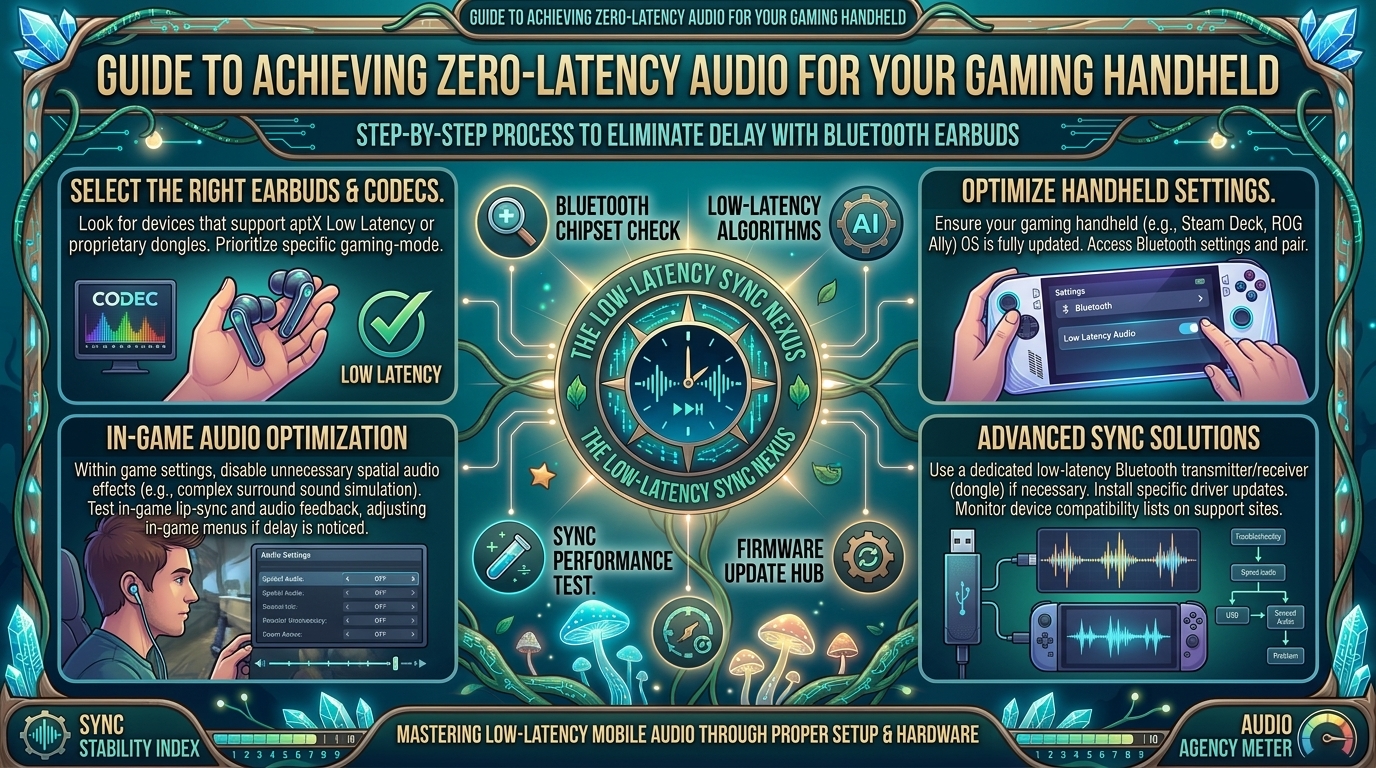
How to Connect Wireless Bluetooth Earbuds to Your Gaming Handheld Without Experiencing Audio Sync Delay
The rise of portable PC gaming and hybrid consoles—led by the Steam Deck, ASUS ROG Ally, Lenovo Legion Go, Nintendo Switch, and MSI Claw—has completely redefined where and how we play modern titles. However, one technical issue continues to disrupt the mobile gaming experience: Bluetooth audio latency.
When you press a trigger in a fast-paced shooter, jump in a platformer, or execute a parry in an action RPG, hearing the corresponding audio cue half a second late is infuriating. This delay breaks immersion and actively degrades your performance in competitive games.
While standard Bluetooth connections introduce noticeable lag, you do not have to settle for out-of-sync audio or give up the convenience of wireless earbuds. This definitive guide breaks down the root causes of audio lag across top gaming handhelds and provides concrete, step-by-step methods to achieve ultra-low-latency wireless sound.
Why Does Bluetooth Audio Delay Happen on Gaming Handhelds?
Audio delay (measured in milliseconds, or ms) occurs because digital sound data must be compressed by your handheld, transmitted over 2.4 GHz radio frequencies, received by your earbuds, decompressed, and converted into analog audio waves by the internal Digital-to-Analog Converter (DAC).
[ Gaming Handheld ] ---> ( Compression ) ---> [ Bluetooth Antenna ]
                                                      |
                                           ( 2.4 GHz Wireless Transmission )
                                                      v
[ Audio Drivers ] <--- ( DAC Conversion ) <--- ( Decompression ) <--- [ Earbuds Receiver ]
1. Codec Overhead
A codec is the software algorithm responsible for encoding and decoding digital audio data over the air. Standard codecs focus on audio quality and stability rather than speed:
- SBC (Subband Coding): The universal baseline codec supported by all Bluetooth audio devices. Average latency: 150ms to 250ms (highly noticeable in games).
- AAC (Advanced Audio Coding): Pushed heavily by Apple and supported widely on mobile operating systems. While it offers great sound quality, its encoding algorithms introduce 120ms to 200ms of latency.
- aptX / aptX Low Latency (aptX LL) / aptX Adaptive: Qualcomm codecs engineered specifically for reduced lag. True aptX LL drops latency down to ~30ms–40ms—virtually imperceptible to the human ear.
- LC3 (Bluetooth LE Audio): The modern low-complexity communication codec, capable of reducing delay down to 30ms–50ms while conserving battery life.
2. Handheld System Overhead
Unlike smartphones, which automatically delay video playback slightly during movies to align with lagging Bluetooth audio, gaming handhelds process interactive graphics in real time. The console cannot “predict” or delay your button presses to wait for lagging audio. As a result, any weakness in the Bluetooth stack is immediately exposed.
Step-by-Step Latency Fixes for Each Major Handheld
Steam Deck (SteamOS & Linux Desktop Mode)
Valve’s Steam Deck uses PipeWire audio management under the hood, giving players significant control over Bluetooth codecs—provided you know where to look.
[ Steam Deck Game Mode ]
         │
         ▼
[ Desktop Mode ] ──> [ System Settings ] ──> [ Sound/Audio ] ──> [ Codec Profile Select ]
                                                                        │
                                                                        ▼
                                                             ( Set to SBC-XQ / aptX )
1.Switch to Desktop Mode:
Press the STEAM button on your Deck, scroll down to Power, and select Switch to Desktop.
2.Open Audio System Settings:
In Desktop Mode, click the Application Launcher (bottom-left corner), navigate to Settings, and select System Settings. Under the Hardware section, open Audio.
3.Change Your Bluetooth Profile Codec:
Ensure your Bluetooth earbuds are actively connected. Locate your earbuds in the list of audio output devices, click the Profile dropdown menu, and select SBC-XQ or aptX / Low Latency if supported by your hardware.
Note: SBC-XQ forces higher bandwidth with lower buffer latency, substantially reducing lag compared to default SBC.
4.Return to Gaming Mode:
Double-click the Return to Gaming Mode shortcut on the desktop. SteamOS will retain your selected low-latency profile settings during gameplay.
ASUS ROG Ally & Lenovo Legion Go (Windows 11)
Windows 11 handles Bluetooth audio reasonably well out of the box, but default driver power-saving states and high-overhead processing often introduce delay.
[ Windows 11 Sound Control ] ──> [ Device Properties ] ──> [ Turn Off Enhancements ]
                                                                   │
                                                                   ▼
                                                       [ Disable Hands-Free Telephony ]
1. Disable Hands-Free Telephony (Hands-Free AG Audio)
Windows often creates two profiles for Bluetooth earbuds: a stereo output profile and a low-quality, high-latency headset profile (Hands-Free).
- Press
Win + R, typecontrol printers, and hit Enter to open the classic Devices and Printers menu. - Find your Bluetooth earbuds, right-click them, and choose Properties.
- Select the Services tab.
- Uncheck Handsfree Telephony and click Apply. This forces Windows to exclusively utilize the high-bandwidth stereo channel, eliminating aggressive buffer delays.
2. Disable Audio Enhancements
- Go to Settings > System > Sound.
- Click on your connected earbuds under Output.
- Scroll down to Audio Enhancements and set the dropdown menu to Off. This removes post-processing effects that add extra milliseconds to audio delivery.
3. Update Wireless & Bluetooth Drivers
Outdated Realtek, Mediatek, or Intel Bluetooth drivers cause intermittent dropouts and increased buffering lag. Keep drivers updated through the Armoury Crate SE app (ROG Ally) or Legion Space app (Legion Go).
Nintendo Switch (OLED, Launch, & Lite Models)
Nintendo added native Bluetooth audio support in system update 13.0.0, but the Switch console’s built-in Bluetooth chip prioritizes wireless controller connections (Joy-Cons/Pro Controllers) over high-speed audio transmission.
Optimizing Native Switch Bluetooth
- Go to System Settings > Bluetooth Audio.
- Unpair all saved audio devices that you are not actively using.
- Keep the number of connected wireless controllers to two or fewer. Connecting four Joy-Cons forces the Switch to throttle audio bandwidth, worsening latency.
- Avoid using 2.4 GHz Wi-Fi while playing; switch your home network connection to 5 GHz Wi-Fi to prevent cross-frequency interference with the Bluetooth antenna.
The Ultimate Fix: 2.4 GHz Wireless Dongles & LC3 / LC3plus Tech
If optimizing software settings on standard Bluetooth earbuds still leaves you with a slight, persistent delay, the limitations of standard Bluetooth hardware are to blame. Bluetooth is inherently not designed for zero-latency interactive media unless paired with dedicated low-latency hardware protocols.
For a true wired-like experience without cords, utilize dual-mode gaming earbuds or dedicated USB-C low-latency transmitters.
[ Handheld USB-C Port ] ──> [ 2.4 GHz Type-C Dongle ] ────── ( Native 2.4GHz RF ) ──────> [ Gaming Earbuds ]
                                                             (~15ms–20ms Latency)
| Connection Method | Average Latency | Audio Sync Quality | Battery Impact on Earbuds | Best Use Case |
| Standard Bluetooth (SBC/AAC) | 150ms – 250ms | Poor / Noticeable Lag | Low | Turn-based RPGs, Casual play |
| Bluetooth aptX Adaptive / LL | 30ms – 50ms | Very Good / Imperceptible | Moderate | Fast-paced action, Platformers |
| LE Audio (LC3 Codec) | 30ms – 40ms | Very Good / Crisp | Very Low | Modern PC handhelds & phones |
| Dedicated 2.4 GHz USB-C Dongle | 15ms – 25ms | Perfect / Real-Time | Moderate | Competitive FPS, Rhythm games |
Recommended Hardware Solutions
- Earbuds with Included USB-C 2.4 GHz Dongles: Models such as the Soundcore VR P10, ROG Cetra True Wireless SpeedNova, or SteelSeries Arctis GameBuds ship with a pass-through USB-C dongle. Plugging the dongle directly into your Steam Deck, Ally, or Switch drops latency down to an imperceptible 15ms–25ms.
- USB-C Low-Latency Bluetooth Transmitters: Products like the Creative BT-W5 or Avantree C81 plug into your handheld’s USB-C port. They offload the encoding process from the console’s onboard Bluetooth chip, forcing a high-speed aptX Adaptive or aptX LL link directly to compatible earbuds.
5 Practical Tips to Minimize Wireless Audio Delay
- Enable Game Mode on Your Earbuds: Many modern earbuds (from brands like Razer, Soundcore, and Anker) feature a togglable “Game Mode” accessible via touch control or companion smartphone app. This mode forces the earbuds to prioritize latency reduction over transmission distance or extreme audio compression quality.
- Force 5 GHz Wi-Fi Networks: Standard Bluetooth operates on the exact same 2.4 GHz radio frequency spectrum as basic Wi-Fi routers. Router interference causes lost audio packets, forcing your handheld to buffer audio and increase delay. Always connect handhelds to 5 GHz or Wi-Fi 6/6E networks.
- Keep Earbud Firmware Updated: Manufacturers regularly publish firmware updates that refine Bluetooth packet handling and reduce synchronization delays. Connect your earbuds to their companion app on iOS or Android at least once every few months to install stability patches.
- Avoid High-Bitrate HD Audio Codecs for Gaming: While codecs like Sony’s LDAC or aptX HD sound incredible for music streaming, their massive bandwidth requirements force higher buffering cycles. Switch off LDAC in your settings when preparing for a gaming session.
- Clear Stale Bluetooth Pairings: If your earbuds are paired to your phone, tablet, and handheld simultaneously, background multipoint polling creates micro-stutters and increased response latency. Temporarily disable Bluetooth on your phone while gaming on your handheld.
Frequently Asked Questions (FAQ)
1. What is an acceptable audio latency level for handheld gaming?
Latency under 40ms is considered real-time and imperceptible to human ears. Delay between 40ms and 70ms is tolerable for most non-competitive games. Anything above 100ms creates a distracting disconnect between visual actions and sound cues.
2. Can software updates completely eliminate Bluetooth audio lag on the Nintendo Switch?
No. While software updates optimized sound processing, the physical Bluetooth radio in the Nintendo Switch is shared directly with wireless Joy-Con controllers. To achieve true zero-delay audio on a Switch, a 2.4 GHz USB-C adapter or low-latency transmitter is required.
3. Do Apple AirPods work well with the Steam Deck and ROG Ally?
AirPods connect easily, but because non-Apple hardware cannot access Apple’s proprietary H1/H2 chip communication protocols, the connection defaults to standard AAC or SBC codecs. Expect roughly 120ms to 180ms of latency when using AirPods on PC handhelds unless you manually configure low-latency profiles.
4. What is the difference between a 2.4 GHz wireless connection and Bluetooth?
Bluetooth uses a standardized, universal wireless protocol with high error-checking overhead. A 2.4 GHz connection uses a proprietary radio frequency link established through a dedicated USB dongle, sacrificing universal cross-device compatibility in exchange for massive bandwidth and ultra-low latency.
5. Why does my audio lag get worse when using in-game voice chat?
When voice chat activates, Bluetooth devices switch to the HSP (Headset Profile) or HFP (Hands-Free Profile) to send mic input back to the handheld. This drastically compresses incoming stereo sound down to mono audio and increases processing delay. For competitive voice chat, use an external wired microphone or a dedicated 2.4 GHz wireless setup.
6. Will enabling battery saver mode on Windows handhelds increase audio lag?
Yes. Windows Power Saver modes throttle CPU background threads and reduce power allocation to wireless network adapters. This causes larger audio buffer queues, increasing delay. Run your handheld in standard Performance or Balanced thermal modes while using Bluetooth audio.
7. What is Bluetooth LE Audio, and does my handheld support it?
Bluetooth LE Audio is a modern low-energy audio standard utilizing the LC3 codec. It yields low latency (~30ms–40ms) and high audio quality at lower bitrates. Newer Windows 11 handhelds (like the ROG Ally X or Legion Go) support LE Audio provided your earbuds also support the LC3 standard.
8. Does docked handheld play increase Bluetooth audio delay?
Plugging your handheld into a TV dock introduces extra display processing delay (input lag) from the television screen itself. Ensure your TV is set to Game Mode. Additionally, dock placement inside an entertainment console can obstruct the handheld’s Bluetooth antenna, worsening signal strength and latency.
9. Are wired earbuds still better than low-latency wireless options?
For absolute zero latency, maximum reliability, and high-fidelity sound, a traditional 3.5mm headphone jack remains unbeatable. However, modern 2.4 GHz USB-C wireless earbuds have bridged the performance gap to a point where the difference is indistinguishable to most players.
10. How do I know which Bluetooth codec my earbuds are currently using?
On Windows 11, third-party software utilities like Bluetooth Audio Receiver or driver diagnostic panels reveal the active codec. On the Steam Deck, you can view the active codec directly under System Settings > Audio while in Desktop Mode.
Conclusion
Conquering Bluetooth audio delay on your gaming handheld comes down to eliminating weak links in the wireless chain. By switching to optimized codecs like SBC-XQ or aptX in system settings, removing Windows audio enhancements, and reducing 2.4 GHz Wi-Fi interference, you can achieve clean, synchronized wireless sound on almost any device.
For competitive players who demand true zero-delay performance in fast-paced shooters and rhythm titles, upgrading to a pair of wireless earbuds featuring a dedicated 2.4 GHz USB-C dongle completely eliminates latency once and for all. Explore more technical guides, handheld hardware reviews, and tactical gaming tips on TheGamerBuzz to keep your portable setup running at peak performance!
Leave a Reply