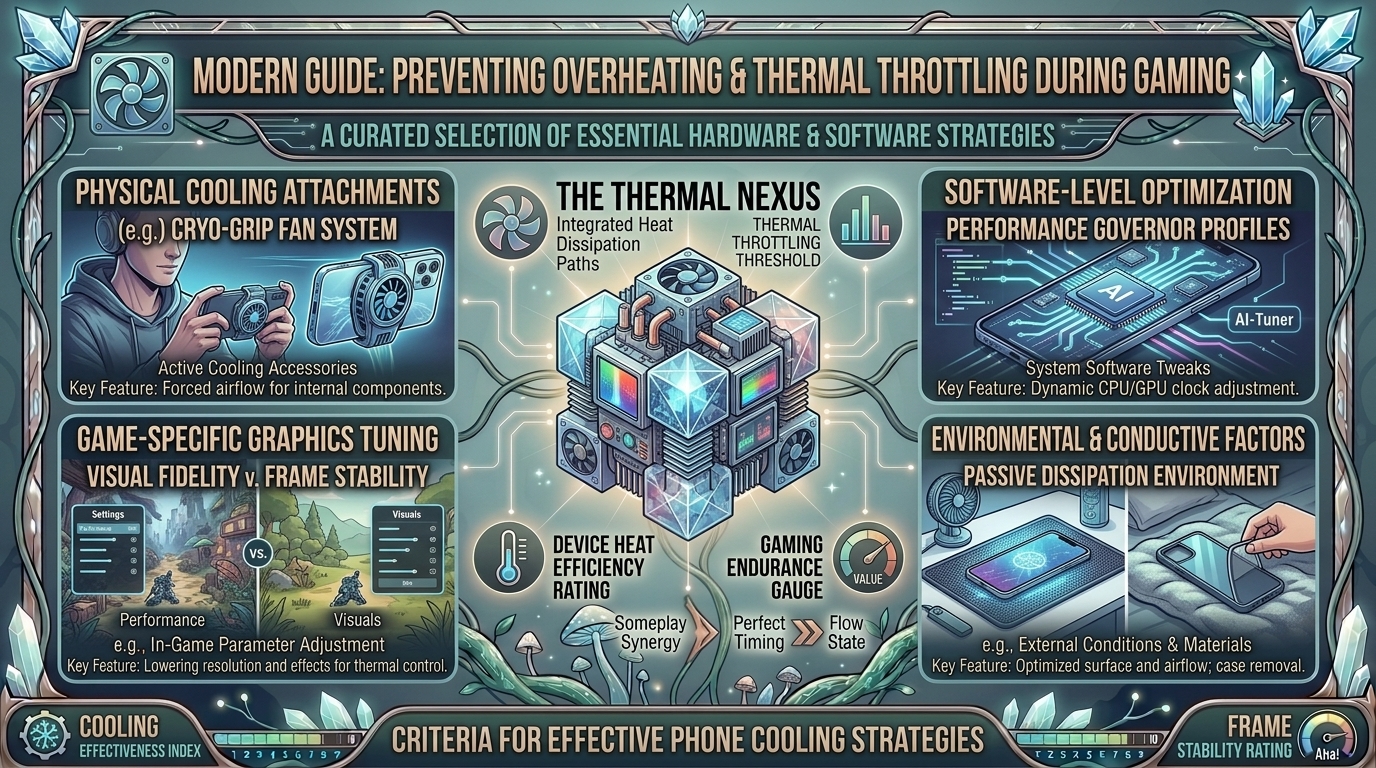
How to Protect Your Mobile Phone Screen from Overheating and Thermal Throttling During Long Gaming Marathons
Mobile gaming has evolved from casual distraction to a high-performance pastime. Pushing modern smartphones to their limits with demanding titles like Genshin Impact, Call of Duty: Warzone Mobile, Honkai: Star Rail, and PUBG Mobile taxes hardware heavily. As processors run at maximum clock speeds and displays push peak brightness at high refresh rates (90Hz, 120Hz, or 144Hz), your mobile phone generates significant thermal energy.
When heat builds up inside a smartphone, two critical issues occur: thermal throttling—where the system automatically underclocks CPU/GPU speed to prevent hardware damage, causing frame drops and lag—and display stress. Prolonged exposure to high temperatures degrades battery health, risks OLED screen burn-in or glue separation, and causes aggressive display dimming.
This comprehensive guide breaks down why mobile screens and internal components overheat, how thermal throttling works, and actionable strategies to keep your device cool during long gaming sessions.
The Science of Mobile Overheating and Thermal Throttling
Understanding how heat moves through a smartphone is essential to managing thermal performance during extended gaming.
[ High-Load Gaming ] ──> [ CPU/GPU & Screen Heat Spike ] ──> [ Internal Temp Threshold Hit ]
                                                                       │
                                                                       ▼
[ Reduced Performance / Frame Drops ] <── [ Screen Dims & Hardware Underclocks ] ┘
1. The Dual Heat Sources: SoC and Display
Smartphones do not have active cooling fans like PCs or consoles. Heat originates primarily from two sources:
- System-on-Chip (SoC): The combined CPU and GPU draw power to render 3D scenes, calculate physics, and process network data. Under sustained load, modern SoCs (like Snapdragon 8 Gen series or Apple A-series chips) generate considerable heat in a tightly sealed space.
- Display Panel (OLED/AMOLED): Pushing high frame rates at max brightness generates significant thermal energy directly behind the glass panel.
2. What Is Thermal Throttling?
To prevent physical damage to internal microprocessors, smartphone operating systems enforce hard thermal limits. When internal sensors detect temperatures exceeding safe thresholds (typically around $42^\circ\text{C}$–$45^\circ\text{C}$ or $107^\circ\text{F}$–$113^\circ\text{F}$), the operating system triggers thermal throttling:
- CPU/GPU Downclocking: The processor reduces clock speeds, resulting in stuttering, micro-freezes, and sudden FPS drops.
- Automatic Screen Dimming: iOS and Android forcibly lower display brightness—even if the brightness slider remains at 100%—to reduce panel temperature and battery draw.
- Charging Speed Throttling: Charging slows down or stops completely to prevent battery overheating.
How Overheating Affects Your Mobile Screen and Hardware
Heat build-up during long gaming sessions harms more than just your frame rate:
- Accelerated OLED Panel Degradation: OLED screens utilize organic compounds to emit light. Prolonged high heat combined with max brightness accelerates sub-pixel degradation, increasing the risk of permanent screen burn-in and color shifting.
- Display Adhesive Weakening: Extreme internal temperatures can weaken optical adhesives holding screen layers together, causing display discoloration or touch-layer unresponsiveness over time.
- Permanent Lithium-Ion Battery Wear: Heat is the primary enemy of lithium-ion batteries. Frequently gaming above $40^\circ\text{C}$ permanently degrades total battery capacity over time.
- Touch Input Delay & Phantom Touches: Excessive screen heat can interfere with capacitive touch sensors, leading to missed swipes, unresponsive virtual buttons, or phantom touch inputs in fast-paced games.
7 Strategies to Prevent Overheating During Gaming Marathons
1. Remove Protective Phone Cases
Heavy-duty silicone, TPU, or leather phone cases act as thermal insulators. Smartphone chassis (especially aluminum and glass) are designed to radiate heat outward into ambient air. Removing your case during extended gaming sessions allows heat to dissipate directly from the body of the device.
2. Use Active Semiconductor Cooling Fan Attachments
Passive heatsinks offer limited relief, but active Peltier semiconductor coolers (like the Razer Phone Cooler Chroma or Black Shark FunCooler) can lower phone surface temperatures by $10^\circ\text{C}$ to $15^\circ\text{C}$ within minutes. These accessories clip to the back of the phone and actively pull heat away from the rear glass or chassis.
[ Phone Rear Glass / Backplate ] ──> [ Peltier Cold Plate ] ──> [ Heat Sink & Active Fan ] ──> [ Heat Dissipated ]
3. Cap Frame Rates & Balance Graphic Settings
Running games at maximum settings and 120 FPS pushes your SoC continuously at 100% load.
- Target 60 FPS: Lowering target frame rates from 120 FPS to 60 FPS significantly reduces power draw and thermal buildup without sacrificing smooth gameplay.
- Lower Shadow & Particle Detail: Heavy post-processing options generate high GPU load. Setting overall graphics to Medium while keeping resolution sharp maintains visual clarity with lower heat output.
4. Enable Bypass Charging (Direct Power Supply)
Charging a smartphone battery while gaming creates a dual heat source: the battery heating up from charging alongside the SoC rendering graphics.
- Bypass Charging Feature: Gaming-focused phones (like ASUS ROG Phone, RedMagic, and Lenovo Legion) and some modern flagship software offer Bypass Charging (or Pause USB Power Delivery). This routes USB-C power directly to the motherboard, bypassing the battery entirely. This eliminates battery charging heat and preserves battery longevity.
5. Disable Auto-Brightness & Limit Peak Manual Brightness
Setting manual screen brightness between 50% and 70% drastically cuts heat generated by the display panel. Avoid gaming under direct sunlight, which forces screen backlight systems into high-nit boost modes that rapidly overheat the phone.
6. Play on 5 GHz Wi-Fi Instead of Cellular Data
Cellular modems (especially 5G) generate heat when maintaining continuous, high-bandwidth data streams for multiplayer gaming. Whenever possible, game over a stable 5 GHz or Wi-Fi 6 connection to keep modem temperatures low and minimize latency.
7. Utilize Native Game Launchers and Performance Profiles
Both Android and iOS feature dedicated software managers:
- Android (Game Booster / Game Space): Configure performance settings to Balanced or Power Saving modes rather than unrestricted Ultra Performance.
- iOS (Low Power Mode & Focus Settings): Enable game focus modes to suppress background sync tasks, app updates, and push notifications that pull CPU cycles while gaming.
Hardware Comparison: Cooling Systems in Modern Smartphones
| Phone Category | Cooling Architecture | Overheating Risk | Ideal Gaming Duration |
| Dedicated Gaming Phones (ASUS ROG, RedMagic) | Built-In Active Fans, Vapor Chambers, Graphite Sheets | Very Low | 4+ Hours Continuous |
| Flagship Smartphones (iPhone Pro Max, Samsung Ultra) | Vapor Chambers, Aluminum Frames, Passive Heat Spreading | Moderate (Throttles to protect screen) | 1–2 Hours (Needs pauses or external cooler) |
| Mid-Range / Budget Phones | Basic Graphite Foil / Internal Copper Plates | High (Fast thermal throttling) | 30–45 Minutes |
Step-by-Step Optimization Guide for Marathons
1.Prepare the Hardware Environment:
Remove protective phone cases. Ensure your gaming environment is cool and away from direct sunlight or heavy radiant heat sources.
2.Configure Display and Frame Rate Settings:
Open in-game graphics options. Set frame rate target to 60 FPS and overall visual quality to Medium/Balanced. Manually set screen brightness to ~60%.
3.Attach Active Cooling Accessories (Optional):
If using an external magnetic or clip-on semiconductor cooler, attach it directly over the phone’s SoC location (typically near the camera bump) before launching your session.
4.Enable Bypass Charging or Game Manager Tools:
Plug in your USB-C power source and activate Bypass Charging inside your game launcher settings if supported by your handheld software.
Frequently Asked Questions (FAQ)
1. Why does my phone screen dim automatically while I am playing games?
Automatic screen dimming is a thermal protection feature triggered by iOS and Android. When internal display or SoC sensors detect high temperatures, the system forcibly reduces display panel power and brightness to cool down components.
2. Is it safe to put an overheating phone in the fridge or freezer to cool it quickly?
No. Rapidly placing a hot phone in a cold fridge creates severe risk of internal moisture condensation. Water droplets can form inside sealed camera lenses and circuits, causing permanent liquid damage.
3. Does playing games while charging damage the phone battery?
Yes, unless your device supports Bypass Charging. Standard fast charging generates significant battery heat. Combining charging heat with high CPU/GPU gaming loads accelerates battery degradation and triggers rapid thermal throttling.
4. How do external semiconductor cooling fans work on mobile phones?
External coolers use the Peltier effect to create an active heat-pump mechanism. Electricity flows through a thermoelectric module, pulling heat away from the contact plate touching your phone and transferring it out through an active fan-cooled heatsink.
5. What internal temperature is considered dangerous for a smartphone?
Battery and CPU performance begin throttling around $40^\circ\text{C}$ to $45^\circ\text{C}$ ($104^\circ\text{F}$–$113^\circ\text{F}$). Operating consistently above $50^\circ\text{C}$ ($122^\circ\text{F}$) risks permanent battery health loss and component degradation.
6. Can overheating cause permanent screen burn-in on OLED displays?
Yes. High temperatures make OLED organic sub-pixels far more susceptible to permanent retention and burn-in, especially when displaying static UI elements (like HUD buttons or mini-maps) at maximum brightness.
7. Does 5G gaming produce more heat than Wi-Fi gaming?
Yes. 5G modems draw substantially more power and generate higher heat output to maintain high-frequency network handshakes compared to local 5 GHz Wi-Fi connections.
8. Will lowering screen resolution reduce phone heating?
Yes. Lowering resolution (e.g., from 1440p to 1080p) decreases the total pixel count rendered per frame by the GPU, reducing chip power draw and overall heat creation.
9. Why does my phone get warm near the camera module during games?
The smartphone’s primary processor (SoC) is typically mounted on the logic board right next to the camera module assembly. Heat generated by heavy gaming workloads concentrates in this specific physical zone.
10. Where can I find more technical mobile gaming guides and device breakdowns?
Follow hardware guides, game optimizations, and technical performance analyses directly on TheGamerBuzz.
Conclusion
Overheating and thermal throttling do not have to ruin your mobile gaming marathons. By taking off insulating phone cases, balancing graphics settings to a steady 60 FPS, utilizing active semiconductor coolers, and leveraging features like Bypass Charging, you can maintain peak frame rates while protecting your mobile screen and battery health. Explore more technical tips, mobile reviews, and hardware performance breakdowns on TheGamerBuzz to keep your gaming setup running cool and fast!
Leave a Reply