How to Back Up Your Mobile Game Save Data to Cloud Storage to Prevent Loss When Upgrading Phones
Upgrading to a new smartphone—whether switching to the latest iPhone, upgrading your flagship Android handheld, or transitioning between platforms—is an exciting experience. However, nothing ruins that excitement faster than launching your favorite mobile game on a brand-new device only to discover that hundreds of hours of game progress, rare unlocked cosmetics, and saved save states have vanished.
Unlike photos, contacts, and text messages, which modern operating systems back up seamlessly in the background, mobile game save data operates on a fragmented landscape. Some titles sync automatically through cloud profile networks like Apple iCloud or Google Play Games, while others store save files locally inside sandboxed system folders or rely on proprietary third-party developer accounts.
This comprehensive guide breaks down step-by-step methods to back up your mobile game save data to cloud storage across iOS, Android, cross-platform titles, and offline emulator saves—ensuring seamless phone upgrades without losing progress.
Why Mobile Game Save Data Gets Lost During Upgrades
Understanding why game data disappears helps prevent accidental data loss:
[ Local Storage Sandboxing ] ──> [ Phone Upgrade / Device Reset ] ──> [ Unsynced App Data Wiped ]
                                                                             │
                                                                             ▼
[ Progress Restored ] <── [ Pre-Migration Cloud Sync / Manual Backup ] ──────┘
- App Sandboxing Isolation: Both iOS and Android isolate app data inside private directory “sandboxes” for security. If a game developer does not explicitly configure cloud backup flags for these sandbox folders, system backups will skip your save files entirely.
- Guest Account Traps: Many mobile RPGs and multiplayer games allow players to skip logging in by using a “Guest Account.” Guest saves are bound exclusively to your physical hardware ID. Resetting or replacing the phone permanently deletes guest data unless bound to an external account.
- Cross-Platform Mismatches: Switching operating systems (e.g., iOS to Android or vice versa) invalidates OS-native cloud backups (iCloud sync cannot directly communicate with Google Play Games).
- Offline Local Saves: Offline indie games, retro emulators, and offline strategy titles often store progress in local folders that require manual export before wiping an old device.
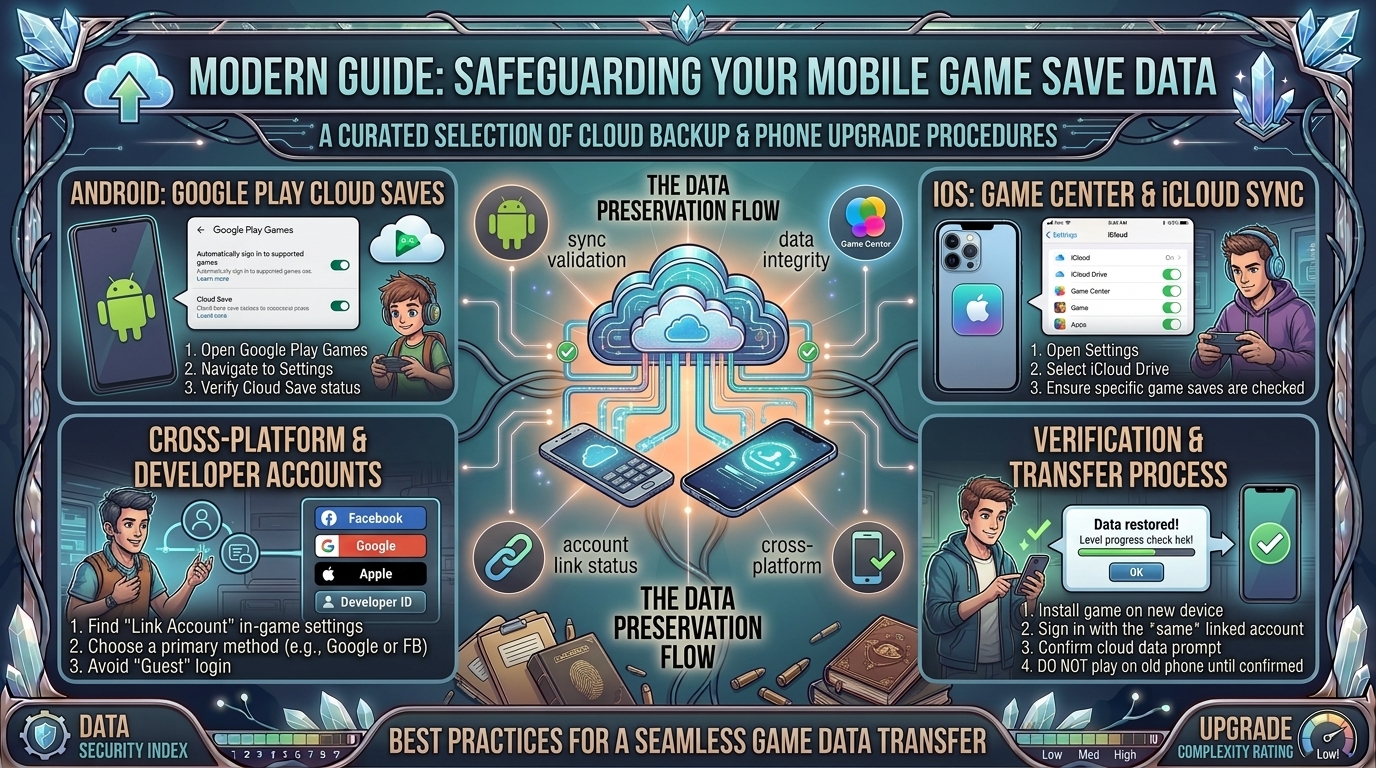
Step-by-Step Back Up Guide: iOS (iPhone & iPad)
Apple provides two main system-level methods alongside game-specific cloud integrations:
1. Enable iCloud Sync for Individual Games
- Open Settings on your iPhone or iPad.
- Tap your Apple ID Profile at the top.
- Select iCloud, then tap Saved to iCloud (or Show All).
- Scroll through the list and ensure the toggle next to your specific game titles and iCloud Drive are set to ON.
[ Settings ] ──> [ Apple ID Profile ] ──> [ iCloud ] ──> [ Turn ON Game Toggles & iCloud Drive ]
2. Perform a Complete Encrypted Device Backup
When preparing to move to a new iPhone, executing an Encrypted Local Backup via Mac/PC or a full iCloud Device Backup transfers app sandboxes directly to your new device.
1.Ensure iCloud Backup Is Active:
Go to Settings > [Your Name] > iCloud > iCloud Backup. Tap Back Up Now while connected to Wi-Fi.
2.Verify Backup Completion:
Check the timestamp under Back Up Now to confirm your latest save states and app data are stored in the cloud.
3.Use Direct Device Transfer During Setup:
When unboxing your new iPhone, place it next to your old device and use Quick Start. This initiates a direct peer-to-peer Wi-Fi transfer, copying local sandboxed app saves directly without needing to re-download everything from the cloud.
Step-by-Step Back Up Guide: Android Devices
Android offers multiple backup avenues through Google Play Games, Google One, and manual folder access.
1. Enable Google Play Games Cloud Save
Most mainstream Android titles use Google Play Games Services to store progress automatically.
- Open the Play Games app on your Android phone.
- Tap the three dots in the top right corner and open Settings.
- Toggle Automatically log in to supported games to ON.
- Verify that the correct Google Account email address is listed under Changing the account for games.
2. Trigger Full System Backup via Google One
- Open Settings on your Android device.
- Scroll down and select Google, then tap All Services and choose Backup.
- Tap Back up now to trigger an updated snapshot of your device settings, SMS, and supported app data to Google Drive.
[ Android Settings ] ──> [ Google ] ──> [ Backup ] ──> [ Tap "Back Up Now" ]
Handling Cross-Platform Upgrades (iOS to Android & Vice Versa)
If you are switching from an iPhone to an Android phone (or vice versa), standard iCloud and Google Play backups will not cross over. You must link your progress to a unified third-party account system.
[ Old Phone (iOS/Android) ] ──> [ Link Game Progress to Publisher Account / Facebook / Discord ]
                                                               │
                                                               ▼
[ New Phone (Cross-OS) ] <── [ Log into Publisher Account to Restore Save ]
1. Bind Progress to Publisher ID Services
Major games use custom account systems that sync across platforms:
- Epic Games Account: Fortnite, Rocket League Sideswipe
- HoYoverse Account: Genshin Impact, Honkai: Star Rail, Zenless Zone Zero
- Supercell ID: Clash of Clans, Brawl Stars, Clash Royale
- Riot Account: TFT, VALORANT Mobile, Wild Rift
2. Bind Progress to Universal Social Logins
For games that do not feature custom publisher logins, check the in-game Settings > Account menu and bind your guest progress to a universal third-party provider like Facebook, Google Account, Sign in with Apple, or Discord.
Manual Backup Method for Offline & Emulator Saves
Offline indie titles and retro emulators (like RetroArch, PPSSPP, or Delta) store raw save files (.sav, .srm, .state) in local directories that can be backed up manually.
Manual Export on Android
- Download a file manager app (such as ZArchiver or Solid Explorer).
- Navigate to
Internal Storage/Android/data/[Game Package Name]/files/or your emulator’s designated save folder. - Compress the
savesfolder into a.ziparchive. - Upload the
.ziparchive to Google Drive, Dropbox, or an external USB-C flash drive.
Manual Export on iOS (Files App)
- Open the native Files app on iOS.
- Tap On My iPhone.
- Locate the folder named after your game or emulator (e.g., Delta, PPSSPP).
- Copy the
DatabaseorSave Statesfolder directly to iCloud Drive or external storage.
Essential Backup Steps Comparison
| Game Category | Primary Backup Mechanism | Cross-OS Transfer Support | Manual Action Required? |
| Mainstream Cloud Titles | Apple Game Center / Google Play Games | No (OS Dependent) | No (Automatic if logged in) |
| Live-Service / Gacha RPGs | Publisher Account (Supercell, HoYoverse, Epic) | Yes (Seamless) | Yes (Must bind account manually) |
| Offline Indie Games | System Cloud Backup (iCloud Drive / Google One) | No | Optional (Recommended) |
| Emulators / Local Saves | Manual Directory Export (Files App / ZArchiver) | Yes (Copy .sav files) | Yes (Full manual copy required) |
5 Critical Tips to Protect Your Game Progress
- Never Keep a “Guest Account” Active: As soon as you complete a game’s tutorial, open the settings menu and bind your profile to a permanent login method.
- Screenshot Your Support ID / Account Credentials: Take a screenshot of your in-game Account ID, Player Tag, or Support Code (usually found at the bottom of the title screen or settings menu) and store it in your cloud photos. Customer support can use this ID to manually recover lost accounts.
- Verify Cloud Sync Timestamp Before Wiping the Old Phone: Do not factory reset your old smartphone until you have successfully installed and booted your games on the new device to confirm all progress has restored.
- Use Cloud Sync Options Inside Emulators: If using emulators like Delta or RetroArch, configure built-in Google Drive Sync or iCloud Sync inside the app settings to keep save states updated automatically across all devices.
- Beware of In-App Currency OS Locks: When transferring live-service accounts between iOS and Android, paid premium currencies (like non-bound Gems or Coins) sometimes do not transfer across operating systems due to app store commission policies. Spend remaining paid currency balances before switching operating systems!
Frequently Asked Questions (FAQ)
1. Will transferring to a new phone delete my old phone’s data?
No. Backing up or migrating data to a new device copies files over without erasing the original phone. Only performing a manual Factory Reset will clear your old phone’s storage.
2. Can I transfer my game progress from iPhone to Android using iCloud?
No. iCloud backups are incompatible with Android OS. You must link your in-game progress to a cross-platform service like a publisher account (e.g., Supercell ID, HoYoverse) or social login before switching.
3. What happens if I forget to back up a Guest Account and sell my old phone?
If you no longer have access to the physical device hosting the Guest Account, you must contact the game developer’s customer support team with your Account ID, device model details, and purchase receipt history to request manual account recovery.
4. Do offline games back up automatically to Google Drive on Android?
Only if the developer enabled Google Play Games Cloud Save support. If an offline game stores data strictly locally, you must manually export its save folder or perform a full system backup.
5. Why didn’t my game progress transfer even though I used Apple’s Quick Start?
Certain games store encrypted security tokens tied directly to specific hardware IDs, forcing you to re-authenticate through the game’s official account login menu after migration.
6. Will my in-app purchases transfer to my new phone?
Yes. Paid purchases tied to your Apple Account or Google Account restore automatically when logged into the same store account. Cross-platform purchases depend on publisher account rules.
7. How do I know if my Android game uses Google Play Cloud Save?
Check the game’s page on the Google Play Store under About this game > Compatibility & Features. Look for the Google Play Games Cloud Save badge icon.
8. Are save files deleted if I uninstall a game and reinstall it later?
On iOS, uninstalling an app deletes its local sandbox unless cloud sync was enabled. On Android, some apps retain save folders, but it is always safest to backup progress to the cloud before deleting apps.
9. Can I use a USB flash drive to transfer mobile game saves?
Yes! Modern smartphones with USB-C ports support direct file transfers. Use a file manager app to copy local save folders onto a USB flash drive and paste them into your new phone’s files directory.
10. Where can I find more mobile gaming guides and device setup tutorials?
Stay updated with detailed hardware walkthroughs, game optimizations, and mobile tutorials directly on TheGamerBuzz.
Conclusion
Losing hundreds of hours of game progress when upgrading your smartphone is completely preventable. By moving away from unlinked Guest Accounts, binding your games to cross-platform publisher IDs, enabling iCloud and Google Play Games cloud sync, and manually exporting offline save folders, you can guarantee that your game progress moves seamlessly to your new device. Explore more tech walkthroughs, hardware guides, and mobile gaming tips on TheGamerBuzz to keep your digital gaming library safe!
Leave a Reply