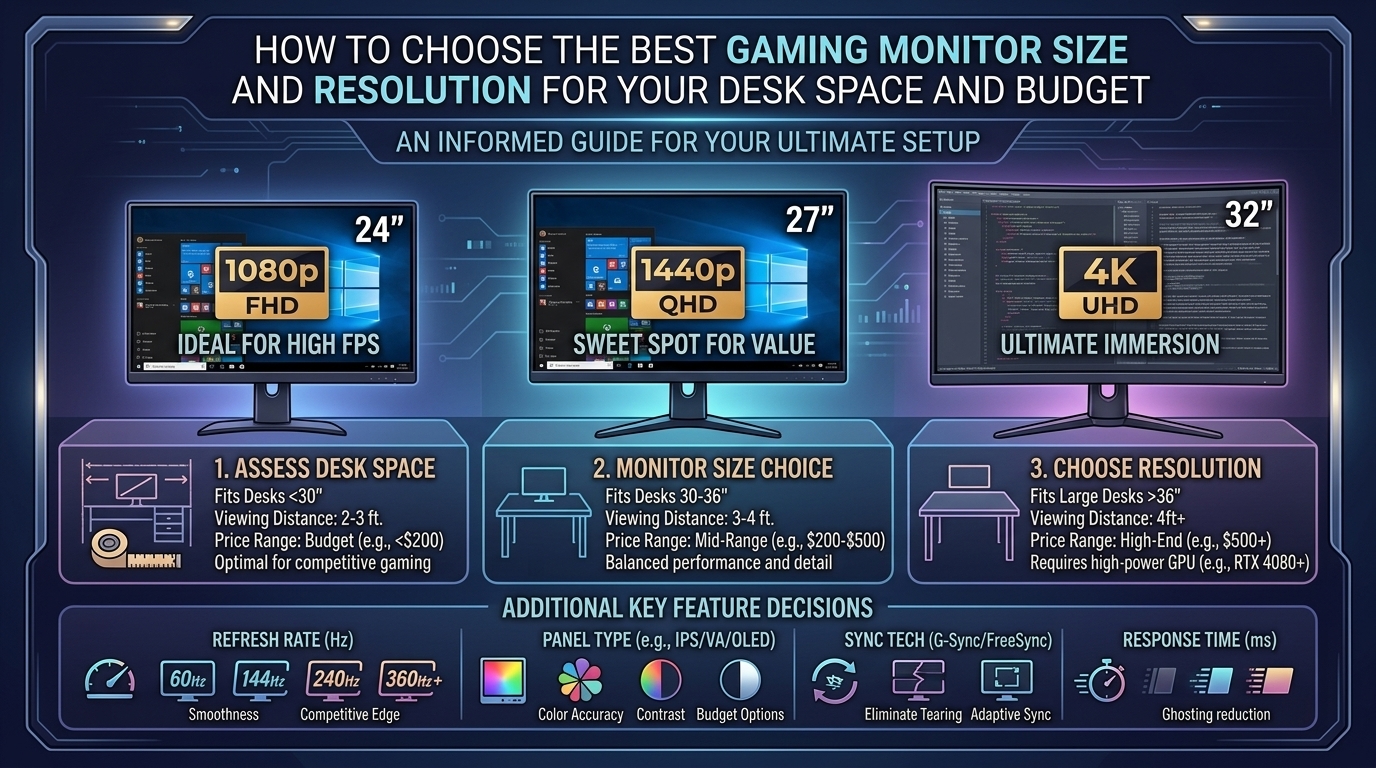
Choosing the right gaming monitor requires balancing three critical variables: desk physical space, graphics processing power, and financial budget. Upgrading to a display that is either too large for your physical desk depth or too high-resolution for your graphics card (GPU) leads to neck strain, lower frame rates, and diminished gaming performance.
This comprehensive guide breaks down how to select the ideal monitor size and resolution, matching your physical setup, hardware capabilities, and budget.
1. Pixel Density: Why Size and Resolution Must Be Balanced
Resolution determines the total pixel count, while screen size dictates how those pixels are distributed across physical space. The relationship between the two determines Pixel Density, measured in Pixels Per Inch (PPI).
[ Lower Resolution / Large Screen ] ──> Low PPI (~80)  ──> Soft Text & Visible Pixels
[ Balanced Resolution & Size ]     ──> Sweet Spot (~100–110 PPI) ──> Crisp Visuals & Smooth Performance
[ High Resolution / Small Screen ] ──> High PPI (140+) ──> Extreme Detail (Requires Windows UI Scaling)
- Low PPI (<85 PPI): Visuals appear pixelated, and text looks blurry around the edges.
- Sweet Spot (100–110 PPI): Text is sharp, imagery is crisp, and standard 100% UI scaling works natively without hardware strain.
- High PPI (130+ PPI): Incredibly sharp detail, ideal for creative work and single-player cinematic immersion, though high-density screens demand significantly more GPU power.
2. Desk Space & Viewing Distance Guide
Physical desk depth is the most overlooked factor when buying a gaming monitor. Placing a screen too close to your eyes causes optical fatigue and forces constant, uncomfortable neck movement during gameplay.
| Desk Depth | Ideal Monitor Size | Recommended Viewing Distance | Best Resolution Fit |
| Shallow (20″–24″ / 50–60 cm) | 24 inches | 20″–26″ (50–65 cm) | 1080p (FHD) |
| Standard (24″–30″ / 60–75 cm) | 27 inches | 26″–32″ (65–80 cm) | 1440p (QHD) |
| Deep (30″–36″ / 75–90 cm) | 32 inches or 34″ Ultrawide | 32″–40″ (80–100 cm) | 4K (UHD) or 1440p Ultrawide |
| Extra Deep (36″+ / 90 cm+) | 42″–48″ OLED / Super-Ultrawide | 40″+ (100 cm+) | 4K (UHD) |
3. The Three Key Monitor Size & Resolution Sweet Spots
               [ 24-Inch / 1080p ] ──► Best for Budget & Competitive Esports
                        │
 [ Choose Your Sweet Spot ] ──► [ 27-Inch / 1440p ] ──► The All-Around Sweet Spot
                        │
               [ 32-Inch / 4K ]    ──► Best for Cinematic Gaming & Large Desks
1. 24-Inch at 1080p (Full HD – 1920×1080)
- Pixel Density: ~92 PPI
- Primary Use Case: High-speed competitive esports (Valorant, Counter-Strike 2, Apex Legends).
- Pros: Extremely easy for budget and mid-range GPUs to drive high refresh rates (180Hz–360Hz+); fits comfortably on shallow or compact student desks.
- Cons: Limited screen real estate for multitasking and productivity.
2. 27-Inch at 1440p (QHD – 2560×1440)
- Pixel Density: ~109 PPI (The Industry Sweet Spot)
- Primary Use Case: Balanced everyday gaming, single-player RPGs, and hybrid work-from-home setups.
- Pros: Delivers 78% more screen real estate than 1080p without destroying gaming performance; excellent text clarity on standard 24″ to 30″ depth desks.
- Cons: Requires a modern mid-tier graphics card to achieve 120+ FPS in demanding titles.
3. 32-Inch at 4K (UHD – 3840×2160)
- Pixel Density: ~138 PPI
- Primary Use Case: Immersive open-world games (Cyberpunk 2077, GTA VI), simulation titles, and high-end console gaming (PS5 / Xbox Series X).
- Pros: Unmatched visual fidelity, crystal-clear text, and massive screen space.
- Cons: Requires a deep desk setup; demands flagship GPU hardware to run demanding games smoothly.
4. Hardware Requirements: Matching Resolution to Your GPU
Before selecting a display, ensure your graphics processing unit can output stable frame rates at your desired resolution.
[ Mid-Range GPU (RTX 5060 / RX 9060) ]  ──► Drives 1080p High-FPS / 1440p Standard
[ High-Tier GPU (RTX 5070 / RX 9070) ]  ──► Drives 1440p High-FPS / Entry 4K
[ Flagship GPU (RTX 5080 / RTX 5090) ]  ──► Drives 4K Ultra-Settings / High-FPS Ultrawide
- Target 1080p Gaming: Suitable for entry-level or older GPUs (e.g., RTX 3060, RX 6600, or modern integrated graphics).
- Target 1440p Gaming: Optimized for current mid-range cards (e.g., RTX 4070 / 5060 Ti / RX 7700 XT).
- Target 4K Gaming: Requires high-end enthusiast graphics cards (e.g., RTX 4080 / 5080 / 5090 or RX 7900 XTX) to maintain stable framerates above 60 FPS on high settings.
5. Step-by-Step Setup: Measuring and Installing Your Display
1.Measure Clear Desk Depth and Overhead Clearance:
Use a tape measure to establish your desk depth from the back wall/edge to where your keyboard sits. Ensure at least 24 inches of clearance for 27-inch screens and 30 inches for 32-inch or ultrawide screens.
2.Determine VESA Mount Compatibility:
Check whether your desk supports clamp-style monitor arms (desk thickness should ideally be between 0.5″ and 2″ without obstructive backboards). Verify the monitor features a standard 75x75mm or 100x100mm VESA pattern.
3.Position Screen at Ergonomic Eye Height:
Mount or place the monitor so the top third of the glass sits directly at eye level. Tilt the screen back slightly (10 to 15 degrees) to reduce neck extension.
4.Connect High-Bandwidth Display Cables:
Always connect your monitor directly to the dedicated GPU port using DisplayPort 1.4 / 2.1 or HDMI 2.1 cables to unlock full refresh rates, HDR, and Variable Refresh Rate (G-Sync / FreeSync) features.
Frequently Asked Questions (FAQ)
1. Is a 27-inch 1080p monitor good for gaming?
A 27-inch monitor at 1080p resolution results in a relatively low pixel density (~81 PPI). Text and game UI elements can appear soft or pixelated up close. For a 27-inch display, upgrading to 1440p is strongly recommended.
2. Can I use a 34-inch Ultrawide monitor on a standard 24-inch depth desk?
It is possible, but a 34-inch Ultrawide (21:9 aspect ratio) on a shallow desk requires significant side-to-side head movements to see HUD elements. Using a curved monitor arm to push the screen further back helps mitigate this.
3. Should I choose IPS, VA, or OLED panel technology?
- IPS: Offers accurate colors, wide viewing angles, and fast response times; great all-around choice.
- VA: Features high contrast ratios and deep blacks, ideal for dark rooms, though prone to dark-level motion smearing.
- OLED: Provides near-instant response times, perfect black levels, and vibrant colors at a premium price point.
4. What is the difference between 144Hz, 180Hz, and 240Hz refresh rates?
Higher refresh rates deliver smoother motion clarity. Jumping from 60Hz to 144Hz/180Hz represents a massive, instantly noticeable leap. The jump from 180Hz to 240Hz or higher offers diminishing returns, primarily benefitting competitive esports players.
5. Does Windows UI scaling ruin game resolution?
No. Windows UI scaling (such as 125% or 150% on 4K displays) scales text and desktop applications for readability. Modern games render independently at their native 3D internal render resolution regardless of desktop text scaling.
6. Are curved monitors necessary for gaming?
Curved monitors are beneficial on displays 30 inches and larger (such as 34-inch Ultrawides or 32-inch 16:9 screens) because they bring the far edges of the panel closer to your natural peripheral field of view, reducing eye strain.
7. How much desk depth do I need for a monitor arm?
Standard clamp-on monitor arms typically require at least 1.5 to 2 inches of overhang clearance behind the desk to securely attach the clamp assembly.
8. Is 4K gaming worth it on a 27-inch monitor?
While 4K at 27 inches creates a sharp image (163 PPI), the visual difference compared to 1440p at that size is subtle. Given the high GPU performance cost of 4K, 1440p remains the practical sweet spot for most 27-inch gaming setups.
9. Can my PS5 or Xbox Series X run on a 1440p monitor?
Yes. Both PlayStation 5 and Xbox Series X offer native 1440p video output support, including 120Hz refresh rate options and Variable Refresh Rate (VRR) capabilities.
10. Where can I read more monitor breakdowns, GPU benchmarks, and hardware guides?
Find updated hardware reviews, display comparisons, and PC building walkthroughs directly on TheGamerBuzz!
Conclusion
Choosing the right gaming monitor comes down to maintaining balance. Match your screen size to your physical desk depth to protect your posture and eye comfort. Ensure your target resolution aligns with your graphics card capability so your system achieves smooth, high-framerate gameplay. Measure your desk space, evaluate your GPU performance, and select the monitor setup that elevates your overall gaming experience. For more hardware testing and setup guides, keep checking back with TheGamerBuzz!
Leave a Reply