What Are the Best Capture Card Buying Guides for Recording 4K Gaming Footage from Consoles to PC
Welcome to thegamerbuzz.com! Whether you are setting up a professional streaming studio in San Francisco or New York, editing high-octane gameplay footage across Washington and Texas, or producing content in California, capturing pristine 4K video from consoles to your PC is the ultimate badge of honor for modern content creators.
Gone are the days when standard 1080p recording sufficed. With modern powerhouse consoles like the PlayStation 5 and Xbox Series X pushing gorgeous native 4K resolutions at high refresh rates, capturing every single pixel with extreme color fidelity is mandatory if you want your YouTube channel, Twitch stream, or video archive to stand out.
However, diving into the world of video capture cards can feel overwhelming. Jargon like HDMI 2.1 bandwidth, variable refresh rate (VRR) passthrough, PCIe vs. USB-C interfaces, and uncompressed YUY2 encoding can trip up even tech-savvy creators.
This master buying guide breaks down everything you need to know to select the absolute best 4K capture card for recording and streaming your console gameplay directly to your PC.
1. Core Anatomy: How Capture Cards Work for 4K Gaming
Before looking at specific models, it is vital to understand the basic plumbing of a dual-device console-to-PC recording setup.
+-------------------------------------------------------------------------+
                      4K CAPTURE ROUTING PIPELINE
+-------------------------------------------------------------------------+
  [PlayStation 5 / Xbox Series X]
         │ (HDMI 2.1 Cable)
         ▼
  [4K Capture Card IN Port] ---> Processes / Splits Feed
         │                               │
         ├────── (Passthrough Out) ──────┼──> [4K High-Refresh Monitor]
         │                               │
         └────── (USB-C / PCIe) ─────────┴──> [Recording PC (OBS / 4K Capture)]
+-------------------------------------------------------------------------+
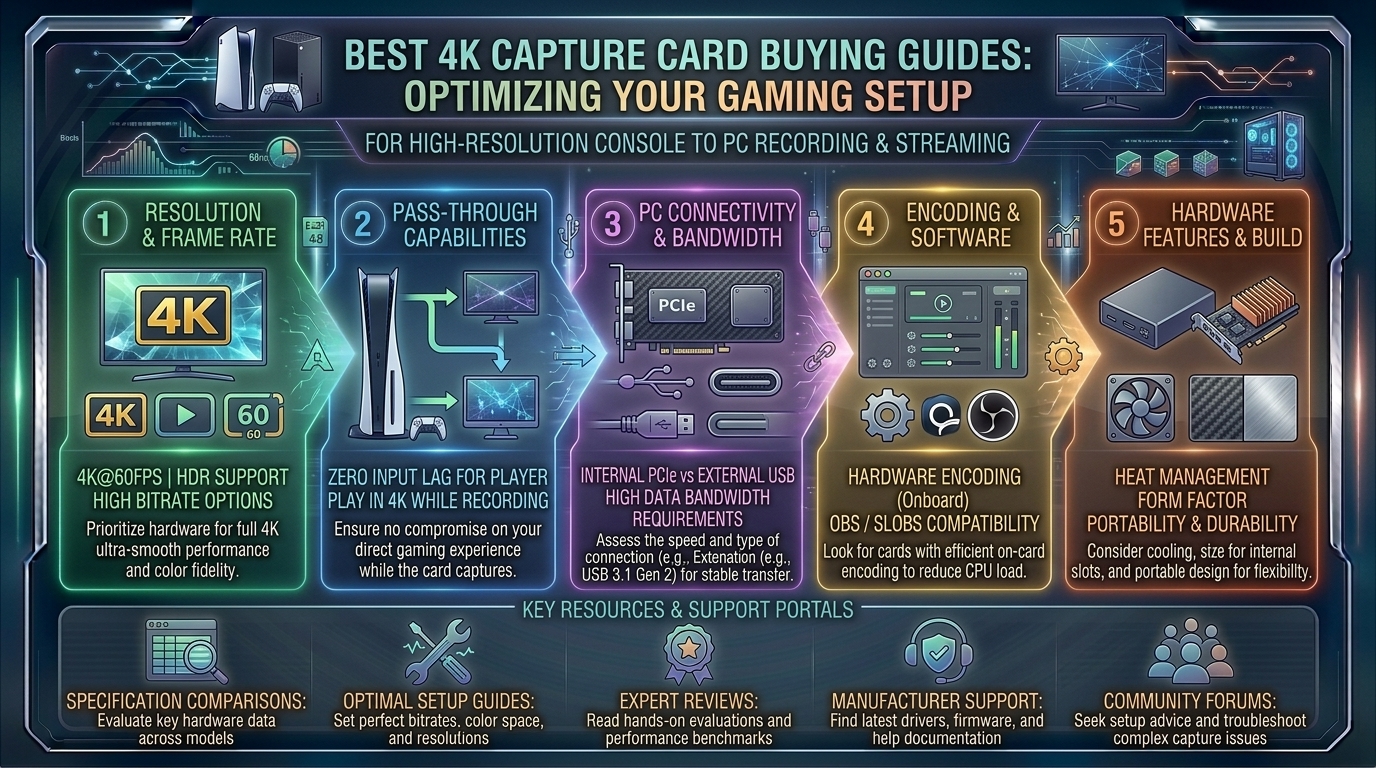
- The Passthrough Connection: This is what allows you to play your console lag-free on your gaming monitor or television. The card takes the incoming signal from your console and passes it straight through to your display with zero delay.
- The Capture Connection: This is the secondary data stream sent via high-speed USB-C or a dedicated internal PCIe slot to your computer, allowing recording software (like OBS Studio, Streamlabs, or proprietary publisher apps) to encode and save the footage.
2. Key Technical Specs to Evaluate Before Buying
When filtering through the crowded market of video capture hardware, keep your eyes locked on these essential criteria:
- HDMI 2.1 vs. HDMI 2.0: If you want to play your console at 4K 120Hz or 4K 144Hz while capturing footage, you must have HDMI 2.1 ports on both ends. Older HDMI 2.0 cards will bottleneck your console’s output down to 4K 60Hz or force you to compromise your resolution.
- Variable Refresh Rate (VRR) Support: Essential for modern console gaming. VRR eliminates screen tearing without introducing input lag. A good modern 4K capture card must support VRR passthrough so your gaming experience remains buttery smooth.
- Internal (PCIe) vs. External (USB-C):
- Internal PCIe cards (installed directly onto your PC motherboard) offer maximum throughput, virtually zero latency, and keep your desk free of extra wire clutter.
- External USB-C boxes offer portability, allowing you to easily plug them between laptops and different consoles.
3. Top 4K Capture Card Recommendations for Creators
The market features stellar hardware choices designed for various budgets and workflow needs.
A. The Best Overall External 4K 144Hz King: Elgato 4K X
- Specs: External | HDMI 2.1 | Up to 4K144 Passthrough | 4K60 HDR10 Capture
- Why it wins: Elgato’s flagship external card is a masterclass in engineering. It provides full-fat HDMI 2.1 connectivity, meaning you can hook up your PS5 or Xbox Series X, enjoy ultra-high frame rate gaming with VRR enabled, and record flawless 4K 60 FPS video simultaneously without breaking a sweat.
B. The Best Internal PCIe Powerhouse: AVerMedia GC575 Live Gamer 4K 2.1
- Specs: Internal PCIe 2.0 x4 | HDMI 2.1 | Up to 4K144 Passthrough | 4K60 Capture
- Why it wins: For creators who prefer a clean desk setup with zero external USB boxes, this internal PCIe card handles high-bandwidth data effortlessly. It features gorgeous customizable RGB lighting, ultra-low latency, and full support for HDR and VRR passthrough.
C. The Best Value Alternative: AVerMedia Live Gamer Ultra S (GC553Pro)
- Specs: External USB 3.2 | HDMI 2.0 | 4K60 Capture & Passthrough
- Why it wins: If you don’t require bleeding-edge 120Hz/144Hz high-refresh console gaming and are content playing at standard 4K 60 FPS, this card delivers crystal-clear color fidelity, HDR, and VRR support at a much more accessible price point.
4. Pro Tips for Setting Up Your 4K Recording Rig
- Invest in Certified Ultra High Speed HDMI Cables: 4K video feeds at 120Hz with HDR demand massive bandwidth. Cheap, uncertified HDMI cables will cause black screens, random signal drops, and artifacting. Always use certified HDMI 2.1 cables.
- Ensure Your PC Has Enough USB Bandwidth: If using an external USB-C capture card, plug it directly into a rear motherboard port labeled USB 3.2 Gen 2 or higher. Avoid using passive USB hubs, which can bottleneck data throughput and cause choppy frame drops in your recordings.
- Configure OBS Encoder Settings Properly: Recording native 4K 60 FPS footage requires a heavy CPU or GPU encoder load. Utilize NVIDIA NVENC (AV1 or HEVC) or AMD AMF hardware encoders rather than software encoding to keep your PC system resources free for gaming and smooth multitasking.
- Manage Your Storage Space: Uncompressed or lightly compressed 4K video files consume gigabytes of storage in mere minutes. Ensure your editing rig features a fast NVMe M.2 SSD scratch disk dedicated exclusively to capturing raw footage.
10 Frequently Asked Questions (FAQs)
1. Do I need a dual-PC setup to use a 4K capture card?
No. While many professional streamers use a dedicated second PC to handle encoding, modern internal and external capture cards allow you to record and preview gameplay directly on a single-PC setup using software like OBS Studio.
2. Can I play games in 4K 120Hz while recording in 4K 60Hz?
Yes! This is the primary function of high-end HDMI 2.1 capture cards. The card allows your monitor to receive the full 4K 120Hz/144Hz gaming signal via passthrough, while downscaling or capturing the recorded file at 4K 60 FPS.
3. What is the difference between internal and external capture cards?
Internal cards plug directly into your PC’s motherboard via a PCIe slot, offering lower latency and zero desk clutter. External cards connect via USB-C, offering easy portability across multiple laptops or consoles.
4. Will a capture card add input lag to my gameplay?
No. Because of the hardware “passthrough” port, your console sends the video signal directly to your monitor without routing through your computer’s processing pipeline first. Your gaming latency remains identical to plugging the console straight into the monitor.
5. Do I need an HDMI 2.1 capture card for the Nintendo Switch or older consoles?
No. Older systems like the Nintendo Switch, PS4, and Xbox One output at maximum resolutions of 1080p or 4K 30Hz via HDMI 2.0, meaning an entry-level or mid-tier card (like the Elgato HD60 X) is more than sufficient.
6. Why is my captured video showing a black screen in OBS?
This is usually caused by HDCP (High-bandwidth Digital Content Protection) copy protection enabled on your console. Go into your PlayStation or Xbox system settings and disable HDCP to allow the capture card to read the video feed.
7. Can I capture HDR footage with a 4K capture card?
Yes, provided both your capture card and your recording software support HDR10. High-end cards like the Elgato 4K X and AVerMedia Live Gamer Ultra series fully capture rich, vibrant HDR color ranges.
8. Does a capture card record game audio as well?
Yes. The HDMI cable transmits both high-definition video and multi-channel digital audio simultaneously straight into your capture software.
9. How much hard drive space do I need for 4K recordings?
A single hour of raw 4K 60 FPS gameplay can easily range from 30GB to over 100GB depending on your bitrate settings. Having a large capacity NVMe SSD or high-capacity HDD archive is essential.
10. Can I use a 4K capture card to stream on Twitch or YouTube?
Absolutely. While Twitch generally caps ingest bitrates around lower resolutions/framerates, streaming in 4K to YouTube Gaming or recording pristine 4K video files for polished YouTube edits is what these cards are explicitly built for.
Conclusion
Investing in a top-tier 4K capture card bridges the gap between console gaming and professional content creation. Whether you choose the portable flexibility of the Elgato 4K X or the clean internal performance of the AVerMedia Live Gamer 4K 2.1, equipping your setup with the right hardware ensures your gameplay footage looks just as breathtaking on your audience’s screens as it did in your own living room. Gear up, optimize your bitrates, and start creating content that turns heads.
Leave a Reply