Blog

  • What are the best budget graphics card upgrades for playing 1080p esports titles in 2026

    What are the best budget graphics card upgrades for playing 1080p esports titles in 2026

    Competitive 1080p esports gaming relies on raw speed, immediate input latency response, and absolute frame time consistency. Whether you are holding an angle in Valorant or Counter-Strike 2, tracking targets in Apex Legends, or executing rapid rotations in Overwatch 2, dropping below your monitor’s high refresh rate (144Hz, 240Hz, or 360Hz) causes motion blur and frame delivery delays.

    If you are upgrading an aging system without spending premium flagship prices, the budget GPU market currently offers remarkable performance per dollar. This definitive guide breaks down the absolute best budget graphics card upgrades available for competitive 1080p gaming, covering performance benchmarks, system bottlenecks, and buying strategies.

    1. Executive Summary & Top 2026 Picks

    For quick decision-making, the current budget market falls into four distinct value tiers:

    GPU ModelArchitecture GenerationVRAMTargeted Price PointPrimary Esports Strengths
    Intel Arc B580Intel Battlemage12GB GDDR6~$250 – $310Best Overall Value / VRAM Headroom: Stellar 1080p performance with generous VRAM capacity.
    NVIDIA GeForce RTX 5050NVIDIA Blackwell8GB GDDR6~$299Best Ultra-Budget Entry: Ultra-low latency drivers, low power draw, robust esports features.
    NVIDIA GeForce RTX 5060NVIDIA Blackwell8GB GDDR7~$359Best Overall Esports Pick: Industry-leading NVIDIA Reflex latency suite and rock-solid drivers.
    AMD Radeon RX 9060 XTAMD RDNA 416GB GDDR6~$400 – $470Best High-Refresh Headroom: Massive raw rasterization speed for 240Hz+ panels.

    2. In-Depth Breakdown of the Best Budget GPUs

    1. NVIDIA GeForce RTX 5060 (The Esports Standard)

    • VRAM: 8GB GDDR7
    • Target Resolution: 1080p High-Refresh (240Hz+)
    • Esports Edge: Low Latency Ecosystem & Reflex Integration

    The RTX 5060 sits at the top of the competitive budget hierarchy. While 8GB of VRAM requires management in massive AAA single-player titles, competitive esports games run extremely light on memory buffers. The ultra-fast GDDR7 memory sub-system ensures quick frame time delivery.

    • Why it wins for esports: Driver stability, seamless hardware integration with G-Sync panels, and complete support for NVIDIA Reflex technology—which reduces system end-to-end latency to absolute physical minimums.

    2. Intel Arc B580 (The Budget Value King)

    • VRAM: 12GB GDDR6
    • Target Resolution: 1080p High-Refresh (144Hz – 240Hz)
    • Esports Edge: Unbeatable Price-to-Performance Ratio

    Built on Intel’s Battlemage architecture, the Arc B580 delivers impressive frame rates at an accessible price point. Armed with 12GB of VRAM and a 192-bit bus, it outpaces rival budget cards in memory bandwidth.

    • Why it wins for esports: If you play a mix of competitive shooters and modern AAA games, the 12GB buffer provides future-proofing that prevents stuttering caused by VRAM allocation limits. Intel’s drivers have matured significantly, delivering stable 200+ FPS in titles like Valorant and Overwatch 2.

    3. NVIDIA GeForce RTX 5050 (The Sub-$300 Gateway)

    • VRAM: 8GB GDDR6
    • Target Resolution: 1080p Standard Refresh (144Hz)
    • Esports Edge: Minimal Power Consumption & Compact Form Factor

    For budget-conscious builds or upgrading pre-built systems with modest power supplies, the RTX 5050 provides a reliable entry point into competitive high-FPS gaming.

    • Why it wins for esports: It delivers consistent 1080p frame rates in esports titles while maintaining low power draw and low heat output, making it easy to drop into older system enclosures.

    4. AMD Radeon RX 9060 XT (The Raw Frame Monster)

    • VRAM: 16GB GDDR6
    • Target Resolution: 1080p Ultra High-Refresh (240Hz – 360Hz)
    • Esports Edge: Unmatched Raw Rasterization & Huge Memory Allocation

    If your main target is pure raw frame output to feed a 240Hz or 360Hz esports monitor, the RX 9060 XT punches well above its weight class. Its 16GB VRAM buffer offers extensive headroom for high-resolution texture packs.

    • Why it wins for esports: AMD’s RDNA 4 engine excels at high-framerate 1080p rendering. When paired with AMD Anti-Lag, it delivers snappy mouse input response for fast-twitch titles.

    3. What Matters Most for 1080p Esports GPUs?

    Low Latency over Visual Ray-Tracing

    In competitive titles, settings like Ray Tracing and ultra-high volumetric fog add processing delay and obscure visual clarity. Look for GPUs with hardware and driver-level latency reduction tools:

    • NVIDIA Reflex: Synergizes game engine execution queues directly with GPU scheduling.
    • AMD Anti-Lag: Optimizes CPU pacing to ensure the GPU doesn’t fall behind input commands.

    Memory Bandwidth & Bus Width

    While AAA games demand massive VRAM sizes, esports games prioritize fast memory bandwidth. High-speed GDDR6 and GDDR7 memory configurations allow rapid frame construction, preventing 1% low frame dips during intensive firefights.

    CPU Bottlenecking Awareness

    Esports games render at high frame rates, which puts heavy stress on single-core CPU execution. Pairing a capable budget GPU with an outdated CPU will cause stutters in crowded areas regardless of graphic settings. Ensure your system CPU (such as a modern Ryzen 5 / Core i5 processor) can keep up with your target frame rate.

    Frequently Asked Questions (FAQ)

    1. Is 8GB of VRAM still enough for esports gaming in 2026?

    Yes. Competitive esports titles like Valorant, CS2, Rocket League, and Rainbow Six Siege utilize light asset footprints, typically consuming between 3GB to 6GB of VRAM at 1080p low/medium competitive settings.

    2. Should I prioritize higher average FPS or better 1% low frame rates?

    Prioritize 1% low frame rates. High average FPS means little if your game stutters down to 60 FPS during heavy combat sequences. Stable 1% lows ensure consistent input tracking during clutch moments.

    3. Do I need an upgrade if I already have an RTX 3060 or RX 6600?

    If you are satisfied with a steady 144 FPS in competitive titles, your existing card remains viable. However, upgrading to an RTX 5060 or RX 9060 XT delivers 40–60% higher frame throughput, unlocking stable 240Hz+ gameplay.

    4. Why are NVIDIA cards so popular for competitive esports?

    NVIDIA graphics cards benefit from wide adoption of the NVIDIA Reflex SDK across competitive engines. Reflex minimizes driver rendering queues, delivering lower system input latency compared to standard display rendering.

    5. Does PCIe 4.0 vs. PCIe 5.0 speed impact budget GPU performance?

    For 1080p esports gaming, running a modern PCIe x8 or x16 card on a PCIe 4.0 slot yields minimal performance loss (typically under 2-3%). Older PCIe 3.0 motherboards may experience minor frame time variance in asset-heavy scenes.

    6. Can budget GPUs run 1080p at 240Hz refresh rates?

    Yes. When running optimized competitive graphic settings (low/medium details, maximum render distance), modern budget cards like the Intel Arc B580, RTX 5060, and RX 9060 XT easily push past 240 FPS in standard esports shooters.

    7. Should I turn on DLSS or FSR in competitive FPS games?

    In fast-paced shooters, spatial upscaling can introduce minor motion artifacts or visual softness around distant crosshairs. It is generally recommended to play at native 1080p resolution for sharp pixel clarity unless using Reflex frame generation modules.

    8. What wattage power supply (PSU) is needed for these budget GPUs?

    Most entry to mid-range budget graphics cards draw between 115W and 180W. A reliable 500W to 650W 80-Plus rated power supply provides ample power headroom for these modern GPUs.

    9. How important is Resizable BAR (ReBAR) for budget GPUs?

    Resizable BAR (or AMD SmartAccess Memory) is essential. It allows the CPU full access to the GPU’s entire VRAM buffer, boosting frame rate delivery by up to 10-15% in modern titles. Make sure ReBAR is enabled in your system BIOS.

    10. Which budget card offers the absolute best overall value under $300?

    The Intel Arc B580 leads the sub-$300 bracket in total raw hardware value, packing 12GB of VRAM and high memory bandwidth that outclasses older budget options.

    Final Upgrade Verdict

    Selecting the right graphics card upgrade depends on your specific target monitor refresh rate and display ecosystem:

    • For maximum low latency & G-Sync integration: Grab the NVIDIA GeForce RTX 5060.
    • For maximum VRAM & raw value per dollar: Choose the Intel Arc B580.
    • For maximum raw frame output on 240Hz/360Hz screens: Opt for the AMD Radeon RX 9060 XT.

    Upgrading your GPU removes rendering bottlenecks, lowers input latency, and delivers the silky-smooth frame consistency required to climb the ranks in competitive 1080p gaming.

    Published by The Gamer Buzz Hardware & Performance Team.
  • Step by step guide on how to optimize nvidia control panel settings for maximum competitive fps

    Step by step guide on how to optimize nvidia control panel settings for maximum competitive fps

    Whether you are climbing the ranks in competitive esports titles like Counter-Strike 2, Valorant, Apex Legends, Overwatch 2, or Call of Duty: Warzone, hardware output is only half the battle. You can own a high-tier NVIDIA GeForce RTX GPU paired with a 240Hz or 360Hz gaming monitor, but if your display drivers are running stock configurations, you are sacrificing critical frames and taking on extra millisecond latency spikes.

    Default NVIDIA Control Panel configurations are engineered for visual fidelity and energy conservation—not competitive speed. This definitive, step-by-step optimization guide breaks down every parameter inside the driver control panel to deliver maximum frame rates, zero input lag, and razor-sharp motion clarity.

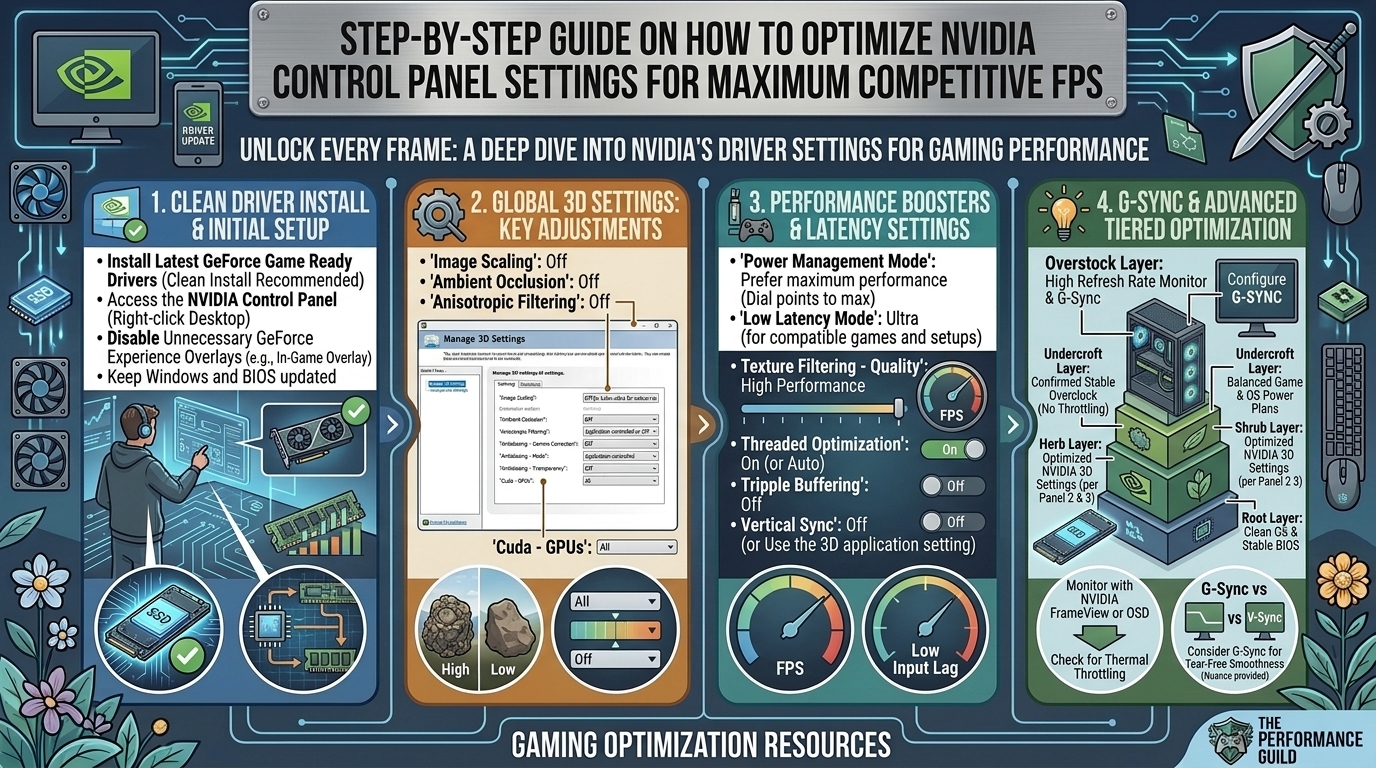
    1. System Preparation & Clean Driver Installation

    Before modifying control panel values, build your optimization setup on a clean driver profile. Residual registry entries from outdated drivers can cause micro-stutters and override explicit settings.

    Step 1: Clean Driver Reset via DDU

    1. Download the latest GeForce Game Ready Driver directly from NVIDIA.
    2. Download Display Driver Uninstaller (DDU).
    3. Disconnect your PC from the internet to stop Windows Update from automatically downloading generic display drivers.
    4. Boot Windows into Safe Mode (Shift + click Restart > Troubleshoot > Advanced Options > Startup Settings > Restart > Press 4).
    5. Run DDU, select GPU and NVIDIA, then click Clean and restart.
    6. Install the official Game Ready Driver using the Custom (Advanced) installation type, and check Perform a clean installation.

    Step 2: Set Windows Graphics Settings

    1. Press Win + I to open Settings > System > Display > Graphics.
    2. Click Change default graphics settings.
    3. Toggle Hardware-accelerated GPU scheduling (HAGS) to ON.
    4. Toggle Optimizations for windowed games to ON.
    5. Restart your PC.

    2. Global 3D Settings for Maximum Competitive FPS

    Open the NVIDIA Control Panel by right-clicking your desktop and selecting it. Under the left sidebar navigation tree, click Manage 3D Settings.

    Configure your Global Settings tab using the competitive parameters detailed below:

    [NVIDIA Control Panel] ──► [3D Settings] ──► [Manage 3D Settings] ──► [Global Settings]
    

    Complete Parameter Configuration Matrix

    NVIDIA Control Panel FeatureRecommended Competitive ValuePerformance & Latency Benefit
    Image Scaling (NIS)OffPrevents unwanted spatial upscaling latency when playing at native resolution.
    Ambient OcclusionOffRemoves ambient contact shadows; saves high GPU execution cycles.
    Anisotropic FilteringOff (or Application-Controlled)Drops texture filtering passes; yields slight FPS gains on mid-range GPUs.
    Antialiasing – FXAAOffFXAA adds a blurry post-processing pass and introduces frame delays.
    Antialiasing – Gamma CorrectionOnKeeps color/brightness scaling correct with minimal hardware impact.
    Antialiasing – ModeOff (or Application-Controlled)Prevents the driver from forcing edge-smoothing over game settings.
    Antialiasing – TransparencyOffStops Alpha-to-Coverage supersampling on alpha textures (leaves/fences).
    Background Application Max Frame RateOn (20–30 FPS)Throttles background tasks (e.g., Discord, OBS) to save resources for active games.
    CUDA – GPUsAllEnsures your primary discrete graphics card handles all compute pipelines.
    DSR – FactorsOffDisables Dynamic Super Resolution render upscaling, saving massive VRAM resources.
    Low Latency ModeUltra (or On)Cuts render queue length down to zero for minimal input latency.
    Max Frame RateOff (or set per display)Handled by frame caps; unlock here unless matching G-Sync tolerances.
    Monitor TechnologyG-SYNC Compatible / Fixed Refresh RateSets your display panel refresh behavior.
    Multi-Frame Sampled AA (MFAA)OffCuts additional temporal filtering overhead.
    OpenGL Rendering GPUSelect your dedicated GPUForces your dedicated NVIDIA graphics card for OpenGL workloads.
    Power Management ModePrefer Maximum PerformanceKeeps GPU core and memory clocks at peak states, eliminating frame drops.
    Preferred Refresh RateHighest AvailableForces the driver to utilize your panel’s top physical Hz throughput.
    Shader Cache Size10GB (or Unlimited)Prevents driver shader recompilation stutters across dynamic titles.
    Texture Filtering – Anisotropic SampleOnOptimizes anisotropic sample requests to raise texture fill rates.
    Texture Filtering – Negative LOD BiasAllowWorks alongside texture filtering to maintain crisp motion textures.
    Texture Filtering – QualityHigh PerformanceCuts texture filtering depth for a measurable FPS uplift.
    Texture Filtering – Trilinear OptimizationOnUses bilinear filtering where trilinear is unneeded to boost frame rates.
    Threaded OptimizationOnForces parallel CPU multi-threading across modern multi-core processors.
    Triple BufferingOffDisables OpenGL extra frame buffering to prevent input lag additions.
    Vertical Sync (V-Sync)Off (Global) / On (G-Sync Stack)Global setting depends on your display sync infrastructure.
    VRS (Variable Rate Shading)OffStops dynamic shading rate swaps that can cause visual distraction in competitive play.

    3. Deep-Dive: Key Latency & Frame Rate Engine Settings

    Low Latency Mode: On vs. Ultra vs. NVIDIA Reflex

    • Off: The CPU queues 1 to 3 frames in render memory before submitting them to the GPU. This improves average FPS slightly on weak CPUs, but adds significant input lag.
    • On: Limits the render queue to 1 frame.
    • Ultra: Submits the frame just-in-time right before the GPU begins execution. This provides the absolute lowest driver-level rendering latency.

    Crucial Note on NVIDIA Reflex: If your game natively supports NVIDIA Reflex Low Latency (e.g., Valorant, Apex Legends, CS2), Reflex overrides the driver-level Low Latency Mode automatically. Set Reflex to On + Boost inside the game’s display settings to keep your GPU clocked high during low-load scenes.

    4. Display, Resolution & Refresh Rate Calibration

    Correct hardware display settings ensure your monitor operates at its true maximum potential.

    Step 1: Force Maximum Native Refresh Rate & Full Dynamic Range

    1. Open NVIDIA Control Panel > expand Display > click Change resolution.
    2. Select your main competitive monitor.
    3. Scroll down to the PC category (do NOT use the TV / Ultra HD / HD category, which often locks refresh rates to 60Hz or 120Hz). Select your native pixel resolution (e.g., 1920x1080 or 2560x1440).
    4. Drop down the Refresh rate menu and choose the highest supported frequency (e.g., 144Hz, 240Hz, 360Hz, or 540Hz).
    5. Scroll down to section 3. Apply the following settings:
      • Tick Use NVIDIA color settings.
      • Set Desktop color depth to Highest (32-bit).
      • Set Output dynamic range to Full (0-255).
    Change Resolution Settings:
    ├── Resolution: PC -> 2560x1440 (Native)
    ├── Refresh Rate: 240Hz (Highest Available)
    └── Output Dynamic Range: Full
    

    Step 2: Configure Desktop Size & Position (GPU vs. Display Scaling)

    Scaling mode dictates how non-native resolutions (like stretched 4:3 in CS2) display on your screen.

    1. Go to Display > Adjust desktop size and position.
    2. Under Select a scaling mode:
      • For non-stretched native gameplay: Select No scaling (lowest processing delay).
      • For stretched resolution play: Select Full-screen.
    3. Under Perform scaling on:
      • Select Display if your monitor scaler features low latency.
      • Select GPU if playing stretched 4:3 resolutions or using custom frame ratios.
    4. Check the box Override the scaling mode set by games and programs.

    5. Desktop Color Adjustments for Visual Clarity

    Elevated digital vibrance makes enemy character models pop out against dark or muted backgrounds, speeding up your visual target acquisition time.

    1. Navigate to Display > Adjust desktop color settings.
    2. Select your main gaming display.
    3. Locate Digital Vibrance.
      • Default: 50%
      • Recommended Competitive Setup: Move the slider to between 60% and 75%.
    4. Move Gamma to 1.05 - 1.10 if you need extra visibility in dark, unlit corners without blowing out bright regions.

    6. G-SYNC vs. Fixed Refresh Rate: Low Latency Setup

    Using G-SYNC properly eliminates screen tearing without introducing the severe input lag associated with traditional V-Sync.

    Option A: The Zero-Tear Low Latency Setup (G-Sync + V-Sync + Frame Cap)

    For ultra-smooth visuals without screen tearing:

    1. Go to Display > Set up G-SYNC.
    2. Check Enable G-SYNC, G-SYNC Compatible.
    3. Select Enable for full screen mode (prevents window focus drops).
    4. Go to Manage 3D Settings:
      • Set Vertical sync to On inside the NVIDIA driver panel (never inside the game).
      • Set Max Frame Rate to 3 to 4 FPS below your monitor’s native refresh rate (e.g., set to 236 FPS on a 240Hz monitor, or 340 FPS on a 360Hz monitor).
    5. Why this works: Keeping your frame rate just below the refresh rate cap keeps G-SYNC active constantly, preventing the system from shifting into native V-Sync latency mode while eliminating frame tearing completely.

    Option B: Pure Unlocked Competitive Mode (No Sync)

    Used by professional players aiming for maximum raw frame output:

    1. Set up G-SYNC: Uncheck Enable G-SYNC.
    2. Manage 3D Settings:
      • Vertical sync: Off.
      • Max Frame Rate: Off.
    3. Unlocks raw frame rates (e.g., 500+ FPS), minimizing frame time delays at the cost of screen tearing.

    7. PhysX & High-Performance Hardware Routing

    1. Click Configure Surround, PhysX in the left sidebar navigation menu.
    2. Locate PhysX settings on the right side of the pane.
    3. Change Processor from Auto-select to your dedicated NVIDIA GeForce RTX GPU.
    4. This stops your system from accidentally assigning physics engine calculations to your CPU cores, preventing unexpected frame dips during explosions or complex destruction physics.

    Frequently Asked Questions (FAQ)

    1. Does setting Power Management to “Prefer Maximum Performance” burn out my GPU?

    No. It simply prevents your GPU core and memory clocks from dropping down to low idle states during light rendering moments. Your card’s internal thermal and power limiters remain fully active to protect the hardware.

    2. Should I set Low Latency Mode to “Ultra” or “On”?

    Set it to Ultra for competitive titles. If a game supports NVIDIA Reflex, turn Reflex on in-game instead; it overrides driver Low Latency Mode and manages system frame queues directly at the engine level.

    3. Why is Texture Filtering set to “High Performance” instead of “Quality”?

    “High Performance” lowers texture filtering passes slightly, freeing up GPU memory bandwidth. In fast-paced competitive games, the slight loss in visual detail is unnoticeable, but the gain in frame rate stability is immediate.

    4. Should I enable NIS (NVIDIA Image Scaling) for competitive FPS?

    No. NIS renders games at a lower internal resolution and sharpens the image. While it raises FPS on low-end hardware, the spatial upscaling step introduces processing overhead and visual artifacts that hurt target clarity.

    5. What is the best Shader Cache Size for competitive gaming?

    Set your Shader Cache Size to 10GB or Unlimited. Standard default settings cache fewer compiled shaders, causing your driver to rebuild them constantly during gameplay—which results in sudden micro-stutters.

    6. Does Digital Vibrance reduce GPU performance?

    Not at all. Digital Vibrance is a hardware-level display color adjustment handled by the display pipeline with zero impact on rendering frame rates or latency.

    7. Should I choose GPU or Display scaling?

    In most cases, select Display scaling if your monitor has a fast internal processor. If you play stretched resolutions (like 4:3 stretched in CS2) and your monitor stretches the image unevenly, select GPU scaling and check Override the scaling mode set by games and programs.

    8. Does disabling Anisotropic Filtering improve FPS?

    Yes. Turning off Anisotropic Filtering saves texture processing cycles. While textures angled far away from your view will look slightly blurrier, your overall rendering speed and frame time consistency will improve.

    9. Why should I lock my frame rate 3 FPS below my monitor refresh rate when using G-Sync?

    If your frame rate reaches or exceeds your monitor’s native refresh rate (e.g., 240 FPS on a 240Hz screen), G-Sync disengages and traditional V-Sync engages, causing input lag. Capping your FPS 3 to 4 frames below your display limit keeps G-Sync active constantly without input delay penalty.

    10. Do I need to redo these settings whenever I update my NVIDIA driver?

    If you select Perform a clean installation during driver updates, all NVIDIA Control Panel settings will reset to default factory values. Save your custom profiles or re-apply this guide’s parameters after every clean driver update.

    Final Tuning Checklist

    To get your PC fully optimized for competitive play, run through this quick final checklist:

    • [ ] Clean display driver installed via DDU.
    • [ ] Windows HAGS turned ON.
    • [ ] Power Management Mode set to Prefer Maximum Performance.
    • [ ] Low Latency Mode set to Ultra (or NVIDIA Reflex On + Boost in-game).
    • [ ] Shader Cache Size set to 10GB or higher.
    • [ ] Monitor refresh rate set to the highest native Hz output under PC settings.
    • [ ] Digital Vibrance adjusted for visual target tracking.

    Properly tuning your NVIDIA Control Panel removes systemic hardware bottlenecks, stabilizes frame delivery times, and keeps your input lag down to absolute physical minimums. Adjust your control panel settings today and feel the immediate improvement in input response during your next game.

  • How to fix low fps drops in modern open world rpg games on windows 11 pc

    How to fix low fps drops in modern open world rpg games on windows 11 pc

    Here is the ultimate SEO-optimized master guide written specifically for The Gamer Buzz audience.

    How to Fix Low FPS Drops in Modern Open World RPG Games on Windows 11 PC

    Modern open-world RPGs push PC hardware further than almost any other genre. Titles like Cyberpunk 2077, The Witcher 3: Wild Hunt Next-Gen, Starfield, Dragon’s Dogma 2, and Elden Ring streaming gigabytes of ultra-high-resolution textures, dynamic NPC scripts, volumetric weather effects, and ray-traced shadows seamlessly without loading screens.

    However, this freedom comes at a cost. Many players running Windows 11 face sudden, jarring FPS drops, micro-stutters, and erratic 1% low frame rates—even on high-end rigs equipped with modern GPUs and CPUs.

    If your game drops from 90 FPS down to a unplayable 25 FPS every time you enter a crowded city or sprint across a massive biome, the problem usually isn’t just your graphics processing unit (GPU). It stems from how Windows 11 manages memory, background processes, system drivers, and background assets.

    This comprehensive optimization guide will walk you through deep Windows 11 system tweaks, hardware configurations, and in-game settings to eradicate low FPS drops and achieve smooth, stutter-free performance in modern open-world RPGs.

    1. Fast Diagnostics: Identifying CPU vs. GPU Bottlenecks

    Before tweaking settings, you must understand what is causing your frame rate drops. Open-world RPGs struggle with two main bottlenecks:

    • GPU Bottlenecks: Low average frame rates throughout the game, heavy frame rate drops when looking at complex particle effects, volumetric fog, or dynamic lighting.
    • CPU / RAM Streaming Bottlenecks: Micro-stutters when moving across territory boundaries, drastic FPS drops when entering high-NPC cities, or erratic frame times (high 1% and 0.1% low dips).

    How to Check in Real-Time

    1. Download MSI Afterburner along with RivaTuner Statistics Server (RTSS).
    2. Set up the On-Screen Display (OSD) to monitor GPU Usage (%), CPU Usage (Per Core %), RAM Usage, and Frame Time Graph.
    3. Analyze the Data:
      • If GPU usage sits at 99% continuously while your frame rates drop, your GPU graphics settings are set too high.
      • If GPU usage drops below 90% while single CPU core threads hit 95%+ or frame time spikes erratically, your system is suffering from a CPU/RAM streaming bottleneck.

    2. Crucial Windows 11 OS System Optimizations

    Windows 11 includes features designed to boost security and productivity, but some of them severely throttle real-time game performance.

    Enable Hardware-Accelerated GPU Scheduling (HAGS)

    HAGS offloads VRAM management tasks directly to the GPU’s dedicated scheduling processor, reducing CPU overhead during asset-heavy open-world streaming.

    1. Press Win + I to open Settings.
    2. Go to System > Display > Graphics.
    3. Click on Change default graphics settings.
    4. Toggle Hardware-accelerated GPU scheduling to ON.
    5. Enable Optimizations for windowed games.
    6. Restart your PC.

    Optimize Windows 11 Game Mode

    Game Mode prevents Windows Update from installing drivers or sending notifications mid-game, and it prioritizes CPU threads for your active gaming application.

    1. Navigate to Settings > Gaming > Game Mode.
    2. Ensure Game Mode is toggled ON.
    3. Under Captures, disable Background Recording (this aggressively writes to storage drives in the background, causing stutter in open-world games).

    Disable Core Isolation (VBS & HVCI)

    Virtualization-Based Security (VBS) and Hypervisor-Protected Code Integrity (HVCI) protect your operating system from malware, but independent benchmarks show they can degrade gaming performance by up to 5-15% on non-enterprise setups.

    1. Open the Start menu, type Core Isolation, and press Enter.
    2. Toggle Memory Integrity to OFF.
    3. Restart your system.(Note: If you use your machine for high-risk enterprise operations, evaluate security trade-offs prior to disabling this feature).

    Update Windows 11 and Manage Problematic Updates (e.g., KB5121003)

    System updates generally optimize execution pipelines, but major update releases can introduce kernel-level conflicts with third-party drivers (such as RGB software or peripheral control modules like inpoutx64.sys), causing sudden FPS drops and crashes.

    • Always keep Windows 11 updated to stable builds.
    • If frame rates suddenly plummet after a cumulative patch update, check Microsoft’s release dashboard or rollback recent updates via Settings > Windows Update > Update History > Uninstall Updates.

    3. Power, GPU Drivers & Cache Management

    Set the Ultimate Performance Power Plan

    Windows 11 power management defaults often park CPU cores unnecessarily, causing micro-stutters when open-world games quickly demand processing power for background world assets.

    1. Open Command Prompt as Administrator.
    2. Paste the following command and hit Enter:powercfg -duplicatescheme e9a42b02-d5df-448d-aa00-03f14749eb61
    3. Press Win + R, type powercfg.cpl, and hit Enter.
    4. Select the Ultimate Performance power plan.

    Perform a Clean GPU Driver Reinstallation (DDU)

    Corrupted display drivers leave lingering residual files that cause memory leaks and dynamic frame drops.

    1. Download the latest graphics driver package from NVIDIA, AMD, or Intel.
    2. Download Display Driver Uninstaller (DDU).
    3. Boot Windows 11 into Safe Mode.
    4. Launch DDU, select your GPU type, and hit Clean and restart.
    5. Install your newly downloaded driver using the Express/Clean Install option.

    Maximize NVIDIA / AMD Shader Cache Size

    Open-world RPGs generate thousands of dynamic shaders on the fly. Increasing your GPU Shader Cache capacity stops the graphics card from continuously recompiling shaders, eliminating initial-entry stutters.

    • NVIDIA Users:
      1. Right-click the desktop and open NVIDIA Control Panel.
      2. Navigate to Manage 3D Settings > Global Settings.
      3. Change Shader Cache Size from Driver Default to 10 GB or Unlimited.
      4. Change Power Management Mode to Prefer Maximum Performance.
    • AMD Users:
      1. Open AMD Software: Adrenalin Edition.
      2. Navigate to Gaming > Graphics > Advanced.
      3. Ensure Reset Shader Cache is run if experiencing long-term micro-stutters.

    4. In-Game Settings Breakdown for Open World RPGs

    When configuring modern RPG titles, tweaking specific graphics settings provides massive frame stability gains with minimal hit to visual quality.

    SettingRecommended ValueImpact on Open World Performance
    Crowd Density / NPC CountMedium / LowCritical (CPU/RAM bound): High settings overload single-core CPU execution threads in cities.
    Volumetric Fog / LightingMediumHigh (GPU bound): Heavy volumetric effects destroy frame rates during dynamic weather changes.
    Ray Tracing (Reflections/GI)Off or LowExtreme (VRAM/GPU bound): Heavy VRAM consumption triggers severe frame drops across large areas.
    Shadow ResolutionMedium / HighModerate: Ultra shadows heavily tax both GPU memory bandwidth and draw calls.
    Asset View Distance / LODMediumHigh (Streaming bound): Controls how far out the engine renders geometry, impacting SSD & RAM streaming.
    Upscaling (DLSS / FSR / XeSS)Quality / BalancedMassive Boost: Renders internal resolution lower while maintaining crisp visual output.

    5. Storage & RAM Hardware Tuning

    Open-world engine tech relies heavily on DirectStorage or rapid background asset streaming. Mechanical HDDs or slower SATA SSDs cause massive texture pop-in and severe frame pauses.

    DirectStorage & NVMe SSD Best Practices

    • Install on PCIe NVMe SSDs: Ensure modern open-world RPGs reside on an NVMe M.2 SSD (Gen 3 or Gen 4+). SATA SSDs struggle with seamless level-streaming requirements.
    • Keep Storage Capacity Clear: Maintain at least 15-20% free space on your primary gaming drive to allow SSD controller garbage collection and wear-leveling algorithms to perform optimally.

    Enable XMP / EXPO Profiles in BIOS

    Running RAM at stock speeds (e.g., 2133MHz DDR4 or 4800MHz DDR5) creates severe memory bandwidth limits, choking single-core CPU execution during fast world movement.

    1. Restart your PC and press Del or F2 to enter BIOS/UEFI.
    2. Locate XMP (Extreme Memory Profile) for Intel or EXPO / DOCP for AMD systems.
    3. Select Profile 1 to apply advertised RAM frequencies and tight timings.
    4. Save settings and exit.

    Optimize Windows 11 Pagefile (Virtual Memory)

    If your system runs out of physical RAM (or high VRAM allocation spills over), poor pagefile settings crash frame rates.

    1. Press Win + R, type sysdm.cpl, and press Enter.
    2. Go to the Advanced tab > under Performance, click Settings.
    3. Click the Advanced tab > under Virtual Memory, select Change.
    4. Uncheck Automatically manage paging file size for all drives.
    5. Select your fastest NVMe SSD drive.
    6. Choose Custom size:
      • Initial size (MB): 1.5x your physical RAM (e.g., 24576 MB for 16GB RAM).
      • Maximum size (MB): 3x your physical RAM (e.g., 49152 MB for 16GB RAM).
    7. Click Set, then OK, and restart your PC.

    Frequently Asked Questions (FAQ)

    1. Why do FPS drops happen specifically in open-world RPGs compared to linear games?

    Open-world RPGs continually load assets, textures, physical terrain, and complex AI behaviors in the background while you travel across the map. Linear games load isolated levels, whereas open-world engines stream data constantly, taxing the CPU, RAM bandwidth, and storage drives simultaneously.

    2. What is the single biggest cause of sudden frame rate micro-stuttering?

    Installing open-world games on an HDD or failing to enable XMP/EXPO memory profiles in the BIOS. High memory latencies and slow read speeds create severe bottleneck delays whenever asset streams load into VRAM.

    3. Does Windows 11 perform worse than Windows 10 for open-world gaming?

    Out of the box, Windows 11 can perform slightly worse due to aggressive default background security features like Virtualization-Based Security (VBS) and Memory Integrity. However, once tuned with Game Mode and HAGS enabled, Windows 11 delivers identical or superior frame times.

    4. How much VRAM is required to stop frame drops in modern RPGs?

    For modern AAA RPGs running at 1440p resolution with high texture packs, 12GB of VRAM is the target sweet spot. Running out of VRAM forces your system to transfer memory back and forth to system RAM, causing massive frame drop spikes.

    5. Should I disable Fullscreen Optimizations on Windows 11?

    In Windows 11, Fullscreen Optimizations work exceptionally well alongside Auto HDR and windowed optimizations. For modern DirectX 12 games, leave Fullscreen Optimizations ON. For older DirectX 9/11 legacy RPGs, right-click the game executable, go to Properties > Compatibility, and test disabling it if micro-stutters persist.

    6. Will upgrading my CPU fix FPS drops in crowded game cities?

    Yes. High NPC density in hubs (e.g., Night City in Cyberpunk 2077 or Akila City in Starfield) heavily utilizes single-thread CPU performance and L3 cache memory. Modern CPUs with large L3 caches excel at rendering high NPC counts without stuttering.

    7. Should I use V-Sync, G-Sync, or FreeSync to eliminate drops?

    Set V-Sync to OFF in your in-game options. Enable G-Sync/FreeSync via your graphics software control panel, and set a global frame rate cap 3 FPS below your monitor’s maximum refresh rate (e.g., cap at 141 FPS on a 144Hz panel) to guarantee low latency and eliminate screen tearing without stuttering.

    8. Does background software like Discord or RGB lighting cause FPS drops?

    Yes. Background apps running hardware acceleration (e.g., Discord, Chrome, Spotify) or RGB lighting control software can consume CPU cycles, trigger kernel driver latency conflicts, and result in stuttering frame times. Turn off hardware acceleration inside background apps when gaming.

    9. Why does my frame rate drop after playing for an hour or two?

    This is a classic symptom of Thermal Throttling or a Memory Leak within the game’s engine. Monitor your hardware temperatures; if your GPU or CPU hits 85°C–90°C+, fan profiles and clock frequencies drop automatically to save hardware, degrading FPS performance.

    10. Does DLSS 3 / FSR 3 Frame Generation fix frame drops?

    Frame Generation increases overall perceived visual smoothness, but it does not eliminate fundamental CPU frame time stutters. If your base frame rate drops below 50–60 raw FPS, turning on Frame Generation may introduce noticeable latency and artifacting. Always stabilize your base performance first.

    Final Thoughts & Conclusion

    Eliminating frame drops in open-world RPGs on Windows 11 comes down to removing systemic performance bottlenecks. Open-world titles demand seamless coordination between your storage drive, RAM latency, CPU single-thread queues, and GPU VRAM capacity.

    By implementing the optimization protocol outlined in this guide—enabling HAGS, configuring DDU driver installations, running memory profiles at native speed, offloading non-essential background security tasks, and optimizing CPU-heavy in-game settings—you can restore buttery-smooth frame rates and immerse yourself completely in vast virtual worlds.

  • Hello world!

    Welcome to WordPress. This is your first post. Edit or delete it, then start writing!