Here is the ultimate SEO-optimized master guide written specifically for The Gamer Buzz audience.
How to Fix Low FPS Drops in Modern Open World RPG Games on Windows 11 PC
Modern open-world RPGs push PC hardware further than almost any other genre. Titles like Cyberpunk 2077, The Witcher 3: Wild Hunt Next-Gen, Starfield, Dragon’s Dogma 2, and Elden Ring streaming gigabytes of ultra-high-resolution textures, dynamic NPC scripts, volumetric weather effects, and ray-traced shadows seamlessly without loading screens.
However, this freedom comes at a cost. Many players running Windows 11 face sudden, jarring FPS drops, micro-stutters, and erratic 1% low frame rates—even on high-end rigs equipped with modern GPUs and CPUs.
If your game drops from 90 FPS down to a unplayable 25 FPS every time you enter a crowded city or sprint across a massive biome, the problem usually isn’t just your graphics processing unit (GPU). It stems from how Windows 11 manages memory, background processes, system drivers, and background assets.
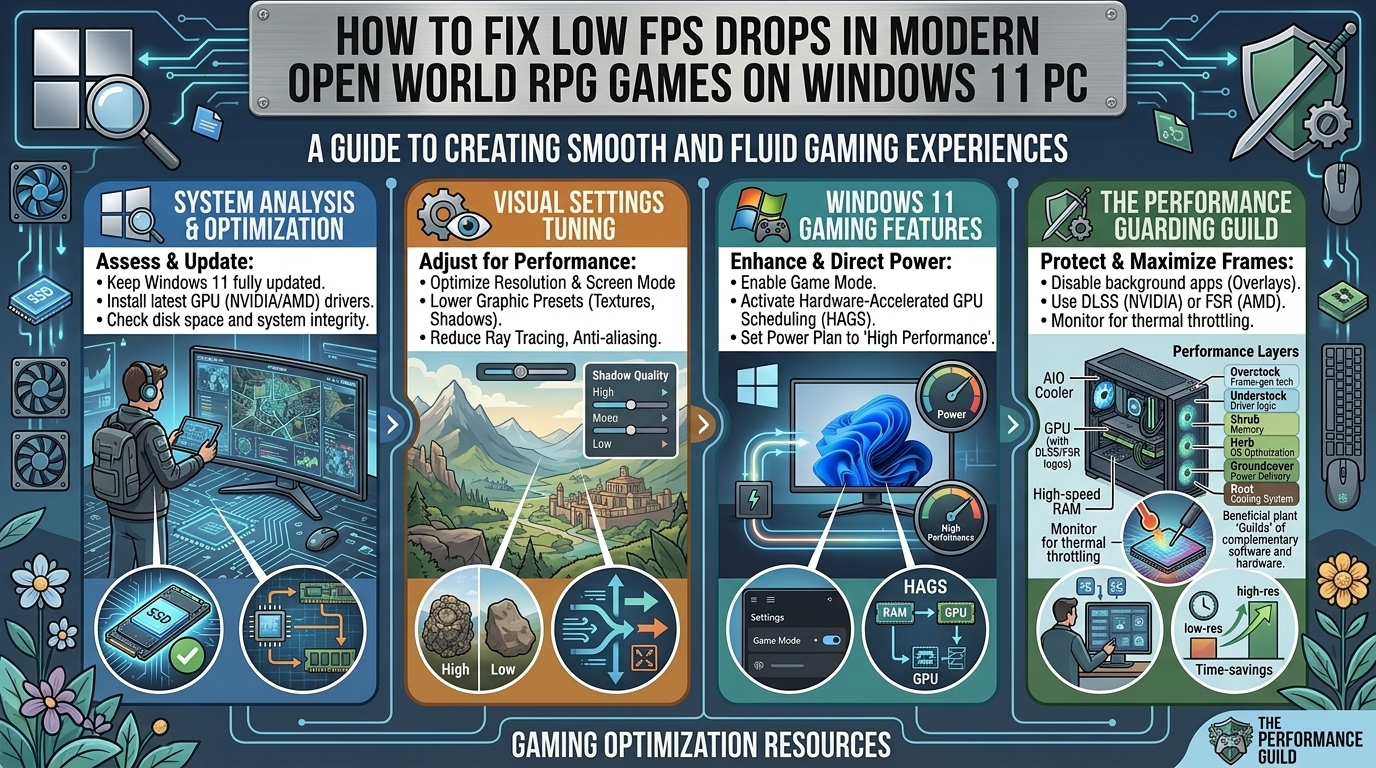
This comprehensive optimization guide will walk you through deep Windows 11 system tweaks, hardware configurations, and in-game settings to eradicate low FPS drops and achieve smooth, stutter-free performance in modern open-world RPGs.
1. Fast Diagnostics: Identifying CPU vs. GPU Bottlenecks
Before tweaking settings, you must understand what is causing your frame rate drops. Open-world RPGs struggle with two main bottlenecks:
- GPU Bottlenecks: Low average frame rates throughout the game, heavy frame rate drops when looking at complex particle effects, volumetric fog, or dynamic lighting.
- CPU / RAM Streaming Bottlenecks: Micro-stutters when moving across territory boundaries, drastic FPS drops when entering high-NPC cities, or erratic frame times (high 1% and 0.1% low dips).
How to Check in Real-Time
- Download MSI Afterburner along with RivaTuner Statistics Server (RTSS).
- Set up the On-Screen Display (OSD) to monitor GPU Usage (%), CPU Usage (Per Core %), RAM Usage, and Frame Time Graph.
- Analyze the Data:
- If GPU usage sits at 99% continuously while your frame rates drop, your GPU graphics settings are set too high.
- If GPU usage drops below 90% while single CPU core threads hit 95%+ or frame time spikes erratically, your system is suffering from a CPU/RAM streaming bottleneck.
2. Crucial Windows 11 OS System Optimizations
Windows 11 includes features designed to boost security and productivity, but some of them severely throttle real-time game performance.
Enable Hardware-Accelerated GPU Scheduling (HAGS)
HAGS offloads VRAM management tasks directly to the GPU’s dedicated scheduling processor, reducing CPU overhead during asset-heavy open-world streaming.
- Press
Win + Ito open Settings. - Go to System > Display > Graphics.
- Click on Change default graphics settings.
- Toggle Hardware-accelerated GPU scheduling to ON.
- Enable Optimizations for windowed games.
- Restart your PC.
Optimize Windows 11 Game Mode
Game Mode prevents Windows Update from installing drivers or sending notifications mid-game, and it prioritizes CPU threads for your active gaming application.
- Navigate to Settings > Gaming > Game Mode.
- Ensure Game Mode is toggled ON.
- Under Captures, disable Background Recording (this aggressively writes to storage drives in the background, causing stutter in open-world games).
Disable Core Isolation (VBS & HVCI)
Virtualization-Based Security (VBS) and Hypervisor-Protected Code Integrity (HVCI) protect your operating system from malware, but independent benchmarks show they can degrade gaming performance by up to 5-15% on non-enterprise setups.
- Open the Start menu, type Core Isolation, and press Enter.
- Toggle Memory Integrity to OFF.
- Restart your system.(Note: If you use your machine for high-risk enterprise operations, evaluate security trade-offs prior to disabling this feature).
Update Windows 11 and Manage Problematic Updates (e.g., KB5121003)
System updates generally optimize execution pipelines, but major update releases can introduce kernel-level conflicts with third-party drivers (such as RGB software or peripheral control modules like inpoutx64.sys), causing sudden FPS drops and crashes.
- Always keep Windows 11 updated to stable builds.
- If frame rates suddenly plummet after a cumulative patch update, check Microsoft’s release dashboard or rollback recent updates via Settings > Windows Update > Update History > Uninstall Updates.
3. Power, GPU Drivers & Cache Management
Set the Ultimate Performance Power Plan
Windows 11 power management defaults often park CPU cores unnecessarily, causing micro-stutters when open-world games quickly demand processing power for background world assets.
- Open Command Prompt as Administrator.
- Paste the following command and hit Enter:
powercfg -duplicatescheme e9a42b02-d5df-448d-aa00-03f14749eb61 - Press
Win + R, typepowercfg.cpl, and hit Enter. - Select the Ultimate Performance power plan.
Perform a Clean GPU Driver Reinstallation (DDU)
Corrupted display drivers leave lingering residual files that cause memory leaks and dynamic frame drops.
- Download the latest graphics driver package from NVIDIA, AMD, or Intel.
- Download Display Driver Uninstaller (DDU).
- Boot Windows 11 into Safe Mode.
- Launch DDU, select your GPU type, and hit Clean and restart.
- Install your newly downloaded driver using the Express/Clean Install option.
Maximize NVIDIA / AMD Shader Cache Size
Open-world RPGs generate thousands of dynamic shaders on the fly. Increasing your GPU Shader Cache capacity stops the graphics card from continuously recompiling shaders, eliminating initial-entry stutters.
- NVIDIA Users:
- Right-click the desktop and open NVIDIA Control Panel.
- Navigate to Manage 3D Settings > Global Settings.
- Change Shader Cache Size from Driver Default to 10 GB or Unlimited.
- Change Power Management Mode to Prefer Maximum Performance.
- AMD Users:
- Open AMD Software: Adrenalin Edition.
- Navigate to Gaming > Graphics > Advanced.
- Ensure Reset Shader Cache is run if experiencing long-term micro-stutters.
4. In-Game Settings Breakdown for Open World RPGs
When configuring modern RPG titles, tweaking specific graphics settings provides massive frame stability gains with minimal hit to visual quality.
| Setting | Recommended Value | Impact on Open World Performance |
| Crowd Density / NPC Count | Medium / Low | Critical (CPU/RAM bound): High settings overload single-core CPU execution threads in cities. |
| Volumetric Fog / Lighting | Medium | High (GPU bound): Heavy volumetric effects destroy frame rates during dynamic weather changes. |
| Ray Tracing (Reflections/GI) | Off or Low | Extreme (VRAM/GPU bound): Heavy VRAM consumption triggers severe frame drops across large areas. |
| Shadow Resolution | Medium / High | Moderate: Ultra shadows heavily tax both GPU memory bandwidth and draw calls. |
| Asset View Distance / LOD | Medium | High (Streaming bound): Controls how far out the engine renders geometry, impacting SSD & RAM streaming. |
| Upscaling (DLSS / FSR / XeSS) | Quality / Balanced | Massive Boost: Renders internal resolution lower while maintaining crisp visual output. |
5. Storage & RAM Hardware Tuning
Open-world engine tech relies heavily on DirectStorage or rapid background asset streaming. Mechanical HDDs or slower SATA SSDs cause massive texture pop-in and severe frame pauses.
DirectStorage & NVMe SSD Best Practices
- Install on PCIe NVMe SSDs: Ensure modern open-world RPGs reside on an NVMe M.2 SSD (Gen 3 or Gen 4+). SATA SSDs struggle with seamless level-streaming requirements.
- Keep Storage Capacity Clear: Maintain at least 15-20% free space on your primary gaming drive to allow SSD controller garbage collection and wear-leveling algorithms to perform optimally.
Enable XMP / EXPO Profiles in BIOS
Running RAM at stock speeds (e.g., 2133MHz DDR4 or 4800MHz DDR5) creates severe memory bandwidth limits, choking single-core CPU execution during fast world movement.
- Restart your PC and press
DelorF2to enter BIOS/UEFI. - Locate XMP (Extreme Memory Profile) for Intel or EXPO / DOCP for AMD systems.
- Select Profile 1 to apply advertised RAM frequencies and tight timings.
- Save settings and exit.
Optimize Windows 11 Pagefile (Virtual Memory)
If your system runs out of physical RAM (or high VRAM allocation spills over), poor pagefile settings crash frame rates.
- Press
Win + R, typesysdm.cpl, and press Enter. - Go to the Advanced tab > under Performance, click Settings.
- Click the Advanced tab > under Virtual Memory, select Change.
- Uncheck Automatically manage paging file size for all drives.
- Select your fastest NVMe SSD drive.
- Choose Custom size:
- Initial size (MB): 1.5x your physical RAM (e.g., 24576 MB for 16GB RAM).
- Maximum size (MB): 3x your physical RAM (e.g., 49152 MB for 16GB RAM).
- Click Set, then OK, and restart your PC.
Frequently Asked Questions (FAQ)
1. Why do FPS drops happen specifically in open-world RPGs compared to linear games?
Open-world RPGs continually load assets, textures, physical terrain, and complex AI behaviors in the background while you travel across the map. Linear games load isolated levels, whereas open-world engines stream data constantly, taxing the CPU, RAM bandwidth, and storage drives simultaneously.
2. What is the single biggest cause of sudden frame rate micro-stuttering?
Installing open-world games on an HDD or failing to enable XMP/EXPO memory profiles in the BIOS. High memory latencies and slow read speeds create severe bottleneck delays whenever asset streams load into VRAM.
3. Does Windows 11 perform worse than Windows 10 for open-world gaming?
Out of the box, Windows 11 can perform slightly worse due to aggressive default background security features like Virtualization-Based Security (VBS) and Memory Integrity. However, once tuned with Game Mode and HAGS enabled, Windows 11 delivers identical or superior frame times.
4. How much VRAM is required to stop frame drops in modern RPGs?
For modern AAA RPGs running at 1440p resolution with high texture packs, 12GB of VRAM is the target sweet spot. Running out of VRAM forces your system to transfer memory back and forth to system RAM, causing massive frame drop spikes.
5. Should I disable Fullscreen Optimizations on Windows 11?
In Windows 11, Fullscreen Optimizations work exceptionally well alongside Auto HDR and windowed optimizations. For modern DirectX 12 games, leave Fullscreen Optimizations ON. For older DirectX 9/11 legacy RPGs, right-click the game executable, go to Properties > Compatibility, and test disabling it if micro-stutters persist.
6. Will upgrading my CPU fix FPS drops in crowded game cities?
Yes. High NPC density in hubs (e.g., Night City in Cyberpunk 2077 or Akila City in Starfield) heavily utilizes single-thread CPU performance and L3 cache memory. Modern CPUs with large L3 caches excel at rendering high NPC counts without stuttering.
7. Should I use V-Sync, G-Sync, or FreeSync to eliminate drops?
Set V-Sync to OFF in your in-game options. Enable G-Sync/FreeSync via your graphics software control panel, and set a global frame rate cap 3 FPS below your monitor’s maximum refresh rate (e.g., cap at 141 FPS on a 144Hz panel) to guarantee low latency and eliminate screen tearing without stuttering.
8. Does background software like Discord or RGB lighting cause FPS drops?
Yes. Background apps running hardware acceleration (e.g., Discord, Chrome, Spotify) or RGB lighting control software can consume CPU cycles, trigger kernel driver latency conflicts, and result in stuttering frame times. Turn off hardware acceleration inside background apps when gaming.
9. Why does my frame rate drop after playing for an hour or two?
This is a classic symptom of Thermal Throttling or a Memory Leak within the game’s engine. Monitor your hardware temperatures; if your GPU or CPU hits 85°C–90°C+, fan profiles and clock frequencies drop automatically to save hardware, degrading FPS performance.
10. Does DLSS 3 / FSR 3 Frame Generation fix frame drops?
Frame Generation increases overall perceived visual smoothness, but it does not eliminate fundamental CPU frame time stutters. If your base frame rate drops below 50–60 raw FPS, turning on Frame Generation may introduce noticeable latency and artifacting. Always stabilize your base performance first.
Final Thoughts & Conclusion
Eliminating frame drops in open-world RPGs on Windows 11 comes down to removing systemic performance bottlenecks. Open-world titles demand seamless coordination between your storage drive, RAM latency, CPU single-thread queues, and GPU VRAM capacity.
By implementing the optimization protocol outlined in this guide—enabling HAGS, configuring DDU driver installations, running memory profiles at native speed, offloading non-essential background security tasks, and optimizing CPU-heavy in-game settings—you can restore buttery-smooth frame rates and immerse yourself completely in vast virtual worlds.
Leave a Reply