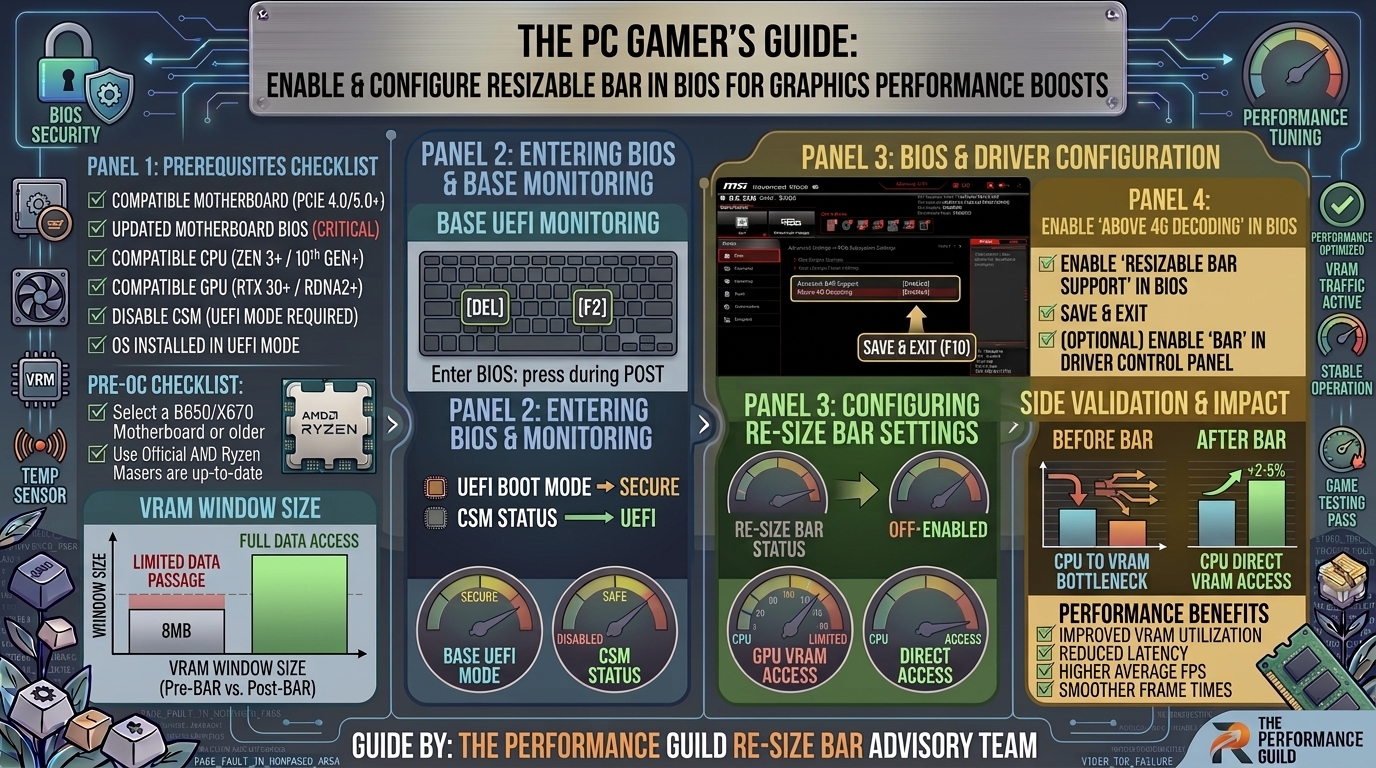
How to Enable and Configure Resizable BAR in BIOS for Performance Boosts in Modern Graphics Cards
Modern video games demand unprecedented data transfer rates between your System RAM, Central Processing Unit (CPU), and Graphics Processing Unit (GPU). As render resolutions scale to 4K, textures grow to massive sizes, and ray tracing pipelines saturate system buses, traditional hardware communication bottlenecks can restrict overall frame rate output.
Enter Resizable BAR (Base Address Register)—an advanced PCI Express (PCIe) interface technology that fundamentally restructures how your processor communicates with your graphics card’s video memory (VRAM). When enabled and properly configured, Resizable BAR unlocks significant performance boosts, stabilizes 1% low frame rates, and eliminates texture streaming stutters across a vast library of modern PC titles.
This comprehensive guide breaks down the underlying technology, system compatibility requirements, step-by-step BIOS configuration procedures across major motherboard vendors, and critical troubleshooting steps to ensure your rig achieves maximum gaming performance.
1. What Is Resizable BAR and How Does It Work?
To understand why Resizable BAR is a game-changer for PC gaming performance, you must first understand how traditional PCIe communication works.
Traditional PCIe Transfer (256 MB Blocks):
[CPU] ──(256 MB)──> [256 MB] ──(256 MB)──> [256 MB] ──> [GPU VRAM]
(Multiple small transactions create queuing bottlenecks)

Resizable BAR PCIe Transfer (Full VRAM Access):
[CPU] ───────────────────────(Full 16 GB Access)───────────────────────> [GPU VRAM]
(CPU directly requests and transfers assets instantly as needed)
The Legacy 256 MB Bottleneck
For decades, standard PCI Express architecture dictated that the CPU could only negotiate transfers to GPU video memory in rigid 256 Megabyte (MB) chunks. This limitation was established during the 32-bit computing era, long before modern games began requiring 8 GB, 12 GB, or 16 GB+ of VRAM to hold high-resolution assets.
Under the traditional 256 MB limit:
- If a game engine needed to transfer 4 GB of character models, lighting maps, and texture packs from System RAM to VRAM, the CPU had to break that payload into 16 separate transfers.
- These transfers queued up on the PCIe bus, forcing execution threads to wait and creating momentary latency spikes—commonly experienced by players as micro-stutters or dropped frames.
The Resizable BAR Solution
Resizable BAR (part of the official PCIe 3.0 specifications and expanded in PCIe 4.0/5.0) removes this arbitrary block limitation. It enables the CPU to dynamically negotiate the size of the Base Address Register mapped to the GPU.
Instead of a narrow 256 MB pipe, the CPU gains direct, simultaneous access to the entire VRAM frame buffer. The CPU can request single assets, small shaders, or multi-gigabyte texture packages in a single transaction, dramatically reducing bus overhead and pipeline stalls.
2. Platform Branding: Resizable BAR vs. Smart Access Memory (SAM)
Depending on your hardware ecosystem, you will see different terms used for the same underlying PCI Express feature:
- AMD Smart Access Memory (SAM): AMD’s marketing name for Resizable BAR when combining an AMD Ryzen CPU, an AMD 500-series or 600-series motherboard, and an AMD Radeon RX 6000 or RX 7000 series GPU. AMD SAM includes additional driver-level software optimizations tailored for all-AMD hardware builds.
- Nvidia Resizable BAR (ReBAR): Nvidia’s implementation for GeForce RTX 30-series (Ampere), RTX 40-series (Ada Lovelace), and newer graphics cards.
- Intel Resizable BAR: Supported across Intel Arc GPUs and 10th Gen to 14th Gen Intel Core desktop processors. (Note: Intel Arc GPUs require Resizable BAR enabled for playable frame rates).
Core Fact: Whether labeled as SAM or Resizable BAR, the feature relies on identical motherboard BIOS mechanisms: Above 4G Decoding and Re-Size BAR Support.
3. System Hardware & Software Requirements
Before attempting to enable Resizable BAR in your motherboard BIOS, ensure your hardware platform meets all necessary compatibility checks across the CPU, GPU, motherboard, and operating system.
Hardware Compatibility Overview
| Component | Minimum Compatibility Requirement | Recommended / Ideal Setup |
|---|---|---|
| Operating System | Windows 10 64-bit (v2004 or newer) | Windows 11 64-bit (UEFI native) |
| Drive Partitioning | GPT (GUID Partition Table) | GPT (CSM/MBR mode is strictly unsupported) |
| Graphics Card | Nvidia RTX 3060 or higher / AMD RX 6000 series / Intel Arc A-Series | RTX 40-Series / RX 7000-Series / Intel Arc B-Series |
| Processor (CPU) | Intel 10th Gen Core (vBIOS update may be needed) / AMD Ryzen 3000 Series (excl. Ryzen 3 3200G/3400G) | Intel 12th–14th Gen / AMD Ryzen 5000, 7000, or 9000 Series |
| Motherboard Chipset | Intel 400-series / AMD 400-series | Intel 600/700-series / AMD 600/800-series |
Critical Requirement: GPT Partition & UEFI Mode
Resizable BAR cannot function in Legacy BIOS (CSM) mode or on hard drives using the old MBR (Master Boot Record) partition table.
To verify your partition style in Windows:
- Right-click the Windows Start Button and select Disk Management.
- Right-click Disk 0 (your primary Windows boot drive) and select Properties.
- Click the Volumes tab.
- Locate Partition style: It MUST say GUID Partition Table (GPT).
[System Check Workflow]
             │
             ├──> Drive Partitioning = MBR? ──> Convert to GPT via mbr2gpt tool in Windows
             │
             └──> Drive Partitioning = GPT? ──> Proceed directly to BIOS configuration
If your drive shows Master Boot Record (MBR), you must convert it to GPT using Windows’ built-in mbr2gpt.exe command tool before disabling CSM in BIOS, or your system will fail to boot into Windows.
4. Step-by-Step BIOS Configuration Guide
Because every motherboard manufacturer organizes setup menus slightly differently, follow the specific guide below for your motherboard brand (ASUS, MSI, Gigabyte, or ASRock).
Step 1: Pre-BIOS Preparation
- Ensure your graphics card drivers are updated to the latest available version via Nvidia GeForce Experience / App, AMD Software: Adrenalin Edition, or Intel Arc Control.
- Save any open work and restart your computer.
- During the initial boot splash screen, repeatedly press the designated key to enter BIOS/UEFI setup (typically
DeleteorF2).
Step 2: Motherboard Brand Instructions
ASUS Motherboards (ROG, TUF, Prime)
- Once inside the ASUS BIOS, press
F7to switch to Advanced Mode. - Navigate to the Advanced tab using the top menu.
- Select PCI Subsystem Settings.
- Locate Above 4G Decoding and set it to Enabled.
- Once Above 4G Decoding is enabled, the Re-Size BAR Support option will become visible.
- Set Re-Size BAR Support to Auto (or Enabled).
- Navigate to the Boot tab and select CSM (Compatibility Support Module).
- Set Launch CSM to Disabled.
- Press
F10to Save Changes & Reboot.
MSI Motherboards (MPG, MAG, PRO)
- Press
F7to toggle to Advanced Mode (EZ Mode does not reveal full PCIe submenus). - Go to Settings ──> Advanced ──> PCIe / PCI Subsystem Settings.
- Change Above 4G Memory/Crypto Currency Mining to Enabled.
- Change Re-Size BAR Support to Auto (or Enabled).
- Navigate back to Settings ──> Boot.
- Ensure Boot mode select is set to UEFI (not Legacy/CSM).
- Press
F10to Save and Exit.
Gigabyte / AORUS Motherboards
- Press
F2if necessary to enter Advanced Mode. - Navigate to the Settings tab at the top of the screen.
- Select IO Ports (or PCIe Subsystem Settings on older revisions).
- Locate Above 4G Decoding and change to Enabled.
- Locate Re-Size BAR Support and change from Disabled to Auto.
- Switch to the Boot tab on the top menu.
- Locate CSM Support and set it to Disabled.
- Press
F10to Save Changes and Reboot.
ASRock Motherboards
- Click on the Advanced tab at the top navigation bar.
- Select PCI Configuration.
- Toggle Above 4G Decoding to Enabled.
- Set Re-Size BAR Support to Auto.
- Go to the Boot tab along the top.
- Scroll down to CSM (Compatibility Support Module) and set it to Disabled.
- Press
F10to Save Changes and restart.
5. Verifying Resizable BAR Activation in Windows
After configuring your BIOS and booting back into Windows, verify that Resizable BAR is active using any of these three quick methods:
[Verification Methods]
        │
        ├──> Method 1: Nvidia Control Panel (System Information ──> Resizable BAR: Yes)
        ├──> Method 2: AMD Software Adrenalin (Performance ──> Tuning ──> AMD Smart Access Memory: Enabled)
        └──> Method 3: GPU-Z Utility (Advanced Tab ──> Resizable BAR ──> All Checks Green)
Method 1: Nvidia Control Panel
- Right-click on your desktop and select Nvidia Control Panel.
- Click on System Information in the bottom-left corner of the window.
- In the Details list under the Display tab, look for Resizable BAR.
- If configured correctly, it will state Yes.
Method 2: AMD Software: Adrenalin Edition
- Right-click your desktop and open AMD Software.
- Go to the Performance tab, then select Tuning.
- Scroll down to the bottom right of the panel.
- Locate AMD Smart Access Memory. The toggle switch should show Enabled.
Method 3: GPU-Z Utility (Universal)
- Download and run the free utility TechPowerUp GPU-Z.
- On the main Graphics Card tab, look at the bottom right corner for the Resizable BAR field (it will display Enabled or Disabled).
- Click on the Advanced tab along the top, select Resizable BAR from the dropdown menu, and review the detailed check log. If any requirement fails (such as CSM Enabled or No GPT Partition), GPU-Z will highlight the exact issue.
6. Real-World Performance Impact & Game Scaling
Resizable BAR is not a magic bullet that boosts frame rates across every application equally; its impact depends heavily on game engine design, render API (DirectX 12 vs. Vulkan vs. DirectX 11), and hardware resolution.
Game Performance Scaling Profile
[Performance Gains Across Titles]
+15% to +24%  ████████████████████████  (Assassin's Creed Valhalla, Forza Horizon 5)
 +5% to +12%  ██████████████            (Cyberpunk 2077, Red Dead Redemption 2)
  0% to +3%   ████                     (Competitive eSports at 1080p, CS2, Valorant)
 -1% to -3%   █                        (Select legacy DX11 games - handled via driver profiles)
Where You Will See the Biggest Gains
- Open-World Titles: Games with seamless world streaming (like Forza Horizon 5, Cyberpunk 2077, and Horizon Zero Dawn) benefit enormously from instantly accessible VRAM blocks.
- 1% and 0.1% Low Frame Rates: Even in games where average FPS only rises by 3% to 5%, Resizable BAR dramatically lifts 1% low frame rates. This cleans up frame-time spikes and eliminates stuttering during sharp turns, high-speed travel, or chaotic explosion sequences.
- High Resolutions (1440p & 4K): As asset size grows at higher resolutions, rendering pipelines saturate traditional bus transfers faster. ReBAR shines brightest when pushing heavy 4K texture packages.
Driver-Enforced Whitelisting
Both Nvidia and AMD maintain driver-level whitelists within their display drivers. If a game experiences negative scaling (a minor performance loss) when Resizable BAR is active, the graphics driver automatically turns ReBAR off for that specific game executable while keeping it active globally for supported titles.
7. Frequently Asked Questions (FAQ)
1. Will enabling Resizable BAR increase my GPU temperatures or power consumption?
No. Resizable BAR changes how data is organized and transferred across the PCI Express interface; it does not increase clock speeds, alter core voltages, or force the GPU to draw more wattage. Thermal and power signatures remain within standard operational specifications.
2. My PC won’t boot into Windows after disabling CSM in the BIOS. What happened?
If your computer boots directly back into the BIOS screen or displays a “No Bootable Device Found” error after disabling CSM, your Windows installation drive is partitioned using MBR (Master Boot Record) instead of GPT. Re-enable CSM in BIOS to boot back into Windows safely, run the mbr2gpt conversion tool, and then return to BIOS to turn off CSM.
3. Does Resizable BAR work on PCIe 3.0 motherboards?
Yes. Although Resizable BAR is highlighted alongside PCIe 4.0 and PCIe 5.0 platforms, the feature is fundamentally part of the PCI Express specification back to PCIe 3.0. Many Intel 400-series and AMD 400-series PCIe 3.0 motherboards support Resizable BAR through BIOS firmware updates provided by vendors.
4. Can I enable Resizable BAR on an Nvidia RTX 20-Series (Turing) card?
Officially, Nvidia restricted Resizable BAR support to RTX 30-Series (Ampere), RTX 40-Series (Ada Lovelace), and newer GPUs. RTX 20-series (RTX 2080 Ti, 2070, etc.) and GTX 10-series cards do not support official driver-level Resizable BAR integration.
5. Why does GPU-Z show “Resizable BAR Enabled in BIOS: Yes” but “GPU Supported: No”?
If you own an early production Nvidia RTX 30-series graphics card (such as an early RTX 3070 or 3080 purchased at launch), your card shipped with an older video BIOS (vBIOS) flashed before Resizable BAR support was finalized. You must download the official vBIOS update utility from your graphics card manufacturer (ASUS, EVGA, MSI, Gigabyte) to update your GPU firmware.
6. Is Intel Arc GPU performance heavily dependent on Resizable BAR?
Yes. Intel Arc graphics architecture is designed around direct high-speed memory transactions. Running an Intel Arc GPU on a system without Resizable BAR can cause severe performance drops ranging between 20% and 40% across modern games.
7. Does Resizable BAR work with SLI or dual GPU configurations?
Multi-GPU setups (SLI or Crossfire) are generally legacy technologies not supported by modern game engines or current driver whitelists for Resizable BAR. ReBAR optimizations target single-GPU setups running DirectX 12 or Vulkan pipelines.
8. What is the difference between Above 4G Decoding and Resizable BAR in BIOS?
- Above 4G Decoding is the underlying 64-bit addressing feature that allows system controllers to address memory spaces above the 4 GB boundary.
- Resizable BAR is the specific PCIe function that uses Above 4G Decoding to resize VRAM allocation blocks. Above 4G Decoding must be enabled for Resizable BAR to appear or function.
9. Can I force-enable Resizable BAR in games that are not whitelisted by Nvidia?
Yes. Enthusiast tools like Nvidia Profile Inspector (NPI) allow users to manually set rBAR - Feature flags to Enabled on non-whitelisted game profiles. However, exercise caution: forcing ReBAR in unvalidated titles can occasionally cause texture flickering or minor performance degradation.
10. Does enabling Resizable BAR affect system RAM stability or XMP/EXPO overclocks?
No. Resizable BAR operates specifically over the PCIe bus lanes running between the CPU and the GPU interface. It does not alter DRAM frequencies, memory sub-timings, or memory controller voltages.
Conclusion & Summary Checklist
Enabling Resizable BAR is one of the most effective software-level performance optimizations available for modern gaming rigs. By restructuring PCIe bus communications, you give your processor direct access to your GPU’s full VRAM buffer—eliminating asset pipeline bottlenecks and elevating frame-time consistency.
- Confirm your Windows boot drive uses the GPT partition style.
- Boot into your motherboard BIOS/UEFI.
- Disable CSM (Compatibility Support Module) mode.
- Enable Above 4G Decoding and set Re-Size BAR Support to Auto/Enabled.
- Verify activation in Windows via Nvidia Control Panel, AMD Adrenalin, or TPU GPU-Z.
Once configured, your system will automatically leverage expanded PCIe transfer blocks across all supported modern games for a smoother, higher-performing gameplay experience.
Leave a Reply