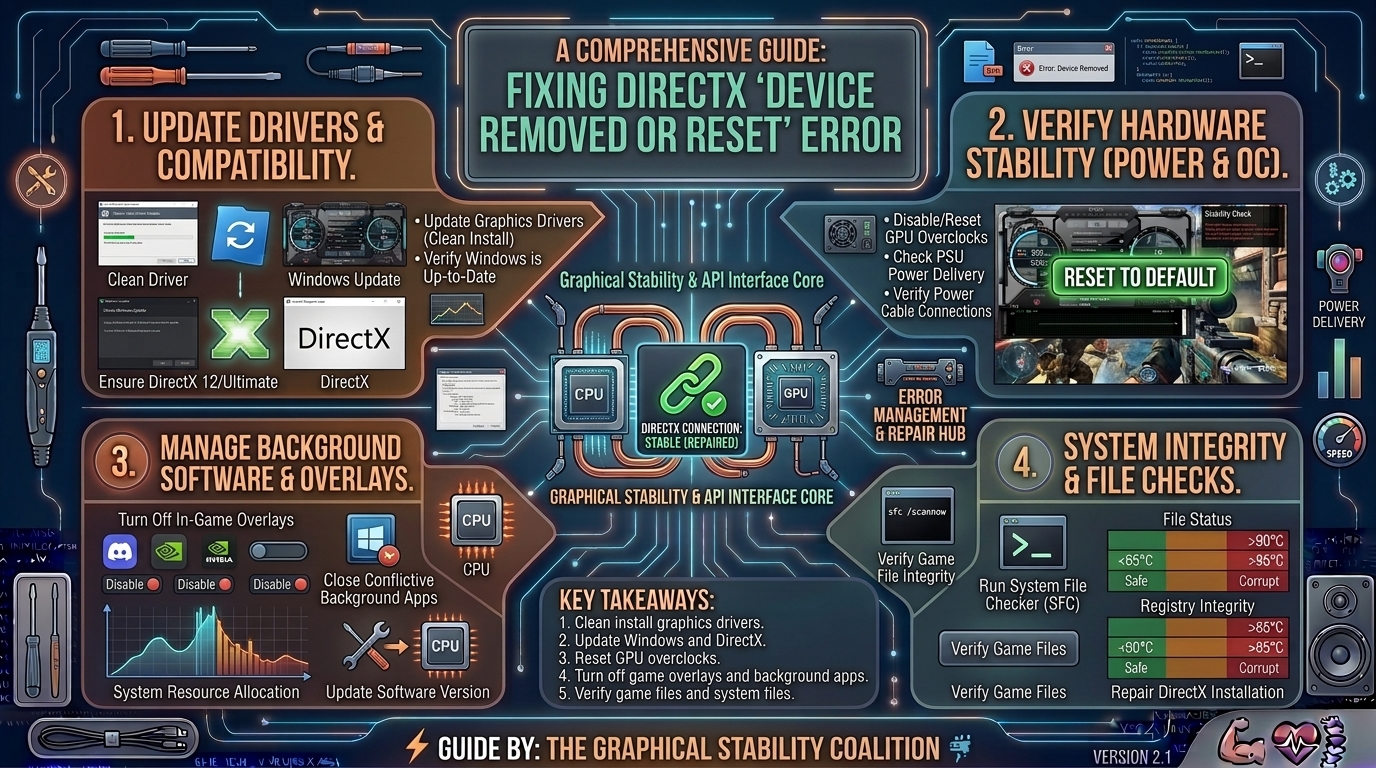
There is few things more frustrating for a PC gamer than settling into an intense, visually breathtaking moment in a modern AAA game—only for the screen to freeze, the game to instantly crash to the desktop, and an ominous error message to pop up:
“DirectX function ‘GetDeviceRemovedReason’ failed with DXGI_ERROR_DEVICE_REMOVED: The GPU device has been suspended due to an invalid call, or a driver crash has occurred.”
Whether you are running an NVIDIA GeForce, AMD Radeon, or Intel Arc graphics card, experiencing the DXGI_ERROR_DEVICE_REMOVED or DXGI_ERROR_DEVICE_HUNG error during high-intensity sequences (such as massive explosions, ray-traced reflections, or shader-heavy cutscenes) indicates a breakdown in communication between your game engine, the Windows operating system, and your graphics hardware.
This comprehensive troubleshooting guide explains the core triggers behind this frustrating crash and provides step-by-step methods to permanently stabilize your gaming rig.
1. Understanding What Causes the “Device Removed” Error
To fix the crash effectively, you need to understand what is happening under the hood.
+-------------------------------------------------------------------------+
|                THE DXGI ERROR CRASH TRIGGER CHAIN                       |
+-------------------------------------------------------------------------+
| Game Engine pushes GPU to absolute limit (Heavy Shader / Ray Tracing)   |
|      │                                                                  |
|      ▼                                                                  |
| GPU Core / VRAM encounters a micro-instability or power spike           |
|      │                                                                  |
|      ▼                                                                  |
| Graphics Driver stops responding (Hangs for > 2 seconds)                |
|      │                                                                  |
|      ▼                                                                  |
| Windows TDR (Timeout Detection & Recovery) cuts GPU link for safety     |
|      │                                                                  |
|      ▼                                                                  |
| Game crashes to desktop throwing "DXGI_ERROR_DEVICE_REMOVED"            |
+-------------------------------------------------------------------------+
When Windows issues a “Device Removed” error, it means your graphics card didn’t physically fall out of its slot. Instead, the Windows TDR (Timeout Detection and Recovery) service detected that your graphics card stopped responding for more than two seconds. To prevent a complete system lockup or blue screen of death (BSOD), Windows forcefully resets the driver and severs the game’s access to the GPU.
Common root causes include:
- Aggressive Factory Overclocks: Many third-party GPU partners (ASUS, MSI, Gigabyte) push factory overclocks that struggle with unoptimized game code.
- VRAM Instability or Overheating: Pushing texture settings beyond your card’s VRAM capacity or letting hot spot temperatures soar.
- Driver Conflicts & Corrupted Shaders: Outdated display drivers or corrupted DirectX shader caches.
- Power Delivery Spikes: Transient power draws triggering Over-Current Protection (OCP) on sensitive power supplies.
2. Step-by-Step Solutions to Fix DXGI Errors
Work your way down these tested troubleshooting methods to isolate and resolve the issue.
Method 1: Revert GPU and CPU Overclocks (Factory Reset)
Even if your graphics card came pre-overclocked out of the box, certain modern game engines (such as Unreal Engine 5 titles) expose minor silicon instabilities that standard stress tests miss.
+-------------------------------------------------------------------------+
|                  OVERCLOCK STABILITY CORRECTION                         |
+-------------------------------------------------------------------------+
| 1. Open MSI Afterburner                                                 |
| 2. Set Core Clock Offset to 0 MHz                                       |
| 3. Set Memory Clock Offset to 0 MHz                                     |
| 4. Disable any XMP / EXPO memory profiles in BIOS temporarily           |
+-------------------------------------------------------------------------+
- If you use MSI Afterburner or EVGA Precision X1, reset your core clock and memory clock offsets back to
0. - Lower your Power Limit slider slightly to 90% or 95% to mitigate transient power spikes.
- If you applied an aggressive XMP or EXPO profile to your system RAM in the BIOS, temporarily disable it to see if unstable memory addresses are feeding bad instructions to the GPU.
Method 2: Modify Windows TDR Registry Keys (The Safety Valve)
If your GPU is stable during 99% of tasks but occasionally hits a brief heavy calculation spike during a cutscene, Windows’ strict 2-second TDR window might be triggering a false-positive crash. You can extend or disable this timeout threshold.
- Press
Win + R, typeregedit, and press Enter to open the Registry Editor. - Navigate to the following path:
HKEY_LOCAL_MACHINE\SYSTEM\CurrentControlSet\Control\GraphicsDrivers - Right-click an empty space in the right-hand panel, select New > DWORD (32-bit) Value, and name it
TdrLevel. - Double-click
TdrLeveland ensure its Value data is set to0(this disables TDR detection entirely, letting the GPU recover on its own without killing the game). - Alternative: If you prefer not to disable it completely, create a DWORD named
TdrDelayand set its value to8or10(giving the GPU up to 10 seconds to recover instead of 2). - Restart your computer.
Method 3: Perform a Clean Display Driver Installation (DDU)
Corrupted driver installations are a leading cause of DirectX communication failures. Simply installing a new driver over an old one often leaves behind conflicting registry entries.
- Download the latest driver package directly from NVIDIA, AMD, or Intel.
- Download Display Driver Uninstaller (DDU) from a trusted source (Wagnardsoft).
- Boot your PC into Safe Mode (Hold Shift while clicking Restart in Windows, then go to Troubleshoot > Advanced options > Startup Settings > Restart, and press 4 or F4).
- Run DDU, select your device type (GPU), and click “Clean and restart”.
- Once your PC boots back into normal Windows, install the fresh graphics driver package you downloaded.
Method 4: Disable In-Game Overlays and Background Hooks
Overlay hooks from third-party apps inject code directly into the game’s DirectX rendering pipeline, which frequently triggers memory access violations and DXGI crashes.
- Steam Overlay: Right-click the crashing game in Steam, select Properties > General, and toggle off “Enable the Steam Overlay while in-game”.
- NVIDIA App / GeForce Experience: Open settings and turn off the In-Game Overlay.
- Discord & Other Hooks: Disable Discord hardware acceleration and game overlays, and turn off MSI Afterburner’s RTSS on-screen display if the game continues to crash.
Method 5: Disable AI Upscaling (DLSS / FSR / XeSS) & Ray Tracing
If a game crashes consistently during heavy graphical scenes (like reflections or dense particle effects), AI upscaling or hardware ray tracing may be pushing your VRAM or tensor cores past their limit.
- Go to the game’s graphics settings menu.
- Turn Ray Tracing or Path Tracing completely Off.
- Temporarily disable DLSS (NVIDIA), FSR (AMD), or XeSS (Intel), or switch them from “Quality/Performance” to native resolution to see if the tensor reconstruction pipeline is causing the error.
3. Summary Table: Quick Fix Matrix
| Fix Method | Effectiveness | Difficulty | Best Used For |
| Reset Overclocks / Power Limits | High | Easy | Factory-boosted cards crashing under load |
| Clean Driver Install (DDU) | High | Moderate | General driver corruption and black screen/crashes |
TDR Registry Adjustment (TdrLevel=0) | Moderate | Moderate | False-positive driver timeout crashes |
| Disable Overlays & Hooks | Medium | Easy | Conflict-driven crashes in Unreal Engine titles |
| Verify / Clear Shader Cache | Medium | Easy | Stuttering and crash-on-load scenarios |
4. Frequently Asked Questions (FAQ)
1. What is the exact difference between DXGI_ERROR_DEVICE_REMOVED and DXGI_ERROR_DEVICE_HUNG?
A Device Hung error means your graphics card temporarily froze while calculating a heavy frame. A Device Removed error means the freeze lasted too long, forcing Windows to sever communication and reset the driver entirely. Both share the same underlying stability triggers.
2. Can high temperatures cause the “Device Removed” error?
Yes. If your GPU core or VRAM junction temperature exceeds safe operating limits (typically above 90°C for core or 105°C for hot spot/VRAM), thermal protection mechanisms kick in, causing components to drop voltages abruptly, which results in a driver crash.
3. Why does this error only happen in specific games (like Cyberpunk 2077 or Monster Hunter)?
Some modern game engines push bleeding-edge DirectX 12 API calls that stress minor hardware margins or expose minor bugs in specific driver versions. A card that passes synthetic benchmarks like TimeSpy can still crash in unoptimized game code.
4. Does undervolting my GPU fix DXGI crashes?
An unstable undervolt is actually a frequent cause of DXGI errors. If you reduced your voltage too much while maintaining high clock speeds, the GPU will lack sufficient power during sudden graphical spikes, causing a crash. Try adding a little more voltage back to your curve.
5. Will lowering my in-game texture quality prevent the error?
If your graphics card is running out of VRAM (Video RAM), lowering texture settings or shadow resolutions will reduce memory footprint pressure and stop the game from crashing due to memory allocation faults.
6. Should I flash my motherboard BIOS to fix DirectX crashes?
Yes, if your motherboard BIOS is severely outdated. Motherboard BIOS updates frequently improve PCIe slot stability, power delivery tolerances, and Resizable BAR compatibility, which directly impacts GPU communication.
7. Is it possible my graphics card is physically failing?
Unfortunately, yes. If you have tried a clean driver install, wiped all overclocks, reinstalled Windows, and still experience “Device Removed” errors across multiple different games, your GPU’s silicon or VRAM modules may be degrading due to age or hardware defects.
8. Does running games in Borderless Windowed mode help prevent crashes?
Switching from Exclusive Fullscreen to Borderless Windowed mode allows Windows Desktop Window Manager (DWM) to share display management, which sometimes bypasses strict full-screen API hooks that trigger TDR crashes.
9. Can faulty or loose power cables trigger DXGI errors?
Yes. If your PCIe power cables (such as 12VHPWR or dual 8-pin connectors) are not pushed completely home into the GPU sockets, intermittent power delivery drops under heavy loads will cause the card to reset.
10. Does turning off Hardware-Accelerated GPU Scheduling (HAGS) help?
For some users, toggling Hardware-Accelerated GPU Scheduling in Windows Settings (System > Display > Graphics > Default graphics settings) on or off resolves scheduling conflicts between Windows and the graphics driver.
Fixing the DirectX “Device Removed or Reset” error requires a methodical approach, starting with software stability tweaks like removing factory overclocks and cleaning out old driver files, before moving on to system-level registry adjustments. By systematically eliminating these bottlenecks, you can restore rock-solid stability and enjoy intense gaming sessions without unexpected crashes.
Leave a Reply