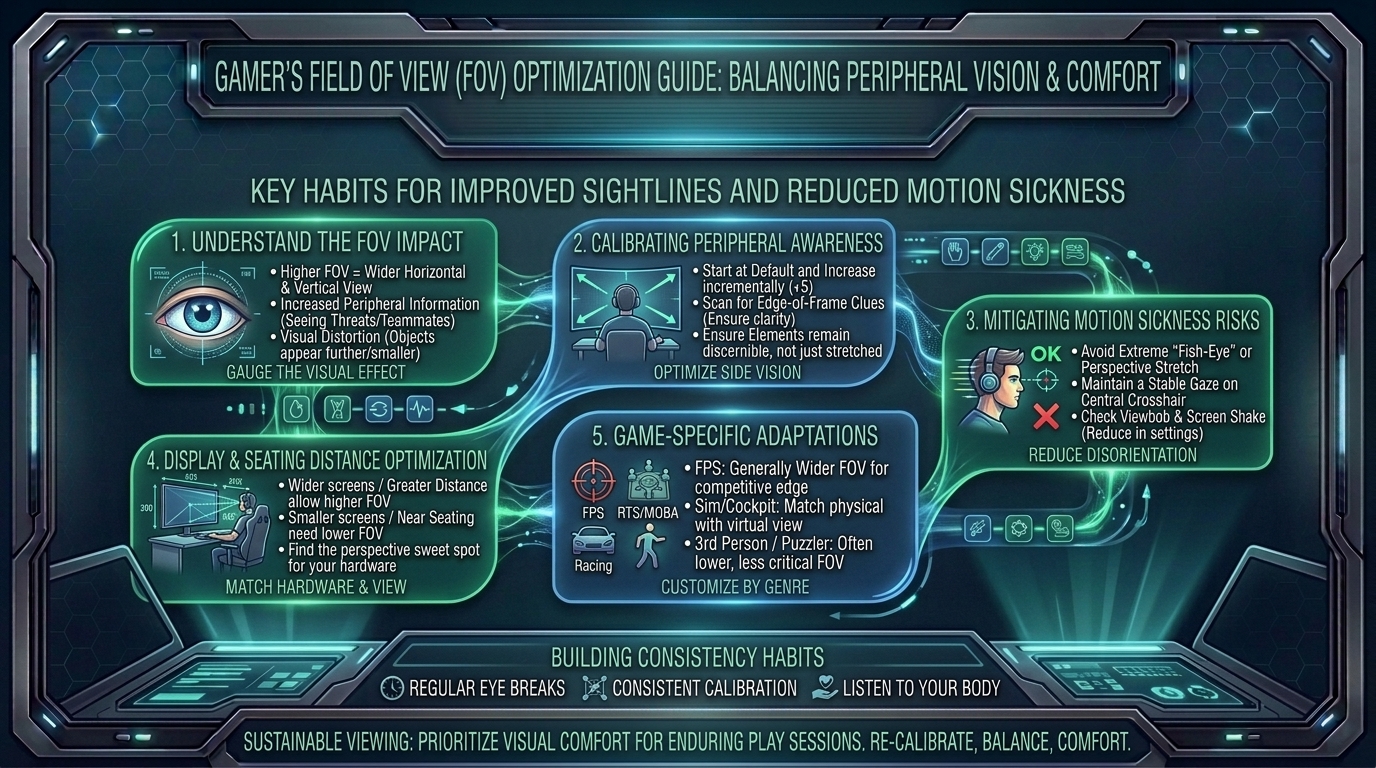
How to Adjust Your Field of View Slider Settings for Optimal Peripheral Vision Without Causing Motion Sickness
Whether scanning horizon sightlines in Call of Duty: Warzone, clearing tight corners in VALORANT, tracking fast-moving targets in Apex Legends, or navigating complex arenas in Overwatch 2, your Field of View (FOV) setting is one of the most critical graphics parameters in competitive gaming. Adjusting your FOV slider directly alters how much of the virtual world renders on screen at any given time, fundamentally changing your peripheral awareness, target sizing, spatial speed perception, and visual stability.
Despite its importance, many gamers treat the FOV slider like a simple “max it out” setting. Cranking your FOV to 120° can grant expansive peripheral vision, but it comes at a heavy cost: it shrinks center-screen targets into tiny distant specks (the “fish-eye” effect), distorts edge geometry, and—most severely—triggers debilitating motion sickness, visual dizziness, and eye strain for millions of players.
At The Gamer Buzz, we analyze competitive display optimizations, visual acoustics, and esports graphics configurations. This comprehensive guide details how the FOV slider works, the mathematics of horizontal vs. vertical field of view, distance-scaling trade-offs, step-by-step methods to dial in your personal sweet spot, and proven techniques to eliminate FOV-induced motion sickness entirely.
Whether competing in regional esports arenas across Texas, optimizing your display setup in California and San Francisco, leading competitive rosters in Washington, or climbing high-tier ranked leaderboards from New York, finding your optimal FOV will transform your visual tracking and tactical awareness.
1. The Science of FOV: Horizontal, Vertical, and Visual Distortion
Before adjusting sliders in your game’s graphics menu, it is essential to understand the spatial mechanics of Field of View.
What Is Field of View?
Field of View refers to the angular extent of the observable game world visible on your display screen at any single moment, measured in degrees (°).
Horizontal vs. Vertical FOV Scaling
Game developers do not use a unified standard for FOV sliders. Confusing these standards often leads players to set their FOV far too high or low:
- Clamped Horizontal FOV (HFOV): Used by titles like Overwatch 2 and older games (measured assuming a traditional 4:3 screen ratio, then expanded horizontally for 16:9).
- True Horizontal FOV (16:9 HFOV): Used by titles like Call of Duty: Warzone and Apex Legends. A value of 104° means 104 degrees of horizontal arc are rendered across a 16:9 monitor.
- Vertical FOV (VFOV): Used by games built on engines like Unreal or Frostbite (such as Battlefield or Rainbow Six Siege). A vertical FOV of 74° on a 16:9 display translates to approximately 106° horizontal FOV.
The Competitive Trade-Off Matrix
| FOV Setting Range | Peripheral Vision | Center-Screen Target Size | Perceived Game Speed | Motion Sickness Risk |
| Low FOV (60° – 75°) | Severely Restricted (Tunnel Vision) | Magnified & Large | Feels Slow / Sluggish | High (If sitting close to monitor) |
| Balanced FOV (90° – 104°) | Optimal & Natural | Moderate / Balanced | Natural & Readable | Minimal / Zero (Sweet Spot) |
| High FOV (110° – 120°) | Maximum Side Awareness | Extremely Small (Distant) | Feels Hyper-Fast / Teleporting | High (Fish-eye distortion edge blur) |
2. Why High FOV Causes Motion Sickness and Eye Strain
Motion sickness caused by video games (technically known as visually induced motion sickness or simulator sickness) occurs due to a physiological conflict inside your brain known as Sensory Mismatch Theory.
The Mechanics of Sensory Mismatch
Your brain relies on two primary inputs to calculate physical movement:
- The Visual System: Your eyes see rapid camera movement, high peripheral optic flow, and shifting horizon lines on screen.
- The Vestibular System: The inner ear fluid balance mechanism that detects physical acceleration, turning, and gravity.
When you crank your FOV to 120°, the optical flow across the edges of your screen accelerates dramatically. Your eyes inform your brain that you are moving at high speed, while your inner ear reports that your body is sitting completely still in a chair. This sensory conflict causes your brain to trigger a poison-defense mechanism, resulting in nausea, cold sweats, dizziness, and severe headaches.
The “Fish-Eye” Edge Distortion Effect
At extreme FOV settings, rendering engines must squeeze a wide-angle 3D sphere onto a flat 2D screen. This creates barrel distortion (the “fish-eye” effect), stretching textures along the edges of your screen while compressing the center. As you pan your camera left and right, objects rapidly expand at the edges and shrink in the middle, creating erratic visual movement that forces your eyes to work overtime to keep focus.
3. Step-by-Step Guide to Setting Your Optimal FOV Without Nausea
Finding your ideal FOV requires balancing your screen size, physical viewing distance, and the game’s movement mechanics.
1.Measure Your Distance-to-Monitor Ratio:Calculates your real-world viewing arc.
Sit in your natural gaming posture. Measure the diagonal size of your monitor and the distance between your eyes and the screen.
- Close Viewing (1.5 to 2 feet): Requires a wider FOV (96° – 104°) because the screen fills more of your real-world field of view.
- Farther Viewing (3+ feet or TV gaming): Requires a narrower FOV (80° – 90°) to match your real-world visual angle and prevent severe tunnel vision mismatch.
2.Set Baseline FOV to 90° (True Horizontal):Starts from a safe, comfortable baseline.
Open your game’s Video/Graphics settings. Set your FOV slider to 90°. Play 2–3 casual matches or run around a practice range to let your eyes adjust to baseline spatial movement.
3.Increase Incrementally in 2-Degree Steps:Expands peripheral awareness without distortion.
Bump your FOV slider up by 2 degrees (e.g., to 92°, then 94°, up to 102°). Stop immediately if you notice:
- Targets at medium distance becoming too small to track accurately.
- Significant curving/stretching of straight walls along the screen edges.
- Early signs of eye strain or mild motion discomfort.
4.Configure Aim Down Sights (ADS) FOV Scaling:Prevents sudden visual zoom jarring.
In modern shooters (like Call of Duty), set your ADS Field of View to Affected (or Relative). This ensures that when you zoom in with a red dot or iron sights, your FOV scales smoothly relative to your base setting, preventing sudden, jarring visual snaps that trigger motion sickness.
5.Disable Camera Shake and Motion Blur Completely:Stabilizes visual noise during camera turns.
Go to your Camera/Graphics menu and set Camera Shake Intensity to Minimum (or 50%/Off) and turn Motion Blur completely OFF. Camera shake combined with high FOV is the leading software cause of visual nausea.
4. Game-Specific Recommended FOV Configurations
Different competitive titles demand different visual priorities based on map scale, engagement ranges, and character movement speeds:
1. Fast-Paced Battle Royales (Apex Legends & Call of Duty: Warzone)
- Recommended FOV Range: 100° to 108°
- Tactical Focus: High peripheral awareness is vital for spotting third-party threats sliding in from side angles. Keep FOV under 110° so long-range rifle engagements don’t become invisible pixel hunts.
2. Tactical Line-of-Sight Shooters (VALORANT & Counter-Strike 2)
- Recommended FOV Range: Fixed / Locked (equivalent to 103° 16:9 HFOV)
- Tactical Focus: Tactical shooters lock FOV to preserve competitive integrity and consistent head-level crosshair placement across all display setups. Focus on setting your monitor distance comfortably rather than hunting for slider adjustments.
3. High-Mobility Arena Shooters (Overwatch 2, Halo Infinite, & Doom Eternal)
- Recommended FOV Range: 96° to 104°
- Tactical Focus: Verticality and close-range tracking are constant. Setting FOV around 100° provides ample vertical and side vision to track jumping targets like Genji or Pharah without losing center-screen clarity.
10 Frequently Asked Questions (FAQ)
1. Does increasing FOV lower my FPS (Frames Per Second)?
Yes. Increasing your FOV forces your GPU to render more geometry, textures, and player models on screen at the same time. On mid-range or entry-level systems, jumping from 80° to 120° FOV can cause a 5% to 15% drop in total FPS.
2. Why do pros often play on moderate FOV rather than max FOV?
Many esports professionals prioritize target size and headshot clarity over extreme peripheral vision. A moderate FOV (e.g., 96°–104°) keeps enemy player models larger on screen, making precision tracking and flick-aiming substantially easier.
3. What is the single best FOV setting for a 27-inch 1440p monitor?
For a standard 27-inch display positioned about 2 feet away from your eyes, a horizontal FOV of 98° to 104° provides the optimal balance of rich peripheral awareness, large target models, and zero visual distortion.
4. How can I instantly cure motion sickness while playing a video game?
If you feel nauseous: stop playing immediately, look away from the screen at a static object 20 feet away, sip cold water, increase room lighting, turn on a cool fan facing your face, and lower your FOV slider by 5 to 10 degrees before your next session.
5. Why do I feel motion sick on console/TV setups more than PC monitor setups?
Console TV gaming often places you farther away from the display, filling a smaller percentage of your natural real-world FOV. If a console game uses a wide PC-style FOV, your brain experiences a severe spatial mismatch between your living room and the screen.
6. What does “Independent” vs. “Affected” ADS FOV mean?
- Independent: Zooming in with your weapon forces the camera back to a default narrow FOV (e.g., 80°), creating a dramatic visual “snap.”
- Affected: Zooming in scales dynamically based on your custom FOV setting, providing a smooth, natural transition without sudden screen jumps.
7. Does an Ultrawide (21:9 or 32:9) monitor require a higher FOV setting?
No. Ultrawide monitors naturally expand your physical horizontal screen space. Setting a standard 96°–104° FOV on an ultrawide display automatically reveals extra peripheral space without needing to crank the slider and cause center-screen fish-eye distortion.
8. Will changing my FOV affect my mouse sensitivity or muscle memory?
Your physical mouse DPI and cm/360 distance do not change when adjusting FOV. However, because higher FOV makes targets appear smaller and move across the screen faster, your perceived sensitivity will feel faster. Give your muscle memory 2–3 days to adjust to a new setting.
9. Can crosshair size and color help combat FOV distortion?
Yes! Using a bright, high-contrast crosshairs (such as Bright Cyan or Green) with a clean center dot helps anchor your eyes to the middle of the screen, reducing eye strain caused by peripheral movement flow.
10. What is “Aspect Ratio” and how does it relate to FOV?
Aspect ratio defines the proportional relationship between your display’s width and height (e.g., 16:9, 16:10, 4:3). Playing on a stretched 4:3 aspect ratio lowers your effective horizontal FOV while stretching enemy character models horizontally, making them easier to hit.
Conclusion
Adjusting your Field of View slider isn’t about pushing values to maximum limits—it is about finding the precise optical balance between expansive peripheral vision, clear center-target sizing, and comfortable visual stability. By understanding your distance-to-monitor ratio, selecting balanced FOV ranges between 96° and 104°, matching ADS scaling, and eliminating camera shake, you can achieve crystal-clear visual awareness and complete motion sickness prevention.
Leave a Reply