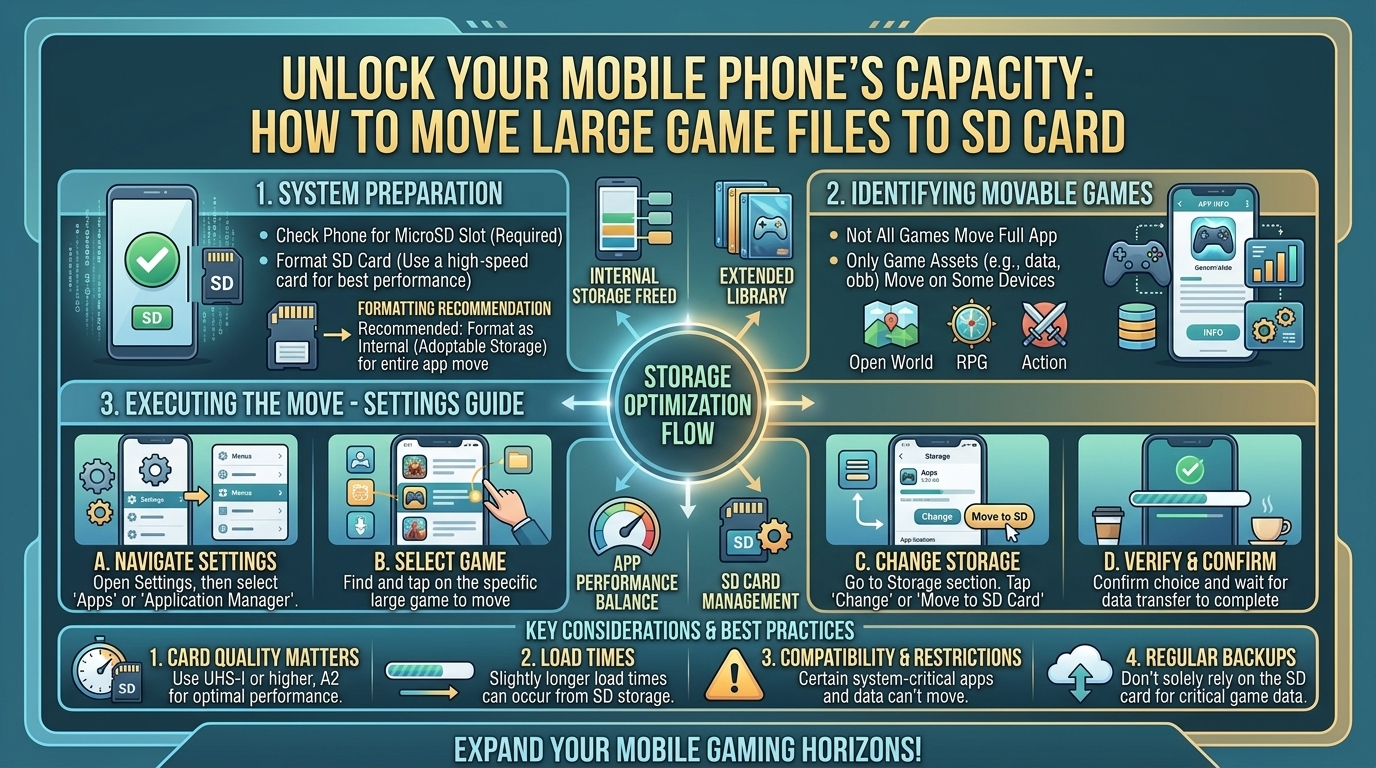
How to Clear Up Internal Storage Space on Your Mobile Phone by Moving Large Game Files to SD Cards
Modern mobile gaming has entered a console-quality era. Blockbuster mobile titles like Genshin Impact, Call of Duty: Warzone Mobile, Honkai: Star Rail, and PUBG Mobile regularly demand anywhere from 15 GB to over 35 GB of storage space for high-resolution textures, audio packs, and expansion updates. For mobile gamers using smartphones with 64 GB or 128 GB of internal memory, installing just two or three triple-A titles can trigger the dreaded “Storage Almost Full” system warning.
When internal storage fills up, your phone suffers from degraded read/write performance, app crashes, thermal throttling, and an inability to install essential system updates.
While microSD cards offer a cost-effective way to add up to 1 TB or 2 TB of external space, modern operating systems (especially Android 10 through Android 16) place strict security restrictions on how apps and games interact with external storage.
This comprehensive guide breaks down step-by-step methods to transfer large mobile game files to an SD card, reclaim your internal storage space, and optimize your smartphone for lag-free gaming.
SD Card Requirements for High-Performance Mobile Gaming
Before moving a single gigabyte of game data, it is crucial to understand that not all microSD cards can handle modern mobile games. Games constantly fetch graphics, audio assets, and code in real time. Running a high-end game off a cheap or slow SD card will lead to severe micro-stuttering, long loading screens, and game crashes.
Key MicroSD Card Speed Ratings to Look For
To ensure smooth gameplay, choose a card that meets the following minimum standards:
- Application Performance Class (A2 Rating): Cards rated A2 are specifically engineered for mobile apps. They handle high Random Read/Write IOPS (Input/Output Operations Per Second)—minimum 4000 Read IOPS and 2000 Write IOPS. Avoid older A1 cards for modern 3D games.
- UHS Speed Class (U3): Guarantees a minimum continuous write speed of 30 MB/s.
- Video Speed Class (V30): Ensures the card handles sustained data bursts without dropping speed.
- Bus Interface (UHS-I / UHS-II): Ensure your smartphone hardware supports high-speed UHS bus interfaces to get maximum throughput.
Recommended MicroSD Cards for Mobile Gaming
| Card Model | Read/Write Speed | Performance Class | Best Used For |
| SanDisk Extreme microSDXC | Up to 190 MB/s Read | A2, U3, V30 | Heavy 3D Gaming (Genshin Impact, COD) |
| Samsung PRO Plus | Up to 180 MB/s Read | A2, U3, V30 | High-speed data loading & 4K video recording |
| Kingston Canvas Go! Plus | Up to 170 MB/s Read | A2, U3, V30 | Budget-friendly high-performance gaming |
| Lexar Professional 1066x | Up to 160 MB/s Read | A2, U3, V30 | Reliable long-term expansion storage |
Method 1: Using Android’s Native “Move to SD Card” Feature
On select Android devices running stock OS skins (such as budget Samsung Galaxy devices, Motorola, or TCL phones), the operating system provides a straightforward option to migrate app data directly within the settings menu.
Step-by-Step Native Transfer Guide
- Insert your formatted microSD card into your smartphone’s SIM/microSD tray.
- Open Settings on your Android device.
- Scroll down and select Apps (or Apps & Notifications).
- Tap on See all apps and locate the large game you want to move (e.g., PUBG Mobile).
- Tap on Storage & cache (or simply Storage).
- Look for the Storage used section. If the game supports native transfer, you will see a Change button.
- Tap Change, select your MicroSD Card, and confirm by tapping Move.
- Keep your phone awake while the OS transfers the installation files.
Note: Many modern game developers disable the
android:allowClearUserDataorandroid:installLocationflags in their app code. If you do not see the “Change” button, the developer requires the core application to execute from internal storage. Use Method 2 or 3 below to bypass this limitation.
Method 2: Formatting the SD Card as Adoptable (Internal) Storage
Adoptable Storage is an Android system feature that formats your external microSD card so the operating system treats it as an extension of your internal storage drive. Instead of keeping internal and external space separate, Android merges them into a single storage pool.
How Adoptable Storage Works
When configured, Android encrypts the microSD card with a unique system key. The card becomes bound to that specific smartphone and cannot be read by a PC or another phone without reformatting. Apps and games can then install directly to the SD card automatically.
Step-by-Step Setup Guide
- Back up all data on your SD card, as this process completely erases the card.
- Go to Settings > Storage.
- Tap on your SD Card name under Portable Storage.
- Tap the three vertical dots (Menu) in the top-right corner and select Storage settings.
- Select Format as internal.
- Tap Format SD Card to confirm.
- Once formatted, the system will ask if you want to Move content now. Choose Move content to transfer your existing photos, media, and compatible game files automatically.
Method 3: Using Developer Options to Force App Execution from External Storage
If your smartphone blocks moving games to an SD card natively, Android includes a built-in Developer override that forces apps to allow external storage allocation.
Step-by-Step Override Setup
- Open Settings > About Phone.
- Scroll down to Build Number and tap it 7 times continuously until a toast notification pops up saying: “You are now a developer!”
- Go back to the main Settings menu, select System, and open Developer Options.
- Scroll down to the Apps section of the Developer Options menu.
- Locate the toggle named Force allow apps on external (or Force allow apps on external storage).
- Enable the toggle.
- Restart your smartphone.
- Go to Settings > Apps > [Select Game] > Storage > tap Change and move the game files to your SD card.
Method 4: Advanced Directory Linkage (ADB & Symbolic Links for Advanced Users)
For heavy games like Genshin Impact or Honkai: Star Rail, the base APK installs on internal memory, but the core bulk of the file sits in the Android/obb or Android/data directories.
Starting with Android 11 through Android 16, Google locked down access to these folders for security reasons. However, advanced users can use ADB (Android Debug Bridge) shell commands or specialized file managers (such as FV File Manager or Shizuku) to create folder redirections.
Concept Overview (Folder Binding)
By mounting or creating a folder bind between an external directory (/storage/sdcard1/Android/obb/com.game) and the internal directory (/storage/emulated/0/Android/obb/com.game), the game believes it is reading data from internal storage while the actual multi-gigabyte files reside on your microSD card.
High-Level Execution via ADB
- Enable USB Debugging inside Developer Options.
- Connect your phone to a computer with ADB tools installed.
- Move the game’s OBB/data folder from internal memory to the SD card manually.
- Execute directory link commands or use root-based app linkers like AppMgr III or FolderMount to bind the target paths.
How to Clear Game Cache and Unnecessary Assets Without Moving Files
If your device lacks an SD card slot—or if an update breaks an external file link—you can still free up massive amounts of internal storage space directly within your game settings.
1. In-Game Asset Deletion
Modern games download dynamic asset packages. You can safely strip down game size by deleting components you don’t use:
- Audio Language Packs: Delete non-used voice packs in RPGs (saving 2 GB–8 GB).
- High-Definition Textures: Revert from Ultra/HD graphics assets to Standard assets (saving 5 GB–12 GB).
- Completed Story Quests: Games like Genshin Impact allow you to delete past quest resources directly from the game’s settings menu (saving up to 10 GB).
2. Clearing System Game Cache
- Go to Settings > Apps.
- Select your main game.
- Tap Storage & Cache.
- Select Clear Cache (Do NOT select Clear Storage unless you have linked your game account to the cloud, as clearing storage wipes local save data).
Essential Best Practices for Gaming on MicroSD Cards
To ensure long-term stability and prevent game save corruption, keep these practices in mind:
- Never Eject the SD Card While Playing: Unmounting or removing the card during gameplay will instantly crash the app and can corrupt game save files.
- Avoid Ultra-Cheap SD Cards: Counterfeit cards claiming “1TB for $10” have fake sector tables that will permanently destroy your game files once storage exceeds a few gigabytes. Purchase only from verified brands.
- Keep 15% Free Space on Internal Storage: Even if your game data is on an SD card, Android needs internal swap space for RAM management, cache building, and OS tasks. Keep your internal storage below 85% capacity for optimal frame rates.
Frequently Asked Questions (FAQ)
1. Why won’t my Android phone let me move games to the SD card?
Many developers disable external installation to prevent slow loading times, graphic stutter, or app instability caused by low-quality SD cards. Additionally, modern Android OS security frameworks limit direct write permissions to the /Android/obb and /Android/data system folders.
2. Will playing games installed on an SD card cause lag?
If you use a high-speed Class 10, U3, A2 microSD card, loading times will be slightly longer than internal UFS storage, but actual gameplay frame rates (FPS) remain smooth. Using an older A1 or Class 4 card will cause noticeable stutter and frame drops.
3. Can I move iOS games to an SD card on an iPhone?
No. Apple iPhones do not support expandable microSD card storage. iOS manages storage automatically through iCloud or by offloading unused apps.
4. What is the difference between an A1 and an A2 microSD card for gaming?
A2 cards feature higher Random Read/Write performance (4000/2000 IOPS) compared to A1 cards (1500/500 IOPS). Games frequently access thousands of tiny files simultaneously; an A2 card handles these requests significantly faster.
5. Will formatting my SD card as Adoptable Storage erase my data?
Yes. Formatting an SD card as internal/adoptable storage completely wipes all existing files on the card. Back up all photos, videos, and documents to a cloud service or PC before formatting.
6. Can I take out my SD card after formatting it as Adoptable Storage?
No. Once formatted as adoptable storage, the card is encrypted to that specific phone. Removing it will break installed apps and cause system errors until the card is reinserted.
7. Why did my game size increase after moving it to an SD card?
SD cards use different file allocation cluster sizes (such as exFAT or FAT32) than internal flash storage (ext4/f2fs). Small files may occupy full storage clusters, causing reported disk space usage to appear slightly larger.
8. Does clearing the cache delete my game progress?
No. Clearing the cache only removes temporary files (like downloaded graphics assets or news feed data). However, tapping “Clear Data” or “Clear Storage” will reset the app, requiring you to log back into your account.
9. Which modern budget phones still feature an SD card slot?
Devices like the Samsung Galaxy A series (e.g., A35), Motorola Moto G series (e.g., Moto G Power), and select devices from TCL and Xiaomi continue to offer expandable microSD card slots.
10. Can I install games on an external USB-C flash drive?
While you can store game backup files on a USB-C drive, standard Android operating systems do not support running active live games directly off an external USB OTG flash drive.
Conclusion
Managing mobile storage space doesn’t mean you have to uninstall your favorite titles. By pairing a high-performance A2-rated microSD card with Android’s native transfer settings, Adoptable Storage configuration, or Developer Options overrides, you can offload dozens of gigabytes off your internal storage.
Keeping your internal flash memory clear ensures your device runs smoothly, boots faster, and delivers maximum performance across all your gaming sessions.
Leave a Reply