Mobile gaming has evolved far beyond casual swipe-and-tap arcade titles. With the rise of high-fidelity mobile RPGs, cloud gaming platforms like Xbox Cloud Gaming and NVIDIA GeForce NOW, and AAA console ports arriving on mobile operating systems, touch controls often fall short. Virtual on-screen joysticks lack tactile feedback, block screen real estate, and cause thumb fatigue during extended sessions.
Connecting a physical Bluetooth controller to your iPhone, iPad, or Android device transforms your smartphone into a full-fledged portable gaming console. Whether you are using an official Xbox Wireless Controller, PlayStation DualSense, Nintendo Switch Pro Controller, or dedicated mobile gamepads like the Razer Kishi V2 Pro or 8BitDo Ultimate, pairing your hardware takes only a few simple steps.
At The Gamer Buzz, we test mobile gaming peripherals, input latency, cloud streaming setups, and handheld optimizations. This comprehensive guide breaks down step-by-step Bluetooth controller pairing instructions for iOS and Android, input lag reduction techniques, button mapping solutions, thermal considerations, and hardware recommendations.
Whether you’re gaming across Texas and California, commuting through New York and San Francisco, or relaxing in Washington, this guide will help you build the ultimate mobile gaming setup.
1. Why Switch from Touch Controls to a Physical Bluetooth Controller?
While touch controls are fine for puzzle games, action-heavy mobile titles and competitive shooters require tactile precision.
Key Advantages of Controller Play
- Tactile Accuracy & Precise Input: Analog sticks and physical triggers provide 360-degree directional accuracy and variable input control that virtual glass joysticks cannot replicate.
- Unobstructed Display Real Estate: On-screen controls cover up to 25% of your display. A physical controller gives you a clean view of the game world.
- Reduced Thumb Fatigue & Ergonomics: Prolonged touch play causes hand cramping. Ergonomic controller grips keep your hands in a natural, comfortable posture.
- Console-Quality Cloud & Native Gaming: Games like Genshin Impact, Call of Duty: Warzone Mobile, Death Stranding, and Xbox Cloud Gaming titles are designed primarily for physical controller button layouts.
| Controller Model | Connectivity | Native iOS Support | Native Android Support | Battery Life | Key Feature |
| Xbox Wireless Controller | Bluetooth / Wireless | Yes (iOS 14.5+) | Yes (Android 5.1+) | 30–40 Hours (AA) | Universal compatibility across all mobile games |
| PlayStation DualSense | Bluetooth | Yes (iOS 14.5+) | Yes (Android 12+) | 6–12 Hours | Integrated touchpad and ergonomic grip |
| Nintendo Switch Pro | Bluetooth | Yes (iOS 16.0+) | Yes (Android 10+) | ~40 Hours | Exceptional battery life and light frame |
| 8BitDo Ultimate Bluetooth | Bluetooth / 2.4GHz | Yes (iOS 16.3+) | Yes (Android 9+) | 15–20 Hours | Hall Effect anti-drift analog sticks |
| Razer Kishi V2 Pro | USB-C (Direct) | Yes (iPhone 15+) | Yes | Pass-through power | Zero latency direct USB-C connection |
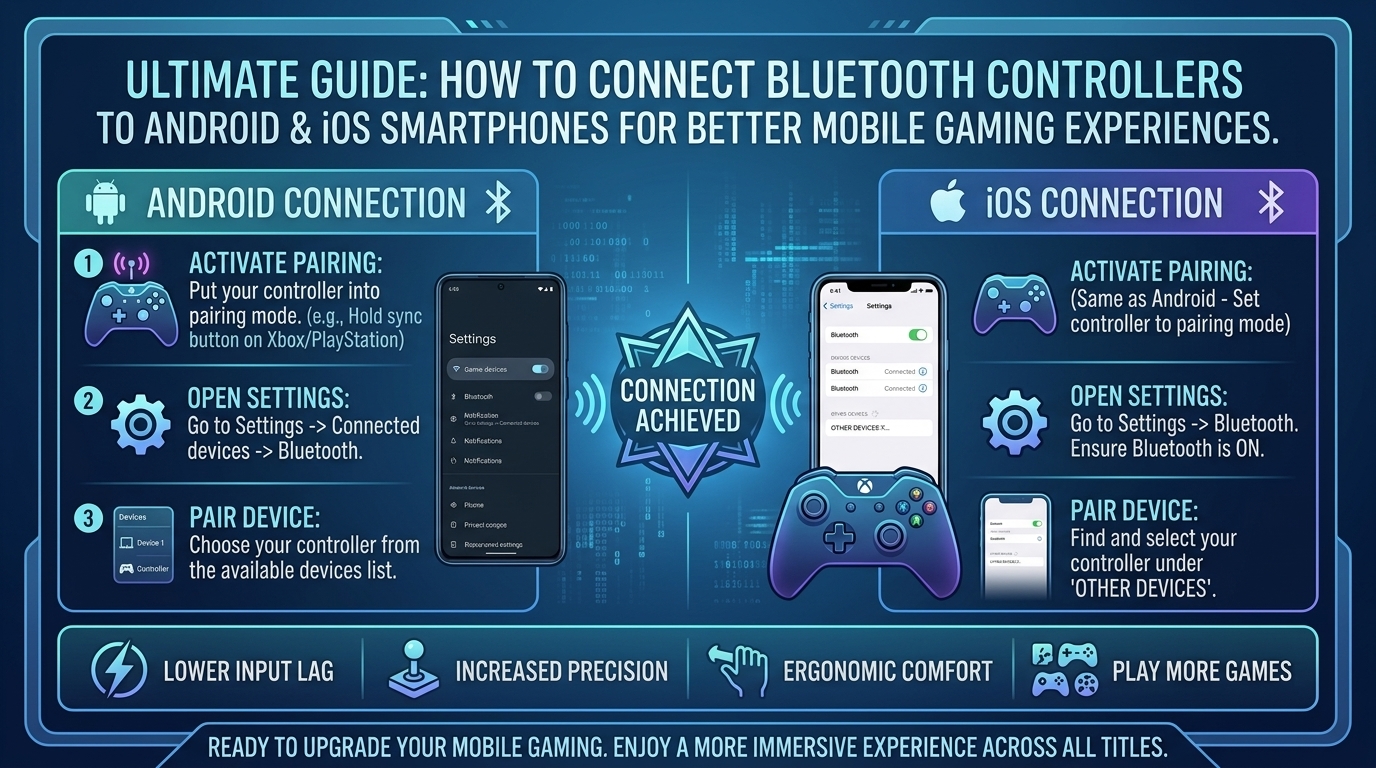
2. How to Pair Bluetooth Controllers to iOS (iPhone & iPad)
Apple added native support for popular console controllers starting with iOS 14.5 and expanded support in iOS 16 and later.
1.Step 1: Put Your Controller into Pairing Mode:Set your controller to broad-spectrum Bluetooth discovery mode.
- Xbox Controller: Press the Xbox Button to turn it on, then press and hold the Pairing Button on the top edge for 3 seconds until the logo flashes rapidly.
- PlayStation DualSense / DualShock 4: Press and hold the PS Button and the Create/Share Button simultaneously until the light bar flashes blue.
- Nintendo Switch Pro Controller: Press and hold the small Pairing Button on the top edge next to the USB-C port until the bottom LED lights cycle back and forth.
2.Step 2: Connect via iPhone/iPad Settings:Establish a wireless connection within iOS Settings.
Open your iPhone or iPad, navigate to Settings > Bluetooth, and ensure Bluetooth is turned on. Look under Other Devices for your controller name (e.g., “Xbox Wireless Controller” or “DualSense Wireless Controller”) and tap it to pair.
3.Step 3: Customize Button Mapping & Haptics (Optional):Rebind buttons natively within Apple device settings.
iOS features built-in controller remapping. Go to Settings > General > Game Controller. Here you can rebind buttons, adjust haptic feedback strength, and create custom control profiles per game.
3. How to Pair Bluetooth Controllers to Android Smartphones & Tablets
Android supports a wide variety of Bluetooth gamepads out of the box.
1.Step 1: Open Android Bluetooth Settings:Enable Bluetooth search on your Android device.
Swipe down from the top of your screen to open the Quick Settings panel, long-press the Bluetooth icon, and ensure it is turned on. Tap Pair new device.
2.Step 2: Put the Controller into Sync Mode:Trigger hardware discovery on your gamepad.
Press and hold your controller’s pairing button combo (Xbox: Pairing button; PlayStation: PS + Create; 8BitDo: Pairing button) until the status indicator light flashes rapidly.
3.Step 3: Select and Connect the Device:Complete pairing and verify input recognition.
Select your controller from the list of Available Devices. Tap Pair when prompted. Once connected, you can navigate your Android home screen using the controller’s analog stick to confirm connection.
4. Tips to Reduce Input Lag & Optimize Mobile Controller Play
Input latency can disrupt competitive mobile gaming. Follow these steps to keep your wireless connection fast and responsive:
- Disconnect Other Active Bluetooth Devices: Simultaneous connections to Bluetooth earbuds (like AirPods or Galaxy Buds) can share 2.4GHz bandwidth and cause input latency spikes. Use wired headphones or your phone’s built-in speakers during competitive matches.
- Connect to 5GHz or Wi-Fi 6 Networks: Standard 2.4GHz Wi-Fi operates on the exact same frequency as Bluetooth. Switching your phone to a 5GHz or Wi-Fi 6 network prevents wireless interference.
- Use Touch-Mapping Apps for Non-Supported Games: Some mobile titles (PUBG Mobile, Genshin Impact on Android) do not natively support Bluetooth controllers. Use official companion apps (like Razer Nexus, 8BitDo Ultimate Software, or Mantis Gamepad Pro) to map physical buttons to touch-screen zones safely.
- Consider USB-C Direct-Attach Controllers: If wireless input lag persists, opt for a direct-attach mobile controller (like the Razer Kishi V2, Backbone One, or GameSir X2 Pro). These plug directly into your phone’s USB-C port, eliminating Bluetooth latency entirely.
10 Frequently Asked Questions (FAQ)
1. Does Call of Duty: Mobile support Bluetooth controllers?
Yes! CoD: Mobile natively supports Xbox Wireless Controllers, PlayStation DualSense/DualShock 4 controllers, and official mobile gamepads on both iOS and Android.
2. Why does Genshin Impact support controllers on iOS but not on Android?
Genshin Impact includes native controller support on iOS, but developer Hoyoverse has not enabled native Bluetooth controller support for the Android version. Android players must use screen-mapping tools like Mantis Gamepad Pro.
3. Can I use a Nintendo Switch Pro Controller on an iPhone?
Yes. Starting with iOS 16, Apple added native Bluetooth support for Nintendo Switch Pro Controllers and Joy-Cons.
4. Do I need to re-pair my controller every time I use it with my phone?
No. Once paired, simply turning on your controller while your phone’s Bluetooth is enabled will automatically reconnect the device.
5. Will using a Bluetooth controller drain my phone battery faster?
Bluetooth Low Energy (BLE) draws very little power from your phone. However, running high-graphics mobile games will consume battery regardless of controller use.
6. What is the difference between a Bluetooth controller and a USB-C controller?
Bluetooth controllers connect wirelessly and can be used with phones, tablets, PCs, and consoles. USB-C controllers clip directly onto your phone, drawing power from the battery while delivering zero input latency.
7. How do I fix button mapping issues on Android?
Ensure your device is running Android 12 or newer, which improved controller driver mapping. Alternatively, use third-party keymapper apps or the controller manufacturer’s official configuration app.
8. Can I play Xbox Cloud Gaming (xCloud) with a PlayStation controller on my phone?
Yes! Xbox Cloud Gaming runs through a web browser on iOS or the Xbox app on Android and accepts inputs from PlayStation DualSense and DualShock 4 controllers seamlessly.
9. Why is my controller connected via Bluetooth but not working in-game?
Not all mobile games support physical controllers. Check the game’s settings menu or description in the App Store/Google Play Store to confirm native controller compatibility.
10. Can I connect multiple controllers to one phone for local multiplayer?
Yes, modern iOS and Android devices can pair multiple Bluetooth controllers simultaneously for local split-screen or multi-player mobile games like BombSquad or Riptide GP: Renegade.
Conclusion
Upgrading from touch controls to a physical Bluetooth controller is the single best enhancement you can make to your mobile gaming workflow. By pairing an Xbox, PlayStation, or dedicated mobile gamepad to your iOS or Android device, you gain console-level precision, eliminate screen clutter, and unlock smooth mobile gaming sessions.
For more mobile gaming controller reviews, cloud gaming tests, and smartphone performance guides across Texas, California, San Francisco, Washington, and New York, stay tuned to The Gamer Buzz.
Leave a Reply