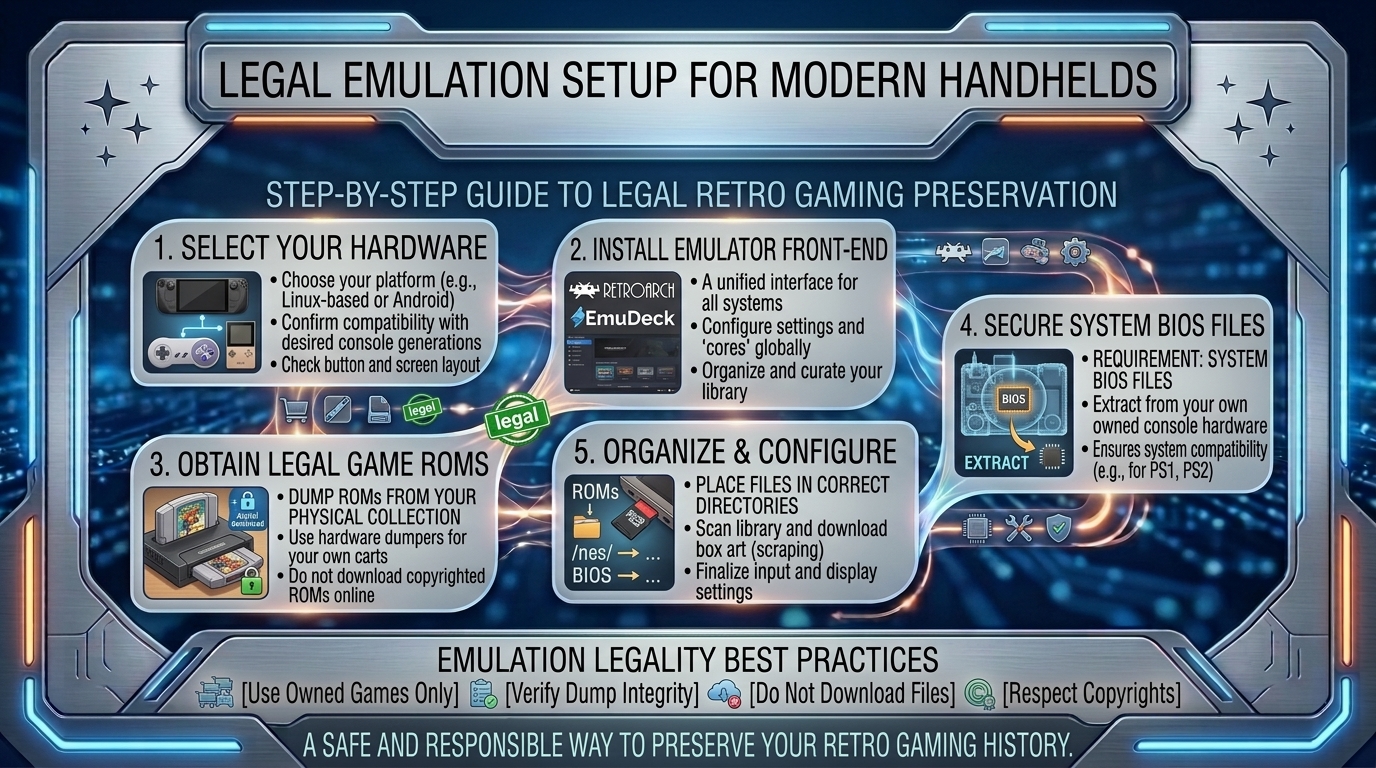
How to Set Up Emulator Software Legally to Play Classic Retro Console Games on Modern Handheld Devices
The golden age of video games has not vanished; it has simply migrated into the palm of your hand. Powerful modern handheld devices—ranging from specialized Linux-based retro consoles (Anbernic, Retroid Pocket, Ayn Odin) to full-fledged x86 handheld PCs (Valve Steam Deck, ASUS ROG Ally, Lenovo Legion Go) and smartphones—allow enthusiasts to carry decades of gaming history in a single pocketable device.
However, entering the world of retro emulation can feel daunting. Media coverage often conflates emulation with software piracy, creating confusion around what is legal, what requires extra hardware, and how to configure software for an optimal experience.
At The Gamer Buzz, we test handheld hardware optimizations, storage solutions, open-source firmware, and legal retro emulation workflows. This comprehensive guide breaks down the legal framework of emulation, how to dump your owned physical cartridges and system BIOS files legally, how to set up frontends like RetroArch and EmuDeck, and how to optimize your handheld settings for high-tier performance.
Whether configuring your handheld setup in tech hubs like San Francisco, California, and Washington, building a portable retro collection in Texas, or setting up a mobile rig in New York, this guide provides the step-by-step roadmap to legal, seamless retro gaming.
1. The Legal Framework: Emulators, ROMs, and System BIOS
Understanding the legal boundary between emulator applications, BIOS firmware, and game files (ROMs/ISOs) is essential before downloading software.
The Three Pillars of Legal Emulation
+-----------------------------------------------------------------------+
|                       LEGAL EMULATION PILLARS                         |
+------------------------------------+----------------------------------+
| 1. EMULATOR SOFTWARE               | Fully Legal                      |
|    Reverse-engineered hardware     | Public domain / open-source code |
+------------------------------------+----------------------------------+
| 2. SYSTEM BIOS FIRMWARE            | Restricted / Proprietary         |
|    Copyrighted console system code | Must be dumped from personal unit|
+------------------------------------+----------------------------------+
| 3. GAME ROMS & DISK IMAGES         | Strictly Protected               |
|    Copyrighted game assets         | Must be dumped from personal cart|
+------------------------------------+----------------------------------+
- Emulator Software (100% Legal): Courts have repeatedly established (notably in Sony Computer Entertainment v. Connectix Corp. and Bleem!) that reverse-engineering game console hardware to write clean-room software emulators is entirely legal. Emulators do not contain proprietary manufacturer code.
- System BIOS Files (Proprietary Firmware): Certain systems (such as Sony PlayStation, PlayStation 2, SEGA Saturn, and Nintendo Switch) require an official Operating System boot ROM file (BIOS) to launch games. Because BIOS files are copyrighted code owned by the console manufacturer, downloading them from public websites is illegal. The only legal method to obtain a BIOS file is to dump it directly from a physical console that you personally own.
- Game ROMs / ISOs (Protected Media): Downloading commercial game ROMs from third-party websites or torrent networks is copyright infringement—even if you physically own a copy of the cartridge or disc. Under “Fair Use” and personal archiving laws in many regions, users are permitted to create digital backup copies (dumps) of media they physically own for personal use.
2. Hardware vs. Software Matrix: Choosing Your Target Handheld
Before configuring your software, match your desired console era with the right handheld processor architecture.
| Handheld Class | Example Devices | Emulation Limit | Key Strengths |
| Linux Budget Handhelds | Anbernic RG35XX, TrimUI Brick, Miyoo Mini | Game Boy, SNES, PS1, Arcade | Ultra-portable, instant boot, multi-day battery life |
| Mid-Range Android | Retroid Pocket 5, Ayn Odin 2, Smartphone + Controller | GameCube, Wii, PS2, PSP, N64 | Vibrant OLED screens, deep app ecosystem, long battery life |
| High-End x86 Handheld PCs | Steam Deck OLED, ASUS ROG Ally X, Legion Go | PS3, Xbox 360, Switch, Wii U | Massive computing power, full desktop OS flexibility |
3. How to Legally Dump Your Own Cartridges, Discs, and BIOS Files
Building a legal retro library requires extracting the software data from your physical game collection and console hardware.
1.Step 1: Dumping Cartridge-Based Games (NES, SNES, Genesis, GBA, N64):Extract ROM files from physical game cartridges.
Use an open-hardware cartridge dumper (such as the Retrode 2, Open Source Cartridge Reader, or GB Operator).
- Connect the USB cartridge reader to your desktop PC.
- Insert your physical cartridge into the designated slot.
- The reader mounts the cartridge as a standard USB storage drive.
- Copy the
.gb,.gba,.sfc, or.z64game file directly to your PC storage drive.
2.Step 2: Dumping Optical Media (PS1, PS2, GameCube, Saturn, Dreamcast):Create 1:1 disc images from physical optical media.
CD and DVD-based games can be dumped using standard PC disc drives and free backup utilities.
- PS1 & PS2 Discs: Insert your original game disc into a PC optical drive and use open-source burning software like ImgBurn or MPF (Media Preservation Frontend) to save the disc as a
.bin/.cueor.isoimage. - GameCube & Wii Discs: Proprietary optical layouts require inserting the disc into a softmodded Nintendo Wii console running the homebrew utility CleanRip to save a 1:1
.isocopy onto an SD card.
3.Step 3: Extracting Console BIOS Files:Extract system firmware directly from owned console hardware.
To legally acquire system BIOS files (e.g., PlayStation SCPH-1001.bin or PS2 bios.bin), extract the firmware from hardware you physically own.
- PlayStation 1 / 2: Boot a modified PS2 console equipped with FreeMCBoot and launch PCSX2 BIOS Dumper to export your console’s factory BIOS file directly to a USB stick.
- Nintendo GameCube / Wii: Launch DumpMii on a homebrew-enabled Wii to extract the console’s internal system files safely.
4. Software Suite Setup: RetroArch and EmuDeck Optimization
Once your legally dumped ROMs and BIOS files are organized on your PC, configure the frontend software on your handheld device.
HANDHELD STORAGE DIRECTORY STRUCTURE
├── Emulation/
│   ├── bios/                  <-- [Place SCPH-1001.bin, PS2 bios.bin here]
│   └── roms/
│       ├── gba/               <-- [Place .gba cartridge dumps here]
│       ├── ps1/               <-- [Place PS1 .bin/.cue files here]
│       ├── ps2/               <-- [Place PS2 .iso files here]
│       └── snes/              <-- [Place .sfc files here]
1. RetroArch Deployment (Android, iOS, PC, and Linux)
RetroArch acts as a unified visual frontend that manages specialized emulation engines called Cores.
- Install RetroArch: Download RetroArch from the official website or Google Play / App Store.
- Download Core Engines: Navigate to
Main Menu -> Online Updater -> Core Downloader. Download top-rated cores such as mGBA (for Game Boy Advance), BSNES (for SNES), and DuckStation (for PS1). - Directory Mapping: Map your
System/BIOSpath in RetroArch settings to target your handheld’s dedicated BIOS folder.
2. Automated EmuDeck Setup for Handheld PCs (Steam Deck, ROG Ally)
For powerful x86 handhelds running SteamOS or Windows, EmuDeck automates emulator installations, directory creations, controller profiles, and Steam Library artwork integration.
- Download EmuDeck in Desktop Mode on your handheld device.
- Select Easy Mode or Custom Mode and select your installation target (Internal Storage or microSD card).
- Transfer your dumped ROMs into their corresponding subfolders under
Emulation/roms/. - Run Steam ROM Manager inside EmuDeck to automatically parse your games, download box art, and inject playable shortcuts directly into your native Steam interface.
5. Visual Shaders, Controls, and Battery Performance Tuning
To get the most out of your retro gaming handheld, fine-tune display shaders, latency settings, and power profiles.
1. Enhancing CRT and Handheld Display Quality
Modern high-resolution displays make low-resolution retro games look overly pixelated. Use built-in RetroArch GPU shaders to restore authentic retro visuals:
- CRT-Geom / CRT-Royale: Adds scanlines, glass curvature, and phosphors for PS1, N64, and SNES games.
- LCD3x / Handheld Grid: Recreates the sub-pixel grid patterns of original Game Boy Color and Game Boy Advance screens.
2. Reducing Input Lag (Frame Delay)
To eliminate touch or controller latency during fast-paced games, navigate to RetroArch’s Latency menu:
- Enable Run-Ahead Processing (set to 1 or 2 frames). This forces the emulator to compute input frames ahead of time, eliminating the input lag inherent to modern flat-screen displays.
3. Extending Battery Duration
Modern handheld CPUs do not need full clock speeds to run retro platforms:
- Limit Thermal Design Power (TDP): Set your handheld’s power limit to 3W–5W for 8-bit and 16-bit consoles to extend total battery life to 7+ hours.
- Cap Frame Rates: Limit refresh rates to 60Hz to match classic NTSC timing speed.
10 Frequently Asked Questions (FAQ)
1. Is downloading a ROM legal if I already physically own the game cartridge?
No. Under U.S. and international copyright law, owning a physical retail copy does not give you legal authorization to download a digital file from a third-party website. To remain legal, you must extract (dump) the data file directly from your owned physical cartridge.
2. Are console emulators legal to download and use?
Yes! Emulator apps themselves are legal software tools. As established by legal precedent, software that emulates hardware without using stolen proprietary code is safe and legal to distribute.
3. Can I legally sell or share the ROM files I dump from my own games?
No. Backup files created under fair use provisions are strictly for personal archival use. Distributing, selling, or uploading your dumped ROM files to the internet is copyright infringement.
4. What are BIOS files, and why do some emulators require them?
A BIOS (Basic Input/Output System) is the proprietary operating system software baked into a console’s hardware chips. Emulators for complex systems require this file to correctly handle system calls, boot animations, and memory cards.
5. What hardware tools do I need to dump Game Boy or SNES cartridges at home?
Devices like the Retrode 2, GB Operator, or an Open Source Cartridge Reader (OSCR) plug into your PC via USB, allowing you to insert original cartridges and read the ROM and save data directly.
6. Do I need an internet connection to play retro games on a handheld?
No. Once your emulator software, BIOS files, and game ROMs are installed locally on your handheld’s internal drive or microSD card, you can play completely offline in Airplane Mode.
7. How do I transfer my original physical save games to my emulation handheld?
Cartridge readers like the Retrode 2 allow you to read and copy both the game ROM and the internal .sav RAM file from your physical cartridge. Place the .sav file into your emulator’s designated saves directory to continue your childhood save states.
8. What is the difference between a standalone emulator and RetroArch?
A standalone emulator is a single dedicated app designed for one console (e.g., PPSSPP for PSP, DuckStation for PS1). RetroArch is a unified frontend wrapper that runs many individual emulator engines (“cores”) within a single user interface.
9. Will modern handhelds emulate retro games smoothly without extra configuration?
8-bit, 16-bit, and 32-bit platforms (NES, Genesis, SNES, PS1, GBA) run at 60 FPS on basic handheld hardware. Demanding systems like GameCube, PS2, and PS3 require adjusting resolution multipliers, selecting specific renderer backends (Vulkan vs. OpenGL), and configuring CPU power limits.
10. Can I legally emulate games from publishers that no longer exist (“Abandonware”)?
Legal “abandonware” status does not exist under current copyright law. Copyrights for commercial software persist for decades, even if the original developer or publisher went out of business. Creating your own dumps from physical media remains the primary legal avenue.
Conclusion
Setting up retro emulation software legally transforms your modern handheld device into an organized arcade archive. By extracting ROMs and BIOS files from your personal physical game collection, organizing directory paths, and utilizing community frontends like RetroArch and EmuDeck, you can preserve gaming history while enjoying modern displays, custom shaders, and extended battery life.
For more handheld hardware tests, open-source setup guides, and retro gaming optimizations across Texas, California, San Francisco, Washington, and New York, stay tuned to The Gamer Buzz.
Leave a Reply