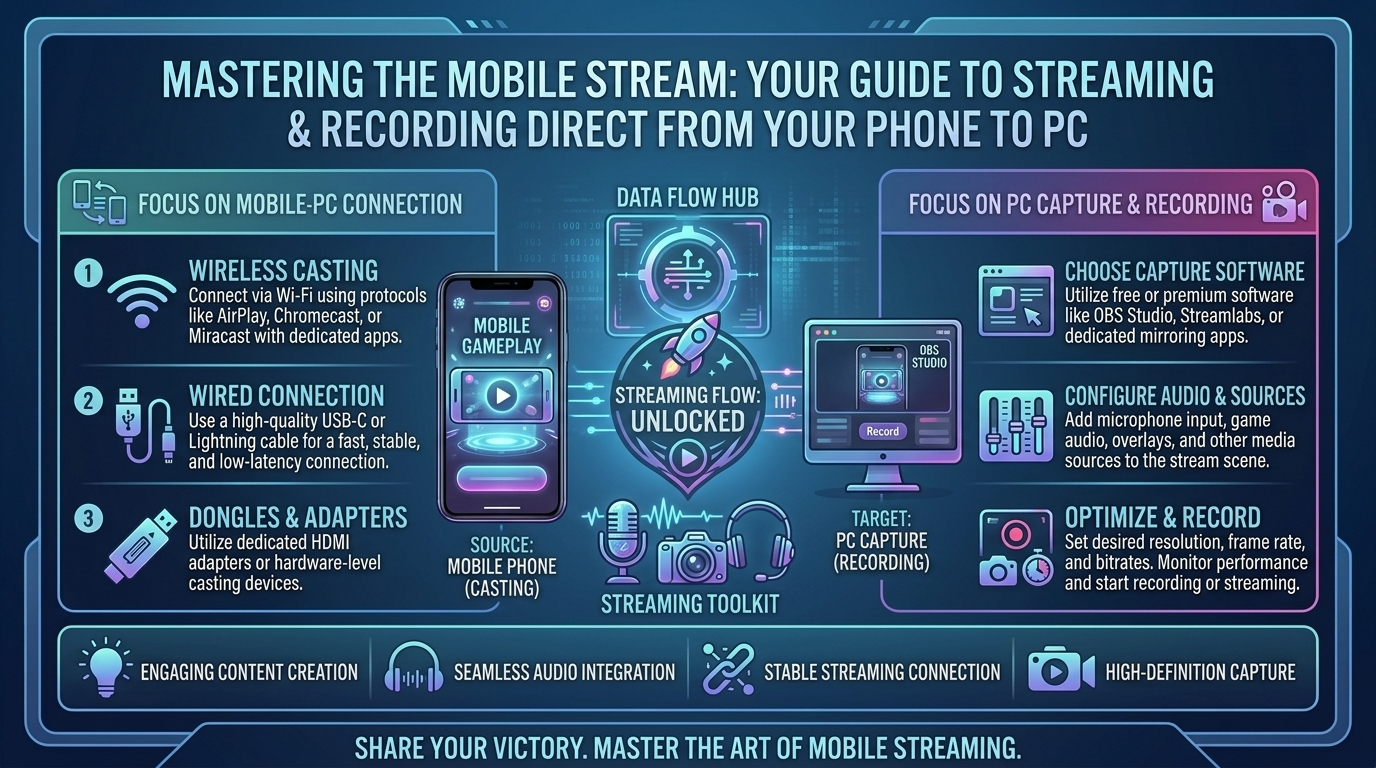
How to Stream Mobile Games From Your Smartphone Screen Directly to Your Computer for Recording Content
Mobile gaming has transformed into a massive content creation ecosystem. From fast-paced competitive shooters to high-production RPGs, millions of viewers tune in daily to watch gameplay creators. However, streaming or recording mobile games directly from a smartphone touch screen presents major hurdles: mobile screen recorders drain phone batteries rapidly, cause severe thermal throttling, compress audio quality, and lack professional broadcasting overlays.
Streaming your smartphone display directly to your PC or Mac unlocks professional production value. By capturing your mobile game on a computer, you can leverage broadcast suites like OBS Studio or Streamlabs, record uncompressed high-bitrate video, integrate webcam facecams, capture pristine internal audio, and maintain smooth 60 FPS performance without heating up your phone.
At The Gamer Buzz, we test streaming peripherals, capture hardware, wireless mirroring protocols, and OBS configurations. This comprehensive guide breaks down every major method to mirror and record your iOS or Android smartphone on a PC—from hardware capture cards to ultra-low-latency open-source tools.
Whether you are building your content studio across Texas and California, streaming from San Francisco and Washington, or editing gameplay highlights in New York, this guide provides everything you need to produce broadcast-quality mobile gaming content.
1. Comparing Mobile-to-PC Capture Methods
Choosing the right screen mirroring setup depends on your operating system, budget, and performance requirements.
The Capture Matrix
+-------------------------------------------------------------------------+
|                    MOBILE SCREEN CAPTURE PIPELINES                      |
+-----------------------------------+-------------------------------------+
| 1. HARDWARE CAPTURE (HDMI/USB-C)  | Zero latency, highest audio quality |
|    Phone -> Adapter -> Capture Card| Preferred for competitive gaming   |
+-----------------------------------+-------------------------------------+
| 2. WIRED USB MIRRORING (ADB/Cable)| Ultra-low latency (~35-70ms)        |
|    Scrcpy / USB Mirroring Tools   | Zero extra cost, high frame rate    |
+-----------------------------------+-------------------------------------+
| 3. WIRELESS MIRRORING (Wi-Fi)     | Easy setup, no cables attached      |
|    AirPlay / NDI / Cast Protocols | Susceptible to network jitter/lag   |
+-----------------------------------+-------------------------------------+
- Hardware Capture Cards: The gold standard for professional content creators. Delivers zero-latency video pass-through, full 1080p/4K recording at 60 FPS, and hardware-level audio separation.
- Wired USB Software Mirroring: The most cost-effective solution for Android and iOS. Using USB debugging protocols yields near-instant response times without expensive capture hardware.
- Wireless Screen Mirroring: Ideal for casual streaming, but susceptible to Wi-Fi interference, frame drops, and audio desync during long recording sessions.
| Capture Method | Latency | Audio Pass-Through | Setup Difficulty | Best For | Recommended Tools |
| USB-C Capture Card | ~0 ms | Pristine (Hardware) | Medium | Competitive 60FPS Streaming | Elgato HD60 X, Razer Ripsaw |
| Scrcpy (Wired USB) | 35–70 ms | Native (Android 11+) | Medium (Command Line/GUI) | Free Android Capture | Open-Source Scrcpy 2.0+ |
| Apple AirPlay (macOS/PC) | 100–200 ms | Native (Wireless) | Very Low | Cable-Free iOS Mirroring | macOS Native Receiver, Reflector 4 |
| Third-Party USB Apps | 50–120 ms | Supported | Low | All-in-One PC Control | ApowerMirror, AirDroid Cast |
2. Step-by-Step Setup Guides for Android & iOS
Method A: Ultra-Low Latency Wired Android Mirroring via Scrcpy (Free & Open-Source)
For Android users, Scrcpy is the most powerful free mirroring tool available. It requires no root access, records in high frame rates, and introduces virtually zero input delay.
1.Step 1: Enable USB Debugging on Android:Enable developer privileges to allow USB communication.
Open your Android phone’s Settings > About Phone. Tap Build Number 7 times until you see the message “Developer mode enabled.” Go back to Settings > System > Developer Options and toggle USB Debugging to ON.
2.Step 2: Connect Phone to PC via USB Cable:Establish a secure adb bridge connection to your PC.
Plug your smartphone into your computer using a high-quality USB 3.0 or USB-C cable. On your phone screen, accept the prompt asking to “Allow USB Debugging from this computer.”
3.Step 3: Run Scrcpy on Windows/macOS:Launch the Scrcpy executable to initiate low-latency mirroring.
Download the latest Scrcpy release on your computer. Extract the zip file and run scrcpy.exe (or use terminal command scrcpy on macOS). Your smartphone display will instantly mirror in an uncompressed window on your PC monitor.
Method B: Hardware Capture Card Pipeline for iOS & Android (Professional Setup)
Using a dedicated HDMI/USB-C capture card ensures maximum stability, zero latency, and perfect audio capture without consuming smartphone CPU cycles.
1.Step 1: Connect Smartphone to HDMI Output Adapter:Output a clean HDMI video feed from your smartphone.
- iPhone 15/16 & Modern Android: Connect a USB-C to HDMI Adapter (or USB-C Hub with HDMI pass-through) to your phone.
- Lightning iPhones: Connect an official Apple Lightning to Digital AV Adapter.
2.Step 2: Route HDMI into Your Capture Card:Route the video signal into your computer broadcast capture card.
Plug an HDMI cable from your phone’s adapter into the HDMI IN port of your capture card (e.g., Elgato HD60 X). Connect the capture card’s USB 3.0 output cable directly to a high-speed USB port on your PC.
3.Step 3: Add Capture Device Source in OBS Studio:Configure video feed inside OBS Studio for recording.
Open OBS Studio, navigate to the Sources box, click +, and select Video Capture Device. Choose your capture card from the drop-down menu and set Resolution to 1920×1080 at 60 FPS.
3. Configuring OBS Studio for Mobile Game Recording
Once your phone screen appears on your computer monitor, set up OBS Studio to capture crisp 60 FPS video and clean desktop audio:
- Add Your Display or Window Source:
- If using Scrcpy or a desktop software window, add a Window Capture source in OBS and select the mirroring window.
- If using a physical capture card, use a Video Capture Device source.
- Separate In-Game Audio & Voice Chat:
- Add an Audio Output Capture source in OBS to record internal game sounds directly from your PC system audio or capture card.
- Add an Audio Input Capture source to assign your USB desktop microphone separately, allowing you to edit microphone commentary and game audio independently on separate audio tracks.
- Optimize Video Output Encoding:
- Go to Settings > Output > Recording. Set Format to MP4 or MKV.
- Select your hardware encoder: NVIDIA NVENC (H.264/AV1) or AMD HW H.264/AV1.
- Set Rate Control to CBR (Constant Bitrate) with a bitrate of 12,000 Kbps to 20,000 Kbps for crystal-clear 1080p 60FPS recordings destined for YouTube or social media editing.
4. Tips to Eliminate Lag, Thermal Throttling, and Audio Noise
High-resolution mobile gaming can strain smartphone thermals. Keep your mobile capture pipeline running smoothly with these optimizations:
- Use a Powered USB Hub / Charging Passthrough: Playing and streaming simultaneously drains phone batteries fast. Use a USB-C multi-port hub supporting Power Delivery (PD) so your phone charges while outputting video data.
- Lower Smartphone Thermal Stress: Remove thick phone cases, lower device screen brightness (since you are viewing the game on your PC monitor anyway), and avoid playing under direct sunlight.
- Fix Audio Desynchronization: If wireless audio lags behind your video feed, navigate to OBS Audio Mixer > Advanced Audio Properties and add a minor positive or negative Sync Offset (e.g.,
+100ms) to align your audio tracks perfectly.
10 Frequently Asked Questions (FAQ)
1. Is it better to capture mobile games via USB cable or Wi-Fi?
USB cable capture is vastly superior. USB connections provide lower latency, eliminate Wi-Fi packet loss, avoid local network congestion, and deliver stable 60 FPS frame rates required for fast-paced gaming.
2. Can I mirror my iPhone screen to a Windows PC for free?
Yes. You can use free third-party mirroring applications (like AirDroid Cast or LetsView) or use open-source iOS casting tools. However, for recording gameplay, a USB capture card or dedicated software delivers the best results.
3. How do I record my mobile game audio without capturing background room noise?
Using a USB cable or capture card routes internal digital audio directly into your PC software. This captures raw game sounds without picking up room noise or microphone chatter.
4. Why is Scrcpy considered the best tool for Android screen capture?
Scrcpy is open-source, completely free, contains zero watermarks or ads, requires no app installation on your phone, and operates with ultra-low latency (35–70ms).
5. Can I record mobile games on PC without using a capture card?
Yes! USB software solutions like Scrcpy (Android) or screen-mirroring software (iOS) stream your display directly into window capture sources inside free software like OBS Studio without requiring physical capture cards.
6. Will streaming my phone screen to a PC cause my phone to lag?
When using a physical capture card or low-overhead tools like Scrcpy, the processing load on your phone is negligible. Internal phone screen recorders lag because they force the phone GPU to render and encode video simultaneously.
7. Does Scrcpy support audio streaming on modern Android phones?
Yes. Starting with Scrcpy v2.0+, native audio forwarding is fully supported for Android 11 and newer devices.
8. How do I capture my face while recording mobile gameplay?
Connect a standard USB webcam or mirror a secondary phone camera into OBS Studio. Overlay your webcam scene in the corner of your mobile game canvas.
9. Can I use a controller while mirroring my smartphone screen to my PC?
Yes! You can connect a Bluetooth controller directly to your smartphone or use PC keyboard/mouse passthrough mapping supported by apps like Scrcpy or ApowerMirror.
10. What OBS canvas resolution should I use for short-form mobile gaming content (TikTok/Reels/Shorts)?
Change your OBS Canvas Resolution settings to 1080×1920 (9:16 vertical ratio). Position your mirrored mobile screen in the center and stack your webcam or overlay elements above and below the game window.
Conclusion
Streaming and recording mobile games from your smartphone to your computer transforms mobile gameplay into high-production video content. Whether using open-source USB software like Scrcpy or a professional hardware capture card, routing your mobile screen into OBS Studio ensures uncompressed 60 FPS recording, separate audio control, and seamless facecam integration.
Leave a Reply