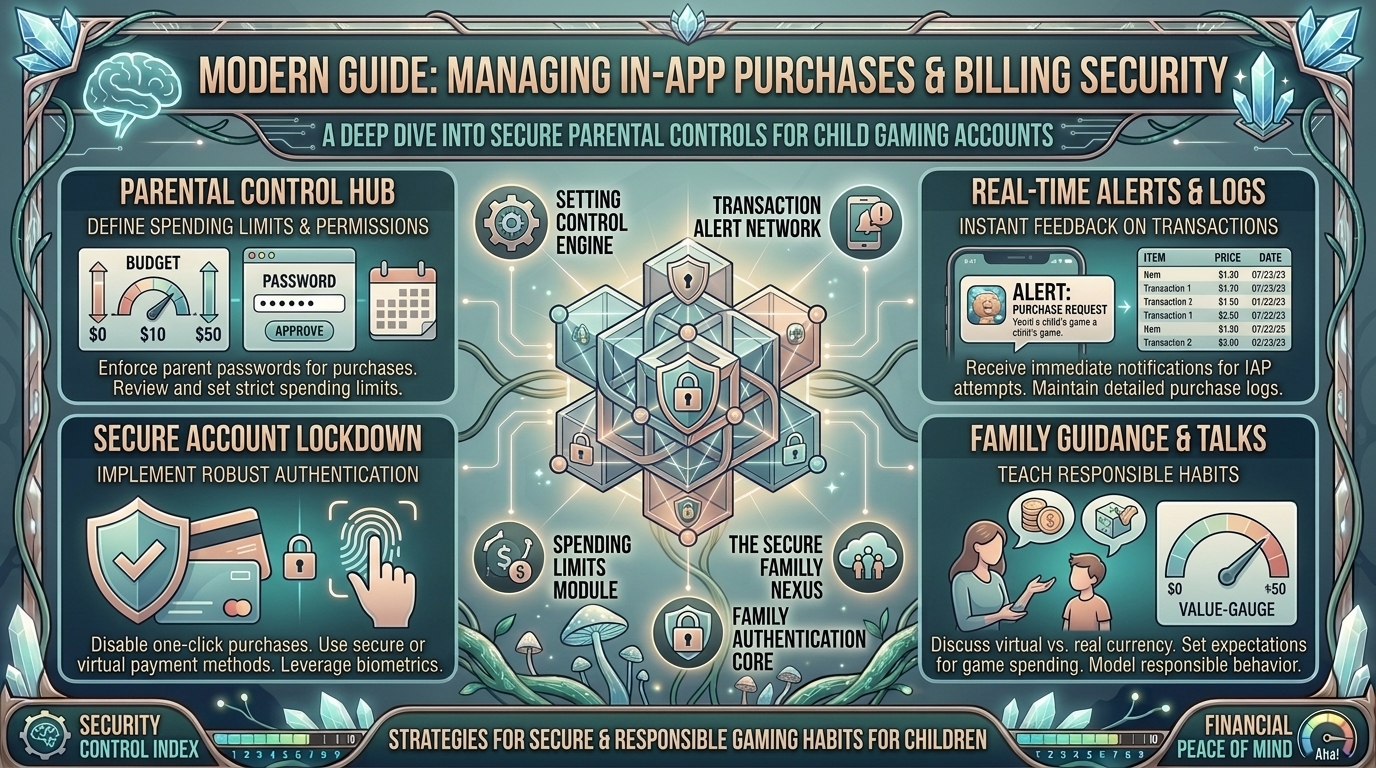
How to Manage In-App Purchase Notifications and Billing Security on Child Mobile Gaming Accounts
Mobile gaming is one of the primary forms of entertainment for kids and teenagers across the United States. Whether your child is building worlds in Minecraft, playing matches in Roblox, or trying out the latest mobile strategy releases on iOS and Android, modern games are designed to seamlessly integrate microtransactions. From virtual currencies like Robux and V-Bucks to loot boxes, character skins, and energy refreshes, in-app purchases (IAPs) can quickly lead to unexpected charges if a child’s account is left unmonitored.
Unintentional charges can happen in seconds when a credit card is saved directly to a device. Beyond financial surprises, unmonitored accounts are vulnerable to malicious phishing scams, third-party code redemption tricks, and unauthorized credit card updates.
This guide provides step-by-step instructions to configure real-time purchase notifications, lock down billing security, set up parental controls across major operating systems, and protect your child’s mobile gaming accounts.
The Hidden Financial Risks of Unmonitored Mobile Gaming
Understanding how mobile games structure their microtransactions helps in applying the right security controls:
[ In-Game Store ] ──> [ One-Tap "Buy" Trigger ] ──> [ Saved Store Card (No Authentication) ]
                                                                   │
                                                                   ▼
[ Shocking Monthly Bill ] <── [ Unnoticed Microtransactions ] ─────┘
- Dark Patterns & Impulse Loops: Many free-to-play titles feature progress blockers, limited-time countdown timers, or pop-up prompts that encourage immediate spending. Young children may click these prompts without realizing real money is involved.
- One-Tap Payment Tokens: Once a credit card is added to an Apple Account or Google Play profile without stricter password requirements, standard operating systems store payment tokens that allow one-tap purchases.
- Third-Party Currency Scams: Fraudulent websites and pop-up ads often promise free in-game currency in exchange for entering account credentials or credit card numbers, exposing your account to identity theft and security breaches.
- Subscription Traps: Some games offer free 3-day trials that automatically convert into recurring weekly or monthly subscriptions ($9.99/week), quietly draining linked bank accounts until explicitly canceled.
Step-by-Step Security Setup for iOS Devices (iPhone & iPad)
Apple provides parental controls via Family Sharing and Screen Time on iOS. When set up correctly, kids cannot complete a purchase without an explicit real-time approval request sent directly to your phone.
[ Child's iPhone ] ──> [ Tap "Purchase" ] ──> [ "Ask to Buy" Alert ]
                                                      │
                                                      ▼
[ Parent's iPhone ] <── [ Push Notification ] ─── [ Accept / Deny ]
1.Create a Child Account via Apple Family Sharing:
Go to Settings > [Your Name] > Family Sharing on your iPhone. Tap Add Member, choose Create a Child Account, and enter their age. This creates an isolated, age-restricted Apple Account linked to your primary account.
2.Enable ‘Ask to Buy’ for All Purchases:
Under Family Sharing, tap your child’s name and select Ask to Buy. Toggle Ask to Buy to ON. Whenever your child attempts to download a free app or purchase an in-app item, a push notification will pop up on your device displaying the exact cost and title for your review and approval.
3.Configure Screen Time & Restrict Purchases:
On your child’s device (or remotely via Family Sharing), navigate to Settings > Screen Time > Content & Privacy Restrictions. Tap iTunes & App Store Purchases. Set In-app Purchases to Don’t Allow if you want to block IAPs entirely, or set Require Password to Always Require to prevent auto-purchasing.
4.Set a Unique Screen Time Passcode:
Ensure you create a four-digit Screen Time Passcode that is distinct from your child’s phone unlock passcode. Without this code, they cannot bypass content limits or change purchasing settings.
Step-by-Step Security Setup for Android Devices
Android offers billing protection via Google Family Link and Google Play Store Purchase Approvals.
[ Google Family Link ] ──> [ Settings ] ──> [ Purchase Approvals ] ──> [ All Content ]
1.Set Up Google Family Link:
Download the Google Family Link app on your phone. Follow the on-screen prompts to create a supervised Google Account for your child or link their existing account.
2.Enforce Google Play Purchase Approvals:
Open Family Link on your parent device, select your child’s profile, and navigate to Controls > Google Play > Purchase Approvals. Select All content or Only in-app purchases. This ensures that every transaction routes through your approval before processing.
3.Require Authentication for Purchases on Device:
Open the Google Play Store app on your child’s device. Tap their profile icon in the top right, go to Settings > Verification, and toggle Require biometric / password authentication for all purchases to ON.
4.Disable Unapproved Payment Methods:
In the Google Play Store under Payments & Subscriptions > Payment Methods, ensure that no personal credit or debit cards are directly saved to your child’s account profile.
Platform-Specific Billing Controls in Top Mobile Games
System-level settings stop most unauthorized store transactions, but major live-service games also feature account-level billing settings:
1. Roblox
- Parental Controls PIN: Set a 4-digit Account PIN in Settings > Parental Controls to prevent your child from changing billing settings or turning off spending restrictions.
- Monthly Spend Limits: Enable Monthly Spend Restrictions inside the Roblox account dashboard to cap the total dollar amount that can be spent on Robux per calendar month.
- Notification Preferences: Enable real-time email alerts for every Robux transaction under your linked parent email account.
2. Fortnite / Epic Games Store
- Epic Games Parental Controls: Log into the Epic Games Account Portal, navigate to Parental Controls, and create a 6-digit PIN.
- Require PIN for Purchases: Turn on Require PIN for Purchases using Epic Games Payment Services to require your PIN for any real-money transaction.
- Purchase Receipts: Confirm that payment receipts are sent directly to your verified email address rather than an unmonitored child inbox.
Comprehensive Security Checklist for Parents
| Feature | Apple iOS (Screen Time / Family Sharing) | Android (Google Family Link) | In-Game Accounts (Roblox / Epic) |
| Real-Time Notifications | Yes (iMessage / Push Alerts) | Yes (Family Link Notification) | Email Transaction Receipts |
| Hard IAP Block Available | Yes (“Don’t Allow” In-App Purchases) | Yes (Block Google Play Billing) | Monthly Spend Limit Sliders |
| Authentication Method | Screen Time Passcode / Face ID | Google Account Password / Biometrics | Account PIN Lock (4–6 Digits) |
| Remote Management | Managed via Parent’s iPhone | Managed via Parent’s Phone App | Parent Dashboard Web Portal |
5 Proactive Tips to Secure Your Family’s Mobile Billing
- Use Digital Gift Cards Instead of Credit Cards: Avoid saving primary debit or credit cards to a child’s mobile device. Redeem official Apple Gift Cards or Google Play Gift Cards to maintain a fixed balance. When the balance runs out, purchases stop automatically.
- Separate Parent and Child ID Accounts: Never sign a child into an adult’s primary Apple Account or Google Account. Doing so syncs saved payment cards and bypasses parental restrictions. Always create a dedicated, age-appropriate child account managed through Family Groups.
- Monitor Monthly Credit Card Statements: Set up instant transaction alerts through your bank or credit card provider for any charge originating from
[Apple.com/bill](https://Apple.com/bill),Google *Play, or major game developers. - Discuss Virtual Currencies Openly: Teach children that virtual currencies like Robux, Gems, and Coins represent real-world money. Helping them understand budget management reduces impulse requests.
- Turn Off “Password Caching” Windows: Ensure your device requires a password for every single transaction. On older iOS versions or settings, entering a password once might leave a 15-minute window where additional purchases can be made without re-entering credentials.
Frequently Asked Questions (FAQ)
1. Can I get a refund if my child makes an unauthorized in-app purchase?
Both Apple and Google allow you to request refunds for accidental or unauthorized child purchases. Visit reportproblem.apple.com for iOS or play.google.com/store/account/orderhistory for Android. Submit your request promptly, selecting “Unintended purchase made by a minor.”
2. What happens if I dispute a mobile game charge directly through my bank?
Filing a chargeback with your credit card company instead of requesting a refund through Apple, Google, or the developer can result in the game company permanently banning or terminating your child’s account due to breach of terms.
3. Does “Ask to Buy” work if my child has their own credit card tied to their account?
If a minor’s account has a separate payment method added, “Ask to Buy” settings still force purchase requests to route to the Family Manager’s device for approval before processing.
4. How do I stop my child from downloading free games that contain heavy microtransactions?
Enable Ask to Buy (iOS) or App Approval (Android) for all downloads, including free apps. This lets you review the app’s content rating and age appropriateness before it installs.
5. Why do in-app purchase requests sometimes fail to appear on my parent device?
This can occur if devices are running outdated operating system versions or if push notifications are disabled for Messages or the Family Link app. Keep all family devices updated to the latest OS versions.
6. Are third-party “free currency generator” sites dangerous?
Yes. These sites are phishing scams designed to steal login credentials, harvest personal data, or trick users into signing up for paid subscription services. Remind children never to enter their username or password on external websites.
7. How can I manage purchases if my child plays on both iOS and Android devices?
Set up parental controls on both platforms using Apple Family Sharing and Google Family Link separately. For cross-platform games like Roblox or Fortnite, set an account PIN within the game’s parent portal.
8. What is the difference between Screen Time limits and billing restrictions?
Screen Time limits govern the total time an app can be open during the day. Billing restrictions lock down payment portals and require password authentication for financial transactions.
9. Can my child bypass Screen Time restrictions by changing the device time zone?
Modern iOS and Android updates automatically synchronize system time with network time servers when parental controls are active, preventing children from manually changing time zones to bypass limits.
10. Where can parents find reliable reviews on game monetization practices?
Check parental resources, device security guides, and game breakdowns on TheGamerBuzz to stay informed about mobile gaming monetization and account security.
Conclusion
Securing your child’s mobile gaming experience does not mean taking away their favorite games. By setting up Apple Family Sharing or Google Family Link, requiring real-time purchase approvals, and locking down payment credentials with unique PINs, you can create a safe environment for your child to enjoy gaming while protecting your financial security. Stay proactive, keep account credentials private, and review setup guides on TheGamerBuzz to stay ahead of mobile billing security!
Leave a Reply