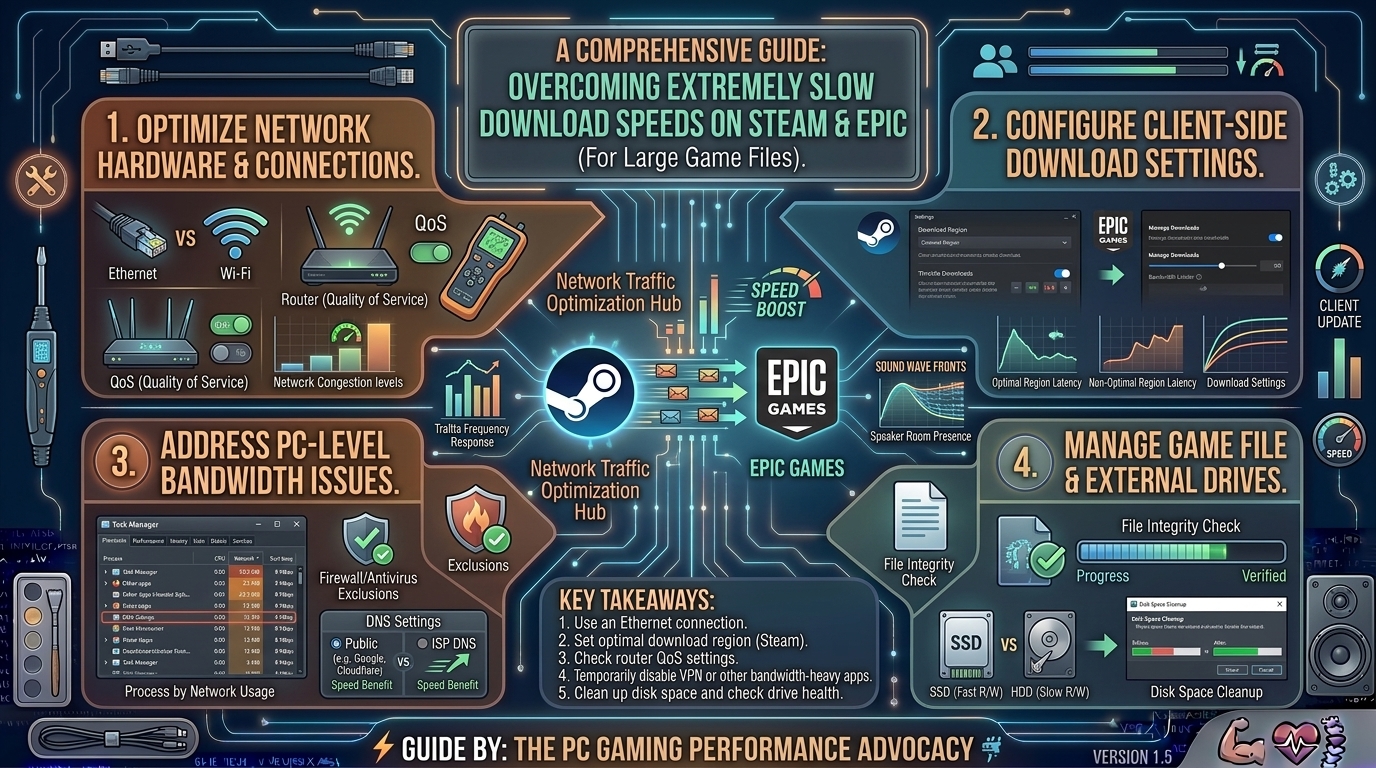
Downloading a massive modern AAA game—such as Call of Duty, Cyberpunk 2077, Baldur’s Gate 3, or Grand Theft Auto VI—can be an exercise in patience. When your internet plan promises gigabit speeds (up to 1,000 Mbps), watching your download crawl at a sluggish 2.5 MB/s, fluctuate wildly, or drop to absolute zero on Steam or the Epic Games Launcher is intensely frustrating.
Slow downloads are rarely caused by a single bottleneck. They are usually the result of compressed file decompression bottlenecks, misconfigured regional download content servers, overloaded Content Delivery Networks (CDNs), aggressive background throttling, or faulty network hardware driver states.
This comprehensive troubleshooting guide explains how to diagnose your network pipelines, optimize Steam and Epic Games settings, and unlock your full bandwidth potential for fast game downloads.
1. Understanding the Steam and Epic Games Download Pipeline
To fix a slow download, it helps to understand how game launchers handle file delivery from remote servers to your local storage drive.
+-------------------------------------------------------------------------+
|                  GAME DOWNLOAD PIPELINE ARCHITECTURE                    |
+-------------------------------------------------------------------------+
| Remote CDN Server (Steam/Epic Data Center)                              |
|      │                                                                  |
|      ▼ (Encrypted Over-The-Air TCP/IP Packet Transmission)             |
| Local ISP Network / Router / Wi-Fi                                      |
|      │                                                                  |
|      ▼ (Windows Network Stack & TCP Window Auto-Tuning)                 |
| Game Launcher Cache / Temporary Staging Folder                          |
|      │                                                                  |
|      ▼ (Concurrent Network Download + Real-Time CPU Decompression)      |
| Local Storage Drive (NVMe SSD / SATA SSD / Mechanical HDD)               |
+-------------------------------------------------------------------------+
When you click “Download,” three separate hardware components work simultaneously:
- Network Bandwidth: Your ISP connection delivering raw data packets.
- CPU Performance: Steam and Epic compress game files before transmission. Your CPU must decrypt and decompress these files on the fly. If your CPU cores are maxed out, your download speed stalls.
- Storage Write Speed (IOPS): As compressed chunks download, they are written to a temporary staging folder, decompressed, and moved to the game directory. If your storage drive (especially an older mechanical HDD) hits maximum write saturation, the launcher pauses the download until the drive catches up.
2. Step-by-Step Fixes for Steam Download Slowness
If Steam is downloading at a fraction of your actual internet speed, apply these targeted fixes:
1. Clear Steam Download Cache
Over time, Steam’s temporary manifest files and download caches can become corrupted or bloated, choking throughput.
- Open Steam and click Steam in the top-left corner.
- Select Settings.
- Navigate to the Downloads tab.
- Click the Clear Cache button.
- Click Confirm. Steam will restart and require you to log back in. (Note: This clears active download queues, so restart downloads afterward).
2. Change Your Download Region Server
Steam routes traffic through regional content servers. If your local server is experiencing heavy traffic, maintenance, or routing congestion, your speed drops significantly.
- In Steam Settings, go to Downloads.
- Locate the Download Region dropdown menu.
- If you live in a major tech hub (like New York, California, Texas, or Washington), select a neighboring regional server (e.g., if you are in New York, try US – Boston or US – Philadelphia).
- Click OK and restart Steam.
+-------------------------------------------------------------------------+
|                   STEAM REGIONAL SERVER OPTIMIZATION                    |
+-------------------------------------------------------------------------+
| Current Setting : US - New York                                         |
| Alternative     : US - Boston / US - Washington DC                      |
| Benefit         : Bypasses local CDN trunk congestion & node throttling |
+-------------------------------------------------------------------------+
3. Disable Download Rate Limits and Bandwidth Caps
- Open Settings > Downloads in Steam.
- Ensure Limit download speed is unchecked.
- Ensure Throttle downloads while streaming is disabled if you want maximum bandwidth priority.
3. Step-by-Step Fixes for Epic Games Launcher Slowness
The Epic Games Launcher handles asset packaging differently than Steam, often utilizing aggressive file chunking that can heavily tax slower CPUs and write queues.
1. Clear Epic Games WebCache Folder
Corrupted browser cache data inside the Epic Games Launcher UI frequently throttles download connections.
- Completely close the Epic Games Launcher (ensure it isn’t running in your Windows system tray).
- Press
Win + Rto open the Run dialog. - Type
%localappdata%and press Enter. - Locate and open the EpicGamesLauncher folder.
- Open the Saved folder.
- Delete the webcache and webcache_4130 folders.
- Restart the Epic Games Launcher.
2. Force Epic Games to Utilize Full Network Bandwidth (Engine.ini Tweak)
By default, the Epic Games Launcher limits the size of HTTP chunks it requests to prevent overloading low-end PCs, which artificially restricts download speeds on high-speed fiber internet. You can override this limit:
+-------------------------------------------------------------------------+
|                    EPIC GAMES ENGINE.INI CONFIG TWEAK                   |
+-------------------------------------------------------------------------+
| File Path : %localappdata%\EpicGamesLauncher\Saved\Config\Windows\      |
| File Name : Engine.ini                                                  |
| Add Code  : [HTTP]                                                      |
|             HttpTimeout=60                                              |
|             HttpConnectionTimeout=60                                    |
|             HttpReceiveTimeout=60                                       |
|             MaxHttpPool=64                                              |
|             HttpSendTimeout=60                                          |
+-------------------------------------------------------------------------+
- Press
Win + R, type%localappdata%\EpicGamesLauncher\Saved\Config\Windows, and press Enter. - Open the Engine.ini file using Notepad.
- Paste the following lines at the very bottom of the file:Ini, TOML
[HTTP] HttpTimeout=60 HttpConnectionTimeout=60 HttpReceiveTimeout=60 MaxHttpPool=64 HttpSendTimeout=60 - Save the file (
Ctrl + S) and restart the Epic Games Launcher.
4. General Network and Operating System Fixes
If both Steam and Epic Games are running slow, the bottleneck lies within your Windows network stack or ISP routing.
1. Flush DNS and Reset TCP/IP Stack
- Press
Win + S, typecmd, right-click Command Prompt, and select Run as Administrator. - Type the following commands one by one, pressing Enter after each:DOS
ipconfig /flushdns netsh winsock reset netsh int ip reset - Restart your computer.
2. Switch from Wi-Fi to a Wired Ethernet Connection
Wi-Fi is susceptible to packet loss, interference from Bluetooth or neighboring routers, and latency jitter. If possible, plug your PC directly into your router or modem using a Cat 6 or Cat 6e Ethernet cable. A wired connection provides the stable packet delivery required for sustained gigabit downloads.
3. Check Storage Drive Bottlenecks (SSD vs. HDD)
If your download speed spikes to 100 MB/s for 5 seconds and then drops to 0 MB/s, your storage drive is struggling to write data fast enough.
- Mechanical Hard Drives (HDDs): Maximum write speeds hover around 80–140 MB/s, but sustained small-file decompression write operations can drop HDDs down to single-digit MB/s.
- NVMe SSDs: Modern NVMe M.2 SSDs (PCIe 3.0 or 4.0) handle write speeds ranging from 3,500 MB/s to 7,000 MB/s, completely eliminating storage bottlenecks during game downloads. Ensure your game is installing onto an SSD rather than an old HDD.
5. Summary Table: Launcher Troubleshooting Comparison
| Issue / Symptom | Steam Fix | Epic Games Fix | Root Cause |
| Download drops to 0 bytes/sec | Clear Download Cache | Clear WebCache folder | Storage write queue bottleneck / Manifest lag |
| Speed capped well below ISP plan | Change Download Region Server | Edit Engine.ini chunk limits | CDN trunk congestion / Artificial thread caps |
| Spiking speed graph (Wave pattern) | Verify game files integrity | Verify installation files | CPU decompression bottleneck |
| Total loss of connection | Flush DNS / Reset Winsock | Flush DNS / Reset Winsock | Corrupted Windows network socket stack |
6. Frequently Asked Questions (FAQ)
1. Why does my Steam download show high “Disk” usage but low “Network” speed?
This is not a bug; it is normal decompression behavior. Steam downloads compressed data packages over the internet, writes them to your storage drive, and your CPU instantly decompresses them. If your disk write speed or CPU cannot keep pace with the incoming data stream, Steam temporarily pauses network downloading to let your hardware catch up.
2. Can using a VPN slow down my game downloads on Steam or Epic?
Yes. Running a Virtual Private Network (VPN) routes your traffic through an intermediary encrypted tunnel server, which introduces network latency, overhead, and bandwidth restrictions. Always turn off your VPN when downloading large game files to achieve maximum ISP speeds.
3. Why does my download speed in megabytes per second (MB/s) not match my internet provider’s megabits per second (Mbps) plan?
Internet Service Providers advertise speeds in Megabits per second (Mbps), while Steam and Epic measure downloads in Megabytes per second (MB/s). There are 8 bits in 1 byte. To calculate your expected download speed, divide your internet Mbps plan by 8 (e.g., a 1,000 Mbps gigabit fiber connection yields a theoretical maximum download speed of 125 MB/s).
4. Does closing background apps like Discord and Chrome speed up downloads?
Unless your computer is running low on RAM or experiencing extreme CPU utilization, closing background apps has a minimal impact on raw download speed. However, closing background applications that utilize heavy internet bandwidth (such as torrent clients, active video streaming, or cloud backups) will free up network capacity.
5. Why are my download speeds drastically slower during peak evening hours?
Peak hours (typically between 6:00 PM and 11:00 PM) experience the highest volume of local internet traffic as people stream 4K video and play online games. If your local ISP neighborhood node is congested, bandwidth throttling can occur across regional CDN servers.
6. Will switching from a mechanical hard drive to an SSD fix slow downloads?
Yes, dramatically. Installing modern games onto an NVMe SSD eliminates write-queue bottlenecks. On an HDD, unpacking large game archives can take hours; an NVMe SSD completes the same decompression and installation process in minutes.
7. How do I verify game files if a download gets corrupted or stuck?
- Steam: Right-click the game in your library, select Properties > Installed Files, and click Verify integrity of game files.
- Epic Games: Click the three dots under the game title, select Manage, and click Verify next to Verify Files.
8. Are download speed limits enforced by Steam or Epic Games servers?
No. Neither Steam nor Epic artificially throttle downloads for users. Both platforms invest heavily in global Content Delivery Networks (Akamai, Cloudflare, AWS) to deliver maximum available bandwidth. Slow speeds stem from local network routing, ISP throttling, or local hardware bottlenecks.
9. Why does my download speed start fast and then slowly taper down to a crawl?
This is usually caused by SLC caching exhaustion on budget solid-state drives (SSDs) or DRAM-less SSDs. When writing a massive 100GB file, the drive’s fast cache fills up, forcing the drive to write directly to slower NAND flash memory, causing a severe speed drop.
10. Does Windows Update or background downloading interfere with game launchers?
Yes. If Windows Update is downloading large system updates or background telemetry in the background, it shares your active network adapter bandwidth. You can pause Windows updates temporarily via Settings when downloading large games.
Fixing extremely slow download speeds on Steam and Epic Games Launcher comes down to systematically clearing cached data, optimizing regional server pathways, editing configuration files, and ensuring your storage drive can handle rapid file writing. By applying these steps, you can eliminate bottlenecks and harness your full internet bandwidth for fast game downloads.
Leave a Reply