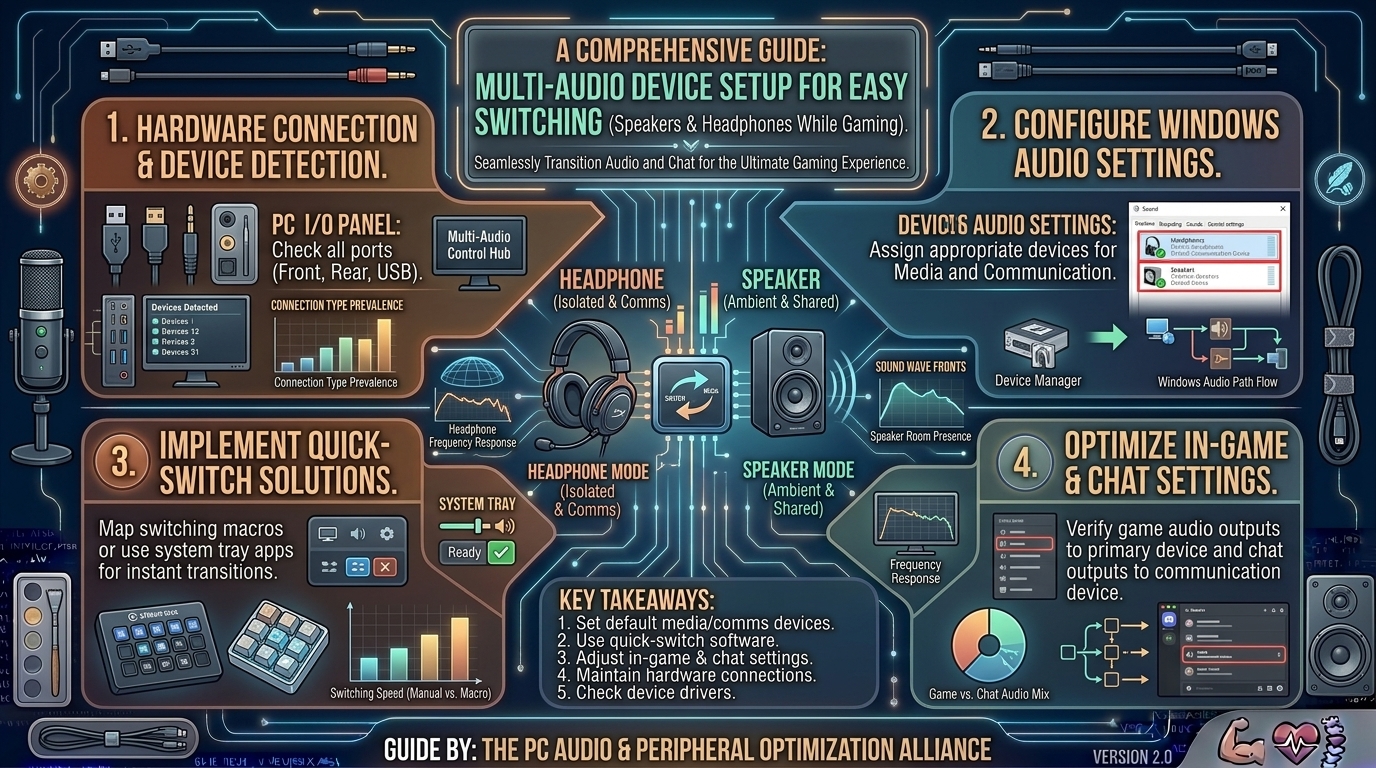
How to Set Up Multiple Audio Output Devices to Switch Easily Between Headphones and Speakers While Gaming
For PC gamers, managing sound output is often an afterthought until you find yourself launching an immersive tactical shooter while your speakers blast lobby music to your entire room, or conversely, putting on a headset only to realize game audio is pumping out of your desktop monitor.
Switching between a gaming headset (for clear competitive spatial cues) and desktop speakers (for casual exploration or cinematic titles) should take a single second. Yet, doing this natively through the standard Windows taskbar menu can be clunky, requiring multiple clicks buried deep inside sound menus.
This comprehensive guide covers how to configure multiple audio output devices on Windows 10 and Windows 11, set up instant hotkeys, use dedicated hardware switchers, and automate audio switching per game.
1. Understanding How Windows Manages Audio Outputs
Before setting up fast toggles, it helps to understand how Windows handles audio routing at the system level.
+-------------------------------------------------------------------------+
|                  WINDOWS AUDIO SUB-SYSTEM ARCHITECTURE                  |
+-------------------------------------------------------------------------+
| Game / Application (e.g., Cyberpunk 2077, Discord)                      |
|      │                                                                  |
|      ▼                                                                  |
| Windows Volume Mixer (Audio Session Assignment Layer)                    |
|      │                                                                  |
|      ├─► Default Audio Device (Primary Output Route)                    |
|      └─► Default Communication Device (VOIP / Discord Calls)            |
+-------------------------------------------------------------------------+
- Default Device: The primary output channel where all general system sounds, games, media players, and browser audio are routed by default.
- Default Communication Device: Specifically designated for voice communication programs like Discord, TeamSpeak, or in-game voice chat. Separating this allows you to send voice chat to your headset while game audio plays through your speakers (or vice versa).
2. Native Windows Methods to Switch Audio
If you want a quick software-based solution without installing third-party tools, Windows provides a few built-in menus:
Method A: The Windows Quick Settings Flyout (Fastest Native Way)
- Press
Win + Kon your keyboard to open the Cast / Audio Quick Settings panel (on Windows 11, you can also click directly on the volume/wifi cluster icon in the bottom-right taskbar and click the small arrow next to the volume slider). - Click the Select a sound output icon.
- Choose your target headset or speaker from the active list.
Method B: The Classic Sound Control Panel (For Separation)
If you want to assign separate default devices for general gaming versus voice chat:
- Press
Win + R, typemmsys.cpl, and press Enter to open the legacy Sound Control Panel. - Under the Playback tab, right-click your headphones and select Set as Default Device.
- Right-click your speakers (or headset microphone) and select Set as Default Communication Device.
3. Advanced Solutions: Instant One-Key Hotkeys
Clicking through Windows menus while a game is running can cause alt-tab freezes or match interruptions. Setting up a global keyboard shortcut provides instantaneous switching.
+-------------------------------------------------------------------------+
|                HOTKEY AUDIO SWITCHING SOFTWARE OPTIONS                  |
+-------------------------------------------------------------------------+
| 1. AudioSwitch (Lightweight open-source tool with custom hotkeys)       |
| 2. SoundSwitch (Popular utility with overlay notifications & OSD)       |
| 3. EarTrumpet (Advanced modern Windows volume mixer replacement)        |
+-------------------------------------------------------------------------+
Option 1: Using SoundSwitch (Recommended)
SoundSwitch is a lightweight, open-source utility built specifically to let users cycle through audio devices or assign custom hotkeys to individual devices.
- Download and install SoundSwitch from its official repository or website.
- Open the SoundSwitch system tray icon settings.
- Navigate to the Playback tab and check the devices you want to cycle through (e.g., your Gaming Headset and Desktop Speakers).
- Assign a global keyboard shortcut (such as
Ctrl + Alt + Sor a macro key on your gaming keyboard) under the Hotkeys tab. - Enable OSD (On-Screen Display) notifications so a small visual prompt appears on your monitor showing which audio device is active when you press your hotkey.
Option 2: Using AudioSwitch
- AudioSwitch allows you to assign unique hotkeys directly to specific devices (e.g., Press
F10to force Headset, PressF11to force Speakers), bypassing the need to cycle through a list.
4. Hardware-Level Solutions: Physical Audio Control Hubs
If you prefer a physical tactile button or volume knob on your desk rather than software hotkeys, hardware routing is the cleanest solution.
+-------------------------------------------------------------------------+
|                    HARDWARE AUDIO ROUTING SETUP                         |
+-------------------------------------------------------------------------+
| PC USB / Audio Jack ──► USB DAC / Amp with Output Switch Button         |
|                              ├── Headphone Jack (Front)                 |
|                              └── Line-Out RCA / 3.5mm (Rear Speakers)   |
+-------------------------------------------------------------------------+
1. USB DAC / Amp with Hardware Output Toggle
Many mid-to-high-end desktop DACs and headphone amplifiers (such as the Sennheiser/EPOS GSX 1000, Creative Sound BlasterX G6, or FiiO units) feature a physical button or toggle switch on the front chassis. Pressing this button instantly reroutes audio processing from the rear speaker outputs to the front headphone jack at the hardware level.
2. Dedicated USB Audio Switcher Box
You can purchase inexpensive passive or active USB Audio Switcher boxes on the market. These devices plug into your PC as a single generic sound card, featuring a physical push-button or rotary dial on your desk that immediately redirects the audio stream between two 3.5mm or USB outputs.
5. Automating Audio Switching Per Game
If you always want competitive shooters (like Counter-Strike 2 or Call of Duty) to force-route to your headset, and casual single-player games (like Forza Horizon or Civilization) to route to your speakers automatically, use automation software.
- EarTrumpet: An advanced Windows volume mixer replacement that lets you drag and drop individual applications into specific output devices. Once assigned, Windows remembers that application’s preferred output device every time you launch it.
- VoiceMeeter Banana: An advanced virtual audio routing mixer that allows complex multi-channel audio splitting, though it has a steeper learning curve.
6. Summary Table: Audio Switching Comparison
| Method | Speed | Ease of Use | Cost | Best For |
| Windows Quick Settings | Moderate (3 clicks) | Easy | Free | Casual users |
| SoundSwitch (Hotkey) | Instant (1 keystroke) | Easy | Free / Donation | Gamers wanting speed |
| Dedicated DAC / Hardware Switch | Instant (Physical press) | Very Easy | Varies ($20 – $150+) | Clean desk setups & audiophiles |
| EarTrumpet (App Rules) | Automatic | Moderate | Free | App-specific routing |
7. Frequently Asked Questions (FAQ)
1. Can I play game audio through my speakers and voice chat through my headset at the same time?
Yes. Open Discord (or your VOIP app of choice), go to Settings > Voice & Video, and manually select your headset as the Input and Output Device. For your game, leave the Windows default output set to your speakers. The game will play through speakers while chat routes to your headset.
2. Why does my game audio fail to switch when I change my default Windows playback device?
Some game engines lock onto the active audio device upon launch and refuse to dynamically switch when the default Windows device changes. For these games, you must either restart the game or use advanced software like EarTrumpet to force-route the active application session.
3. Does running audio switching software like SoundSwitch add input lag or CPU overhead?
No. SoundSwitch and similar utilities consume negligible system resources (often less than 15MB of RAM and 0% CPU utilization when idle), operating purely as background event listeners for hotkeys.
4. Why are my speakers popping or crackling when I switch audio devices mid-game?
Audio popping occurs when sample rates (e.g., 24-bit/48000Hz vs 24-bit/192000Hz) differ between your headset and speakers. To fix this, open the legacy Sound Control Panel (mmsys.cpl), check the properties of both devices under the Advanced tab, and ensure both your headphones and speakers are set to the exact same sample rate format.
5. Can I use a stream deck to switch audio outputs?
Yes. If you own an Elgato Stream Deck, you can install the official Audio Switcher plugin from the Stream Deck store and assign physical macro buttons on your Stream Deck to toggle between headphones and speakers with custom icons.
6. Why does my Bluetooth headset take several seconds to switch over compared to wired devices?
Bluetooth audio relies on wireless protocol handshakes (A2DP / LE Audio profiles) and codec negotiations. This inherent wireless latency means switching to a Bluetooth headset takes 2 to 5 seconds longer than switching to a wired USB or 3.5mm jack device.
7. How do I stop Windows from automatically switching my audio when I plug in a webcam or monitor?
Monitors with built-in speakers often hijack your default audio when connected via HDMI or DisplayPort. To fix this, open the legacy Sound Control Panel (mmsys.cpl), right-click your monitor’s digital audio output, and select Disable so Windows never switches to it automatically.
8. Will a USB audio splitter cable let me hear both speakers and headphones simultaneously?
Passive 3.5mm splitters split the electrical audio signal, which drops output impedance and volume, often muddying sound quality and putting extra strain on your motherboard’s onboard audio amplifier. Active headphone amps or software routing are much cleaner alternatives.
9. What is the difference between setting a device as “Default Device” vs “Default Communication Device”?
“Default Device” handles all normal system media, browser streams, and game sounds. “Default Communication Device” is reserved exclusively by Windows for voice calling software like Discord or Zoom.
10. How can I set up a single key on my keyboard (like a macro or F-key) to toggle audio?
Using SoundSwitch, you can bind your toggle action to a macro key (such as an unused macro key on a Corsair, Razer, or Logitech gaming keyboard, or an ordinary key combined with a modifier like Ctrl + Alt + Space). Every time you press that key, it flips the active output device instantly.
Setting up a seamless workflow between headphones and speakers transforms your daily PC experience. Whether you choose a global hotkey via SoundSwitch, a dedicated desk hardware button, or app-specific routing with EarTrumpet, eliminating audio friction lets you jump straight into gaming without missing a beat.
Leave a Reply