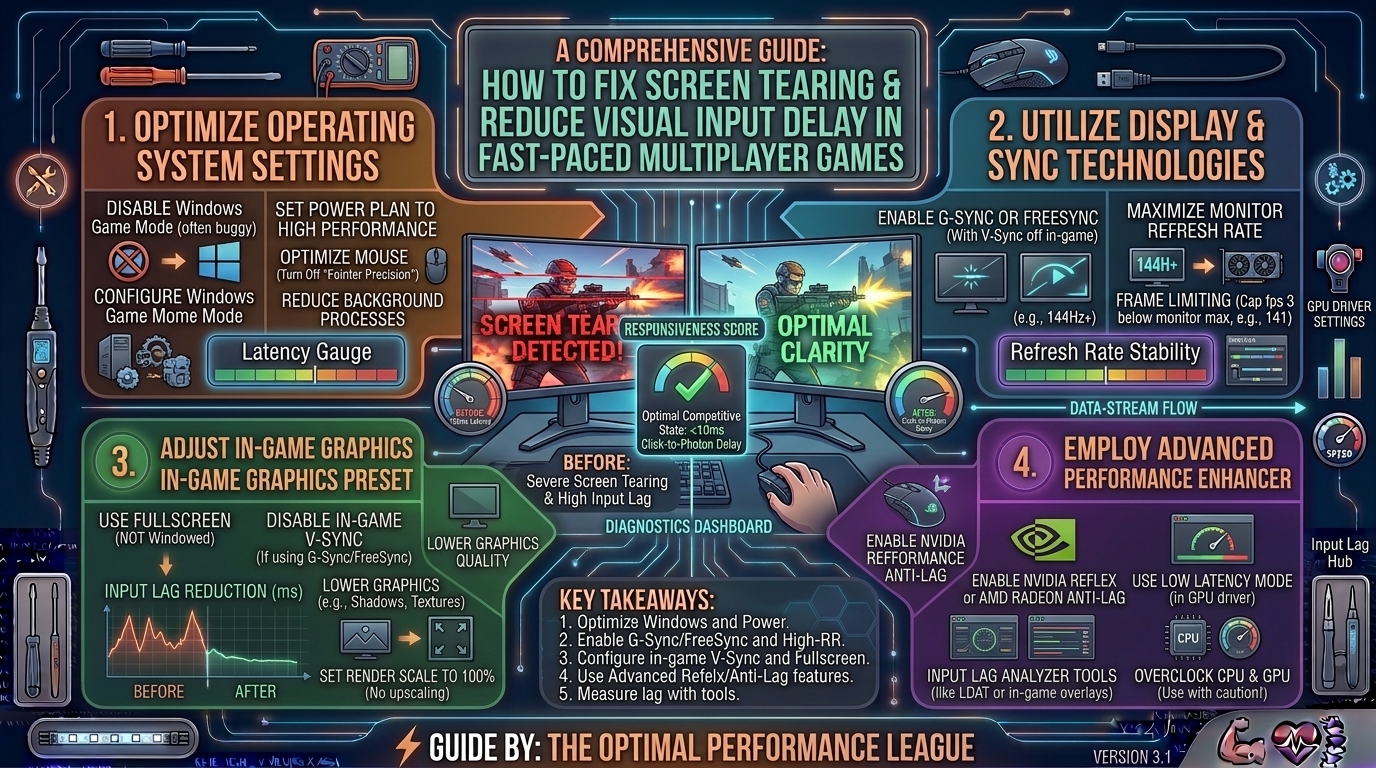
How to Fix Screen Tearing and Visual Input Delay in Fast-Paced Competitive Multiplayer Games
In fast-paced competitive multiplayer games like Counter-Strike 2, Valorant, Apex Legends, or Call of Duty, fractions of a millisecond decide whether you secure the frag or get sent back to the lobby. In these high-stakes environments, your hardware configuration matters just as much as your aim.
Two of the most destructive visual anomalies plague competitive players: Screen Tearing and Visual Input Delay (Latency).
- Screen Tearing occurs when your graphics card renders frames faster than your monitor can refresh them, resulting in jarring horizontal lines that split the image.
- Visual Input Delay is the lag between clicking your mouse and seeing the corresponding action render on your display.
Historically, fixing one made the other worse. Turning on traditional V-Sync eliminated screen tearing by forcing the GPU to wait for the monitor, but it introduced massive input lag. Modern display technologies, adaptive sync algorithms, and advanced framerate caps allow you to eliminate both tearing and latency completely.
This exhaustive guide breaks down the science of display synchronization and provides step-by-step optimization strategies to achieve crystal-clear visuals and ultra-responsive competitive controls.
1. The Core Conflict: Screen Tearing vs. Input Latency
To fix these issues, you must first understand how your GPU and monitor interact.
+-------------------------------------------------------------------------+
|                  THE RENDERING PIPELINE & LATENCY TRAP                  |
+-------------------------------------------------------------------------+
| GPU Renders Frame ──► Render Queue Buffer ──► Monitor Refresh Cycle     |
| (Variable FPS)         (Causes Input Lag)      (Fixed Hz e.g., 144Hz)   |
|                                                                         |
| [X] Uncapped FPS + V-Sync Off ──► Screen Tearing                        |
| [X] Traditional V-Sync On     ──► Heavy Input Lag (Buffer Backpressure) |
+-------------------------------------------------------------------------+
What Causes Screen Tearing?
Your monitor updates its entire display at a fixed interval (e.g., 144 times per second on a 144Hz monitor, or 240 times on a 240Hz monitor). Meanwhile, your graphics card renders frames at a variable rate based on screen complexity—sometimes 180 frames per second, sometimes 110.
When your GPU sends a new frame to the monitor mid-refresh cycle, the top half of your screen displays the new frame while the bottom half displays the old frame. This creates a jagged horizontal tear whenever motion occurs.
Why Traditional V-Sync Destroys Competitive Play
Vertical Synchronization (V-Sync) locks your frame rate to match your monitor’s exact refresh rate. While this successfully eliminates screen tearing, it forces the GPU to hold frames in a render queue until the monitor’s next refresh cycle. This backpressure introduces 50ms to 100ms of visual input lag, making your mouse movements feel sluggish, floaty, and disconnected. For a competitive gamer, this is a deal-breaker.
2. Modern Solutions: G-Sync, FreeSync, and VRR
The introduction of Variable Refresh Rate (VRR) technologies—marketed as NVIDIA G-Sync and AMD FreeSync—completely solved the tearing vs. latency dilemma.
+-------------------------------------------------------------------------+
|                    ADAPTIVE REFRESH RATE DYNAMICS                       |
+-------------------------------------------------------------------------+
| Traditional Monitor: Fixed 144Hz Refresh Rate (GPU adapts to monitor)   |
| VRR (G-Sync/FreeSync): Monitor adapts its refresh rate dynamically      |
|                         to match the GPU's exact frame delivery time!   |
+-------------------------------------------------------------------------+
Instead of the monitor refreshing at a rigid rate, VRR forces the monitor to match the GPU’s output frame rate in real time. If your GPU renders a frame in 5.5 milliseconds, the monitor refreshes immediately. Because the monitor and GPU are perfectly synchronized, screen tearing vanishes without the need for a rigid buffering queue, keeping input latency near zero.
How to Properly Configure G-Sync / FreeSync for Competitive Play:
- Ensure your monitor is plugged into a dedicated DisplayPort or HDMI 2.1 cable (avoid old HDMI 1.4/2.0 cables if running high refresh rates).
- Open your monitor’s physical on-screen display (OSD) settings menu and ensure Adaptive-Sync / FreeSync / G-Sync is explicitly toggled Enabled.
- Open the NVIDIA Control Panel (or AMD Software: Adrenalin Edition), navigate to Set up G-Sync, and check Enable G-Sync / G-Sync Compatible for windowed and full-screen mode.
3. The Golden Rule: Cap Your Framerate Just Below Refresh Rate
Even with G-Sync or FreeSync enabled, running your game with completely uncapped framerates can introduce input lag once your FPS exceeds your monitor’s maximum refresh rate threshold.
- The Threshold Problem: If you have a 240Hz monitor and your game runs at 350 FPS, G-Sync turns off and standard V-Sync behavior takes over if it hits the ceiling, causing input latency spikes.
- The Solution: Cap your in-game framerate 3 to 4 FPS below your monitor’s maximum refresh rate (e.g., set your cap to 237 FPS on a 240Hz monitor, or 138 FPS on a 144Hz monitor).
How to Set the Optimal FPS Cap:
- In-Game FPS Limiters: Most competitive games (like Valorant, CS2, and Overwatch 2) feature an in-game “Maximum FPS” setting. This is the lowest-latency method to cap frames.
- Driver-Level Caps: If a game lacks an FPS limiter, open the NVIDIA Control Panel or AMD Software, navigate to Manage 3D Settings > Max Frame Rate, and set a global or application-specific cap.
4. Reducing Latency Further: NVIDIA Reflex and AMD Anti-Lag
Hardware synchronization solves tearing, but software optimizations are required to minimize the processing pipeline queue between your CPU, GPU, and monitor.
+-------------------------------------------------------------------------+
|                   LOW-LATENCY PIPELINE OPTIMIZATION                     |
+-------------------------------------------------------------------------+
| Standard Render Queue : CPU ──► Render Queue ──► GPU ──► Display        |
| Reflex / Anti-Lag     : CPU ──► Direct Sync  ──► GPU ──► Display        |
| (Bypasses queue to slash up to 30ms of input delay instantly)           |
+-------------------------------------------------------------------------+
1. NVIDIA Reflex
NVIDIA Reflex dynamically reduces system latency by tightly integrating the game engine with the GPU rendering queue, eliminating the CPU render queue entirely.
- Setting Recommendation: In games that support it, set NVIDIA Reflex Low Latency to “On + Boost” (Boost keeps GPU core clocks elevated during heavy scenarios to prevent down-clocking lag spikes).
2. AMD Anti-Lag / Anti-Lag+
AMD’s equivalent technology regulates CPU work pacing so that it doesn’t get too far ahead of the GPU, effectively reducing input lag on Radeon graphics cards.
- Setting Recommendation: Enable AMD Anti-Lag in the Adrenalin software profile for your competitive game titles.
5. Summary Table: Sync Technology Comparison Matrix
| Technology | Eliminates Tearing? | Adds Input Latency? | Best For Competitive Play? |
| V-Sync (Off) | No | No (Lowest) | Yes (If tearing is manageable) |
| V-Sync (On) | Yes | Yes (High / Floaty) | No |
| G-Sync / FreeSync (VRR) | Yes | No (Near Zero) | Yes (Industry Standard) |
| VRR + FPS Cap (3 FPS below Hz) | Yes | No (Optimal) | Recommended Setup |
| NVIDIA Reflex / Anti-Lag | N/A (Reduces Lag) | Actively Reduces Lag | Essential for Competitive Play |
6. Step-by-Step Competitive Optimization Blueprint
To guarantee zero tearing and minimum visual input delay in competitive titles, apply these settings in order:
- Update Drivers: Perform a clean install of your graphics drivers using DDU to clear out old display pipeline profiles.
- Set Native Refresh Rate: Go to Windows Display Settings (Advanced Display Settings) and ensure your monitor is set to its absolute maximum refresh rate (e.g., 360Hz, 240Hz, 144Hz). Many users accidentally run high-end monitors at default 60Hz.
- Enable Adaptive Sync: Turn on G-Sync or FreeSync in both your monitor’s OSD and your GPU control panel.
- Cap Framerate: Set your in-game framerate limit slightly below your refresh rate (e.g., 237 FPS for 240Hz).
- Enable Low Latency Mode: Turn on NVIDIA Reflex (On+Boost) or AMD Anti-Lag inside the game settings.
- Use Exclusive Fullscreen: Whenever possible, run competitive games in Fullscreen mode rather than Windowed or Borderless Windowed to give the game direct access to the display manager.
7. Frequently Asked Questions (FAQ)
1. Does turning V-Sync on in the Nvidia Control Panel ruin competitive gaming?
Yes. Leaving traditional global V-Sync turned “On” in driver control panels forces buffering queues that introduce heavy input lag. However, turning V-Sync On only inside the Nvidia Control Panel while using G-Sync and capping your FPS below your refresh rate is actually a recommended practice to catch rare tearing micro-stutters without adding lag.
2. What is the best framerate cap for a 240Hz monitor?
The ideal framerate cap for a 240Hz monitor is 237 FPS. Capping 3 frames below your maximum refresh rate keeps your system safely underneath the G-Sync threshold ceiling, preventing input latency spikes.
3. Does windowed mode cause more screen tearing than fullscreen mode?
Windowed mode routes game rendering through the Windows Desktop Window Manager (DWM), which enforces its own V-Sync buffering and can increase input latency. Exclusive Fullscreen gives the game engine direct control over the display output, reducing latency.
4. Why am I still getting screen tearing even with G-Sync enabled?
Screen tearing with G-Sync usually happens because your framerate is exceeding your monitor’s maximum refresh rate (e.g., hitting 300 FPS on a 240Hz screen). Once you exceed the max refresh rate, G-Sync turns off. Setting an FPS cap fixes this instantly.
5. Does NVIDIA Reflex replace G-Sync or should I use both?
You should use both. G-Sync synchronizes display refresh rates to eliminate tearing, while NVIDIA Reflex optimizes the internal rendering queue to reduce input latency. They operate at different stages of the pipeline and complement each other perfectly.
6. Will overclocking my monitor reduce input lag?
Running a monitor past its rated refresh rate via custom resolutions can sometimes introduce frame skipping or artifacting. It is always better to run your monitor at its factory-certified maximum stable refresh rate.
7. Does lowering in-game graphics settings reduce input latency?
Yes. Lowering settings like shadows, post-processing, and volumetric effects reduces the GPU render load, shortening the time it takes to process a frame and lowering overall end-to-end system latency.
8. What is the difference between G-Sync Compatible and native G-Sync hardware modules?
Native G-Sync hardware modules feature a dedicated physical scaler chip built into the monitor by NVIDIA, offering a wider variable refresh range down to 1Hz. “G-Sync Compatible” monitors use standard Adaptive-Sync panels validated by NVIDIA to work smoothly without flickering. Both eliminate tearing effectively.
9. Does background software like Discord or Chrome increase visual input delay?
Hardware acceleration in background apps like web browsers, Discord overlays, or RGB management software can occasionally consume GPU cycles and introduce micro-stutters. Disabling hardware acceleration in Discord and Chrome improves frame time consistency.
10. How do I measure my actual system input latency?
You can use specialized hardware latency testing tools like the NVIDIA Reflex Latency Analyzer built into compatible monitors and mice, or software telemetry tools like CapFrameX to monitor frame times and render latencies during gameplay.
Eliminating screen tearing and visual input delay in fast-paced competitive multiplayer games requires moving away from crude legacy fixes like traditional V-Sync. By embracing modern Variable Refresh Rate (G-Sync/FreeSync), pairing it with a precise sub-refresh framerate cap, and activating low-latency tools like NVIDIA Reflex, you achieve zero tearing, crystal-clear motion clarity, and instant mouse-to-pixel responsiveness.
Leave a Reply