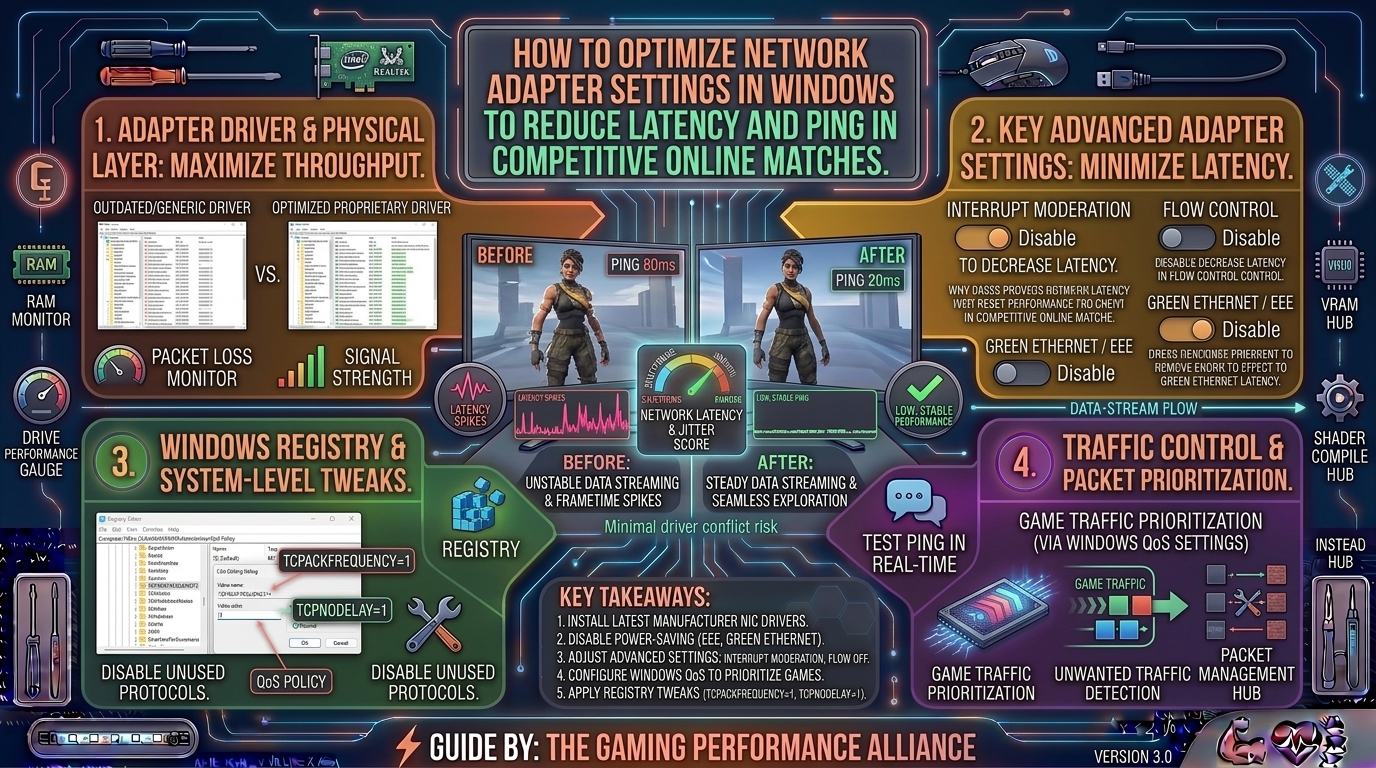
How to Optimize Network Adapter Settings in Windows to Reduce Latency and Ping in Competitive Online Matches
In competitive multiplayer games like Counter-Strike 2, Valorant, Apex Legends, and Call of Duty, fractions of a millisecond determine whether your shots register first or you get eliminated behind a wall. While high-end graphics cards secure high frame rates, your network adapter (Network Interface Card – NIC) dictates how rapidly data communicates between your PC and the official game servers.
Out of the box, Windows configures your network adapter for power efficiency and balanced everyday browsing, not ultra-low-latency esports performance. Aggressive power-saving states, packet batching, and unnecessary CPU offloading features introduce subtle network jitter, rubber-banding, and spikes in ping.
This exhaustive optimization guide details how to reconfigure your network adapter properties inside Windows 10 and Windows 11 to achieve the absolute lowest ping and cleanest hit registration possible.
1. Accessing Your Network Adapter Properties
Before toggling specific parameters, you need to open your hardware control environment.
+-------------------------------------------------------------------------+
|                  NAVIGATING TO ADVANCED NIC PROPERTIES                  |
+-------------------------------------------------------------------------+
| Press Windows Key + R ──► Type `devmgmt.msc` ──► Hit Enter               |
| Expand "Network Adapters" ──► Right-click your Ethernet / Wi-Fi Card    |
| Select "Properties" ──► Click the "Advanced" Tab                         |
+-------------------------------------------------------------------------+
- Press the Windows Key + R on your keyboard to open the Run dialog box.
- Type
devmgmt.mscand press Enter to open the Device Manager. - Expand the Network adapters category.
- Right-click your primary physical network controller (typically named Intel Ethernet Connection, Realtek Gaming PCIe Family Controller, or your dedicated Wi-Fi card) and select Properties.
- Navigate to the Advanced tab to view the list of configuration properties.
2. Critical Network Adapter Property Tweaks for Gaming
Modify the following settings within the Advanced tab. Note: Depending on whether you use an Intel, Realtek, or Killer network card, some property names might vary slightly.
+-------------------------------------------------------------------------+
|                  OPTIMAL ADVANCED SETTINGS MATRIX                       |
+-------------------------------------------------------------------------+
| Interrupt Moderation         ──► Disabled (Cuts processing delay)       |
| Energy Efficient Ethernet    ──► Disabled (Prevents sleep-state lag)    |
| Large Send Offload (LSO)     ──► Disabled (Prevents packet bunching)    |
| Receive / Transmit Buffers   ──► Set to Maximum values                  |
| Flow Control                 ──► Disabled (Removes unnecessary throttling)|
+-------------------------------------------------------------------------+
1. Interrupt Moderation
- What it does: Normally, your network card groups incoming data packets together into batches before alerting your CPU to process them. This saves CPU overhead, but it introduces a delay before packets reach your game client.
- The Setting: Set Interrupt Moderation to Disabled.
- Why: This forces your network card to notify the CPU immediately upon packet arrival, slashing micro-latency and improving real-time hit registration. (Note: This slightly increases CPU usage, which is negligible on modern multi-core processors).
2. Energy Efficient Ethernet (EEE) / Green Ethernet
- What it does: EEE puts your network card into a low-power “sleep” state during periods of low apparent network traffic to save electricity.
- The Setting: Set Energy Efficient Ethernet (or Green Ethernet / Power Saving Mode) to Disabled.
- Why: When sudden game telemetry data arrives, waking the NIC up from its low-power state causes momentary packet stutter and jitter spikes. Disabling it keeps your link hot and responsive.
3. Large Send Offload V2 (IPv4 & IPv6) [LSO]
- What it does: LSO offloads the task of breaking down massive data blocks into smaller segments from the CPU to the network card.
- The Setting: Set Large Send Offload V2 (IPv4) and Large Send Offload V2 (IPv6) to Disabled.
- Why: While designed to save CPU cycles, LSO can introduce packet delivery inconsistencies and erratic ping jitter in fast-paced real-time multiplayer titles.
4. Flow Control
- What it does: Flow Control pauses data transmission when a device’s buffer is full.
- The Setting: Set Flow Control to Disabled.
- Why: Game traffic relies on UDP packets where speed trumps error-checking re-transmissions. Disabling Flow Control stops network routers and adapters from holding back real-time data packets.
5. Receive Buffers and Transmit Buffers
- What it does: These buffers allocate system memory blocks for holding incoming and outgoing packet queues.
- The Setting: Increase Receive Buffers and Transmit Buffers to their Maximum values (e.g., 512 or 2048 depending on your NIC card capacity).
- Why: Larger buffers prevent packet loss during intense network loads (such as massive 100-player battle royale matches).
3. Disabling Windows Power Management on the NIC
Beyond advanced properties, Windows can cut power to your hardware to save battery or meet environmental compliances.
- In the same Network Adapter Properties window, navigate to the Power Management tab.
- Uncheck the box that says: “Allow the computer to turn off this device to save power”.
- Click OK to save changes. This ensures your network chip never enters a throttled power state mid-match.
4. Summary Table: Network Adapter Tweaks Quick Reference
| Network Property | Default Windows State | Optimal Gaming State | Performance Impact |
| Interrupt Moderation | Enabled (Adaptive) | Disabled | Cuts down packet processing delay |
| Energy Efficient Ethernet | Enabled | Disabled | Eliminates sleep-state ping spikes |
| Large Send Offload (LSO) | Enabled | Disabled | Reduces network jitter and micro-stutter |
| Flow Control | Enabled | Disabled | Prevents unwanted packet throttling |
| Power Management | Enabled | Unchecked / Off | Stops random adapter disconnections |
5. Additional System-Level Network Optimizations
To maximize your network adapter’s efficiency, couple your Device Manager tweaks with these system-level adjustments:
- Disable Nagle’s Algorithm (TCP NoDelay): While mostly applicable to older games, ensuring TCP acknowledgement delays are minimized keeps server handshakes fast.
- Update Your NIC Drivers: Never rely on generic Microsoft drivers installed automatically during a Windows update. Go directly to your motherboard manufacturer’s website (ASUS, MSI, Gigabyte) or chip vendor (Intel, Realtek) to install the latest dedicated driver package.
- Use a Wired Ethernet Connection: Wi-Fi is inherently susceptible to environmental interference, signal attenuation, and radio frequency congestion. Plug directly into your router using a Cat6 (or better) Ethernet cable.
6. Frequently Asked Questions (FAQ)
1. Will changing these network adapter settings increase my electricity bill?
No. Disabling power-saving features like Energy Efficient Ethernet on a single PC network card draws a negligible fraction of a watt more power, which has zero noticeable impact on your power bill.
2. Why does disabling Interrupt Moderation improve hit registration?
Disabling Interrupt Moderation forces your network interface card to hand over data packets to the CPU instantly rather than buffering them into batches. This reduces end-to-end packet processing delay, making your inputs register faster on the game server.
3. Should I apply these settings if I play on Wi-Fi instead of Ethernet?
Yes, you can apply settings like disabling Power Management and Energy Efficient Ethernet to wireless cards as well. However, wireless connections will always suffer from inherent environmental latency compared to a wired Ethernet cable.
4. What should I do if my internet disconnects after changing these settings?
If your network card experiences instability after modifying buffers or offload settings, return to Device Manager, right-click your adapter, and click Restore Defaults on the Advanced tab, then tweak settings one by one to isolate the conflict.
5. Do these network tweaks lower my raw download speed test numbers?
Disabling features like Large Send Offload might marginally affect theoretical maximum file download speeds under synthetic benchmarks, but it optimizes real-time data streaming consistency for small game packets, which is what matters for low ping.
6. How do I know if my network adapter is made by Intel or Realtek?
Open Device Manager, expand Network adapters, and you will see the explicit brand and model name listed (e.g., Intel Ethernet Connection (2) I219-V or Realtek Gaming 2.5GbE Family Controller).
7. Does Windows 11 handle network adapters differently than Windows 10?
The underlying network stack architecture is largely similar between Windows 10 and 11, meaning these Device Manager property tweaks function identically across both operating systems.
8. Can background browser apps cause high gaming ping spikes?
Yes. Cloud sync tools, web browsers running video streams, and auto-updaters consume active bandwidth and saturate your bufferbloat limits. Always close background bandwidth hogs before playing ranked matches.
9. What is Bufferbloat and how does it affect competitive gaming?
Bufferbloat is the excess lag that occurs when your router queues up too many data packets inside its memory buffer. Using a router with modern QoS (Quality of Service) settings or SQM (Smart Queue Management) prevents bufferbloat.
10. How often should I check for network adapter driver updates?
You do not need to update your network drivers constantly. However, if you experience sudden connection drops or stability issues after a major Windows feature update, downloading the newest driver from your manufacturer is recommended.
Optimizing your Windows network adapter properties bridges the gap between raw hardware speed and clean data transmission. By disabling power-saving throttles, turning off packet batching features like Interrupt Moderation, and establishing a direct wired connection, you eliminate artificial jitter and secure a smooth, low-latency competitive gaming experience.
Leave a Reply