Few experiences match the frustration of booting up an eagerly anticipated game, only for the screen to suddenly freeze and throw a dreaded “Unreal Engine Exited Due to D3D Device Being Lost” or “Fatal Error: EXCEPTION_ACCESS_VIOLATION” text box.
Because Unreal Engine (UE4 and UE5) powers a massive share of modern PC blockbusters—including titles like Fortnite, Tekken 8, Black Myth: Wukong, and Ark Survival Ascended—encountering an Unreal Engine crash is a common rite of passage for PC gamers.
A “Fatal Error” is essentially a safe termination protocol: the engine encountered a memory fault, a driver timeout, or a corrupted asset pointer, and it closed itself down to prevent full system instability.
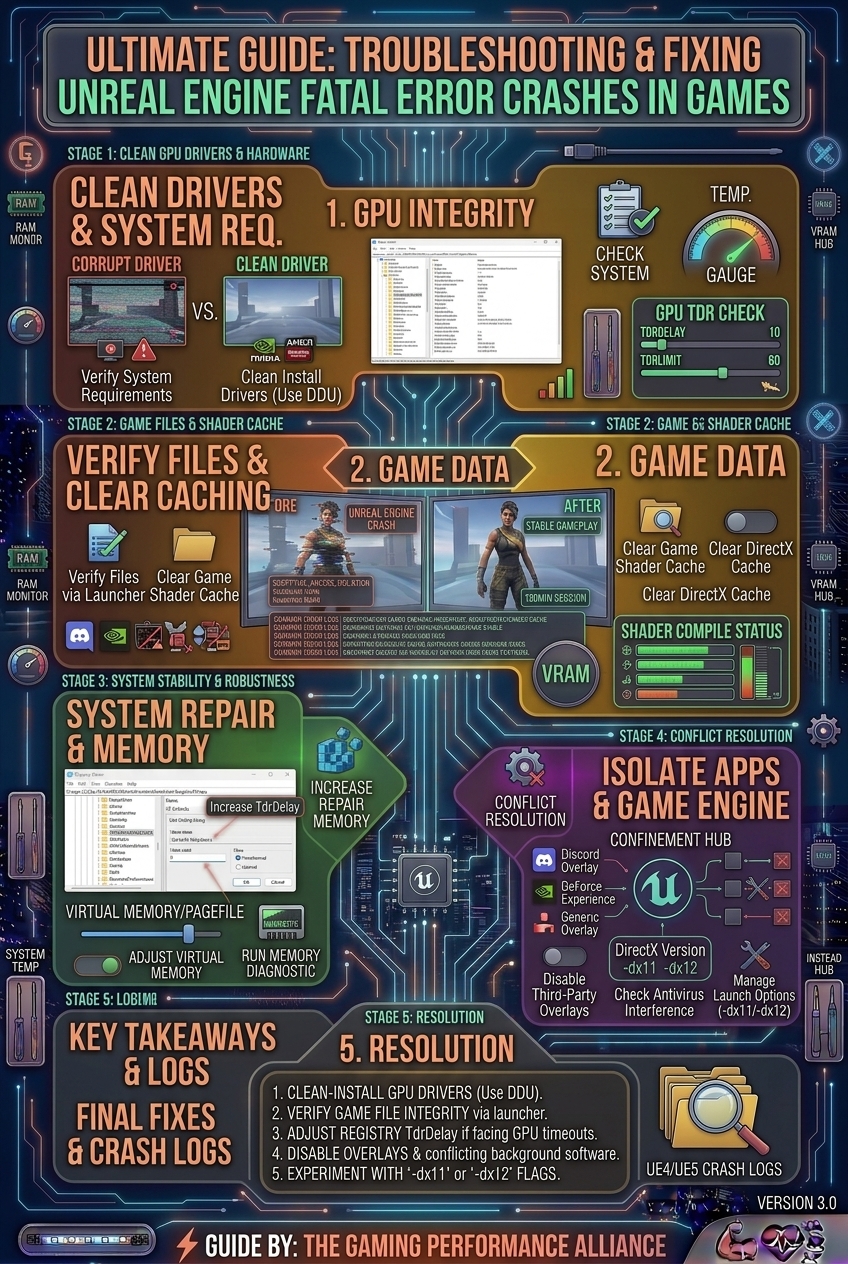
This exhaustive guide covers the root causes behind Unreal Engine crashes and walks you through step-by-step methods to permanently eliminate them.
1. Understanding Common Unreal Engine Error Messages
Before applying fixes, it helps to decode what the crash log is actually telling you:
+-------------------------------------------------------------------------+
|                  COMMON UE CRASH SIGNATURES DECODED                     |
+-------------------------------------------------------------------------+
| EXCEPTION_ACCESS_VIOLATION ──► Game tried reading invalid memory space  |
| D3D Device Lost / Removed  ──► GPU crashed, reset, or timed out (TDR)   |
| Out of Video Memory        ──► VRAM exhausted; textures overflowed      |
+-------------------------------------------------------------------------+
- EXCEPTION_ACCESS_VIOLATION: The game tried to read or write to a memory address it had no business touching. This is often triggered by unstable RAM overclocks, corrupted shader caches, or aggressive overlays.
- D3D Device Lost: Your graphics driver stopped responding, forcing Windows to restart the device (Timeout Detection and Recovery, or TDR). This points directly to GPU instability, overheating, or aggressive factory overclocks.
- LowLevelFatalError: Usually accompanied by a string pointing to a missing texture, audio file, or brokenPAK file within the game directory.
2. Fundamental Software and Driver Fixes
Start with the most reliable baseline fixes recommended by developers and hardware technicians.
+-------------------------------------------------------------------------+
|                    CORE STABILIZATION CHECKLIST                         |
+-------------------------------------------------------------------------+
| [X] Perform a clean GPU driver install using DDU in Safe Mode           |
| [X] Verify integrity of game files via Steam, Epic, or Xbox app         |
| [X] Install or repair missing Microsoft Visual C++ Redistributables     |
| [X] Clear corrupted local D3D shader caches                             |
+-------------------------------------------------------------------------+
1. Clean GPU Driver Installation (The DDU Method)
Corrupted graphics display drivers are the #1 catalyst for Unreal Engine crashes. Simply clicking “Update” in GeForce Experience or AMD Adrenalin is often not enough.
- Download the latest driver package for your card.
- Download Display Driver Uninstaller (DDU) by Wagnardsoft.
- Reboot your PC into Safe Mode, run DDU to completely purge your old display drivers, restart normally, and install the fresh driver package.
2. Verify Game File Integrity
If a patch downloaded incorrectly, a single missing asset or broken .pak file will trigger a fatal error the moment the engine tries to load it.
- Steam: Right-click the game in your library, select Properties > Installed Files, and click “Verify integrity of game files”.
- Epic Games Launcher: Click the three dots next to the game title, select Manage, and click Verify.
3. Update Visual C++ Redistributables
Unreal Engine games rely heavily on Microsoft Visual Studio runtimes. If your system runtime files are outdated or missing, games will crash on launch. Head to Microsoft’s official support pages and download the latest combined Visual C++ 2015–2022 Redistributable package (both x86 and x64 versions).
3. Advanced Engine and System Tweaks
If basic verification doesn’t solve the issue, you need to address memory handling and graphics API parameters.
+-------------------------------------------------------------------------+
|                ADVANCED ENGINE STABILIZATION WORKFLOW                   |
+-------------------------------------------------------------------------+
| [1] Delete Local Shader Caches (Intermediate / D3DShaderCache)          |
| [2] Switch Rendering APIs (Force DX11 if DX12 is unstable)              |
| [3] Extend Windows TDR Delay via Registry Editor                        |
| [4] Disable Aggressive Background Overlays (Discord, Steam, RivaTuner)  |
+-------------------------------------------------------------------------+
1. Clear Corrupted Shader Caches
Unreal Engine builds local shader caches to accelerate loading times. If these files become corrupted due to an improper game shutdown, every subsequent launch will crash.
- Navigate to your local AppData folder (
%LOCALAPPDATA%\[GameName]\Saved\). - Delete folders named Crashes, D3DShaderCache, or Saved/Config to force the engine to rebuild clean caches on the next boot.
2. Switch from DirectX 12 to DirectX 11
Many Unreal Engine 5 titles default to DirectX 12 to leverage advanced ray tracing and Nanite features. However, DX12 implementation can be unstable on certain GPU configurations.
- Open your game’s launch options in Steam/Epic, or look inside its video configuration files (
GameUserSettings.ini), and add the command line argument-dx11to force the engine to run on the more stable DirectX 11 API.
3. Extend the Windows GPU Timeout Window (TDR Delay)
If an Unreal Engine game takes too long to compile shaders during heavy loading screens, Windows assumes the graphics card has frozen and forcibly terminates it with a “D3D Device Lost” error. You can give your GPU more breathing room:
- Press
Windows Key + R, typeregedit, and press Enter. - Navigate to:
HKEY_LOCAL_MACHINE\SYSTEM\CurrentControlSet\Control\GraphicsDrivers. - Right-click in the empty space, create a new DWORD (32-bit) Value, and name it
TdrDelay. - Double-click it, select Decimal, and set the value to
60. Click OK and restart your PC.
4. Summary Table: Quick Error Resolution Matrix
| Crash Symptom / Error | Root Cause | Best Direct Fix |
| EXCEPTION_ACCESS_VIOLATION | Corrupted memory pointer / unstable RAM | Verify game files & disable RAM overclocks (XMP test) |
| D3D Device Lost / RESET | GPU driver timeout or crash | Perform clean DDU driver install & extend TDR delay |
| Out of Video Memory | VRAM exhaustion | Lower texture settings or turn off Frame Generation / Ray Tracing |
| Crash on Launch / Intro Screen | Missing runtime or bad shader cache | Delete local Saved folder cache & install Visual C++ runtimes |
| Random Mid-Game Freezes | Thermal throttling or unstable clocks | Monitor temperatures with MSI Afterburner and lower core overclocks |
5. Hardware Realities: Overclocks and Thermal Limits
Unreal Engine is uniquely sensitive to hardware instability. Unlike lighter games that might gloss over a slightly unstable CPU or RAM overclock, Unreal Engine will throw an immediate fatal error.
- Test Without XMP / EXPO: If you experience persistent
EXCEPTION_ACCESS_VIOLATIONcrashes, temporarily disable your RAM’s XMP or EXPO profile in your BIOS. If the game stops crashing, your memory kit is running at an unstable speed or voltage. - Remove Factory Overclocks: If you use software like MSI Afterburner to push extra core clocks or memory speeds to your GPU, reset it back to stock reference clocks. Unreal Engine pushes rendering pipelines to their absolute limits, exposing marginal overclocks instantly.
- Monitor Thermal Throttling: Check that your CPU and GPU temperatures are staying below 85°C during gameplay. Severe thermal throttling can cause voltage drops that force Windows to drop the display device.
6. Frequently Asked Questions (FAQ)
1. What does “Unreal Engine Exited Due to D3D Device Being Lost” mean?
This error means your graphics card stopped communicating with the game engine and crashed or reset itself. It is usually caused by outdated graphics drivers, overheating, aggressive GPU factory overclocks, or a Windows TDR timeout.
2. Why do Unreal Engine games crash more often than games built on other engines?
Unreal Engine pushes bleeding-edge rendering features—like Lumen lighting, Nanite geometry, and heavy shader compilation—directly onto your hardware components. Because it maximizes hardware utilization, it exposes underlying system instabilities (like unstable RAM or weak power supplies) faster than simpler engines.
3. Does verifying game files actually fix fatal errors?
Yes. If a game patch interrupted a file write operation, missing or corrupted textures and config files will cause an immediate crash when the engine tries to read them. Verifying files replaces those broken assets automatically.
4. How do I clear the Unreal Engine shader cache manually?
Navigate to C:\Users\[YourUsername]\AppData\Local\[GameName]\Saved\ and delete folders like D3DShaderCache or Intermediate. The game will safely rebuild these files on its next launch.
5. Can background overlays cause Unreal Engine games to crash?
Yes. Overlays from Discord, Steam, GeForce Experience, and MSI Afterburner inject code into the game’s graphics pipeline. If their hook timing mismatches the engine, it triggers an access violation crash. Disabling overlays often resolves random stuttering and crashes.
6. Are Unreal Engine crashes ever the developer’s fault?
Frequently, yes. Some games launch with memory leaks or faulty shader implementations. If you have tried every troubleshooting step and the game still crashes in a specific cutscene or area, you likely have to wait for an official developer patch.
7. What is the difference between Unreal Engine 4 and Unreal Engine 5 crashes?
While both throw similar fatal error codes, Unreal Engine 5 games lean much heavier on VRAM and hardware ray tracing/virtualized geometry features, making them more prone to out-of-memory and TDR timeout crashes on older graphics cards.
8. Will reinstalling Windows fix persistent Unreal Engine errors?
As an absolute last resort, a clean installation of Windows 10 or 11 clears out deep-seated registry corruptions, broken driver stores, and conflicting background services, providing a 100% clean slate for gaming.
9. Why does my game crash only when I turn on Frame Generation or DLSS?
Upscaling and frame generation features place heavy demands on tensor cores and VRAM buffers. If your VRAM is fully saturated, enabling frame gen can push the engine over the edge, resulting in a fatal crash. Try toggling DLSS down from Quality to Performance, or turn off frame generation.
10. Where can I find the exact crash log to diagnose my issue?
Open File Explorer and paste %LOCALAPPDATA%\[GameName]\Saved\Crashes. Inside the crash folder, open the CrashContext.runtime-xml or Log.txt file using Notepad to see the exact code line where the engine terminated.
Troubleshooting and fixing Unreal Engine fatal error crashes requires a systematic approach, moving from basic file verifications to deep driver cleans and hardware stability checks. By updating your display drivers with DDU, clearing corrupted shader caches, and managing background memory hooks, you can eliminate these disruptive crashes and enjoy stable, stutter-free gameplay.
How to Fix Unreal Engine Game Crash on PC (GPU Crash Dump & Fatal Error Solved)
This video provides a helpful visual walkthrough of practical steps to resolve GPU crash dumps and persistent Unreal Engine errors on modern Windows gaming rigs.
Leave a Reply