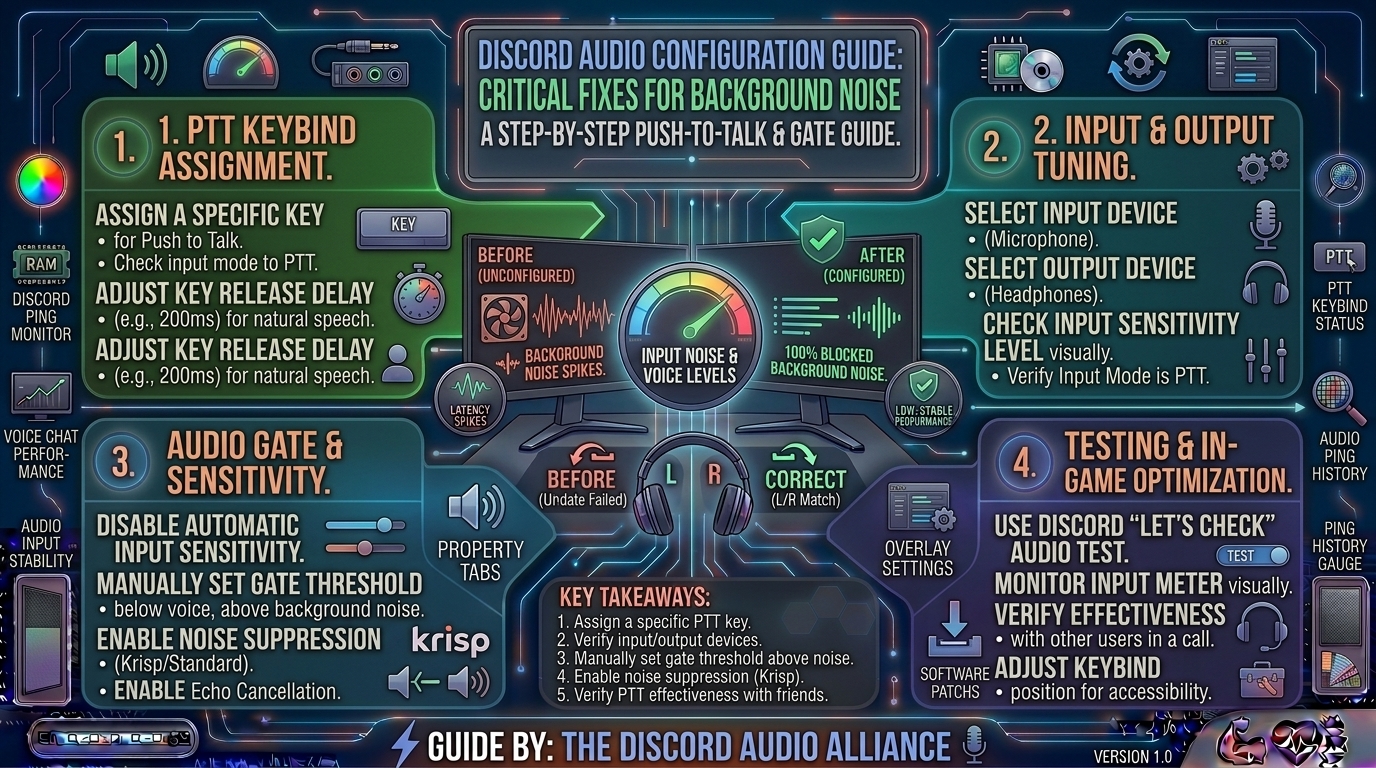
How to Configure Push-to-Talk Keybinds and Audio Gate Settings in Discord to Block Background Room Noise
Few things frustrate a competitive gaming squad faster than an open microphone broadcasting the relentless clatter of mechanical keyboard switches, heavy mouth breathing, clicking mouse buttons, barking dogs, or loud room echoes.
While voice activation sounds convenient on paper, it often fails during chaotic multiplayer matches where background sound peaks overlap with your voice.
Discord features powerful built-in audio filtering tools and input modes designed to keep your communication channel crystal clear. Whether you want the absolute silence of Push-to-Talk (PTT) or a perfectly calibrated Voice Activity Gate, optimizing your audio settings ensures your teammates hear your shot callouts—not your environment.
This comprehensive guide walks you through configuring PTT keybinds, fine-tuning audio gates, and leveraging AI-powered noise suppression to eliminate background room noise completely.
1. Understanding Discord Input Modes: PTT vs. Voice Activity
Before changing settings, you need to decide which input methodology best fits your communication style.
+-------------------------------------------------------------------------+
|                  DISCORD INPUT MODES COMPARED                           |
+-------------------------------------------------------------------------+
| Push-to-Talk (PTT)      ──► Zero background noise risk; requires a hotkey|
| Voice Activity (Gate)   ──► Hands-free; relies on decibel threshold triggers|
| Krisp AI Suppression    ──► Intelligent machine-learning filter for ambient sounds|
+-------------------------------------------------------------------------+
- Push-to-Talk (PTT): Your microphone remains completely muted until you press and hold a designated keyboard or mouse button. It is the gold standard for competitive gaming because it guarantees zero background noise transmission.
- Voice Activity: Automatically opens your microphone when your voice exceeds a certain decibel threshold. While hands-free, it requires precise calibration to prevent cutting off the ends of your sentences or letting loud environmental noises bleed through.
2. Step-by-Step: Setting Up Push-to-Talk (PTT) in Discord
If you want absolute control over when your mic goes live, configure PTT using these steps:
+-------------------------------------------------------------------------+
|                  PUSH-TO-TALK SETUP WORKFLOW                            |
+-------------------------------------------------------------------------+
| Open Discord Settings (Cogwheel Icon) ──► Go to "Voice & Video"         |
| Select "Push to Talk" under Input Mode                                  |
| Click "Record Keybind" ──► Press your desired key (e.g., Side Mouse Button)|
| Adjust Release Delay slider (Recommended: 50ms to 100ms)                |
+-------------------------------------------------------------------------+
- Open the Discord desktop application and click on the User Settings cogwheel icon located next to your username in the bottom-left corner.
- Scroll down the left sidebar menu and click on Voice & Video under the App Settings category.
- Under the Input Mode section, click the radio button next to Push to Talk.
- Click inside the Shortcut box and press the key you want to use.
- Pro-Tip for Gamers: Avoid standard keys like spacebar, WASD keys, or letters you use in-game. Instead, map PTT to a side mouse thumb button (Mouse 4 / Mouse 5), the Caps Lock key, or an extra macro key on your keyboard.
- Fine-tune the Push to Talk Release Delay slider. Setting this between 50ms and 100ms ensures that the very last syllables of your words aren’t abruptly cut off the millisecond you release your key.
3. Step-by-Step: Calibrating Voice Activity and Audio Gates
If you prefer hands-free communication without a hotkey, you must manually configure your audio gate threshold to block ambient room noise.
- Navigate back to User Settings > Voice & Video.
- Select Voice Activity under Input Mode.
- Uncheck the box that says “Automatically determine input sensitivity”.
- Speak into your microphone normally while watching the input meter bar:
- When you are completely silent, the bar should sit safely in the grey/dark zone below your threshold marker.
- When you speak, the bar should push past the marker into the green zone.
- Drag the sensitivity slider so that the threshold marker sits right between your softest speaking volume and your room’s ambient noise floor. This blocks background hums while keeping your quiet callouts audible.
4. Activating Krisp AI Noise Suppression
Discord features native integration with Krisp, an advanced AI-powered machine learning filter that strips out non-human background noises (like keyboard clatter, dog barking, or fan hums) in real time.
- Go to User Settings > Voice & Video.
- Scroll down to the Advanced or Noise Suppression section.
- Click the dropdown menu and select Krisp (Powered by AI).
- Note: Krisp operates locally on your device hardware, ensuring your voice data stays secure while isolating your voice from environment noise.
5. Summary Table: Audio Configuration Matrix
| Setting / Feature | Recommended State for Gaming | Purpose / Impact |
| Input Mode | Push-to-Talk (or Voice Activity) | Controls how your microphone transmits data |
| PTT Release Delay | 50ms – 100ms | Prevents cutting off words when letting go of the hotkey |
| Auto Input Sensitivity | Disabled (Manual adjustment) | Stops Discord from auto-adjusting thresholds during loud gameplay |
| Krisp Noise Suppression | Enabled | Uses AI to scrub keyboard clicks and room noise dynamically |
| Echo Cancellation | Enabled | Prevents game audio looping from your headphones into your mic |
6. Frequently Asked Questions (FAQ)
1. Why does Push-to-Talk stop working when I open certain games?
If a game runs with elevated administrator privileges (Run as Administrator) while Discord runs as a standard user, Windows blocks keyboard hooks from passing through. To fix this, close Discord completely, right-click the Discord desktop shortcut, and select Run as administrator.
2. Can I use Push-to-Talk on the Discord mobile app?
Yes. Go to User Settings > Voice on mobile, switch your input mode to Push to Talk, and a dedicated PTT button will appear on-screen whenever you are active inside a voice channel.
3. Does Krisp noise suppression affect CPU performance?
Krisp runs lightweight machine learning models that have a negligible impact on modern multi-core processors. However, if your CPU hits 100% utilization during intense gaming, Discord may temporarily disable Krisp to maintain system performance.
4. What is the best key to bind for Push-to-Talk in competitive shooters?
Side mouse buttons (Mouse 4 or Mouse 5) are widely considered the best PTT bindings because they allow you to keep all your fingers firmly on movement keys (WASD) while talking.
5. Why do my friends still hear my mechanical keyboard clicks even with Voice Activity on?
Your input sensitivity threshold is likely set too low, or “Automatically determine input sensitivity” is checked. Switch to manual sensitivity and raise the threshold bar, or turn on Krisp noise suppression.
6. Does Push-to-Talk work inside web browser versions of Discord?
Yes, but browser security protocols require the Discord browser window to be actively in focus for global hotkeys to register. For seamless out-of-focus PTT while gaming, use the native desktop application.
7. What causes an echo or feedback loop in Discord voice channels?
Echo happens when your microphone picks up game sounds or chat audio leaking out of your speakers. Always use closed-back headphones instead of desktop speakers, and ensure Echo Cancellation is enabled in your Discord voice settings.
8. How do I stop my voice from sounding robotic or compressed?
If Krisp makes your voice sound over-processed or “robotic,” you may be in a quiet room with a high-end XLR or USB microphone where AI noise removal isn’t necessary. You can disable Krisp and rely purely on a clean manual audio gate.
9. Can I bind multiple keys to a single Push-to-Talk action?
Discord natively supports a single primary keybind per PTT action. If you need complex macro binding, configure it through your mouse or keyboard manufacturer software (like Logitech G HUB or Razer Synapse) to map a macro to a single keystroke.
10. Why does my voice cut out completely mid-sentence during intense team fights?
If you use Voice Activity, high system audio output or heavy breathing can shift your input volume levels unpredictably. Switching to Push-to-Talk completely eliminates mid-sentence cut-outs caused by threshold gate fluctuations.
Configuring your Discord audio settings correctly bridges the gap between casual chatting and professional-grade team communication. By setting up a reliable Push-to-Talk keybind, calibrating your manual voice gate, or enabling Krisp AI noise suppression, you can completely banish background room noise and keep your callouts crisp and clean during every match.
Leave a Reply