Welcome to The Gamer Buzz—your premier hub for tech optimization, gaming guides, and audio gear breakdowns, serving communities from New York and San Francisco to Texas, Washington, and California.
There is nothing quite as immersion-breaking during an intense competitive match of Valorant, Counter-Strike 2, or Apex Legends as a teammate whose open mic is broadcasting heavy mechanical keyboard clacks, a loud house fan, chewing sounds, or barking dogs. If you are tired of your squad complaining about background interference or you want to stop broadcasting your room’s ambient noise, optimizing your Discord audio configuration is essential.
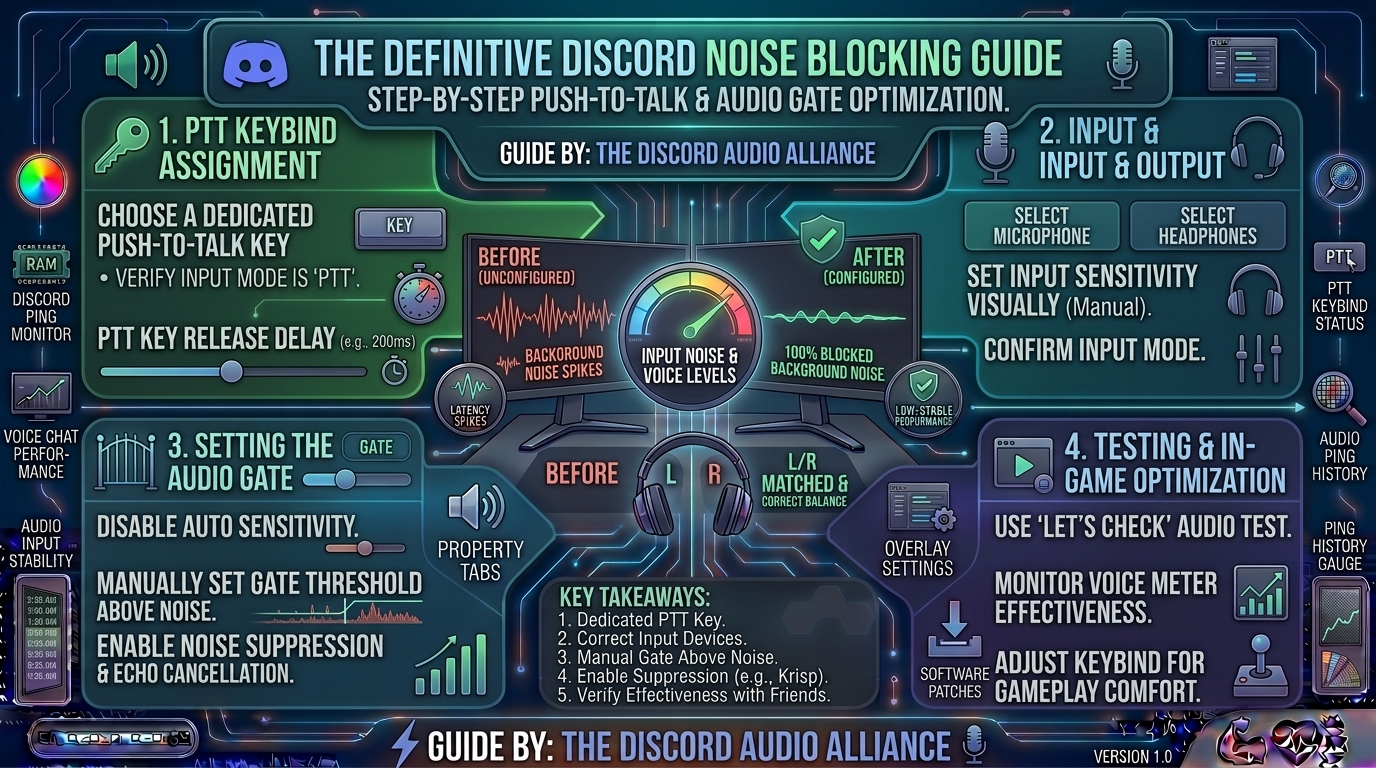
This definitive, in-depth guide will walk you through setting up Push-to-Talk (PTT), configuring advanced Audio Gate (Input Sensitivity) settings, leveraging Discord’s AI noise suppression, and troubleshooting keybind conflicts to guarantee crystal-clear voice communication.
1. Understanding Discord Audio Input Modes
Before diving into configuration, it helps to understand how Discord processes your voice. Discord offers two primary input modes:
- Voice Activity: Automatically transmits audio whenever your microphone picks up sound above a certain threshold. While convenient, it frequently struggles with background noise, leading to clipped sentences or accidental broadcasts.
- Push-to-Talk (PTT): Keeps your microphone completely muted until you physically press and hold a designated keyboard or mouse shortcut. This is the gold standard for competitive gaming and noisy environments.
For users who prefer keeping Voice Activity enabled, an Audio Gate (managed via the Input Sensitivity slider) acts as a bouncer, blocking out any audio that falls below a specific decibel threshold.
2. Step-by-Step: How to Enable and Configure Push-to-Talk (PTT)
If you want absolute control over when your mic goes live, PTT is your best option. Because web browsers handle system shortcuts differently, always use the Discord Desktop App for Windows or macOS to ensure your PTT keybind works globally across all games.
Step 1: Access Voice Settings
- Open Discord and click the User Settings (gear icon) located in the bottom-left corner next to your username.
- In the left-hand sidebar under App Settings, click on Voice & Video.
Step 2: Switch to Push-to-Talk
- Under the Input Mode section, click the radio button next to Push-to-Talk.
- Notice the Push to Talk Release Delay slider that appears below.
Step 3: Assign Your Keybind
- Go back to the left sidebar and click on Keybinds (located right above or near Voice & Video depending on app updates).
- Click the Add a Keybind button in the top-right corner.
- For the Action dropdown menu, select Push to Talk.
- Click Record Keybind and press your desired key (e.g., a side mouse button,
Left Control,Caps Lock, orV).
Pro Tip: Avoid using common keys like
Spacebar,E, orRas your PTT key, as these are heavily utilized during active gameplay and will result in accidental voice transmissions or restricted movement. Side mouse buttons (Mouse 4orMouse 5) are widely considered optimal choices.
Step 4: Fine-Tune the Release Delay
Navigate back to Voice & Video and look at the Push to Talk Release Delay slider.
- Default: Typically set around 20ms.
- Recommended adjustment: Move it up slightly to 50ms – 100ms. This ensures that the final syllables of your words don’t get abruptly cut off the exact millisecond you release your key.
3. Configuring the Audio Gate (Input Sensitivity) for Voice Activity
If you prefer not to use PTT but still want to block background noise, you must properly configure Discord’s Audio Gate (Input Sensitivity).
- Go to User Settings > Voice & Video.
- Select Voice Activity.
- Locate the toggle labeled “Automatically determine input sensitivity” and turn it off. (Leaving this checked often lets background room noise slip through dynamically).
- Once unchecked, speak normally at your baseline volume and watch the input meter.
- Manually drag the slider so that the ambient green bar stays completely still when you are silent (resting in the grey/lower zone), but turns bright green/yellow when you speak.
4. Activating Advanced Noise Suppression and Processing Filters
Discord features powerful built-in audio processing filters powered by industry leaders like Krisp. Combining these tools with your PTT or Audio Gate setup creates an impenetrable shield against background noise.
Scroll down to the Audio Subsystem and Advanced sections in Voice & Video:
- Noise Suppression: Set this to Krisp (Standard). Krisp uses machine learning to isolate your voice in real-time, completely stripping away lawnmowers, crying babies, typing clacks, and fan hums while leaving your voice pristine.
- Echo Cancellation: Turn this On to prevent audio from your headphones bleeding back into your microphone.
- Advanced Audio Subsystem: Leave this on standard (usually Standard or Latest depending on your OS) unless you are experiencing microphone stuttering, in which case switching to Legacy can resolve compatibility loops.
5. Summary Table: PTT vs. Voice Activity with Audio Gate
| Feature | Push-to-Talk (PTT) | Voice Activity + Audio Gate |
| Background Noise Risk | Zero (Mic is physically cut off) | Low to Moderate (Depends on slider tuning) |
| Hand/Finger Fatigue | Minor potential over long sessions | None (Hands free) |
| Best Used For | Competitive gaming, loud environments | Casual chatting, quiet rooms, streaming |
| Setup Complexity | Easy (Requires keybind assignment) | Medium (Requires manual sensitivity testing) |
6. Expert Tips for Ultimate Audio Clarity
- Run Discord as Administrator: If your PTT keybind stops working while a game is running, it means the game is capturing administrative priority. Right-click Discord and choose Run as Administrator.
- Check Windows Mic Levels: Avoid maxing out your microphone boost inside Windows settings, as this introduces electronic static hiss. Keep Windows volume around 80–90% and let Discord handle the amplification.
- Invest in a Boom Arm: Moving your microphone away from your keyboard and closer to your mouth naturally increases your vocal volume relative to background room noise.
7. Frequently Asked Questions (FAQ)
1. Why does my Push-to-Talk key stop working when I open certain games?
This happens because the game is running with elevated administrator permissions that block Discord from registering background keystrokes. Fix this by restarting Discord as an Administrator.
2. Can I use Push-to-Talk on the Discord mobile app?
No, the mobile app relies exclusively on Voice Activity mode because smartphones lack physical modifier keys to map dedicated global PTT triggers.
3. What is the best key to bind for Push-to-Talk?
Side mouse buttons (Mouse 4 or Mouse 5) are widely considered the best because they keep your hands free for movement keys (WASD) without cramping your fingers.
4. How do I stop my mechanical keyboard clicks from bleeding through?
Enable Krisp Noise Suppression under Voice Settings and slightly raise your manual Input Sensitivity slider or switch entirely to Push-to-Talk.
5. Why do the ends of my words get cut off when using PTT?
Your Push to Talk Release Delay is set too low. Increase the slider in your voice settings from 20ms to roughly 50ms–100ms.
6. Does Krisp noise suppression affect CPU performance?
No, Discord processes Krisp locally with minimal resource footprint, meaning it will not negatively impact your game’s frame rates.
7. Can I set up a secondary Push-to-Talk key?
Yes! Discord allows you to map multiple keybinds to the same action by visiting the Keybinds menu and adding secondary shortcuts.
8. Why is my microphone transmitting audio even when I am not pressing my PTT key?
Ensure you are using the Discord Desktop application rather than a web browser tab, as browser tabs lose global keyboard focus.
9. What is “Priority Speaker” in Discord?
Priority Speaker is a specialized PTT mode assigned via server roles that allows designated users to automatically lower everyone else’s volume when they speak.
10. How do I disable the annoying beep sound when I press PTT?
Go to User Settings > Notifications, scroll down, and uncheck the boxes for PTT Activate and PTT Deactivate sounds.
8. Conclusion
Eliminating background room noise is one of the easiest ways to upgrade your community standing, streamline team communications, and create a professional audio environment. By pairing a well-positioned Push-to-Talk keybind with Discord’s built-in Krisp noise suppression and tuned audio gates, you can permanently banish keyboard clatter, heavy breathing, and room echo from your voice channels.
Leave a Reply