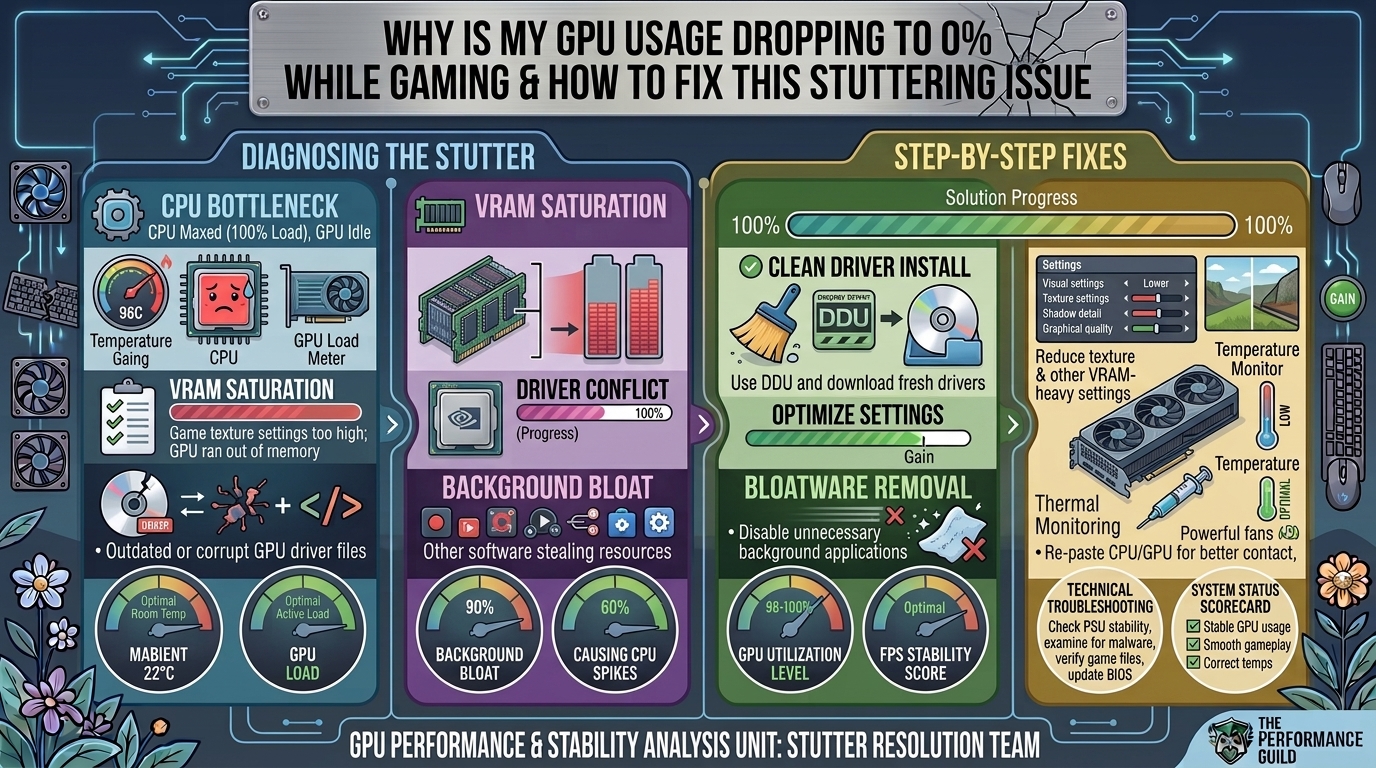
Why Is My GPU Usage Dropping to Zero Percent While Gaming and How to Fix This Stuttering Issue
Nothing disrupts a gaming session faster than smooth, high-frame-rate gameplay suddenly freezing for 1 to 3 seconds while your graphics card usage plummets from 99% down to 0%. This phenomenon—frequently accompanied by severe frame drops, audio stuttering, or temporary desktop freezes—is one of the most frustrating performance issues PC gamers face.
When your GPU usage hits 0%, it rarely means your graphics card is dying. Instead, it almost always indicates that your graphics card is stalled—it has completed its rendering work and is idling while waiting for the CPU, system RAM, storage drive, or operating system driver to deliver the next frame pipeline payload.
Anatomy of a GPU Drop: What Causes the 0% Usage Freeze?
Modern graphics processing units (GPUs) are designed to operate at 95% to 100% load during unconstrained 3D rendering. When GPU utilization momentarily drops to zero, the rendering pipeline has experienced a total execution bottleneck.
[ Game Engine Frame Request ]
          │
          ▼
[ CPU / RAM Processing ] ──► (Stall / Asset Fetch Delay) ──► GPU Halts Processing ──► 0% Usage Spike / Stutter
          │
          ▼
[ GPU Render Pipeline ]
Primary Root Causes
- Storage Read Bottlenecks (Asset Streaming Stalls): When open-world titles stream assets from a traditional mechanical HDD or a failing NVMe SSD, the CPU halts rendering threads until asset data loads, leaving the GPU idle.
- Display Driver Timeout & Recovery (TDR Events): A subtle driver crash resets the graphics interface in the background. The GPU utilization drops to 0% while Windows re-initializes the driver.
- Severe CPU Thread Bottlenecks: Single-core CPU spikes or background OS tasks saturate processor threads, preventing frame instructions from reaching the GPU.
- VRAM Exhaustion & Pagefile Swapping: Running out of Dedicated Video Memory forces Windows to swap textures into system RAM over the PCIe bus, introducing severe frame latency stalls.
- Aggressive Power Throttling: Windows power management policies or GPU power states aggressively drop voltage and clocks when transient frame caps are hit.
Troubleshooting Matrix
| Symptoms | Most Likely Cause | Quick Solution |
| Stuttering when entering new game zones | Slow Storage / Asset Streaming | Move game files from HDD to High-Speed NVMe SSD |
| Screen flickers black, game freezes for 3 sec | TDR Driver Crash / Timeout | Perform Clean DDU Driver Reinstall |
| High CPU usage (100%) during GPU drops | CPU Bottleneck / Background Processes | Disable background tasks & unpark CPU cores |
| Drops occur during intensive combat scenes | Power Supply Transient / VRAM Limit | Lower texture settings & disable power saving modes |
Step-by-Step Fixes for GPU Usage Drops
1.Configure Windows and Driver Power Management Settings:Stops Windows and background apps from throttling GPU power.
Windows power-saving modes can aggressively downclock GPU voltage during low-demand scenes, causing delays when render demands abruptly spike.
- Open Control Panel and navigate to Hardware and Sound > Power Options.
- Change your power plan to High Performance or Ultimate Performance.
- Open NVIDIA Control Panel (or AMD Software: Adrenalin Edition).
- Under Manage 3D Settings > Global Settings, set Power management mode to Prefer maximum performance.
- Click Apply and restart your system.
2.Perform a Clean Display Driver Reinstall via DDU:Eliminates corrupted registry entries and stale driver states.
Stale graphics driver binaries or corrupted updates frequently trigger background driver resets (TDRs).
- Download Display Driver Uninstaller (DDU) and the latest display driver from NVIDIA, AMD, or Intel.
- Disconnect your internet connection to stop Windows from auto-installing generic drivers.
- Boot Windows into Safe Mode.
- Open DDU, select GPU, and click Clean and restart.
- Once Windows reboots normally, install the freshly downloaded driver package and choose Perform a Clean Installation.
3.Optimize Game Storage and Windows Pagefile:Resolves disk queue latency and asset loading freezes.
Installing modern AAA games on mechanical hard drives (HDDs) is a primary trigger for 0% GPU drops due to I/O bottlenecks.
- Move the game directory from an HDD to a fast SATA or NVMe SSD.
- Ensure your primary OS drive has at least 15% free space for virtual memory allocation.
- Open System Properties (
sysdm.cpl) > Advanced > Performance Settings > Advanced > Virtual Memory. - Ensure the pagefile is set to System managed size on your fastest SSD, and disable pagefile swapping on mechanical HDDs.
4.Disable Overlays and In-Game Hooks:Prevents third-party software from hooking into DirectX execution.
Background applications that render telemetry overlays can interfere with low-level GPU API calls.
- NVIDIA Overlay / App: Toggle In-Game Overlay to Off in settings.
- Discord: Go to User Settings > Game Overlay and turn it off.
- Steam / Epic Games Launcher: Disable launch overlays in the settings menu.
- RivaTuner / Afterburner: Close background monitoring hooks temporarily to rule out software polling issues.
5.Enable Hardware-Accelerated GPU Scheduling (HAGS):Allows Windows 11 to handle low-level memory allocation efficiently.
HAGS passes virtual memory management directly to dedicated GPU scheduling logic.
- Press
Win + Ito open Settings, then go to System > Display > Graphics. - Click Change default graphics settings.
- Toggle Hardware-accelerated GPU scheduling to On.
- Reboot your PC to apply changes.
Frequently Asked Questions (FAQ)
Q1: Why does my GPU usage drop to 0% specifically during open-world gaming?
Open-world titles continuously stream textures, meshes, and audio assets from your storage drive into RAM and VRAM as you travel across the map. If your storage drive cannot keep up with the read requests, the CPU thread halts to wait for data, leaving the GPU with 0% work to perform until assets finish loading.
Q2: Could a bad Power Supply Unit (PSU) cause GPU usage drops?
Yes. If your PSU experiences voltage supply drops on the 12V rail during transient power spikes, the GPU may automatically downclock its core frequencies to protect its VRMs from tripping power limits, resulting in brief utilization drops.
Q3: Does low GPU usage mean my graphics card is dying?
Generally no. A failing GPU typically presents hardware artifacts, full system crashes, Blue Screens (BSODs), or total signal loss. Temporary 0% drops are almost always caused by software bottlenecks, storage delays, or driver-level timeout recoveries.
Q4: How does a CPU bottleneck cause 0% GPU usage?
The CPU prepares draw calls and instructs the GPU on what to render next. If a single CPU core spikes to 100% capacity due to game physics, AI calculations, or background tasks, it cannot dispatch instructions to the GPU quickly enough, leaving the GPU idle at 0% load.
Q5: Can V-Sync or frame rate limiters cause GPU usage drops?
Yes. Enabling V-Sync or capping frame rates instructs the GPU to stop rendering once it reaches your monitor’s refresh rate. During simple in-game scenes, GPU usage may plummet because the card completes the required frame limit effortlessly and waits for the next monitor refresh cycle.
Q6: What is a TDR error and how do I check if it’s happening?
TDR stands for Timeout Detection and Recovery. Windows monitors your GPU and resets the display driver if it doesn’t respond within 2 seconds. To check if TDRs are causing your drops, open View Reliability History from the Windows Start menu and check for “LiveKernelEvent 141” or display driver crash records.
Q7: Will upgrading my system RAM fix GPU usage stuttering?
If your system is running out of physical RAM (e.g., 8GB or 16GB under heavy modern gaming loads), Windows forces memory allocation onto the system drive pagefile. Upgrading to 32GB of dual-channel RAM eliminates pagefile swapping stutter.
Q8: Why does my GPU usage drop to 0% when alt-tabbing?
Windows automatically deprioritizes background applications to save system resources. When you tab out of a game, Windows suspends or reduces render calls to the background window, dropping GPU usage until you refocus on the game executable.
Q9: Can corrupted DirectX shader caches cause usage drops?
Yes. Corrupted pre-compiled shaders cause processing stalls while the game engine re-compiles pipeline state objects on the fly. Clearing your DirectX shader cache via Windows Disk Cleanup forces the system to build fresh, error-free shader files.
Q10: Should I disable XMP / EXPO RAM profiles to test stability?
Yes. Unstable memory overclocks (even factory XMP/EXPO profiles) can cause subtle micro-stalls and memory controller errors that interrupt render pipelines without crashing Windows directly.
Conclusion
Fixing 0% GPU usage drops requires isolating where the rendering pipeline is being held up. By switching to High Performance power plans, performing a clean DDU driver wipe, moving game installations to high-speed SSDs, and clearing out background overlays, you remove the primary software and hardware bottlenecks that interrupt GPU frame generation. Systematically working through these steps ensures stable frame pacing and fluid, stutter-free gameplay.
Leave a Reply