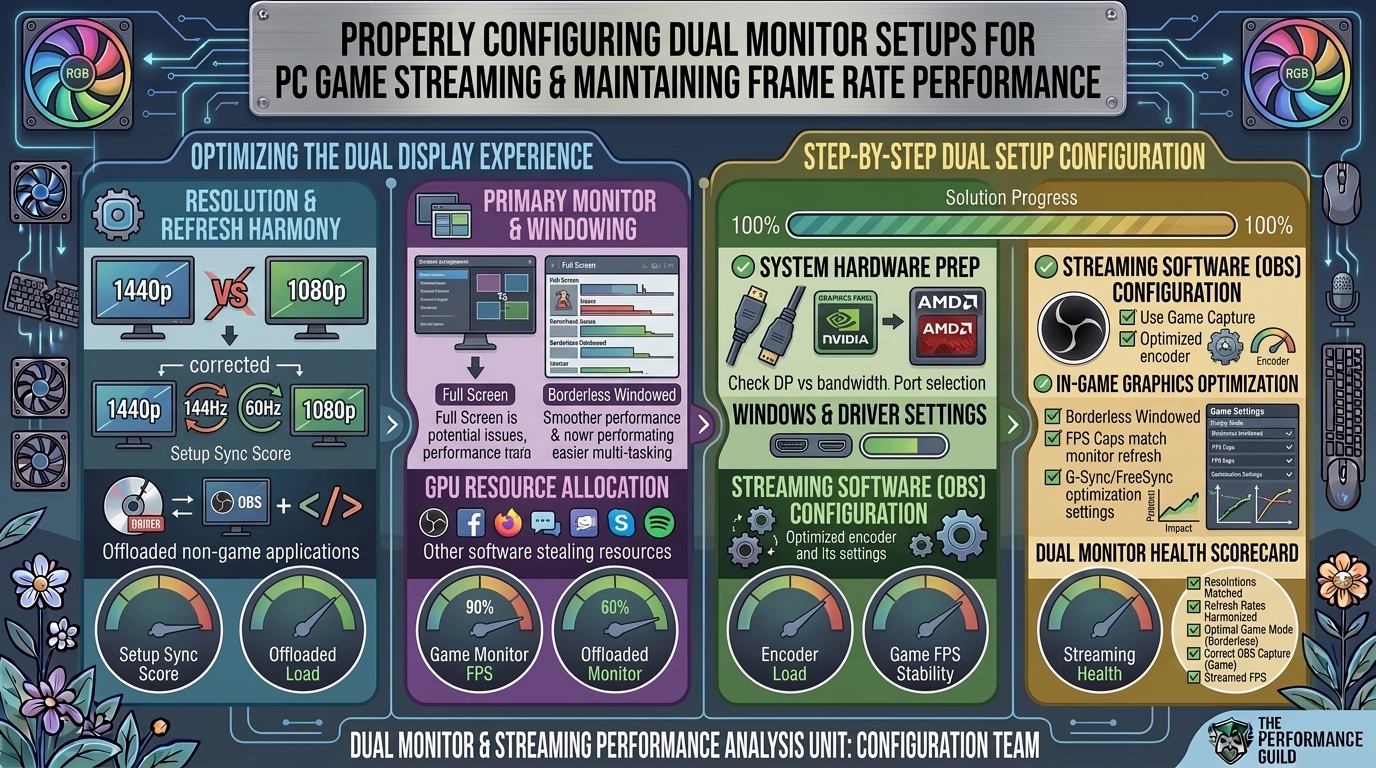
How to Properly Configure Dual Monitor Setups for Streaming PC Games Without Losing Frame Rate Performance
Adding a second screen to your streaming setup is one of the single biggest quality-of-life upgrades you can make as a content creator. Being able to read live chat, monitor stream health in OBS, check Discord, and adjust scenes without Alt-Tabbing out of a fast-paced multiplayer match transforms the entire broadcasting experience.
However, many creators encounter a frustrating issue: as soon as a second display is connected and streaming software is running on it, in-game frame rates drop significantly, games stutter, or 144Hz/240Hz monitors suddenly feel like 60Hz.
Losing performance when expanding your desktop is rarely a hardware failure. Instead, it is usually caused by resource contention, refresh rate synchronization mismatch, GPU scheduling bottlenecks, or improper display capture configurations.
Anatomy of the Dual-Monitor Performance Drop
Understanding what happens behind the scenes when running a two-screen setup helps isolate why frame rate drops occur.
[ Primary Gaming Monitor ]              [ Secondary Stream Monitor ]
 (e.g., 144Hz / 240Hz)                   (e.g., 60Hz / 1080p)
          │                                       │
          │ (Full 3D Engine Render)               │ (OBS Preview + Chat Hardware Acceleration)
          ▼                                       ▼
  ═════════════════════════════════════════════════════════
                       GPU Frame Buffer
  ═════════════════════════════════════════════════════════
          │
          ▼
   Hardware Bottlenecks:
   1. Unmatched Refresh Rate Desync (DWMM / Windows Compositor)
   2. Hardware Acceleration in Background Apps (Chrome/Discord)
   3. OBS Canvas Rendering & Real-Time Preview Overhead
The 4 Major Causes of In-Game Lag
- Windowed Optimization & VSync Synchronization: Running games in Windowed or Borderless Windowed mode forces the Desktop Window Manager (DWM) to sync frames across both displays. If your secondary monitor is running at 60Hz while your gaming monitor is at 144Hz, animated elements on the 60Hz screen (like video previews or chat widgets) can force DWM to drop the primary monitor’s perceived refresh rate down to a factor of 60Hz.
- GPU Resource Starvation in OBS Studio: OBS Studio relies on your GPU to render its canvas, scene transitions, and sources. If your game runs uncapped and consumes 99–100% of GPU resources, OBS suffers from rendering lag, causing stutters on stream and in-game frame pacing drops.
- Browser Hardware Acceleration Contention: Running Twitch Chat, Discord, or web browsers on the second screen uses GPU hardware acceleration. This steals video memory bandwidth directly from the primary 3D render pipeline.
- Display Capture vs. Game Capture Overhead: Using “Display Capture” (which captures the entire desktop screen) introduces considerably more latency and performance penalty than “Game Capture” or “Window Capture,” which hooks directly into the graphics API pipeline.
Technical Comparison: Capture Modes & Configurations
| Capture / Setting Method | Performance Impact | Latency Overhead | Ideal Use Case |
| Game Capture (Direct Hook) | Minimal (~1–3% FPS loss) | Lowest | Exclusive Fullscreen & Borderless PC Games |
| Window Capture (Graphics Track) | Low (~3–5% FPS loss) | Low | Windowed titles, emulators, browser games |
| Display Capture (Desktop Hook) | High (~10–20% FPS loss) | Moderate to High | Full-desktop walkthroughs, multi-app tutorials |
| OBS Canvas Preview Enabled | Moderate (~5–10% GPU usage) | N/A | Setup phase; hide while playing hardware-heavy games |
Step-by-Step Configuration Guide
Follow these steps to eliminate dual-monitor lag and preserve high in-game frame rates while broadcasting.
1.Configure Windows Display and Refresh Rate Settings:Align refresh rate factors to avoid Windows DWM compositing lag.
Setting up monitor refresh rates properly prevents the Windows compositor from locking your fast display to your slow display.
- Right-click the desktop and select Display settings.
- Scroll down and click Advanced display.
- Select your main gaming monitor and ensure its refresh rate is set to its highest native value (e.g., 144Hz, 240Hz, or 360Hz).
- Select your secondary monitor and set its refresh rate.
- Pro-Tip for Mismatched Screens (e.g., 144Hz + 60Hz): If you experience stutters, set the primary monitor’s refresh rate to an exact integer multiple of the second monitor (e.g., run the main screen at 120Hz or 240Hz if the secondary screen is 60Hz). This allows frame buffers to sync cleanly without dropping cycles.
2.Run OBS Studio as Administrator:Prevents OBS from starving for GPU rendering cycles.
Windows 10/11 includes a feature that prioritizes GPU allocation for applications running with administrative privileges.
- Right-click your OBS Studio shortcut and select Properties.
- Navigate to the Compatibility tab.
- Check the box for Run this program as an administrator.
- Click Apply and OK.
- Running OBS as administrator signals the OS scheduler to reserve dedicated GPU compute headroom for stream composition, preventing game-induced render lag.
3.Offload Secondary Monitor to iGPU or Disable Hardware Acceleration:Frees up VRAM and core clocks on your dedicated GPU.
Background applications running on your second monitor can draw significant GPU power.
- Offload to Integrated Graphics (iGPU): If your CPU has an integrated GPU (Intel UHD/Iris or AMD Radeon Graphics), plug your second monitor directly into the motherboard HDMI/DisplayPort output. This delegates all secondary display processing to the CPU’s internal graphics, keeping 100% of your dedicated GPU available for gaming and encoding.
- Disable Browser Hardware Acceleration: In Chrome, Edge, or Discord, navigate to Settings > System/Advanced and toggle off Use graphics acceleration when available. This prevents chat overlays and web pages from executing on your dedicated GPU.
4.Optimize OBS Source Captures and Disable Preview:Use efficient DirectX/Vulkan hooks instead of desktop capturing.
Capturing games efficiently is critical for maintaining high frame rates.
- In OBS, replace any Display Capture sources with Game Capture.
- Set Game Capture mode to Capture specific window and select your game executable.
- Uncheck Capture third-party overlays (such as Steam or Discord overlays) inside the source properties to minimize hook latency.
- If playing a modern, high-load title, right-click the OBS main viewport and uncheck Enable Preview. Hiding the real-time preview saves up to 10% of GPU compute load while keeping the stream output active.
5.Set In-Game Frame Rate Caps and Enable NVENC/AMF Encoding:Prevents 100% GPU saturation from starving the encoder.
If your GPU runs at absolute 100% saturation, frame pacing degrades regardless of your setup.
- Open your game’s graphics settings and set an In-Game FPS Limit that matches your monitor’s refresh rate (or slightly below it, e.g., 141 FPS for a 144Hz G-Sync display).
- In OBS, go to Settings > Output.
- Set Encoder to NVIDIA NVENC (H.264 / AV1), AMD AMF, or Intel QuickSync. Using dedicated hardware encoders offloads video compression from CPU/GPU compute cores to independent hardware chips.
Frequently Asked Questions (FAQ)
Q1: Why does my 144Hz monitor feel like 60Hz when I open Twitch Chat or a video on my second screen?
This is caused by the Windows Desktop Window Manager (DWM) trying to synchronize two displays with non-matching refresh rates. When animated content plays on a 60Hz monitor, Windows can sync the entire desktop frame composition rate down to 60Hz. Setting your primary monitor to an integer multiple of 60Hz (like 120Hz or 240Hz), running games in Exclusive Fullscreen, or turning off hardware acceleration in secondary applications fixes this issue.
Q2: Should I plug both monitors into my GPU, or one into the motherboard?
If your processor has an integrated graphics chip (iGPU), plugging your secondary chat/monitoring screen into the motherboard frees up video memory and clock states on your primary discrete GPU. If your CPU lacks an iGPU (e.g., Intel “F” series or AMD non-G chips), both monitors must be plugged into your graphics card.
Q3: Is Fullscreen or Borderless Windowed mode better for dual-monitor streaming?
Exclusive Fullscreen yields the best performance and lowest input lag because it gives the game direct control over the display output, bypassing Windows DWM compositing. However, Borderless Windowed mode allows you to move your mouse cursor over to chat on the second screen without the game minimizing. If using Borderless Windowed mode, ensure Hardware-Accelerated GPU Scheduling (HAGS) is enabled in Windows settings.
Q4: Why does OBS drop frames even when my game is running smoothly?
This usually indicates Rendering Lag or Encoding Lag inside OBS rather than network issues. Rendering lag happens when the GPU is so overloaded by the game that it cannot spare resources to render the OBS canvas. Running OBS as Administrator, locking your in-game frame rate, or disabling the OBS preview window resolves rendering lag.
Q5: Does using Display Capture instead of Game Capture hurt frame rates?
Yes. Display Capture records the entire desktop coordinate space, forcing your system to copy raw frame buffers through Windows DWM. Game Capture hooks directly into the game’s DirectX or Vulkan render pipeline, using significantly less CPU/GPU overhead.
Q6: Can G-Sync or FreeSync cause stuttering on dual monitors?
Yes, variable refresh rate (VRR) technologies can get confused if a game is running in a window alongside a video stream on a secondary screen. In the NVIDIA Control Panel, under Set up G-SYNC, select Enable for full screen mode only rather than windowed and full screen mode to prevent the primary monitor from dynamically locking its refresh rate to secondary background apps.
Q7: Will upgrading to 32GB of RAM help with dual-monitor streaming performance?
Yes. Running a modern AAA game alongside OBS, multiple browser tabs (chat, stream alerts), Discord, and music players quickly exceeds 16GB of system RAM. Moving to 32GB of dual-channel RAM prevents Windows from paging memory to disk, eliminating micro-stutters.
Q8: What is the best OBS output resolution for dual-monitor setups?
For most live streaming platforms (like Twitch or YouTube), setting your Base (Canvas) Resolution to match your primary gaming monitor (e.g., 2560×1440 or 1920×1080) and setting the Output (Scaled) Resolution to 1920×1080 or 1280×720 strikes a strong balance between visual sharpness and stream encoding performance.
Q9: Why does my game lag when I have a video playing on my second monitor?
Video players (YouTube, Twitch, Netflix) use GPU hardware decoding. If your GPU is already at maximum capacity running a game, decoding high-definition video feeds on the second monitor starves both operations. Turn off hardware acceleration in the browser or lower the video quality on your second monitor to 720p/480p.
Q10: Does Windows 11 handle dual monitors with mixed refresh rates better than Windows 10?
Yes. Windows 11 features an updated display pipeline that handles independent refresh rates and per-monitor hardware acceleration far better than older builds. Upgrading to Windows 11 reduces refresh rate desync issues on mixed 144Hz + 60Hz configurations.
Conclusion
Configuring a dual-monitor setup for seamless PC game streaming requires balancing system resources. By running OBS Studio as Administrator, setting in-game frame rate caps, using dedicated hardware encoders like NVENC/AMF, and using direct Game Capture sources, you eliminate the resource contention that causes performance degradation. Take time to optimize your Windows display settings and background applications so you can interact with your community on screen two without sacrificing frame rate on screen one.
Leave a Reply