What Causes Random Blue Screen of Death (BSOD) Errors Only When Playing Heavy Demanding Video Games on PC?
Experiencing a Blue Screen of Death (BSOD) exclusively while playing demanding PC games is one of the most frustrating issues a gamer can face. Your system runs fine during web browsing, streaming, or office work, but within 10 to 30 minutes of launching intensive titles like Cyberpunk 2077, Call of Duty, or Unreal Engine 5 games, Windows crashes completely.
This targeted crashing behavior points to a system component that fails under heavy stress, high power draw, elevated thermal levels, or rapid memory access. Below is a structured diagnosis guide to identify and resolve game-only BSOD crashes.
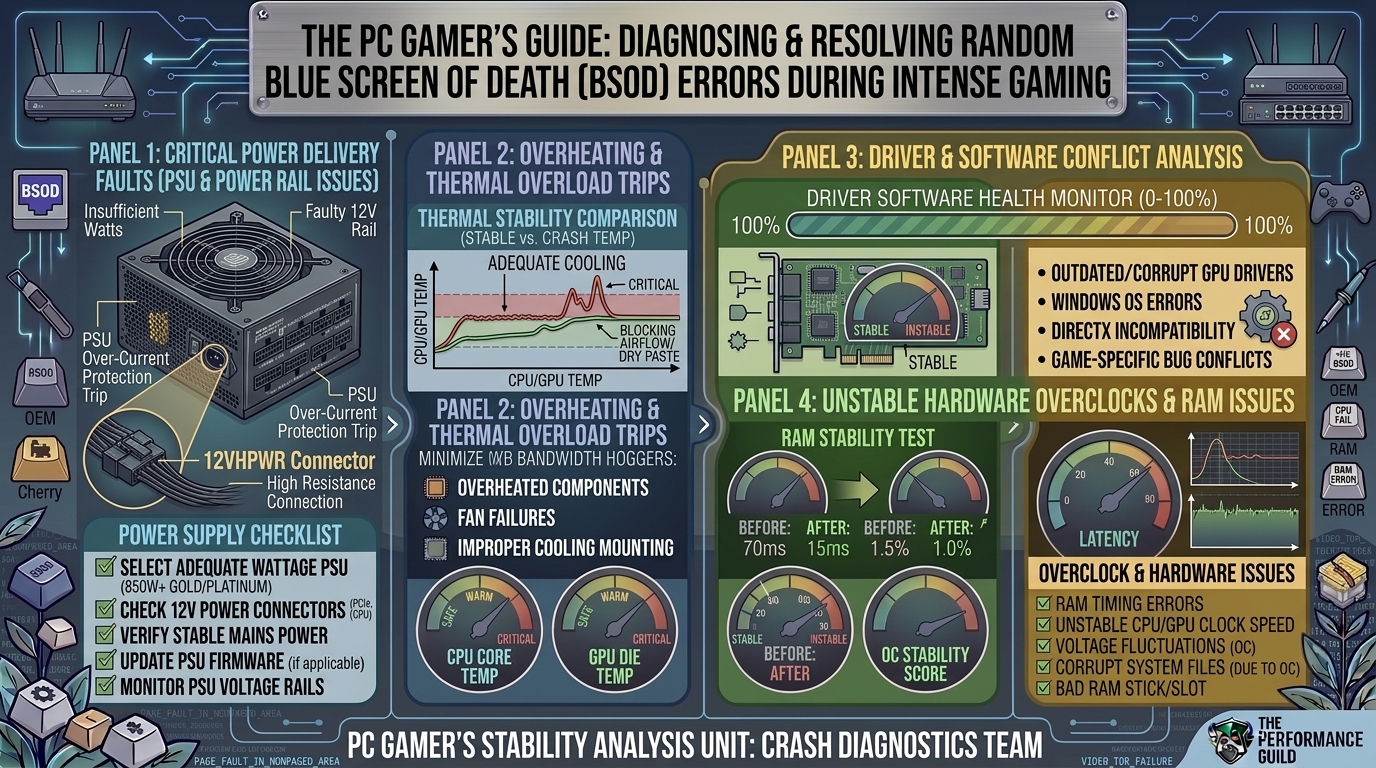
1. Primary Causes of Load-Specific Gaming BSODs
When modern games push hardware to its limit, they expose hidden vulnerabilities in system stability. The root causes generally fall into five core categories:
A. Power Supply Unit (PSU) Transient Spikes & Instability
Modern graphics cards (Nvidia RTX 40/30 series, AMD RX 7000/6000 series) experience sudden microsecond-long power spikes—known as transient spikes—where the GPU briefly draws up to 2x its rated TDP.
- The Problem: If your PSU lacks sufficient wattage headroom, lacks multi-rail protections, or is aging, these sudden power demands drop the 12V rail voltage below threshold.
- Resulting Errors:
KERNEL_POWER(Event ID 41),SYSTEM_SERVICE_EXCEPTION, or immediate system reboots.
B. Thermal Throttling & Hardware Overheating
Under heavy load, CPUs and GPUs generate intense heat. While components are designed to thermal throttle to protect themselves, extreme temperature spikes can force an emergency Windows kernel shutdown.
- Critical Thresholds: CPU temperatures exceeding 95°C or GPU Junction/Hotspot temperatures exceeding 105°C.
- Resulting Errors:
WHEA_UNCORRECTABLE_ERROR,CLOCK_WATCHDOG_TIMEOUT.
C. Unstable RAM & XMP/EXPO Overclocks
High-end games constantly stream vast amounts of assets in and out of System RAM.
- The Problem: Extreme Memory Profiles (Intel XMP or AMD EXPO) are technically overclocks. A RAM module might pass simple desktop usage, but under high system temperatures and heavy memory bus saturation during gaming, bit flips occur.
- Resulting Errors:
MEMORY_MANAGEMENT,PAGE_FAULT_IN_NONPAGED_AREA,IRQL_NOT_LESS_OR_EQUAL.
D. GPU Driver Corruption & TDR Failures
Heavy games make intensive DirectX 12 / Vulkan calls to your display driver. If a display driver takes longer than 2 seconds to respond, Windows triggers Timeout Detection and Recovery (TDR). If the driver fails to reset, the system blue screens.
- Resulting Errors:
VIDEO_TDR_FAILURE(namingnvlddmkm.sysfor Nvidia oratikmpag.sysfor AMD),DRIVER_IRQL_NOT_LESS_OR_EQUAL.
E. Storage Drive Degradation (NVMe/SSD Heat)
Demanding games constantly stream assets from high-speed NVMe SSDs. M.2 SSDs positioned directly beneath hot graphics cards can suffer thermal throttling or memory controller failure under sustained loads.
- Resulting Errors:
CRITICAL_PROCESS_DIED,KERNEL_DATA_INPAGE_ERROR.
2. Common BSOD Stop Codes During Gaming
| BSOD Error Code | Primary Culprit | Immediate Action Required |
VIDEO_TDR_FAILURE | GPU Driver / Overheated GPU | Clean install graphics drivers via DDU. |
WHEA_UNCORRECTABLE_ERROR | CPU Voltage / Hardware Instability | Remove CPU overclocks, check thermal paste. |
MEMORY_MANAGEMENT | RAM Failure or XMP Instability | Disable XMP/EXPO in BIOS; test RAM sticks individually. |
PAGE_FAULT_IN_NONPAGED_AREA | Corrupted Drivers / Bad VRAM | Run sfc /scannow and test GPU memory. |
CLOCK_WATCHDOG_TIMEOUT | CPU Core Hang / Unstable Voltage | Update motherboard BIOS; check CPU temps under load. |
KERNEL_DATA_INPAGE_ERROR | NVMe SSD Overheating / Drive Failure | Check drive SMART health and ensure heatsink is fitted. |
3. Step-by-Step Troubleshooting Workflow
Follow this logical path to isolate and resolve game-only BSODs:
[Start BSOD Diagnosis]
          │
          ├──> 1. Check Hardware Temps (HWiNFO64 under stress) ──> (>90°C?) ──> Repaste / Clean Dust
          │
          ├──> 2. Reinstall GPU Drivers (DDU in Safe Mode) ──────> Fixed? ────> Resolved
          │
          ├──> 3. Disable XMP/EXPO in BIOS ─────────────────────────> Fixed? ────> Adjust Memory Timings/Voltage
          │
          ├──> 4. Test RAM (MemTest86 / Windows Memory Diagnostic) ─> Errors? ──> Replace Bad RAM Stick
          │
          └──> 5. Stress Test PSU & GPU (OCCT Power Test) ─────────> Crash? ───> Upgrade Power Supply
Step 1: Clean Install Graphics Drivers with DDU
Corrupted GPU registry entries cause immediate crashes under DirectX 12 loads.
- Download Display Driver Uninstaller (DDU) and your latest GPU drivers (Nvidia/AMD/Intel).
- Reboot Windows into Safe Mode.
- Run DDU, select GPU, and click Clean and Restart.
- Reinstall the fresh graphics driver in normal Windows.
Step 2: Disable XMP/EXPO & Test RAM
- Boot into system BIOS (press
DeleteorF2on startup). - Locate XMP (Intel) or EXPO / DOCP (AMD) and set it to Disabled (Default 2133MHz/4800MHz).
- Test your demanding game. If the crashing stops, your RAM module is unstable at its advertised overclocked profile and may require manual voltage or timing adjustments.
Step 3: Monitor Thermals Under Load
Download HWiNFO64 and run it in the background while playing a demanding game for 10 minutes.
- Check CPU Package Temperature (keep under 85°C–90°C).
- Check GPU Hotspot / Memory Junction (keep under 95°C–100°C).
- Clean dust filters, replace thermal paste, or increase fan curves if limits are breached.
Step 4: Run System File Repair Commands
Game crashes often corrupt core OS dependencies.
- Open Command Prompt as Administrator.
- Type
sfc /scannowand press Enter. - Once complete, type
DISM /Online /Cleanup-Image /RestoreHealthand press Enter.
Step 5: Read Crash Dumps with WinDbg or BlueScreenView
To stop guessing, read the exact memory dump Windows generates:
- Download BlueScreenView or Microsoft’s official WinDbg tool.
- Open the crash dump located at
C:\Windows\Minidump. - Look at the Caused By Driver column. If it points to
nvlddmkm.sys(GPU),ntoskrnl.exe(Kernel/Memory), orNetadapter.sys(Network Driver), you have pinpointed the failing hardware interface.
4. Frequently Asked Questions (FAQ)
1. Why does my PC only blue screen during heavy games and not during standard use?
Demanding games push system components to maximum capacity simultaneously. This triggers high power draw, maximum heat output, high memory utilization, and maximum GPU driver execution. Standard tasks (browsing, light software) do not stress hardware enough to trigger voltage drops, memory bit flips, or thermal limits.
2. Can a bad Power Supply (PSU) cause a BSOD instead of just shutting off?
Yes. While severe power loss causes an instant black screen, minor voltage drops on the 12V rail can cause system RAM or CPU calculations to miscalculate, leading to a kernel crash and a BSOD stop code like KERNEL_POWER or WHEA_UNCORRECTABLE_ERROR.
3. Will updating my BIOS fix game-related blue screens?
Updating your BIOS can resolve stability issues, especially on newer hardware platforms (AM5, Intel 13th/14th Gen). BIOS updates frequently improve memory compatibility profiles (XMP/EXPO), refine CPU power limits, and resolve PCIe lane stability issues during high GPU loads.
4. How do I know if my GPU is physically failing or just has bad drivers?
If clean installing drivers using DDU does not fix the issue, test the GPU in another PC or run FurMark. Physical GPU failure usually presents graphical artifacts (colored lines/dots) right before the BSOD, whereas driver issues cause clean, sudden crashes.
5. Can anti-cheat software cause BSODs in multiplayer games?
Yes. Kernel-level anti-cheat engines (such as Easy Anti-Cheat, BattlEye, or Vanguard) operate with driver-level permissions. Conflicts between anti-cheat drivers, Windows security features (Core Isolation/HVCI), or third-party antivirus applications can cause immediate BSODs upon game startup or server load.
6. What is XMP/EXPO, and why does it cause gaming crashes?
XMP (Intel) and EXPO (AMD) are pre-configured factory overclocks for your RAM. While memory manufacturers rate RAM for high speeds (e.g., DDR5 6000MHz), your specific CPU memory controller might not stably handle those speeds under high load, causing system memory corruption and crashes.
7. How does a corrupted Windows Pagefile cause gaming BSODs?
When games deplete physical VRAM or System RAM, Windows offloads data to the drive via pagefile.sys. If the storage drive contains bad sectors or the Pagefile is corrupted, reading from it under heavy game loads triggers PAGE_FAULT_IN_NONPAGED_AREA.
8. Can daisy-chaining GPU power cables cause high-load BSODs?
Yes. Using a single split PCIe power cable (“pigtail”) to supply power to high-draw GPUs can overheat the cable and limit power delivery during heavy loads. Always use separate, individual PCIe power cables running directly from the PSU to each power connector on the GPU.
9. Why does ntoskrnl.exe appear as the cause in BlueScreenView?
ntoskrnl.exe is the Windows OS Kernel. When BlueScreenView lists it as the culprit, it simply means another hardware component or driver forced the kernel to shut down. It is rarely an issue with Windows itself; look deeper into RAM, thermals, or drivers.
10. Does overheating CPU thermal paste cause blue screens?
Yes. Dried or improperly applied thermal paste prevents effective heat transfer to your CPU cooler. Under heavy gaming, CPU temperatures hit critical limits in seconds, causing thermal protection shutdowns or WHEA stop codes.
Summary Checklist to Stop Gaming BSODs
To resolve game-only BSOD crashes permanently:
- Perform a clean DDU reinstall of graphics drivers.
- Disable XMP/EXPO in BIOS to rule out memory instability.
- Monitor CPU/GPU thermals using HWiNFO64.
- Use independent PCIe cables from the PSU to your GPU.
- Run
sfc /scannowand check Minidump logs to pinpoint offending hardware drivers.
Eliminating these instability factors will restore your system’s load capacity and keep your PC stable during long, demanding gaming sessions.
Leave a Reply