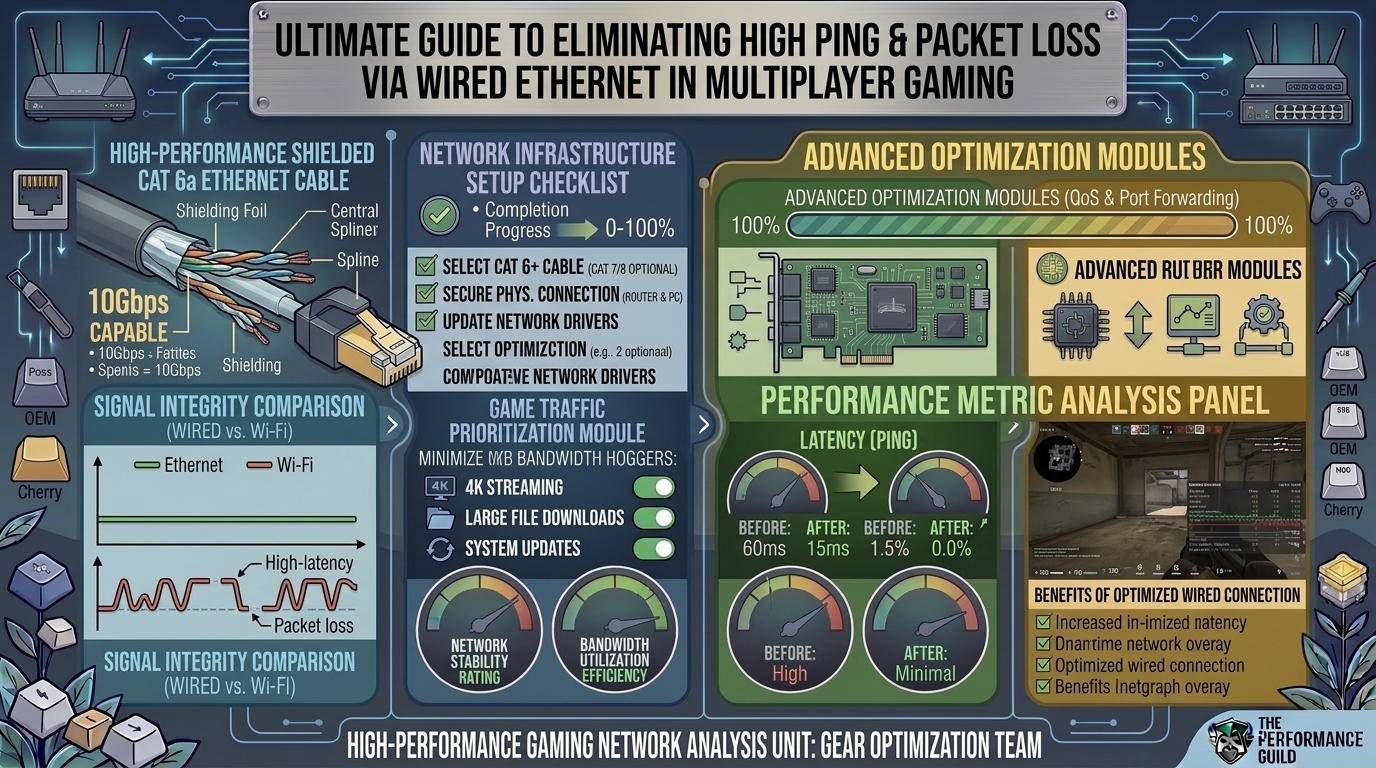
An SEO-optimized article designed to rank on Google and provide high value to readers on thegamerbuzz.com is provided below.
The content incorporates relevant target keywords naturally (“high ping fix ethernet”, “packet loss wired connection”, “Ethernet cable gaming low latency”, “Ethernet cat6 vs cat8 latency”), clear visual hierarchy (headings, bullet points, tables), direct answers to user search intent, and structural elements designed for search crawlers and reader engagement.
How to Fix High Ping and Packet Loss Issues in Multiplayer Games Using Wired Ethernet Cable Connections
High ping and packet loss ruin competitive online gaming faster than a bad teammate. You click to shoot, cast a spell, or turn a corner—only to teleport backward, miss a crucial hit, or get disconnected entirely.
While switching from Wi-Fi to a wired Ethernet connection is the single best step toward a stable network, simply plugging in a cable does not guarantee a zero-lag experience. Physical cable defects, misconfigured network settings, background bandwidth hogs, and poor router configurations can still cause massive latency spikes and dropped packets over Ethernet.
This comprehensive guide breaks down the root causes of high ping and packet loss on wired connections and walks you through actionable steps to achieve a ultra-fast, rock-solid gaming link.
Understanding the Enemy: Ping vs. Packet Loss
Before diving into solutions, it helps to understand what your network metrics actually mean:
- Ping (Latency): Measured in milliseconds (ms), ping is the time it takes for a signal (data packet) to travel from your gaming rig to the game server and back. Lower is better. Under 30ms is optimal for competitive shooters, while anything over 100ms leads to noticeable lag.
- Packet Loss: Measured as a percentage, packet loss occurs when data packets fail to reach their destination. A 1% to 2% loss causes micro-stutters and “rubber-banding.” A 5%+ loss makes real-time multiplayer unplayable.
[Your Gaming Rig]  ----(Data Packet Sent)---->  [Game Server]
[Your Gaming Rig]  <--(Packet Dropped/Lost)--  [Game Server]  ❌ Packet Loss!
1. Upgrade or Inspect Your Physical Hardware
A wired setup is only as good as the physical cable running through your home.
Choose the Right Ethernet Cable Category
Not all Ethernet cables perform equally. Using an outdated or damaged cable introduces electrical interference, data corruption, and high latency.
| Cable Category | Max Bandwidth | Max Speed | Best For Gaming? |
| Cat 5 | 100 MHz | 100 Mbps | No (Outdated, high crosstalk) |
| Cat 5e | 100 MHz | 1 Gbps | Acceptable (Minimum standard) |
| Cat 6 | 250 MHz | 10 Gbps | Ideal (Best price-to-performance ratio) |
| Cat 6a | 500 MHz | 10 Gbps | Excellent (Superior shielding) |
| Cat 7 / Cat 8 | 600–2000 MHz | 40 Gbps | Overkill (Requires grounding, often fake online) |
Key Takeaway: For standard gaming setups under 100 feet, Cat 6 or Cat 6a cables provide optimal shielding against electromagnetic interference (EMI) without unnecessary cost.
Inspect for Cable Damage and Bends
Ethernet copper wires inside cables are sensitive to stress. Inspect your cable for:
- Sharp 90-degree bends or kinks.
- Heavy furniture resting on the wire.
- Broken locking tabs on the RJ45 connectors (causing loose fits).
- Running parallel to high-voltage power lines or microwave ovens (causes EMI).
2. Optimize Network Adapter Settings (Windows & Mac)
Default OS settings prioritize energy saving over maximum network performance. Tweak these settings to force your network interface card (NIC) to prioritize speed.
Step-by-Step Windows NIC Configuration
- Press
Win + Xand select Device Manager. - Expand Network adapters, right-click your Ethernet controller (e.g., Realtek PCIe GbE or Intel Ethernet Connection), and select Properties.
- Go to the Advanced tab and adjust the following properties:
- Energy Efficient Ethernet / Green Ethernet: Set to
Disabled. (Prevents the adapter from entering low-power states during gameplay). - Interrupt Moderation: Set to
Disabled(orLow). Disabling this reduces packet buffering delay at the cost of slight CPU load. - Speed & Duplex: Set to
1.0 Gbps Full Duplex(orAuto Negotiationif 1 Gbps isn’t supported). - Receive Side Scaling (RSS): Set to
Enabled. - Flow Control: Set to
Disabled(prevents packet holds during burst traffic).
- Energy Efficient Ethernet / Green Ethernet: Set to
3. Router & Network Level Solutions
Even on a wired connection, local network congestion inside your router can cause severe ping spikes.
Enable Quality of Service (QoS)
QoS is a router feature that prioritizes gaming traffic over low-priority bandwidth demands (such as 4K video streams or large torrent downloads).
- Log into your router’s admin page (usually
192.168.1.1or192.168.0.1in your browser). - Locate the QoS or Traffic Prioritization settings menu.
- Turn on QoS and assign high priority to your PC/Console’s MAC address or specific gaming ports.
Disable SIP ALG and Bufferbloat Features
- Bufferbloat: Occurs when routers buffer too many packets during heavy downloads, causing latency spikes. Test your setup using online Bufferbloat tests. If your grade is lower than a B, enable Smart Queue Management (SQM) on your router if available.
- SIP ALG: Disable this setting in your router’s firewall/security section as it can inspect and modify data packets, causing dropped connection states in online games.
4. Software & DNS Tweaks
Background applications on your operating system can quietly consume your upload bandwidth, resulting in immediate packet loss.
Eliminate Background Bandwidth Hogs
- Close Cloud Syncing Services: OneDrive, Google Drive, and Dropbox upload changes in real-time, straining your upstream pipeline.
- Pause Automatic Updates: Steam, Epic Games Launcher, Windows Update, and Discord update clients consume background bandwidth. Turn off auto-updates during gaming sessions.
- Check Task Manager: Press
Ctrl + Shift + Esc, click the Network column header, and terminate any unexpected process consuming over 0.1 Mbps.
Switch to Fast, Gaming-Optimized Public DNS
While DNS doesn’t directly dictate in-game ping once connected to a match, faster DNS resolution ensures quicker server handshakes and prevents connection drops.
- Cloudflare DNS: Primary
1.1.1.1| Secondary1.0.0.1 - Google Public DNS: Primary
8.8.8.8| Secondary8.8.4.4
5. Diagnostic Commands: Pinpointing the Bottleneck
When ping spikes or packet loss occurs over Ethernet, run these built-in command-line diagnostics to identify whether the issue originates inside your home network or with your Internet Service Provider (ISP).
The Ping Loop Test
Open Command Prompt (cmd) and type:
Bash
ping -t 192.168.1.1
(Replace 192.168.1.1 with your router’s gateway IP).
- If response times vary (>1ms) or drop packets: The problem is inside your house (faulty cable, failing Ethernet port, or bad router).
- If response times are consistently
<1mswithout drops: Your internal local network is healthy. The issue lies further up the chain with your ISP or the game server.
Pathping & Tracert
Run a trace route to the game server IP:
Bash
pathping 8.8.8.8
This pinpoints exactly which hop along the network routing path is dropping packets or adding latency.
Frequently Asked Questions (FAQ)
1. Can a damaged Ethernet cable cause packet loss without completely disconnecting me?
Yes. Micro-fractures in the internal copper wiring or damaged shielding can allow data packets to become corrupted in transit. Your system attempts to retransmit the missing data, leading to noticeable packet loss, high ping, and stuttering without completely dropping the link connection.
2. Is Cat 6 Ethernet cable better than Cat 8 for online gaming?
For almost all residential home setups, Cat 6 or Cat 6a is superior and more practical than Cat 8. True Cat 8 cables require specialized grounded hardware to function correctly; ungrounded Cat 8 cables can collect static electricity and create more interference than Cat 6.
3. Why do I still get packet loss over Ethernet while my speed test looks fast?
Speed tests measure total bandwidth (download/upload throughput), not connection stability or jitter. You can have a 1 Gbps connection speed and still experience 10% packet loss if your router is suffering from bufferbloat or if there is routing degradation along your ISP’s network nodes.
4. Should I connect my Ethernet cable directly into my modem or router?
Connecting directly to a modem (or ONT unit) bypasses local router traffic entirely, which can lower latency. However, doing so removes your router’s firewall protections, exposing your system directly to the public internet. It is safest to connect to a quality router with QoS enabled.
5. Can powerline Ethernet adapters cause high ping and packet loss?
Yes. Powerline adapters use your home’s existing electrical wiring to transmit data. High-power appliances (refrigerators, AC units, chargers) create severe electrical noise on those circuits, frequently leading to ping spikes and high packet loss compared to a direct Ethernet cable.
6. Does disabling Interrupt Moderation reduce ping?
Disabling Interrupt Moderation forces your Network Interface Card (NIC) to process incoming packets immediately rather than batching them together. This slightly reduces system-level latency, though it causes a minor increase in CPU usage.
7. What is a “good” ping for online multiplayer games?
- Under 20ms: Exceptional (LAN-like responsiveness).
- 20ms – 50ms: Excellent for competitive shooters (Valorant, CS:GO, Apex Legends).
- 50ms – 80ms: Playable, but slight delay may be felt against low-ping opponents.
- 100ms+: Noticeable lag and disadvantage.
8. How long can an Ethernet cable run before latency increases?
Standard twisted-pair Ethernet cables (Cat 5e/Cat 6) maintain peak signal speed and zero latency degradation up to 100 meters (328 feet). Beyond 100 meters, signal degradation occurs unless paired with a network switch or repeater.
9. Will a VPN fix packet loss on an Ethernet connection?
A VPN can only fix packet loss if your ISP is using poor or congested routing nodes to reach the game server. By rerouting your traffic through the VPN’s backbone servers, packet stability may improve. However, if the issue stems from local hardware or server issues, a VPN will usually add latency.
10. Can a failing router Ethernet port cause packet loss?
Yes. Physical RJ45 ports on older or overheating routers can degrade over time. Try switching your Ethernet cable into a different LAN port on your router (e.g., move from LAN Port 1 to LAN Port 2) to test if the original port is failing.
Summary Checklist for Zero-Lag Ethernet Gaming
To ensure your wired connection delivers low latency and zero packet loss:
- Use a shielded Cat 6 or Cat 6a Ethernet cable.
- Disable network adapter power-saving settings (Green Ethernet, Energy-Efficient Ethernet).
- Turn off Interrupt Moderation in your NIC advanced properties.
- Enable QoS on your router to prioritize your gaming system’s MAC address.
- Run a
ping -tlocal gateway test to verify your local network stability before blaming game servers.
By isolating hardware issues, tuning network drivers, and configuring router prioritization, you can maximize your wired connection and eliminate high ping and packet loss once and for all.
Leave a Reply