How to Overclock Your AMD Ryzen Processor Safely Using Official Ryzen Master Software for Better Gaming Performance
Modern competitive gaming demands every drop of performance your system can provide. Frame rates, low frame-time variance (1% lows), and crisp render latency often boil down to single-core and multi-core CPU performance.
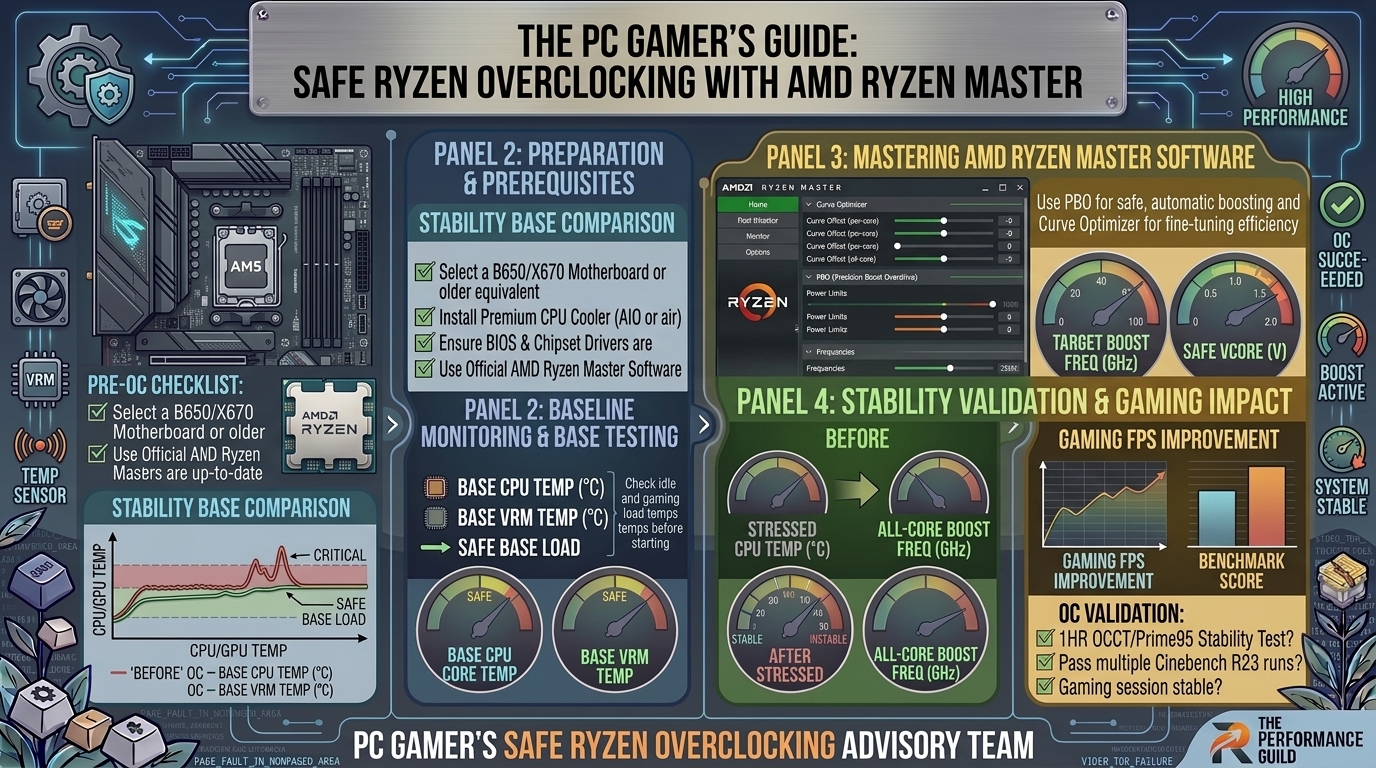
Historically, pushing a processor beyond its factory specifications meant navigating confusing BIOS screens, manually calculating voltage ratios, and running the risk of frying silicon. AMD changed the playing field with AMD Ryzen Master—an official, Windows-based tuning software designed to let gamers safely optimize Ryzen CPUs in real-time without diving into complex firmware.
This complete guide breaks down how to use AMD Ryzen Master safely, maximize frame rates in heavy games, lower thermal output, and achieve rock-solid system stability.
1. Prerequisites Before Overclocking Your Ryzen CPU
Overclocking elevates performance by drawing more power and generating extra thermal output. Preparing your system beforehand ensures hardware safety and optimal performance gains.
[System Check] ──> [Update BIOS & Drivers] ──> [Install Cooling & HWiNFO64] ──> [Safe Ryzen Master Tuning]
Necessary Hardware Checklist
- Cooling: Stock coolers (like the Wraith Stealth) are built for default thermal targets. A quality dual-tower air cooler or 240mm/360mm AIO liquid cooler is recommended for sustained overclocks.
- Power Supply Unit (PSU): Ensure your PSU has at least 150W of headroom above your total system draw to handle transient voltage spikes.
- Motherboard: AMD B-series (B450, B550, B650, B850) and X-series (X570, X670, X870) chipsets fully support CPU overclocking. A-series chipsets (A320, A520, A620) do not support CPU core tuning.
Essential Software Tools
- AMD Ryzen Master: Download directly from AMD’s official support portal.
- HWiNFO64: For monitoring CPU Tdie temperatures, VCore voltages, and core clocks.
- Cinebench (R23 or 2024): Used for baseline and post-overclock CPU stress testing.
- 3DMark / Cyberpunk 2077 Benchmark: To measure real-world gaming FPS improvements.
2. PBO vs. Curve Optimizer vs. Manual All-Core Overclocking
Understanding AMD’s tuning mechanisms is critical for modern gaming workloads.
| Overclock Method | Single-Core Speed (Gaming) | Multi-Core Speed (Workloads) | Thermal Output | Recommended For |
| Precision Boost Overdrive (PBO) | Very High (Dynamic) | High | Moderate – High | 95% of Gamers |
| PBO + Curve Optimizer (Undervolting) | Maximum | Maximum | Lower / Optimized | Best Performance & Efficiency |
| Manual All-Core OC | Lower (Loses Boost Clock) | High | High | Render Rigs / Static Workloads |
Why Manual Static Overclocking Hurts Gaming Performance:
Modern Ryzen CPUs (Zen 3, Zen 4, Zen 5) use intelligent boosting algorithms. A static manual overclock (e.g., locking all cores to 4.5GHz) prevents single cores from boosting up to 5.0GHz+ during light, high-frequency game threads. PBO + Curve Optimizer is the single best method for gaming.
3. Step-by-Step Guide: Overclocking with AMD Ryzen Master
Step 1: Install and Open Ryzen Master
- Install AMD Ryzen Master and restart your PC.
- Launch the application and accept the safety agreement warning.
- Switch to Advanced View using the toggle at the bottom left of the screen.
Step 2: Establish Your Baseline
- Open Cinebench alongside HWiNFO64.
- Run a 10-minute multi-core test to record stock Cinebench scores, maximum CPU temperature (Tdie), and peak voltage (CPU VCore).
- Record these baseline numbers to verify your performance gains later.
Step 3: Enable Precision Boost Overdrive (PBO)
PBO relaxes the factory power limits (PPT, TDC, EDC) built into your processor:
- In Ryzen Master, select Profile 1 on the left menu.
- Under Control Mode, select Precision Boost Overdrive.
- Apply the settings. This allows your CPU to maintain higher boost clocks for longer durations as long as thermal room permits.
PPT (Package Power Tracking): Max power delivered to CPU socket
TDC (Thermal Design Current): Max current from motherboard VRMs under thermal load
EDC (Electrical Design Current): Max peak current delivered during short bursts
Step 4: Apply Curve Optimizer (The “Secret Sauce” for Gaming)
Curve Optimizer shifts the voltage-to-frequency curve down. By feeding the CPU slightly less voltage per frequency step, it runs cooler, allowing PBO to boost to higher clock speeds without hitting thermal limits.
Lower Voltage ──> Lower Temperatures ──> Higher Automatic PBO Boost Clocks
- Scroll down to the Curve Optimizer section inside Ryzen Master.
- Select All Cores mode.
- Set the sign to Negative.
- Start with a safe baseline value of -10.
- Click Apply & Test. Ryzen Master will reboot your PC to apply the profile.
Step 5: Fine-Tuning Core Stability
If -10 is stable after gaming and stress testing:
- Re-open Ryzen Master and increase the negative offset to -15, then -20.
- Most modern Ryzen silicon can handle between -15 and -25 on all cores.
- If your system crashes or encounters a blue screen (BSOD), your offset is too aggressive. Back off by 5 points (e.g., move from
-25back to-20).
4. Special Optimization for Ryzen X3D Processors (3D V-Cache)
If you own a Ryzen 7 5800X3D, 7800X3D, or 9800X3D, traditional voltage overclocking is locked in hardware to protect the sensitive 3D V-Cache stack.
- Do NOT attempt manual static voltage changes on X3D processors.
- DO use Curve Optimizer inside Ryzen Master: Setting a negative Curve Optimizer offset (typically
-20 to -30) lowers thermals significantly on X3D chips, enabling them to sustain their peak 5.0GHz+ gaming boost clocks consistently without thermal throttling.
5. Frequently Asked Questions (FAQ)
1. Does overclocking with AMD Ryzen Master void my processor warranty?
Using Ryzen Master to operate the CPU outside factory specifications technically falls under enthusiast tuning. However, because Ryzen Master relies on AMD’s built-in internal thermal and electrical safety limiters, it is vastly safer than manual BIOS voltage modifications.
2. Is Ryzen Master tuning permanent, or do I need it running at all times?
Changes made in Ryzen Master apply to the operating system level. If you close the app, your settings remain active until you shut down or reboot your PC. To apply changes permanently across restarts without running the app, apply the finalized values (such as Curve Optimizer offsets) directly inside your motherboard’s BIOS.
3. What is the maximum safe CPU temperature for AMD Ryzen CPUs under load?
For standard Ryzen 5000, 7000, and 9000 series processors, AMD specifies that operating temperatures up to 90°C–95°C under full multi-core stress are within design specifications. For optimal long-term health and maximum boost retention, target under 80°C during gaming sessions.
4. Why did my PC crash to a Blue Screen (BSOD) after applying Curve Optimizer?
A blue screen (such as WHEA_UNCORRECTABLE_ERROR or CLOCK_WATCHDOG_TIMEOUT) indicates that one or more CPU cores are not receiving enough voltage for their current clock frequency. Return to Ryzen Master and reduce your negative offset value (e.g., change from -25 to -15).
5. Will overclocking my Ryzen CPU give me a massive FPS boost in all games?
Gains depend on whether your game is CPU-bound or GPU-bound:
- CPU-Bound Games (Valorant, CS2, Warzone, Rainbow Six Siege, Starfield): You will see noticeable frame rate increases and improved 1% low frame consistency.
- GPU-Bound Games (Cyberpunk 2077 at 4K Ultra): FPS gains will be minimal, as your graphics card remains the primary performance limit.
6. What is the difference between Eco Mode and PBO in Ryzen Master?
PBO increases power limits to maximize performance. Eco Mode reduces the CPU’s target TDP (e.g., dropping a 105W CPU down to 65W target draw). Eco Mode drops temperatures by 15°C–20°C with only a tiny 2%–5% hit to gaming performance.
7. Should I turn on Auto Overclocking mode in Ryzen Master?
Auto Overclocking mode combines PBO with an automated boost clock override (adding +50MHz to +200MHz to peak frequency). While useful, it requires more voltage and creates extra heat. Enabling PBO + Negative Curve Optimizer generally yields better gaming thermals and higher sustained clocks.
8. Is static all-core manual overclocking good for Ryzen CPUs?
No. Static manual overclocking forces all CPU cores to run at a fixed frequency continuously. This degrades single-thread boost speeds essential for games, increases idle power usage, and generates unnecessary heat compared to dynamic PBO tuning.
9. Can I overclock my RAM using AMD Ryzen Master?
Yes. Ryzen Master allows you to adjust Memory Clock (MCLK), Fabric Clock (FCLK), and DRAM timings. However, enabling EXPO (AMD) or XMP (Intel profile) directly in your motherboard BIOS remains the safest and easiest way to ensure RAM stability.
10. How do I completely reset Ryzen Master if my system becomes unstable?
If your PC fails to boot into Windows after applying a profile, boot Windows into Safe Mode. Open Ryzen Master and select Reset to Default, or clear your motherboard’s CMOS battery to restore factory stock settings.
Conclusion & Summary Checklist
Overclocking modern AMD Ryzen processors is no longer about brute-force voltage. By utilizing Precision Boost Overdrive (PBO) alongside a Negative Curve Optimizer offset in AMD Ryzen Master, you can unlock higher sustained boost clock speeds, improve 1% low frame rates in games, and reduce your CPU’s operational temperatures.
Leave a Reply