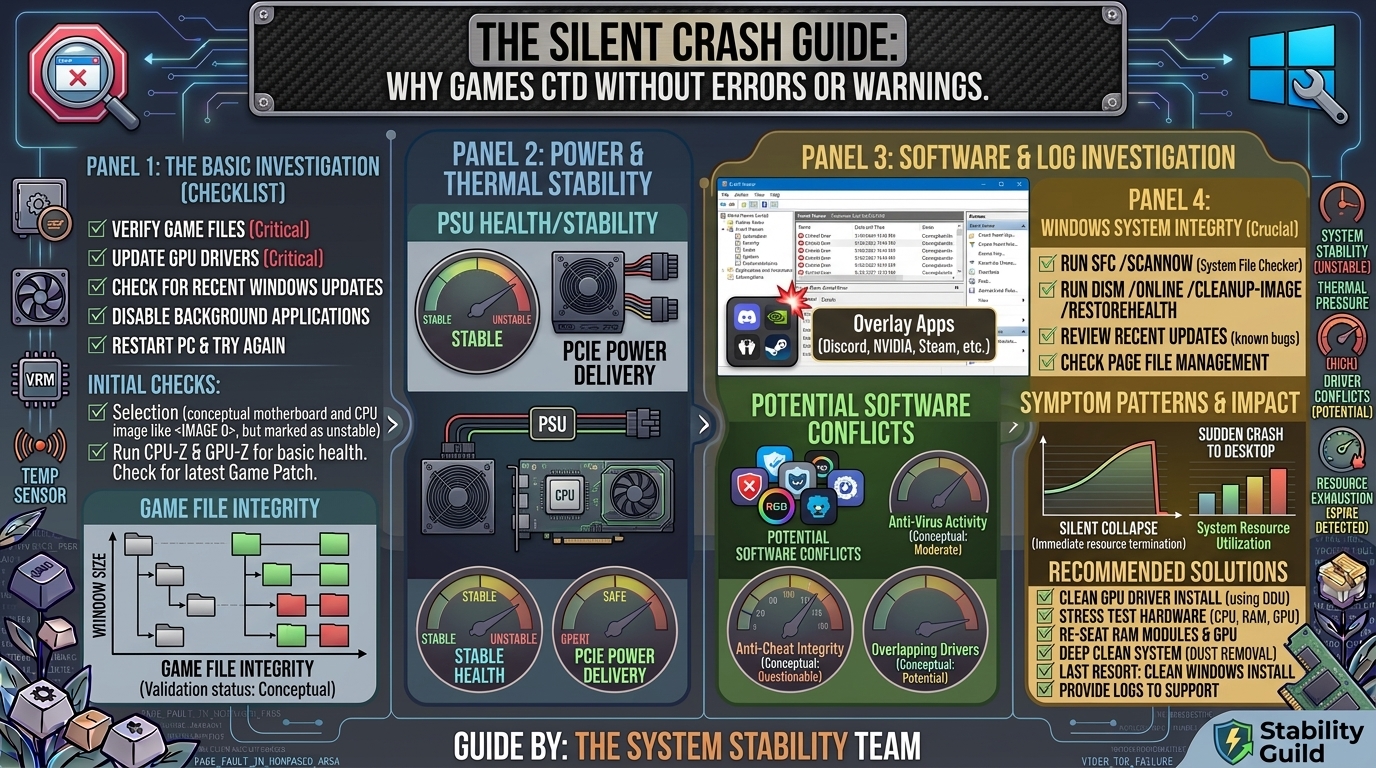
Why Does My Game Keep Crashing to Desktop Without Any Error Message or Warning Sign?
Few things in PC gaming are as frustrating as a silent crash to desktop (CTD). One moment you are immersed in an intense match or exploring an open world, and the next, your screen instantly closes down back to your desktop without an error code, crash log, or warning dialog.
When a game crashes without displaying an error, it usually means the operating system or hardware forced the application to shut down before the game’s internal diagnostic tool could process the failure. This comprehensive guide breaks down the core causes of silent CTDs, step-by-step diagnostic workflows, and proven solutions to get your system back to peak gaming stability.
Quick Diagnostic Checklist: Common Causes of Silent Crashes
Before diving into deep system modifications, review this overview of what typically triggers an abrupt exit to the desktop:
| Category | Primary Trigger | Why It Causes a Silent CTD |
| GPU Drivers | Corrupted or outdated display drivers | Driver timeout (TDR) resets the graphics pipeline instantly. |
| RAM / Memory | Memory leaks, bad sticks, or unstable XMP/EXPO | Windows terminates apps immediately upon memory read/write failure. |
| Background Apps | Overlays (Discord, Steam, RivaTuner) & Anti-Cheat | Software conflicts force instantaneous thread termination. |
| System Files | Missing DirectX runtime or Visual C++ Redistributables | Missing execution files break rendering loops without alert boxes. |
| Power & Temps | GPU/CPU thermal throttling or PSU power spikes | Hardware safety cuts process threads under extreme thermal stress. |
| Pagefile Size | Disabled or under-allocated Virtual Memory (VRAM overflow) | Running out of virtual memory forces Windows to kill the heaviest process. |
1. Check Event Viewer & Reliability Monitor
Even if no popup error message appears on screen, Windows almost always records the exact moment of the crash in its underlying system logs.
- Press
Windows Key + R, typeperfmon /rel, and press Enter to launch Reliability Monitor. - Look for red critical icons on the timeline corresponding to the time your game crashed.
- Double-click the event (e.g., “Stopped working” or “Application Error”).
- Check the Fault Module Name and Exception Code:
0xc0000005: Memory Access Violation (indicates RAM issues, unstable XMP, or anti-cheat conflicts).nvlddmkm.sys/atikmdag.sys: NVIDIA/AMD Graphics Driver Crash.d3d11.dll/dxgi.dll: DirectX Pipeline Error.
2. Perform a Clean GPU Driver Reinstall (DDU Method)
Updating your GPU drivers through standard express installers can leave behind corrupted cache files or mismatched registry keys. A clean installation via Display Driver Uninstaller (DDU) eliminates driver residue completely.
- Download the latest driver for your GPU from the official NVIDIA, AMD, or Intel website.
- Download Display Driver Uninstaller (DDU) from a verified source.
- Boot your PC into Safe Mode:
- Hold
Shiftwhile clicking Restart in the Start Menu. - Navigate to
Troubleshoot > Advanced options > Startup Settings > Restart. - Press
4orF4to enable Safe Mode.
- Hold
- Run DDU in Safe Mode, select your device type (GPU), and click Clean and restart.
- Once Windows reboots normally, disconnect your internet connection (to prevent Windows Update from installing a generic driver) and install your downloaded driver package.
3. Test RAM Stability (Disable XMP / EXPO)
RAM instability is one of the single most frequent causes of games closing without an error. Extreme Memory Profiles (XMP on Intel, EXPO on AMD) are technically factory overclocks. If your motherboard or memory controller struggles with those speeds, games will silently collapse.
- Disable Overclocks: Restart your PC, enter your BIOS/UEFI (usually via
DELorF2), and turn off XMP or EXPO. Test your game at standard base frequency (e.g., 2133 MHz – 4800 MHz depending on DDR4/DDR5). - Run Windows Memory Diagnostic: Press
Windows Key + R, typemdsched.exe, and choose Restart now and check for problems. - Run MemTest86: For deep testing, create a bootable USB with MemTest86 and let it run for 4 full passes to verify individual stick stability.
4. Configure Virtual Memory (Pagefile)
If your system runs out of physical RAM and your Virtual Memory (Pagefile) is set too low or disabled, Windows instantly kills memory-heavy applications like modern AAA games without warning to prevent a full system blue screen (BSOD).
- Press
Windows Key + R, typesysdm.cpl, and hit Enter. - Go to the Advanced tab and click Settings under Performance.
- Go to the Advanced tab again and click Change under Virtual memory.
- Uncheck Automatically manage paging file size for all drives.
- Select your fastest drive (NVMe/SSD) and select System managed size, or manually set:
- Initial size:
1.5 x your RAM size(e.g., 24576 MB for 16GB RAM). - Maximum size:
3 x your RAM size(e.g., 49152 MB for 16GB RAM).
- Initial size:
- Click Set, then OK, and restart your PC.
5. Disable Conflicting Overlays and Background Applications
Third-party software that attempts to inject code into your game’s visual pipeline can trigger silent crashes.
- Disable Overlays: Turn off the overlay feature in Discord, GeForce Experience / NVIDIA App, Steam, EA App, and Ubisoft Connect.
- Disable RivaTuner Statistics Server (RTSS) & MSI Afterburner: Turn off custom frame-rate limiters or hardware monitoring overlays temporarily.
- Perform a Clean Boot:
- Press
Windows Key + R, typemsconfig, and open System Configuration. - Go to the Services tab, check Hide all Microsoft services, and click Disable all.
- Open Task Manager, go to the Startup tab, and disable non-essential startup programs.
- Reboot and test your game.
- Press
6. Repair System Files and Game Files
Corrupted game assets or missing Windows dependencies will interrupt execution instantly.
- Verify Integrity of Game Files:
- Steam: Right-click game >
Properties > Installed Files > Verify integrity of game files. - Epic Games: Click the three dots on the game tile >
Manage > Verify. - Battle.net / Xbox App: Select
Options / Manage > Scan and Repair.
- Steam: Right-click game >
- Run SFC and DISM Scans:
- Open Command Prompt as Administrator.
- Type
sfc /scannowand press Enter. - After completion, type
DISM /Online /Cleanup-Image /RestoreHealthand press Enter.
- Reinstall Runtimes: Ensure you have the latest Microsoft Visual C++ Redistributable All-in-One package and updated DirectX End-User Runtimes installed on your system.
Frequently Asked Questions (FAQ)
Q1: Why does my game crash without showing any error code?
A: Silent crashes typically occur when an unhandled system-level exception occurs. Windows or your GPU driver terminates the game process immediately due to memory access violations, driver timeouts, or hardware thermal protections before the game can generate a diagnostic popup.
Q2: Can an unstable RAM overclock cause silent crashes?
A: Yes. Unstable RAM timings or unstable XMP/EXPO profiles frequently cause data corruption in volatile memory. Windows detects the read/write fault and closes the process instantly to avoid corrupting your operating system.
Q3: How do I know if my GPU is causing the crash?
A: Check the Windows Reliability Monitor (perfmon /rel) or Event Viewer. Look for LiveKernelEvent code 141 or 119, or faulting module names referencing nvlddmkm.sys (NVIDIA) or atikmdag.sys (AMD).
Q4: Will running out of Virtual Memory cause a crash to desktop?
A: Absolutely. If physical RAM fills up and your pagefile is disabled or restricted, Windows will abruptly kill the application consuming the most memory without displaying a warning dialog.
Q5: Why do games crash only after 15–30 minutes of gameplay?
A: Delayed crashes usually indicate continuous heat buildup (thermal throttling of the CPU/GPU), progressive memory leaks within the game software, or power supply unit (PSU) instability under sustained load.
Q6: Can anti-cheat software cause games to close randomly?
A: Yes. Modern kernel-level anti-cheat programs (like Easy Anti-Cheat, BattlEye, or Vanguard) will close a game immediately without notification if they detect blacklisted background software, conflicting injection software, or corrupted anti-cheat service files.
Q7: How does DirectX 12 affect silent crashes?
A: DirectX 12 places lower-level memory management responsibilities on game developers compared to DirectX 11. If a game’s DX12 implementation encounters a pipeline stall or buffer mismatch, it often terminates directly to desktop instead of falling back smoothly.
Q8: Can a weak Power Supply Unit (PSU) trigger desktop crashes?
A: Yes. High-end GPUs draw sudden transient power spikes during intense rendering. If your PSU cannot supply clean power during a spike, the GPU drops power momentarily, triggering a graphics reset that drops you back to desktop.
Q9: Does Windows Game Mode help prevent crashes?
A: Windows Game Mode prioritizes CPU and GPU resources for active gaming threads. While it generally improves performance, disabling Windows Game Mode can sometimes resolve weird compatibility crashes caused by system thread allocation bugs.
Q10: What should I do if every fix fails?
A: If manual file repairs and driver reinstallations do not solve the issue, run a dedicated stress test (like 3DMark or FurMark) to isolate hardware instability. If synthetic stress tests also crash, you may be dealing with a physically degrading hardware component (such as bad VRAM, degraded CPU, or failing storage drive).
Summary
Diagnosing a silent crash to desktop requires systematically eliminating variables. Start by inspecting Windows Reliability Monitor to identify underlying event codes. From there, execute a clean GPU driver reinstallation using DDU, verify RAM stability by disabling XMP/EXPO, increase your virtual memory allocation, and disable invasive third-party overlays. Methodically working through these steps isolates the conflict and restores seamless stability to your gaming sessions.
Leave a Reply