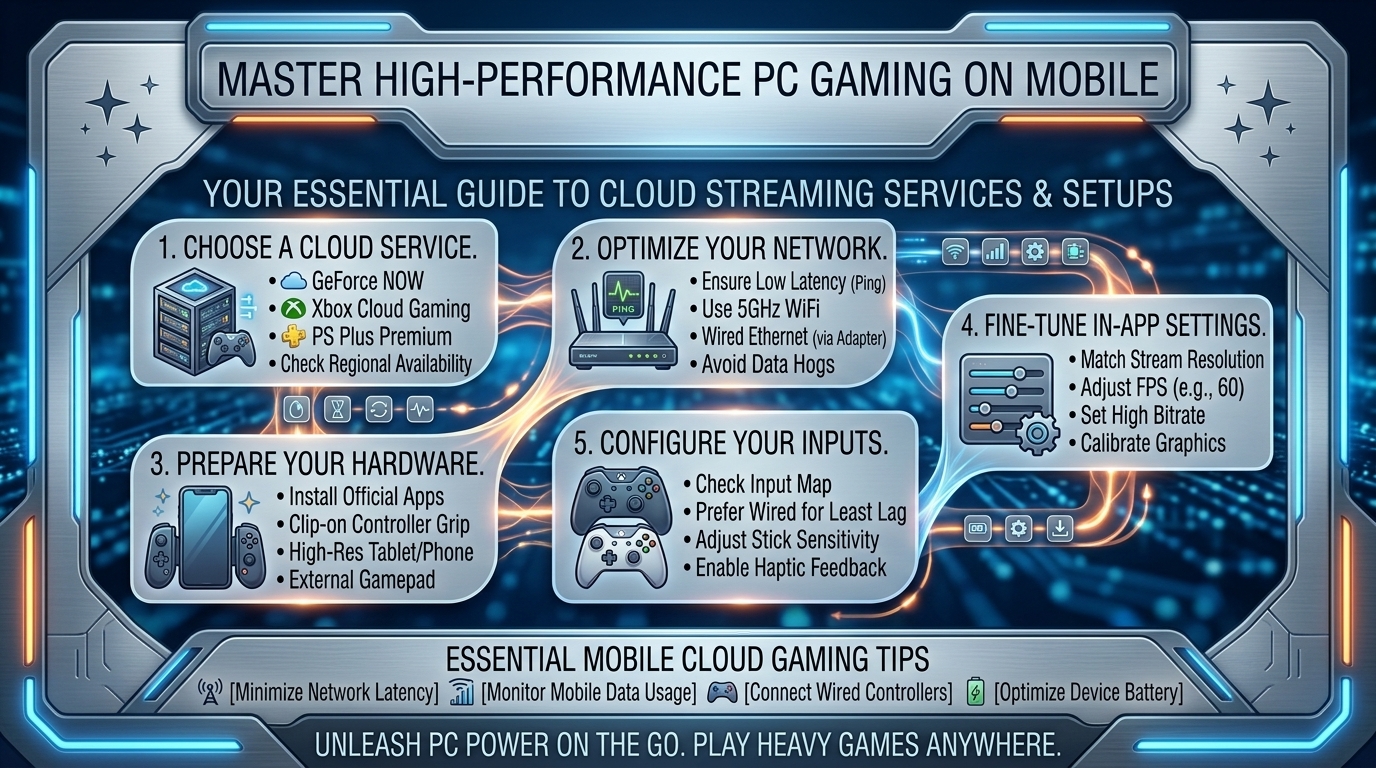
How to Play Heavy Demanding PC Games on Your Mobile Phone or Tablet Using Cloud Streaming Services
Playing graphics-intensive AAA PC games—such as Cyberpunk 2077, Black Myth: Wukong, GTA V, or Call of Duty—used to require an expensive desktop rig packed with a high-end graphics card. Today, cloud gaming technology allows you to stream demanding PC titles directly to your iOS or Android mobile phone or tablet at high frame rates with crisp visual quality.
By leveraging powerful remote servers to handle rendering and ray tracing, your phone or tablet functions as a high-performance portable monitor. However, achieving smooth, low-latency cloud gaming requires proper network optimization, ideal streaming client settings, low-input-lag peripherals, and performance tweaks.
At The Gamer Buzz, we test cloud gaming platforms, network optimization, mobile accessories, and mobile gaming setups. This comprehensive guide breaks down how cloud streaming works, how to choose the best service for your library, how to tune your home Wi-Fi and 5G connections for low latency, and how to turn any smartphone or tablet into a mobile gaming powerhouse.
Whether streaming from tech centers across San Francisco, California, and Washington, gaming on the go in Texas, or commuting in New York, this guide provides everything you need to play AAA PC games anywhere.
1. How Cloud Streaming Works: The Mechanics of Remote PC Gaming
Cloud gaming replaces local hardware rendering with high-speed video decoding.
The Streaming Pipeline
- Remote Execution: The game runs on a high-performance cloud server or remote PC rig.
- Real-Time Video Encoding: The server compresses rendered frames into low-latency video (usually H.264, HEVC/H.265, or AV1).
- High-Speed Transmission: Encoded frame data streams across the internet to your mobile phone or tablet.
- Local Decoding & Input Return: Your mobile device decodes the video stream on screen while sending touch or controller inputs back to the server in milliseconds.
| Cloud Gaming Service | Rendering Hardware | Supported Platforms | Ideal Network Requirement | Standout Feature |
| NVIDIA GeForce NOW | Up to RTX 4080 Class | Android, iOS (Safari Web App), iPadOS | 45+ Mbps (5GHz Wi-Fi / 5G) | Native Steam/Epic/Xbox Library Sync |
| Xbox Cloud Gaming (xCloud) | Custom Xbox Series X Hardware | Android, iOS, iPadOS, Web | 20+ Mbps | Included with Xbox Game Pass Ultimate |
| Boosteroid | High-End Cloud Rigs | Android, iOS, Web, Smart TVs | 25+ Mbps | Access to popular AAA titles & Steam |
| Moonlight + Sunshine (Self-Hosted) | Your Personal Home PC GPU | Android, iOS, iPadOS | Local 5GHz Wi-Fi or High-Upload Home Fiber | Zero subscription cost, ultra-low latency |
2. Choosing the Right Cloud Platform for Your Gaming Setup
Selecting the best cloud service depends on your game library and visual requirements:
1.Option 1: NVIDIA GeForce NOW:Best for maximum graphic fidelity, 120 FPS, and ray tracing.
GeForce NOW connects directly to your existing digital game storefronts (Steam, Epic Games Store, Ubisoft Connect, PC Game Pass). The Ultimate tier grants access to remote RTX 4080 servers, offering resolutions up to 4K and frame rates up to 120 FPS on supported mobile devices and tablets.
2.Option 2: Xbox Cloud Gaming (xCloud):Best for all-in-one game access without owning titles individually.
Integrated into Xbox Game Pass Ultimate, xCloud provides instant access to hundreds of console and PC games without needing to purchase them individually. It is ideal for casual streaming on mobile devices, though streams are currently capped at 1080p 60 FPS.
3.Option 3: Moonlight + Sunshine (Self-Hosted PC Streaming):Best for low-latency streaming from your personal gaming PC.
If you already own a gaming PC, host your own private cloud server using Sunshine on your desktop and the open-source Moonlight app on your tablet or phone. This setup delivers the lowest input latency and highest bitrate streaming across home Wi-Fi networks.
4.Option 4: Boosteroid:Best for browser-based AAA accessibility.
Boosteroid operates servers across North America and Europe, enabling direct browser or app-based gaming for major PC titles with simple setup requirements.
3. Optimizing Mobile Hardware, Controllers, and Displays
Unlocking a console-quality experience on your mobile device requires proper accessories and display configurations:
1. Mobile Controllers and Input Peripherals
While touch controls work for slow-paced strategy games, fast-paced action games and FPS titles require physical controls:
- Direct-Connection Mobile Controllers: Controllers like the Backbone One or Razer Kishi connect directly via USB-C or Lightning ports, eliminating Bluetooth input latency entirely.
- Standard Bluetooth Controllers: Connecting an Xbox Wireless Controller or PlayStation DualSense via Bluetooth provides familiar ergonomics, especially when combined with a tablet kickstand setup.
2. Display and Refresh Rate Settings
- Match Mobile Refresh Rate: On 120Hz displays (such as iPad Pro, Samsung Galaxy Tab, or flagship phones), enable 120Hz in your device settings and select 120 FPS in your cloud app settings to reduce perceived input lag.
- Aspect Ratio Tweaks: Enable full-screen stretch options or set custom resolutions (such as 16:10 or 3:2) to minimize black bars on modern tablet screens.
4. Network Tuning: Eliminating Lag, Packet Loss, and Stutter
Network instability is the primary cause of cloud gaming lag and visual artifacts. Follow these network optimization steps:
- Always Use 5GHz or 6GHz Wi-Fi: Avoid standard 2.4GHz Wi-Fi bands, which are prone to interference. 5GHz and 6GHz (Wi-Fi 6E/7) provide high bandwidth and low latency.
- Enable UPnP or Port Forwarding: Ensure your home router prioritizes real-time gaming packets by enabling QoS (Quality of Service) settings for your mobile device’s MAC address.
- Optimize 5G Cellular Data Settings: When gaming on cellular networks, select 5G Standalone (5G SA) modes if supported by your carrier, and ensure clear line-of-sight to local cell towers to avoid mid-game packet drops.
- Lower Bitrate Settings During Instability: If you experience frequent micro-stutters, lower your cloud app stream bitrate slightly (e.g., from 45 Mbps to 25 Mbps) to ensure steady frame delivery over unstable connections.
10 Frequently Asked Questions (FAQ)
1. Can I play AAA games on my iPhone or iPad using cloud streaming?
Yes! While Apple’s App Store historically limited dedicated cloud apps, services like NVIDIA GeForce NOW and Xbox Cloud Gaming run seamlessly through Safari web apps on iOS and iPadOS. Recent iOS updates also allow standalone cloud streaming apps in supported regions.
2. How much mobile data does cloud gaming consume per hour?
Cloud streaming uses a significant amount of data. Streaming at 1080p 60 FPS consumes roughly 3GB to 7GB of data per hour, while 4K or 120 FPS streams can use 10GB to 15GB+ per hour. Use unlimited data plans or unmetered Wi-Fi connections whenever possible.
3. Will cloud gaming drain my mobile phone battery quickly?
Cloud gaming is far gentler on your mobile battery than running games locally. Because your phone only decodes video rather than rendering complex 3D graphics, battery life is similar to watching high-definition streaming video.
4. What is the minimum internet speed required for smooth cloud gaming?
A minimum connection speed of 15 Mbps to 25 Mbps is required for reliable 1080p 60 FPS streaming. For 4K or high-refresh-rate 120 FPS streaming, a stable connection of 45 Mbps to 75+ Mbps is recommended.
5. Why is there input lag when I play cloud games over Bluetooth?
Bluetooth introduces natural wireless latency (often 10ms to 40ms). Combined with cloud transmission lag, this can feel noticeable. Using direct-connect USB-C controllers (like the Backbone One or Razer Kishi) eliminates controller-side latency entirely.
6. Can I use a mouse and keyboard with cloud gaming on a tablet?
Yes! Many mobile devices, Android tablets, and iPads support Bluetooth or USB-hub mouse and keyboard connections. Services like GeForce NOW offer full native mouse and keyboard mapping for PC titles.
7. Do I need to re-purchase my PC games to play them in the cloud?
With services like NVIDIA GeForce NOW, Boosteroid, and Moonlight, you do not need to repurchase games. You log into your existing Steam, Epic Games, or Ubisoft accounts to stream games you already own.
8. What is the difference between GeForce NOW and Xbox Cloud Gaming?
GeForce NOW streams games you own from PC storefronts using high-performance RTX server rigs, focusing on visual fidelity and low latency. Xbox Cloud Gaming acts like a “Netflix for games,” offering instant access to the Game Pass library from Xbox cloud hardware.
9. How do I fix screen tearing and micro-stuttering during streams?
Enable V-Sync or Adaptive Sync in your cloud app settings, lock your stream frame rate to match your display’s native refresh rate, and switch your router to an uncrowded 5GHz/6GHz Wi-Fi channel.
10. Can I play competitive multiplayer FPS games comfortably over cloud streaming?
While casual and semi-competitive multiplayer games play well on optimized low-latency cloud connections, high-stakes esports titles (like VALORANT or CS2) are best played on local hardware due to extreme sensitivity to millisecond input timing.
Conclusion
Cloud streaming technology has advanced to the point where playing demanding AAA PC games on a mobile phone or tablet is fast, visually impressive, and accessible. By picking the right cloud platform for your library, pairing your device with direct-connection controllers, tuning your home Wi-Fi or 5G data settings, and configuring display parameters, you can enjoy high-end PC gaming from virtually anywhere.
For more cloud gaming performance tests, mobile peripheral reviews, and network optimization guides across Texas, California, San Francisco, Washington, and New York, stay tuned to The Gamer Buzz.
Leave a Reply