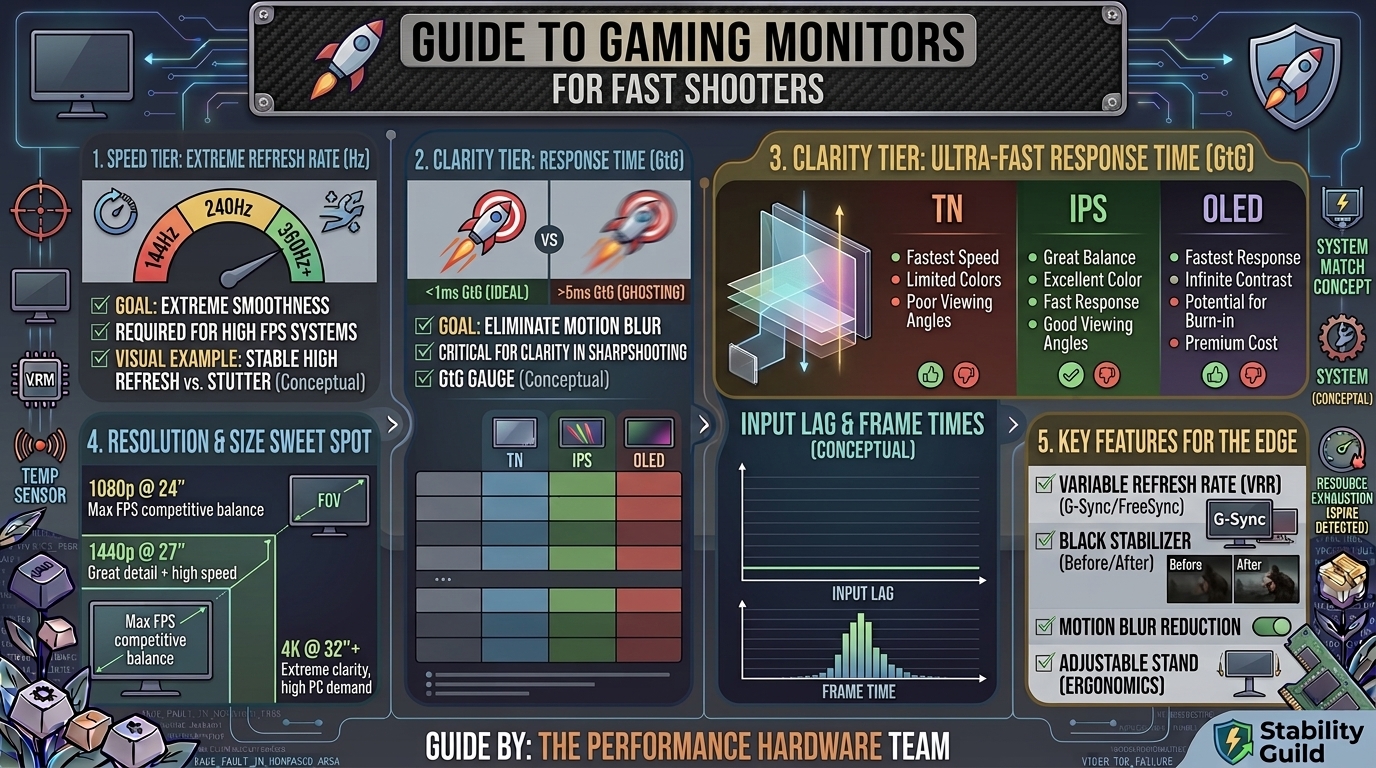
How to Choose the Best Gaming Monitor with High Refresh Rate and Low Response Time for Fast Shooters
In fast-paced competitive shooters like VALORANT, Counter-Strike 2, Apex Legends, Call of Duty: Warzone, and Overwatch 2, split-second visual clarity can mean the difference between winning a gunfight and heading back to the lobby. While your CPU and graphics card generate high frame rates, your monitor is the final lens through which all that performance is delivered.
If your display suffers from motion blur, screen tearing, high input latency, or slow pixel transitions, you lose critical spatial awareness. Selecting a monitor optimized for low response times and high refresh rates ensures near-instant motion tracking and crisp visual clarity under rapid mouse movements.
This comprehensive guide breaks down every core technology, technical specification, hardware dependency, and setup step you need to select the ultimate high-refresh-rate gaming monitor for competitive fast shooters.
Core Specifications for Fast Shooters: Quick Reference
| Feature | Recommended Baseline | Competitive Esports Ideal | Why It Matters for Shooters |
| Refresh Rate | 144 Hz – 180 Hz | 240 Hz – 480 Hz+ | Reduces display motion blur, lowers frame delay, and delivers fluid motion. |
| Response Time (GtG) | 1ms GtG (LCD) | 0.03ms (OLED) / Sub-1ms (Fast IPS) | Minimizes pixel transition trails (ghosting and smearing). |
| Input Lag | Under 5 ms | Under 2 ms | Minimizes the delay between mouse click/movement and screen rendering. |
| Panel Type | Fast IPS | QD-OLED / WOLED or Fast TN | Determines motion clarity, color fidelity, contrast, and response speeds. |
| Screen Size | 24 inches (1080p) | 27 inches (1440p) | Fits inside your peripheral vision so you don’t turn your head to spot targets. |
| Resolution | 1080p (FHD) | 1440p (QHD) | Maximize frame rates (1080p) vs. target clarity at range (1440p). |
| Motion Blur Reduction | DyAc+ / ELMB / ULMB 2 | Black Frame Insertion (BFI) / Pulsed Backlight | Strobes backlight to eliminate sample-and-hold motion blur. |
1. Understanding Refresh Rate (Hz) and Frame Dynamics
The refresh rate (measured in Hertz, Hz) specifies how many times per second the display draws a completely new image. Standard office displays refresh at 60 Hz (60 frames per second), whereas high-performance gaming monitors run at 144 Hz, 240 Hz, 360 Hz, or even 480 Hz.
Frame Time Delay Comparison
Frame time measures the exact duration a single image remains static on screen before updating:
- 60 Hz: 16.67 milliseconds per frame
- 144 Hz: 6.94 milliseconds per frame
- 240 Hz: 4.16 milliseconds per frame
- 360 Hz: 2.77 milliseconds per frame
- 480 Hz: 2.08 milliseconds per frame
Higher refresh rates drastically reduce human visual latency and display stutter. When sweeping a crosshair quickly across a scene, a 240 Hz or 480 Hz display renders multiple intermediate frames that a 60 Hz monitor skips completely. This allows your eyes to track enemy character models smoothly without visual breaks.
60 Hz  : [ Frame 1 ] -----------------------> [ Frame 2 ] (16.6ms gap - choppy tracking)
240 Hz : [ F1 ][ F2 ][ F3 ][ F4 ] ------------> [ F5 ][ F6 ] (4.1ms gap - fluid motion)
2. Response Time vs. Input Lag: Why Modern Specs Are Misleading
Many buyers confuse Response Time with Input Lag, but they govern two completely separate aspects of monitor performance:
Pixel Response Time (GtG / MPRT)
- What it is: The speed at which an individual liquid crystal or OLED diode transitions from one color state to another. Most commonly measured as Gray-to-Gray (GtG) or Moving Picture Response Time (MPRT).
- Why it matters: Slow response times cause ghosting (dark trails following moving objects) and corona artifacts (inverse ghosting from excessive overdrive).
Marketing Trap Warning: Manufacturers frequently advertise “1ms GtG” on LCD panels that only achieve that speed using extreme overdrive profiles. Extreme overdrive causes severe inverse ghosting (bright trails behind moving characters). Look for independent third-party reviews that measure real-world, artifact-free pixel transitions.
Input Lag (Processing Delay)
- What it is: The time interval between a frame leaving your GPU, being processed by the monitor’s internal scaler board, and physically lighting up the display pixels.
- Why it matters: High input lag introduces delayed control feedback. If your monitor adds 15 ms of input processing, your mouse inputs will feel heavy and sluggish, ruining precise flick shots. Look for total input lag under 3–5 ms.
3. Panel Technologies Compared: OLED vs. IPS vs. TN vs. VA
The underlying panel architecture dictates the native response times, contrast, viewing angles, and overall clarity of your monitor.
      Fastest Response Time               Best Color & Angles
[ OLED (0.03ms) ] ---> [ TN (1ms) ] ---> [ IPS (1ms) ] ---> [ VA (2-5ms) ]
                                                            Deepest Contrast
| Panel Tech | Native Response Time | Motion Clarity | Color Accuracy | Contrast Ratio | Ideal User Profile |
| OLED (QD-OLED / WOLED) | 0.03ms (Instant) | Elite (Zero Ghosting) | Exceptional | Infinite (Pure Black) | Competitive players wanting peak clarity & visual quality. |
| Fast IPS | 1ms GtG | Excellent | High (Vibrant) | Moderate (~1000:1) | Great balanced choice for esports and general gaming. |
| TN (Twisted Nematic) | 0.5ms – 1ms GtG | Very High | Poor (Washed Out) | Low (~700:1 – 1000:1) | Pure esports purists prioritizing raw speed over visuals. |
| VA (Vertical Alignment) | 2ms – 5ms GtG | Poor (Dark Smearing) | Decent | High (3000:1+) | Single-player RPG gamers; Avoid for fast shooters. |
1. OLED (QD-OLED / WOLED)
OLED pixels generate their own light independently, allowing them to switch states in 0.03 milliseconds—roughly 30 to 100 times faster than standard LCD panels. This instantaneous pixel response completely eliminates motion blur and ghosting without needing artificial overdrive voltage. Coupled with 240 Hz to 480 Hz refresh rates, OLED is the top-tier standard for competitive clarity.
2. Fast IPS
Modern Fast IPS (In-Plane Switching) displays have bridged the speed gap with older TN panels while preserving rich color accuracy and wide viewing angles. They deliver reliable 1ms response times across varied refresh rates, making them an incredible sweet spot for gamers who play fast shooters alongside cinematic games.
3. TN (Twisted Nematic)
TN panels were historically the undisputed speed champions of esports due to quick pixel transition capabilities. However, modern Fast IPS and OLED technology have largely surpassed TN. TN panels suffer from narrow viewing angles and washed-out colors, making them less practical for general use.
4. VA (Vertical Alignment)
While VA displays offer deep blacks and high contrast ratios, their dark-state pixel transitions are notoriously slow. This causes noticeable black smearing across high-contrast environments (e.g., an enemy moving quickly past a dark corridor). As a result, standard VA panels are generally not recommended for fast competitive shooters.
4. Resolution vs. Screen Size: Finding the Esports Sweet Spot
Selecting the right screen size and resolution combination is crucial to maintain both high target visibility and rapid physical reaction times.
+-------------------------------------------------------------+
|                                                             |
|   [ 24" 1080p ] -> Ideal for pure high-FPS tactical shooters  |
|                                                             |
|   [ 27" 1440p ] -> The modern sweet spot (speed + sharpness) |
|                                                             |
|   [ 32"+ 4K   ] -> Immersive, but too wide for peripherals   |
|                                                             |
+-------------------------------------------------------------+
- 24-Inch / 1080p (Full HD): The classic esports standard. A 24-inch screen fits completely within your primary field of view without forcing peripheral neck or eye movements. The lower pixel count of 1080p also allows your GPU to consistently maintain ultra-high frame rates (300+ FPS).
- 27-Inch / 1440p (Quad HD): The current mainstream sweet spot for competitive gamers. 1440p resolution provides roughly 77% more screen space and sharper pixel density than 1080p, allowing you to spot far-off enemies and pixel peeks clearly.
- 32-Inch+ / 4K (Ultra HD): Generally too large for fast competitive FPS games. The wide physical surface makes tracking edge UI elements (minimaps, kill feeds) difficult, while 4K places extreme performance demands on your graphics card, lowering overall frame output.
5. Motion Blur Reduction Technologies (Backlighting Strobing)
Motion blur on standard LCD displays is caused by a phenomenon called Sample-and-Hold—your eyes naturally follow an object in motion across the screen, but the panel holds the frame static for the entire duration of the refresh cycle.
To eliminate this, high-end esports monitors utilize Motion Blur Reduction (MBR) technologies, such as:
- DyAc / DyAc+ / DyAc 2 (BenQ ZOWIE)
- ELMB / ELMB-SYNC (ASUS)
- ULMB 2 (NVIDIA)
How Motion Blur Reduction Works
MBR turns the monitor’s backlight off between pixel refresh cycles (black frame insertion). By flashing the backlight synchronously with your frame output, your eyes only view fully-transitioned frames, completely eliminating visual persistence blur during fast turns.
Trade-Off Note: Enabling MBR usually reduces overall maximum screen brightness and disables Variable Refresh Rate (VRR) on older monitors (though newer implementations like ASUS ELMB-SYNC support simultaneous VRR and strobing).
6. Variable Refresh Rate (G-Sync & FreeSync) and Input Lag Optimization
Variable Refresh Rate (VRR) dynamically matches your monitor’s refresh rate to the instantaneous frame-per-second (FPS) output of your GPU.
- NVIDIA G-Sync & AMD FreeSync: Eliminates screen tearing (which occurs when the GPU pushes partial frames during a refresh scan) and prevents frame stuttering when FPS drops below native refresh caps.
- Competitive FPS Setup Recommendation:
- Enable G-Sync / FreeSync in your driver control panel.
- Turn NVIDIA Reflex or AMD Anti-Lag ON inside game settings to automatically cap your FPS just below your maximum refresh rate (e.g., 237 FPS on a 240 Hz panel).
- This eliminates tearing while completely avoiding traditional V-Sync input lag penalties.
7. Port Selection & System Cable Setup Guide
Buying a high-refresh-rate monitor won’t help if your display cable lacks the bandwidth to transmit high refresh rates at your target resolution.
DisplayPort 1.4 / 2.1  --->  [ Recommended for High Refresh Rates (144Hz - 480Hz) ]
HDMI 2.1               --->  [ Required for High Refresh Rates on Consoles / PC ]
HDMI 2.0 / Legacy      --->  [ Often locked to 60Hz - 144Hz maximum ]
- DisplayPort 1.4 / 2.1: The preferred standard connection for PC gaming. DP 1.4 supports 1440p up to 240 Hz natively (and higher via Display Stream Compression – DSC). DP 2.1 offers massive bandwidth for uncompressed 4K ultra-high-refresh displays.
- HDMI 2.1: Necessary if you plan to connect modern consoles (PS5 / Xbox Series X) for 4K 120 Hz gaming, or if your PC setup requires high bandwidth over HDMI.
- Avoid Legacy Cables: Older HDMI 1.4 or standard HDMI 2.0 cables often cap high-refresh monitors to 60 Hz or 120 Hz at native resolutions. Always use the high-speed certified DisplayPort cable included in your monitor box.
Step-by-Step Optimization Workflow for Competitive Play
- Verify Windows Refresh Rate Settings:
- Right-click desktop >
Display settings > Advanced display. - Ensure Choose a refresh rate is manually set to your monitor’s highest available Hz setting (e.g., 240 Hz or 360 Hz). (Windows often defaults new monitors to 60 Hz).
- Right-click desktop >
- Set Monitor Overdrive (GtG):
- Open your monitor’s physical On-Screen Display (OSD) menu.
- Navigate to Response Time or Overdrive.
- Set it to Fast or Medium. Avoid the “Ultra-Fast” or maximum setting if you notice bright halos (inverse ghosting) behind moving characters.
- Calibrate Color and Clarity Profiles:
- Set color profile to sRGB or custom user mode.
- Increase digital vibrance slightly in your graphics control panel if you need visual help spotting enemy models against dark backgrounds.
- Enable Low Latency Modes:
- In your GPU driver settings, enable NVIDIA Reflex or AMD Radeon Anti-Lag.
- Turn off unnecessary post-processing effects in-game (Motion Blur, Depth of Field, Chromatic Aberration).
Frequently Asked Questions (FAQ)
Q1: Is a higher refresh rate monitor worth it if my PC only gets 120–140 FPS in games?
A: Yes. Even if your GPU doesn’t continuously saturate a 240 Hz monitor, the higher refresh rate capability lowers base frame processing delays and input latency. However, pairing a high refresh rate with matched frame output yields the smoothest experience.
Q2: What is the difference between 1ms GtG and 1ms MPRT?
A: GtG (Gray-to-Gray) measures how quickly pixels change color. MPRT (Moving Picture Response Time) measures how long a pixel remains visible on screen during motion. MPRT ratings usually rely on backlight strobing (motion blur reduction) to reduce perceived blur rather than pure pixel speed.
Q3: Does OLED burn-in affect competitive gaming monitors?
A: Modern OLED gaming monitors feature aggressive protection measures like pixel shifting, automatic static bright logo dimming, and background pixel refreshes. While burn-in remains a theoretical risk with static HUD elements, modern burn-in warranties and care settings make it far less of an issue for daily gaming.
Q4: Should I buy a curved monitor for competitive shooters?
A: Generally, flat monitors are preferred for fast competitive first-person shooters. Curved screens can slightly distort straight geometry sightlines and crosshair tracking, though subtle curves (1500R–1800R) on 27-inch screens are acceptable if you prefer them.
Q5: Why does my monitor look blurry when I turn quickly in-game?
A: Blurring during motion is usually caused by slow pixel response times (ghosting), sample-and-hold motion persistence, or incorrect OSD overdrive settings. Check your monitor’s OSD menu to ensure overdrive is enabled, or activate backlight strobing (MBR/DyAc) if available.
Q6: Is 1080p still good for competitive shooting games?
A: Yes, 1080p on a 24-inch panel remains a popular standard for budget-conscious esports players and professionals. It allows graphics cards to push consistent 360 Hz to 480 Hz frame rates without dropping frames during chaotic fights.
Q7: Should I turn on Motion Blur in my shooter’s graphics settings?
A: No. In-game Motion Blur adds artificial camera smear designed for cinematic immersion. In competitive shooters, always turn off in-game motion blur, depth of field, and bloom to keep target silhouettes sharp.
Q8: What is G-Sync Compatible vs Native G-Sync?
A: Native G-Sync monitors feature a physical NVIDIA hardware module built directly into the display board for VRR support. G-Sync Compatible monitors are standard VESA Adaptive-Sync / FreeSync displays that have been validated by NVIDIA to work smoothly over DisplayPort without flickering.
Q9: Does screen size affect human reaction time in fast shooters?
A: Yes. Larger screens (32 inches and up) require your eyes to physically move across a wide surface to check your minimap or health bars. A 24-inch or 27-inch display keeps the whole screen inside your central vision, enabling faster reflex tracking.
Q10: Can I use an HDMI cable for 240 Hz gaming?
A: Only if both your monitor and GPU feature HDMI 2.0 (for 1080p 240Hz) or HDMI 2.1 (for 1440p 240Hz+). For PC gaming setups, using a quality DisplayPort cable is always the most reliable way to guarantee native high refresh rate support without bandwidth limits.
Conclusion
Selecting the best gaming monitor for fast shooters comes down to prioritizing raw visual speed over high resolution. For competitive tactical FPS players, target a 24-inch 1080p or 27-inch 1440p screen paired with a 240 Hz to 480 Hz refresh rate, sub-1ms response times, and an OLED or Fast IPS panel. By tuning your Windows refresh settings, dialing in pixel overdrive, and using DisplayPort connections, you ensure your display delivers maximum clarity and peak performance when every millisecond counts.
Leave a Reply