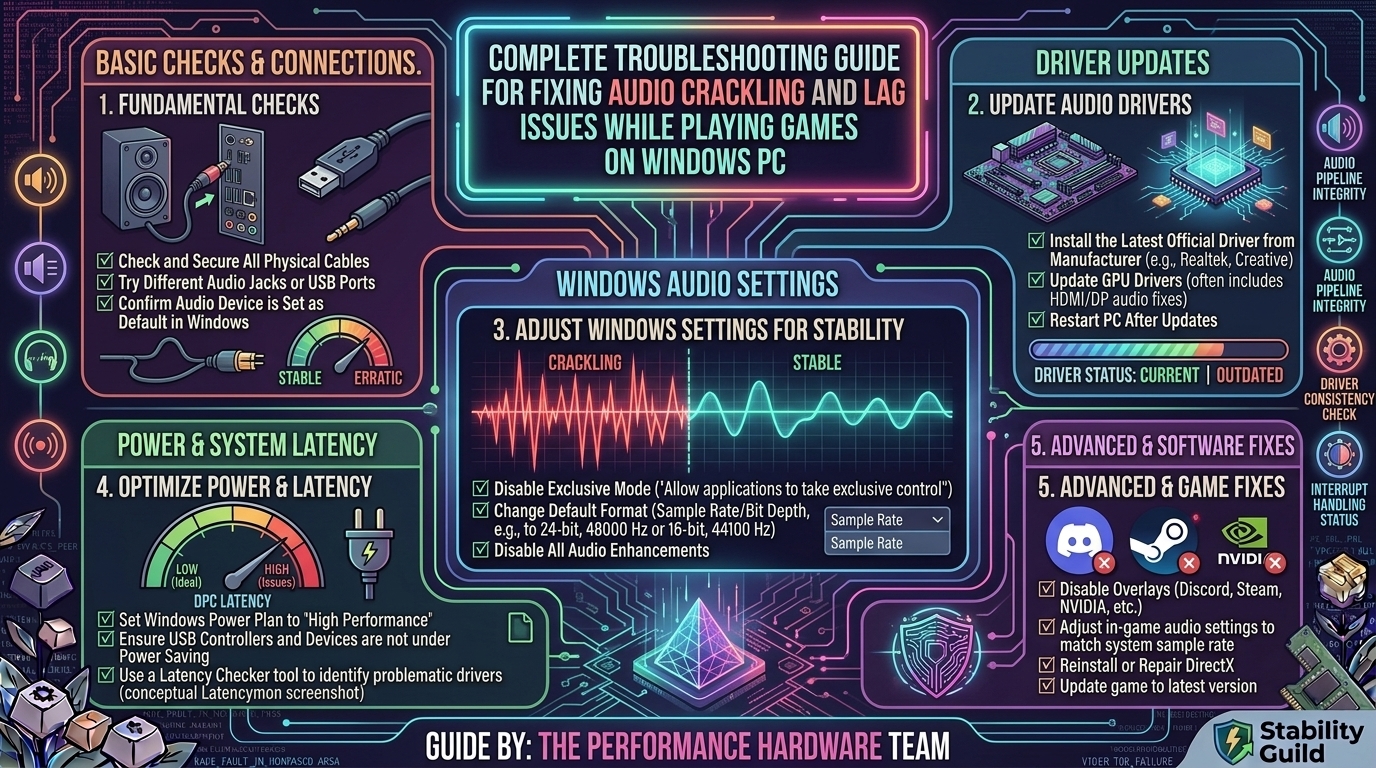
Complete Troubleshooting Guide for Fixing Audio Crackling and Lag Issues While Playing Games on Windows PC
Audio issues during gaming—such as crackling, popping, buzzing, or delayed sound synced to frame hitches—can completely destroy your immersion and ruin competitive play. These artifacts occur when your PC experiences a breakdown in real-time data streaming between the hardware, audio stack, operating system, and game engine.
Whether your audio stutters under heavy GPU load or introduces noticeable delay during fast-paced matches, this guide covers every major root cause, diagnostic workflow, and technical fix for Windows 11 and Windows 10.
Quick Fix Matrix: Identifying the Cause
| Visual/Audio Symptom | Most Likely Cause | Primary Fix |
| Robotic crackling under high GPU/CPU usage | High DPC Latency / Driver Conflicts | Disable High Precision Event Timer (HPET) & update drivers. |
| Pop/Click sound when opening games or switching audio | Power Management / USB Sleep State | Set Power Plan to High Performance; disable USB Selective Suspend. |
| Sound lags several milliseconds behind video | High Buffer Latency or Spatial Audio Processing | Disable Windows Spatial Sound; lower sample rate to 16-bit / 24-bit 48000 Hz. |
| Audio stutters simultaneously with visual frame drops | Memory Leak / CPU Throttling / Pagefile Exhaustion | Repair Windows System Files (SFC/DISM) & adjust Virtual Memory. |
| Buzzing/Static through analog (3.5mm) headphones | Ground Loop / Electrical EMI Noise | Switch to an external USB DAC or isolate front-panel cables. |
Step 1: Adjust Default Audio Format and Sample Rates
High sample rates (such as 32-bit, 192000 Hz) require significant real-time processing. Many modern game engines are natively mixed for 16-bit or 24-bit at 48000 Hz (DVD/Studio Quality). Forcing higher rates creates buffer underruns, causing static popping.
- Press
Windows Key + R, typemmsys.cpl, and hit Enter to open the classic Sound Control Panel. - Under the Playback tab, right-click your default device (Headphones or Speakers) and select Properties.
- Go to the Advanced tab.
- Set the Default Format drop-down menu to 24-bit, 48000 Hz (Studio Quality) or 16-bit, 48000 Hz.
- Click Apply, then OK.
[ Sound Control Panel ] ---> [ Playback Properties ] ---> [ Advanced Tab ] ---> Select 24-bit, 48000 Hz
Step 2: Disable Audio Enhancements and Spatial Sound
Signal Processing Objects (APOs) introduced by Windows, Realtek, or third-party suites (NahiMic, Waves MaxxAudio, Dolby Access) frequently inject processing delay and output latency into real-time gaming streams.
- Open
mmsys.cpland access your default Playback Device Properties. - Go to the Enhancements tab (or Signal Enhancements on newer Windows 11 updates).
- Check Disable all enhancements (or turn off Enable audio enhancements).
- Move to the Spatial sound tab.
- Set the Spatial sound format to Off.
- Test your game to verify if processing latency drops.
Step 3: Fix DPC Latency (Deferred Procedure Calls)
DPC Latency is the single largest culprit behind mysterious audio stuttering and game freezing. When a buggy device driver (often Wi-Fi, Ethernet, or GPU drivers) monopolizes your CPU core, Windows is forced to delay real-time audio buffer execution, resulting in visible lag and audio popping.
How to Diagnose DPC Latency with LatencyMon:
- Download and install LatencyMon (from Resplendence Software).
- Close background apps, launch LatencyMon, and click the green Start Monitor button.
- Launch your game and play until audio crackling or stutter occurs.
- Alt-Tab back to LatencyMon and check the Drivers tab.
- Sort by Highest execution time (ms):
nvlddmkm.sys: NVIDIA Display Driver (Fix: Perform a clean installation of GPU drivers using DDU).dxgkrnl.sys: DirectX Graphics Kernel (Fix: Disable HPET and update chipset drivers).ndis.sys/wlanext.sys: Network Card Driver (Fix: Disable Wi-Fi/Ethernet power-saving features or update network drivers).
Step 4: Configure Power Options & Disable USB Selective Suspend
Aggressive power-saving states put hardware controllers (including USB DACs and PCIe sound cards) into low-power modes during minor execution pauses. Re-awakening these components causes instantaneous popping noises.
- Press
Windows Key + R, typepowercfg.cpl, and hit Enter. - Select the High Performance or Ultimate Performance plan.
- Click Change plan settings next to your active plan, then click Change advanced power settings.
- Expand USB settings > USB selective suspend setting, and change it to Disabled.
- Expand Processor power management > Minimum processor state, and set it to 100%.
- Click Apply and OK.
Step 5: Resolve HDMI / DisplayPort Audio Driver Conflicts
If you connect your PC to a monitor or TV using DisplayPort or HDMI, graphics drivers (NVIDIA High Definition Audio / AMD HD Audio) install audio drivers alongside your display software. These often clash with onboard Realtek or USB DAC drivers.
- Press
Windows Key + Xand select Device Manager. - Expand Sound, video and game controllers.
- If you use a USB headset or onboard motherboard audio, right-click NVIDIA High Definition Audio or AMD HD Audio Device and select Disable device.
- Right-click your active primary audio device, select Update driver, choose Search automatically, or reinstall clean factory drivers from your motherboard vendor.
Step 6: Fix Exclusive Mode & Fast Startup Settings
- Disable Exclusive Mode Control:
- Open
mmsys.cpl> Playback Device Properties > Advanced tab. - Uncheck Allow applications to take exclusive control of this device. (This prevents games from forcing non-native audio buffer rates).
- Open
- Disable Windows Fast Startup:
- Windows Fast Startup saves kernel states to disk instead of performing a fresh boot, accumulating corrupted driver cache over time.
- Open
powercfg.cpl> Click Choose what the power buttons do. - Click Change settings that are currently unavailable.
- Uncheck Turn on fast startup (recommended) and restart your PC.
Step 7: System File Repair and Hardware EMI Noise Isolation
If sound cracking persists across all apps, system corruption or electromagnetic interference (EMI) may be the culprit.
- Run System Repairs: Open Command Prompt as Administrator. Run
sfc /scannow, followed byDISM /Online /Cleanup-Image /RestoreHealth. - Isolate Hardware Interference:
- Plug your headphones into the rear motherboard I/O panel instead of front-panel case ports (front-panel wiring runs alongside noisy GPU/PSU power lines).
- If using an external USB DAC, connect it to a direct USB 2.0 port or direct motherboard USB 3.0 port instead of an unpowered USB hub.
Frequently Asked Questions (FAQ)
Q1: Why does my game audio crackle only when my FPS drops?
A: Frame rate drops mean your CPU or GPU is heavily saturated. When system threads hit 100% load, the Windows audio engine suffers from buffer underruns, dropping frames of sound and causing crackling artifacts.
Q2: Will switching from 3.5mm analog to a USB headset fix static crackling?
A: Yes, if the issue is caused by electrical EMI noise inside your PC case. USB headsets use their own built-in digital-to-analog converter (DAC), bypassing noisy internal motherboard audio circuitry.
Q3: Can outdated graphics card drivers cause audio lag?
A: Yes. GPU drivers manage DisplayPort/HDMI audio pipelines. Outdated or corrupted GPU drivers introduce major DPC latency spikes that interrupt real-time audio playback.
Q4: What is the ideal sample rate setting for PC gaming?
A: 24-bit, 48000 Hz (Studio Quality). This matches the native sound engine mix of almost all modern PC games, eliminating unnecessary upsampling or downsampling overhead.
Q5: Why does my Bluetooth headset audio lag severely while gaming?
A: Standard Bluetooth connections use lossy codecs (SBC) that introduce 100–200ms of input delay. Additionally, activating in-game voice chat forces Bluetooth into low-quality hands-free call mode. Use a dedicated 2.4GHz wireless gaming headset instead.
Q6: Can an unstable RAM overclock cause audio stuttering?
A: Absolutely. Unstable RAM timings or unstable XMP/EXPO profiles cause micro-data corruption in volatile memory. This interrupts real-time sound buffering long before causing a full blue screen.
Q7: How does LatencyMon help fix audio crackling?
A: LatencyMon measures system kernel driver responsiveness. It identifies the exact .sys driver file responsible for holding up CPU execution, allowing you to isolate and update the conflicting device driver.
Q8: Why does disabling Windows Audio Enhancements solve popping?
A: Audio enhancements add extra software filters over real-time sound streams. If a game engine pushes audio faster than the enhancement filter can process it, buffer desynchronization occurs, triggering clicks and pops.
Q9: Does Windows Game Mode affect audio stability?
A: Generally, Windows Game Mode helps by prioritizing CPU resources for your active game thread. However, if your audio software runs as a secondary app (like VoiceMod or Discord), ensure it isn’t being choked of system priority.
Q10: What should I do if my audio stutters only during online multiplayer matches?
A: Network drivers (especially Wi-Fi adapter drivers) often cause major DPC latency spikes during packet bursts. Switch to a wired Ethernet connection or update your Wi-Fi card drivers directly from Intel/Realtek.
Conclusion
Resolving audio crackling and input lag on a Windows PC requires systematically diagnosing both hardware and software bottlenecks. Start by matching your audio format to 24-bit/48000 Hz, disabling unnecessary spatial processing, and enforcing high-performance power profiles. If latency persists, use diagnostic tools like LatencyMon to target buggy drivers, isolate external hardware connections, and ensure your system executes real-time sound seamlessly alongside high-frame-rate gameplay.
Leave a Reply