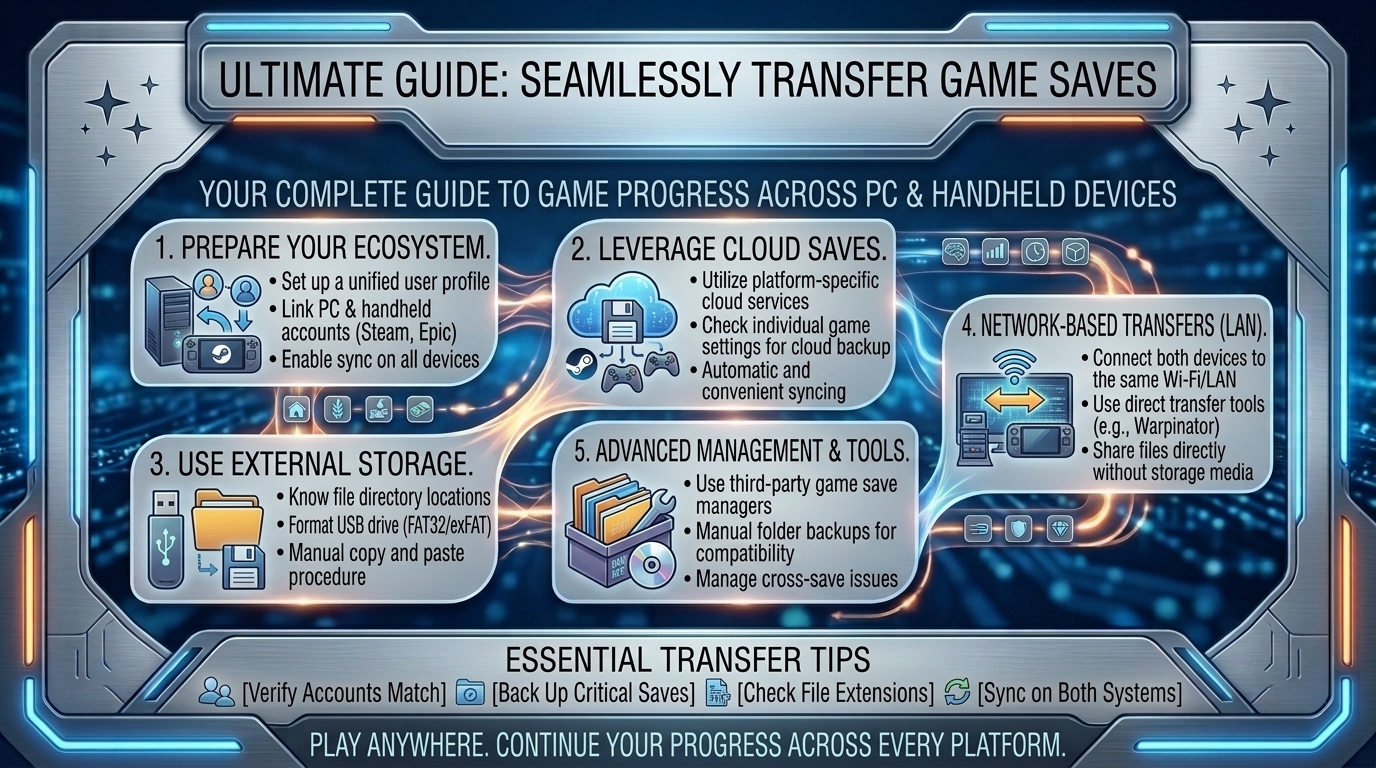
How to Transfer Your Game Save Files Seamlessly Between PC and Portable Gaming Handheld Devices Like Steam Deck
The rise of high-performance handheld gaming PCs—such as the Valve Steam Deck, ASUS ROG Ally, Lenovo Legion Go, and MSI Claw—has completely changed how we play modern PC titles. The ability to pause a graphics-intensive game at your desktop workstation, pick up your handheld while relaxing on the couch, and resume gameplay from the exact second you left off is the ultimate modern gaming convenience.
However, cross-platform save synchronization does not always work automatically out of the box. Cloud sync glitches, non-Steam launcher isolation (Epic Games, GOG, Xbox PC Game Pass), offline play conflicts, and Linux Proton directory structures can cause progress desynchronization, corrupted save files, or lost play hours.
At The Gamer Buzz, we test handheld optimizations, storage solutions, and cross-platform hardware workflows. This guide breaks down the file systems of PC and handheld operating systems, cloud sync mechanics, local network transfer tools, and manual directory mappings to ensure your game saves transfer smoothly across your devices.
Whether setting up hardware in tech centers like San Francisco, California, and Washington, gaming on the go in Texas, or managing your gaming library in New York, these transfer methods will keep your game saves aligned.
1. Cloud Sync vs. Local Manual Transfer: How Handheld Save Systems Work
Understanding where game saves are stored and how sync software handles save files is critical to preventing lost progress.
The Save File Pipeline
- Steam Cloud Auto-Sync: Native Steam titles using Steam Cloud upload save data directly to Valve’s cloud servers upon closing a game. When launching the title on your Steam Deck, the device checks server timestamps and downloads the latest file revision.
- Third-Party Cloud Services: Launchers like Epic Games Store, GOG Galaxy, Ubisoft Connect, and EA App maintain separate cloud sync pipelines. On handhelds running Windows (ROG Ally, Legion Go), these work natively. On SteamOS (Linux), third-party launchers run inside isolated Proton Wine prefixes (compatdata folders), which can prevent direct cloud access if not configured correctly.
- Emulators & DRM-Free Indies: Titles played through emulators (PCSX2, RPCS3, Yuzu/Ryujinx) or non-DRM setups store save data locally in hidden system folders, requiring manual sync utilities or local network file transfers.
| Transfer Method | Supported Platforms | Automation Level | Internet Required? | Best Used For |
| Steam Cloud | Steam (PC & SteamOS) | Fully Automatic | Yes | Native Steam Store Purchases |
| Ludusavi + Syncthing | All PCs, Steam Deck, ROG Ally | Fully Automated (Background) | No (Local Wi-Fi) | Non-Steam Games, Emulators, GOG/Epic |
| Karakuri / Syncthing | Windows, Linux, Android | Automated Peer-to-Peer | No (Local Wi-Fi) | Multi-device local save folders |
| Warpinator / Winpinator | Windows PC to SteamOS | Manual Drag-and-Drop | No (Local Wi-Fi) | One-time manual file transfers |
| SSH / SFTP (FileZilla) | Windows, Linux, macOS | Manual Direct Access | No (Local Network) | Advanced power users & modders |
2. Setting Up Automatic Cross-Platform Save Syncing
Automating your save backups ensures your progress syncs across your devices without manual file copying.
1.Method 1: Local Network Syncing with Syncthing:Configure open-source peer-to-peer folder synchronization.
Syncthing creates a private, encrypted peer-to-peer link between your desktop PC and handheld device over your local Wi-Fi network, eliminating third-party cloud dependencies.
- Install Syncthing: Download Syncthing on your Windows PC and install the SyncThing-GTK (or SyncTrayzor) flatpak application from the Discover Store in Steam Deck Desktop Mode.
- Pair Devices: Open Syncthing on both devices, generate a local device ID code, and approve the connection request.
- Add Save Directories: Locate your game’s save folder on your PC (e.g.,
C:\Users\Username\AppData\Roaming\GameName) and select it as a shared folder in Syncthing. - Map Handheld Target Path: On your Steam Deck or Windows handheld, set the receiving folder path to the matching save location. Enable Send & Receive mode for instant background synchronization whenever both devices are powered on.
2.Method 2: Multi-Launcher Save Backups with Ludusavi:Back up and manage multi-launcher save paths automatically.
Ludusavi is an open-source tool that scans your system for thousands of PC game save locations automatically, making cross-platform backups straight-forward.
- Install Ludusavi: Download Ludusavi on your PC and install its flatpak on your Steam Deck.
- Perform System Scan: Click Scan to let Ludusavi detect save files from Steam, Epic Games, GOG, and emulators automatically.
- Set Cloud / Shared Target: Configure Ludusavi’s backup directory to target a cloud drive folder (Google Drive, OneDrive, Nextcloud) or a local folder managed by Syncthing.
- Automate Restores: Set a pre-launch script or click Restore on your secondary device before launching a game to pull down the newest save state.
3.Method 3: Quick Transfers using Warpinator / Winpinator:Direct drag-and-drop transfers over local Wi-Fi.
For occasional save transfers without background syncing, use Warpinator:
- Install Warpinator on your Steam Deck via the Discover Store.
- Install Winpinator on your desktop Windows PC.
- Connect both devices to the same Wi-Fi network, open both apps, and drag your save files directly from your PC into the Winpinator window to send them to your handheld instantly.
3. Locating Hidden Save File Directories Across Operating Systems
The most challenging part of manual file transfer is finding where different launchers hide game save files.
Standard Windows PC Save Directories
On a traditional Windows 11/10 PC, game saves are stored in several key directories:
C:\Users\[Username]\AppData\Local\C:\Users\[Username]\AppData\Roaming\C:\Users\[Username]\Saved Games\C:\Users\[Username]\Documents\C:\Program Files (x86)\Steam\userdata\[YourSteamID]\[GameAppID]\remote\
SteamOS (Linux) Proton Prefix Save Directories
On the Steam Deck, games running under Proton create a virtualized Windows C: drive structure inside isolated folders called compatdata:
~/.local/share/Steam/steamapps/compatdata/[AppID]/pfx/drive_c/users/steamuser/AppData/~/.local/share/Steam/steamapps/compatdata/[AppID]/pfx/drive_c/users/steamuser/Documents/
Note: In SteamOS Desktop Mode, open Dolphin File Manager, click the menu burger icon, and check Show Hidden Files to view the .local directory.
4. Best Practices to Prevent Save File Conflicts and Corruption
- Always Wait for Cloud Sync Completion: After quitting a game on your PC or Steam Deck, wait 5–10 seconds to allow the Steam client or third-party launcher to upload your save file before putting your handheld to sleep or shutting down your PC.
- Match Mod Packs and Game Versions: If you use game mods (e.g., Stardew Valley SMAPI mods, Cyberpunk 2077 scripts, or Baldur’s Gate 3 tweaks), ensure identical mod versions and load orders are installed on both your PC and handheld. Opening a modded save file on an unmodded handheld can permanently corrupt your save state.
- Mind Offline Play Overwrites: If you play your handheld while offline (such as on a flight) and then launch the same game on your desktop PC before reconnecting your handheld to Wi-Fi, Steam Cloud will detect a timestamp conflict. Always choose the Local File (Newer Timestamp) option when prompted to prevent your offline progress from being overwritten by older cloud data.
10 Frequently Asked Questions (FAQ)
1. Does Steam Cloud automatically transfer saves between Windows PC and Steam Deck?
Yes! For native Steam games that support Steam Cloud, save files transfer automatically. When you exit a game on PC, your save is uploaded to Valve’s servers and downloaded to your Steam Deck when you launch the game online.
2. What happens if a game does not support Steam Cloud?
If a game lacks Steam Cloud support, saves remain locked to the original local machine. You must use tools like Syncthing, Ludusavi, or manual file transfers via Warpinator or USB drives to move saves between devices.
3. How do I transfer saves for non-Steam games (Epic Games, GOG, Amazon Prime Gaming) on Steam Deck?
If using third-party managers like Heroic Games Launcher or Lutris, enable their built-in cloud sync settings (which link directly to Epic/GOG cloud servers). Alternatively, use Syncthing to link the save folders between your PC and the handheld’s Proton prefix directory.
4. Can I share save files between a Windows PC and an ROG Ally or Lenovo Legion Go?
Yes! Because handhelds like the ASUS ROG Ally and Lenovo Legion Go run native Windows 11, save file paths match your desktop PC exactly, simplifying manual transfers, cloud syncs, and Syncthing setups.
5. Why did my Steam Deck save revert to an older version after playing offline?
This occurs when a device launches a game offline and reconnects to Wi-Fi later, causing Steam Cloud to detect a conflict between local and cloud saves. Always choose the option to keep the most recently modified file based on timestamp.
6. Where are emulator save files stored on the Steam Deck?
If using EmuDeck, all emulator save files are consolidated in a central directory: /home/deck/Emulation/saves/. You can map this entire directory via Syncthing to keep your emulator saves aligned with your PC.
7. How do I find a game’s Steam App ID to locate its compatdata folder?
Search for the game on SteamDB.info. The numbers in the URL (e.g., 1091500 for Cyberpunk 2077) match the folder name inside your Steam Deck’s steamapps/compatdata/ directory.
8. Can I transfer PC save files to a console (like Nintendo Switch or PlayStation)?
Cross-platform saves between PC and consoles are only supported if the game developer implements a custom account system (e.g., Witcher 3, Cyberpunk 2077, Genshin Impact, or Hades via cross-progression accounts). Otherwise, console file systems are locked.
9. Will transfering save files manually trigger anti-cheat bans in multiplayer games?
No. Transferring local save files for single-player games or standard campaign modes does not trigger anti-cheat bans. However, modifying or editing save file data (save editing) in online multiplayer titles can flag security systems.
10. Can I use a physical USB flash drive to move save files to a Steam Deck?
Yes! You can plug a USB-C flash drive or external SSD directly into your Steam Deck, switch to Desktop Mode, and drag save files between the USB drive and your internal storage using the Dolphin File Manager.
Conclusion
Transferring game save files between your PC and portable gaming handhelds ensures you can continue your gaming sessions anywhere. By taking advantage of Steam Cloud, automating non-Steam titles with open-source tools like Syncthing and Ludusavi, understanding Linux Proton prefix file paths, and managing offline timestamp conflicts, you can build a reliable cross-progression system across all your devices.
Leave a Reply