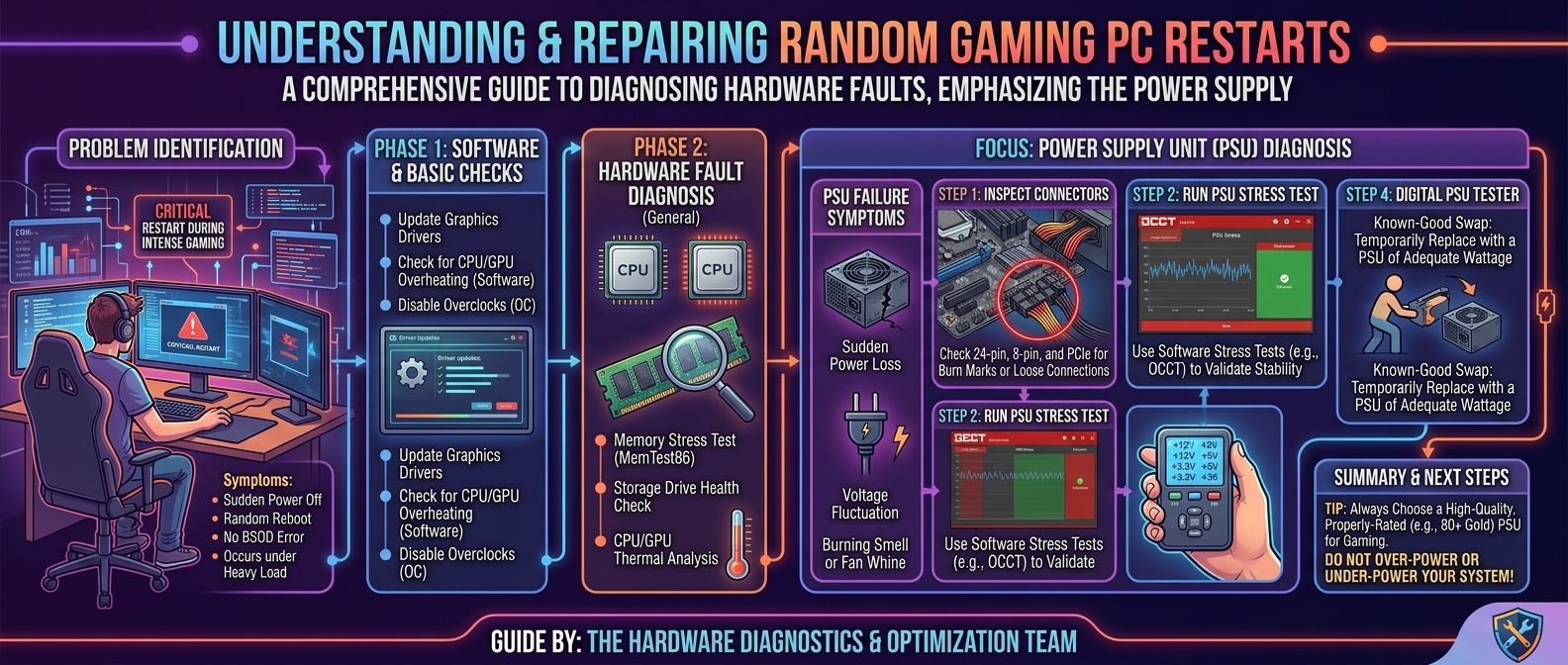
Why Is My PC Randomly Restarting During Intense Gaming Sessions and How to Diagnose the Faulty Hardware Power Supply
Few computer issues cause as much anxiety as a PC that instantly cuts power and reboots in the middle of a high-stakes gaming match. One second you are playing smoothly at high frame rates, and the next, your screen goes pitch black, your case fans reset, and your system cold-boots back to Windows with zero error messages.
Unlike soft application crashes that kick you back to the desktop, sudden hard reboots under heavy graphics load almost always point to a physical hardware failure or power delivery breakdown.
When your system is idle or performing light web browsing, power draw remains low (typically 50W–150W). However, firing up a modern AAA game forces your CPU and Graphics Card (GPU) to draw massive amounts of wattage simultaneously. If your Power Supply Unit (PSU) cannot deliver clean, stable voltage during these power spikes—or if thermal safeguards trigger—the hardware automatically cuts power to protect delicate internal micro-circuitry.
This technical troubleshooting guide covers why intense gaming triggers sudden reboots, isolates thermal throttling from power failures, and provides a step-by-step diagnostic process to confirm if your Power Supply Unit is failing.
Diagnostic Overview: Random Restart Root Causes
Before disassembling your system, use this symptom checklist to map your PC’s behavior to the most likely hardware failure:
| System Behavior | Primary Suspect | Trigger Mechanism | First Diagnostic Step |
| Instant Black Screen & Immediate Reboot (No BSOD) | Power Supply Unit (PSU) | Over-Current (OCP) or Over-Power Protection (OPP) trips from transient GPU power spikes. | Run synthetic power stress tests (OCCT / FurMark + Prime95). |
| Performance Stutters, Fans Max Out, Then Shut Down | Thermal Overheating (CPU/GPU) | Thermal Junction Max reached (95°C–100°C+); motherboard emergency shutdown. | Monitor real-time temps using HWInfo64 or MSI Afterburner. |
| Blue Screen of Death (BSOD) Before Restarting | Faulty System RAM / Driver Corruption | Corrupted memory addresses or system driver conflicts. | Run MemTest86 or Windows Memory Diagnostic. |
| Clicking Sound From Case Right As Screen Goes Dark | PSU Relay Switch | Internal PSU protection circuit physically opening due to voltage drop or short circuit. | Inspect PCIe power cable seating; test with spare PSU. |
1. The Core Culprit: How Power Supply Units Fail Under Load
The Power Supply Unit converts alternating current (AC) from your wall outlet into direct current (DC) rails (+12V, +5V, +3.3V) to feed your computer parts. Modern GPUs rely almost exclusively on the +12V rail.
                +--------------------------------------------------+
                |     WALL OUTLET (120V / 230V AC House Power)     |
                +--------------------------------------------------+
                                         |
                                         v
                +--------------------------------------------------+
                |             POWER SUPPLY UNIT (PSU)              |
                |  Converts AC to DC: +12V Rail (GPU/CPU Power)    |
                +--------------------------------------------------+
                                         |
               [ Transient Load Spike Exceeds PSU Capacity / Rail Voltage Drops ]
                                         |
                                         v
                +--------------------------------------------------+
                |    HARDWARE SAFETY RELAY (OPP / OCP TRIPS)       |
                |   Power instantly cut to prevent motherboard fire  |
                +--------------------------------------------------+
When a PC unexpectedly reboots while gaming, the PSU usually fails due to one of four hardware conditions:
1. Transient Power Spikes (Microsecond Wattage Surges)
Modern high-performance graphics cards (such as NVIDIA RTX 30/40 series or AMD RX 6000/7000 series) suffer from transient power spikes. A GPU rated for 300W of nominal power consumption can draw momentary surges of 600W to 700W for a few milliseconds during sudden scene changes. If an older or budget PSU’s Over-Power Protection (OPP) feature reacts too aggressively to these spikes, it instantly shuts down the system to protect itself.
2. Aging Capacitors and Voltage Sag
Over years of heat exposure, electrolytic capacitors inside the PSU lose their ability to hold a stable charge. Under full gaming load, a failing +12V rail might drop its voltage output to 11.2V or lower. When voltage sags beyond ATX specification tolerances, the motherboard’s power delivery ICs lose signal lock, forcing an immediate hardware reset.
3. Insufficient Overall Wattage Capacity
If you upgraded your GPU or CPU without upgrading your power supply, your total system consumption under full gaming load (CPU + GPU + fans + drives + pumps) may sit at 95%–100% of the PSU’s rated continuous output. Running a PSU near its thermal limit continuously degrades performance and triggers thermal safety shutdowns inside the PSU itself.
4. Daisy-Chained PCIe Power Cables
Using a single PCIe cable with a split “pigtail” dual-connector to power a high-wattage graphics card causes high electrical resistance along a single wire gauge strand. This triggers local connector overheating and voltage fluctuations that crash the GPU.
INCORRECT (Daisy-Chained):   [ PSU ] ====(Single Cable w/ Splitter)====> [ GPU Port 1 + Port 2 ]  <-- Risk of Voltage Sag!
RECOMMENDED (Independent):  [ PSU ] ====(Dedicated Cable 1)===========> [ GPU Port 1 ]
                            [ PSU ] ====(Dedicated Cable 2)===========> [ GPU Port 2 ]
2. Isolating PSU Failure vs. Overheating & Memory Issues
Before replacing your power supply, rule out other common hardware failures:
Rule Out CPU/GPU Thermal Throttling
- Download HWInfo64 or MSI Afterburner.
- Run your game while monitoring CPU Package Temperature and GPU Hotspot Temperature on a second monitor.
- Thermal Thresholds: If your CPU stays below 85°C and your GPU stays below 83°C (or 95°C hotspot), your cooling system is working properly and thermals are not causing the restart. If temperatures spike past 95°C right before shutdown, clean out dust filters and re-apply thermal paste.
Rule Out RAM & Memory Overclocks
Unstable RAM settings under XMP (Intel) or EXPO (AMD) profiles can cause system instability.
- Boot into your Motherboard BIOS, disable XMP/EXPO, and run your RAM at stock JEDEC speeds (2133–4800MHz).
- If your PC continues restarting during games at stock memory speeds, RAM instability is unlikely to be the primary cause.
3. Step-by-Step Guide: How to Diagnose a Faulty Power Supply
Follow these practical tests to verify whether your PSU is failing:
Test 3.1: Check Windows Event Viewer for Event ID 41
- Press
Win + Xand select Event Viewer. - Expand Windows Logs on the left panel and click System.
- Filter the log by Critical level errors.
- Look for Event ID 41 (Kernel-Power).
- Log Detail: “The system has rebooted without cleanly shutting down first.”
- Diagnosis: While Kernel-Power 41 simply confirms a sudden loss of power, if the bugcheck code parameters are all
0x0, it strongly points to an instantaneous hardware-level power loss (PSU trip or tripped breaker) rather than an operating system crash.
Test 3.2: Synthetic Combined Stress Test (The “Double-Load” Method)
Isolate a power-related crash by putting 100% load on both your CPU and GPU simultaneously:
- Download Prime95 (CPU Stress Test) and FurMark (GPU Stress Test).
- Launch FurMark and begin a stress test at your monitor’s native resolution.
- While FurMark is running, open Prime95 and start a “Small FFTs” test.
- Result: If your system instantly shuts off or reboots within 5–60 seconds of starting the combined test—but runs each test individually without crashing—your Power Supply Unit cannot handle maximum dual-rail power draw.
Test 3.3: Use Software Utility OCCT (Power Stress Test)
- Download the free hardware stability testing tool OCCT.
- Select the Power test tab (which stresses both CPU, GPU, memory, and motherboard power delivery circuits at 100%).
- Run the test for 15 minutes while watching the +12V, +5V, and +3.3V voltage readouts on screen.
- Result: If the +12V rail dips below 11.4V, or if your system reboots instantly upon clicking Start, your power supply is unstable.
Test 3.4: The Paper Clip / PSU Jumper Test (Basic Operational Check)
Note: This test confirms whether a dead PSU can turn on, but it does not test operational stability under high gaming load.
- Turn off your PSU switch and unplug the main wall cord.
- Unplug all internal power cables from your motherboard, GPU, and drives.
- Locate the 24-pin motherboard main connector.
- Insert a metal paper clip connecting Pin 16 (PS_ON / Green wire) and Pin 17 (Ground / Black wire).
- Plug the AC wall cord back in and flip the switch to ON.
- Result: If the PSU fan does not spin at all, the unit’s internal circuitry is dead.
           +-------------------------------------------------+
           |      24-PIN MAIN MOTHERBOARD POWER CONNECTOR     |
           +-------------------------------------------------+
           | [ ] [ ] [ ] [ ] [X] [X] [ ] [ ] [ ] [ ] [ ] [ ] |
           |  1   2   3   4  16  17  7   8   9  10  11  12   |
           +-------------------+-----------------------------+
                               |
                     [ BENT PAPERCLIP JUMPER ]
             (Connects Pin 16 PS_ON to Pin 17 Ground)
PSU Diagnostic & Fix Flowchart
+---------------------------------------------------------------------------------+
|                 PC GAMING RANDOM RESTART TROUBLESHOOTING                        |
+---------------------------------------------------------------------------------+
| Does the PC shut off instantly without a Blue Screen (BSOD)?                    |
|   [YES] ---> Are CPU/GPU temperatures below 85°C right before the crash?        |
|              [YES] ---> Are separate PCIe cables connected to the GPU?          |
|                         [NO]  ---> Run separate cables directly from PSU!       |
|                         [YES] ---> Run OCCT Combined Power Stress Test.         |
|                                    (System shuts down = Replace PSU!)          |
|              [NO]  ---> Clean dust, re-apply thermal paste, fix airflow.        |
|   [NO]  ---> Check Windows Event Viewer for RAM errors or Driver BSOD codes.   |
+---------------------------------------------------------------------------------+
Frequently Asked Questions (FAQ)
Q1: Can a faulty power supply destroy other PC components when it fails?
A: Quality PSUs from reputable manufacturers include protective circuits like Over-Voltage Protection (OVP), Short-Circuit Protection (SCP), and Over-Current Protection (OCP). However, low-quality or unrated power supplies can send voltage surges downstream when dying, damaging motherboards, GPUs, or storage drives.
Q2: How much PSU wattage headroom should I target for modern gaming PCs?
A: Calculate your total estimated component draw and add a 20% to 30% wattage safety buffer. For example, if your CPU and GPU draw 500W combined, purchase a high-quality 750W or 850W ATX 3.0 power supply to handle transient spikes safely.
Q3: What is the difference between ATX 2.0 and ATX 3.0 / 3.1 power supplies?
A: ATX 3.0 and ATX 3.1 power supply standards are designed specifically for modern GPUs. They are rated to handle transient power spikes up to 200% of their rated capacity for brief microsecond durations without tripping internal safeguards.
Q4: Will a wall outlet or surge protector cause my PC to restart while gaming?
A: Yes. If your PC is plugged into a weak surge protector, an overloaded room circuit, or an unstable Uninterruptible Power Supply (UPS), voltage sags from your wall outlet under heavy load can cause your PSU to cut power.
Q5: Why does my PC restart only in specific games and not others?
A: Uncapped frame rates in game menus or highly demanding engines (like Unreal Engine 5) cause sudden, extreme load swings on your GPU. Less demanding games draw lower continuous wattage and may sit just below your PSU’s trip threshold.
Q6: Does an 80-PLUS rating (Bronze, Gold, Platinum) mean a PSU won’t fail?
A: No. 80-PLUS ratings measure energy efficiency (how much electricity is wasted as heat from the wall), not overall component durability or protective circuit quality. Always consult independent PSU hardware tier lists alongside efficiency ratings.
Q7: Can corrupted graphics drivers cause random hard reboots?
A: Usually, driver crashes cause screen freezing, black screens that recover, or explicit BSOD errors. However, severe driver corruption can crash GPU power management tables. Use Display Driver Uninstaller (DDU) to perform a clean driver reinstall.
Q8: What does a clicking sound inside the PSU mean during a shutdown?
A: The clicking noise is the physical relay inside the PSU opening to instantly cut high-voltage current. This confirms that an internal hardware protection mechanism (like OCP or OPP) was tripped to prevent electrical damage.
Q9: How many years does a gaming PC power supply typically last?
A: High-tier power supplies generally last between 7 to 10+ years. If your PSU is more than 5 years old and experiencing load restarts, capacitor degradation is a likely factor.
Q10: Can lowering my GPU power limit temporarily stop restarts until I get a new PSU?
A: Yes. You can use MSI Afterburner to lower your GPU Power Limit slider to 70%–80%, or turn on V-Sync/Frame Rate Caps in games. This reduces transient power spikes and keeps power draw below your failing PSU’s shutdown threshold.
Conclusion
Unexpected reboots during intense gaming sessions almost always point to a system struggling to maintain clean electrical delivery under heavy load. By isolating thermal issues, connecting dedicated PCIe power cables, running synthetic combined stress tests, and evaluating your +12V rail stability, you can definitively diagnose a failing Power Supply Unit. Upgrading to a modern, high-quality ATX 3.0 power supply with sufficient wattage headroom restores full stability to your gaming rig.
Leave a Reply