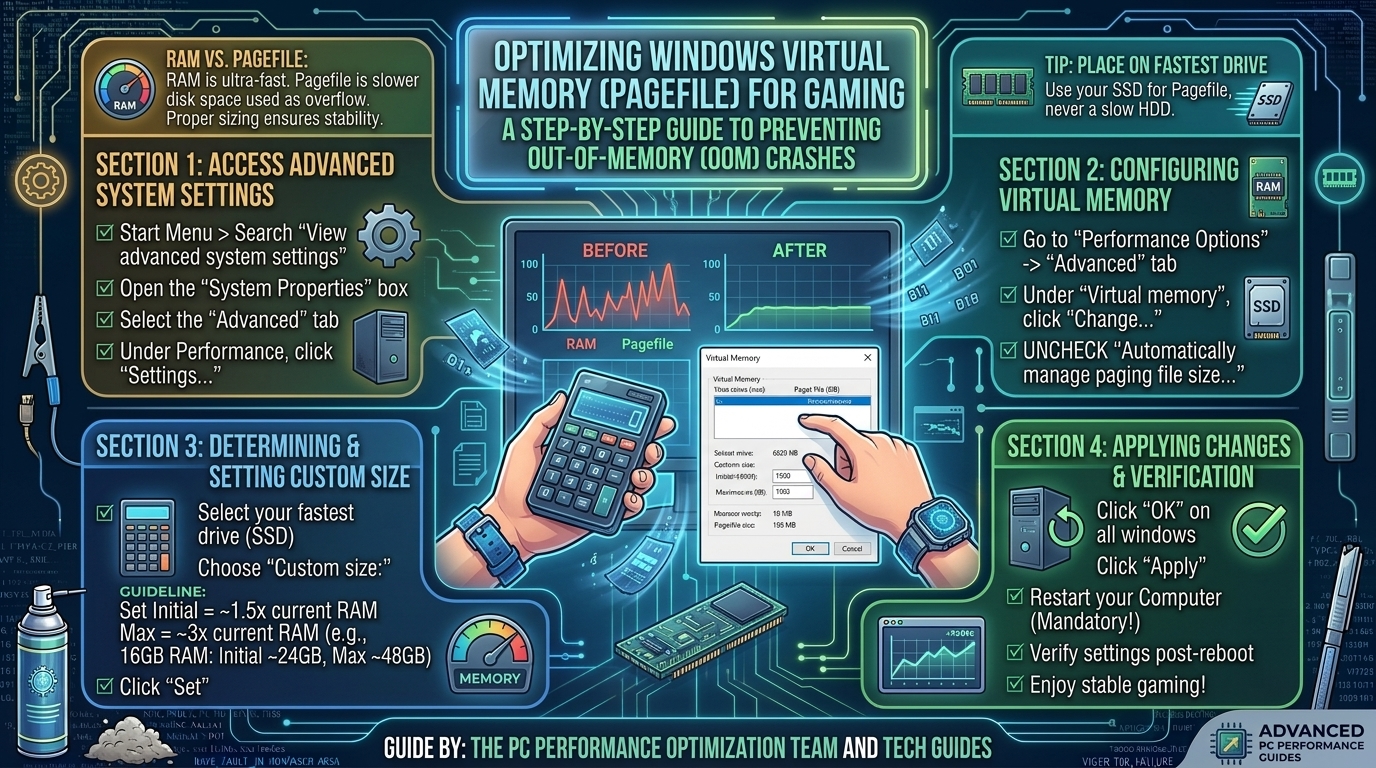
How to Configure Windows Virtual Memory Paging File Size to Prevent Out-of-Memory Crashes While Gaming
Few things ruin a high-stakes gaming session faster than a sudden crash to desktop (CTD) accompanied by error codes like OUT_OF_VIDEO_MEMORY, Memory_Management BSOD, or a hard freeze in titles like Cyberpunk 2077, Hogwarts Legacy, or Starfield.
Modern AAA games demand massive amounts of system resources. Even if your rig features a powerful graphics card and 16GB or 32GB of physical RAM, Windows can still run out of addressable memory space if your virtual memory paging file (pagefile.sys) is misconfigured, disabled, or constrained by low disk space.
This comprehensive technical guide explains how virtual memory works in Windows, breaks down the math behind optimal pagefile sizing, provides step-by-step configuration workflows, and covers hardware placement strategies to eliminate memory-related game crashes.
Virtual Memory Configuration Quick Reference
Before adjusting your operating system settings, review this sizing chart based on physical RAM capacity:
| Physical Installed RAM | Windows Default (Auto) | Recommended Initial Size (1.5x) | Recommended Maximum Size (3x) | Primary Gaming Objective |
| 8 GB RAM | System Managed | 12,288 MB (12 GB) | 24,576 MB (24 GB) | Emergency Buffer. Essential to prevent instant CTDs in modern AAA titles. |
| 16 GB RAM | System Managed | 24,576 MB (24 GB) | 49,152 MB (48 GB) | Gaming Baseline. Prevents crash-on-load during asset streaming. |
| 32 GB RAM | System Managed | 49,152 MB (48 GB) | 98,304 MB (96 GB) | Stability & Heavy Mods. Ideal for 4K gaming, heavy modding, and Discord/OBS background tasks. |
| 64 GB RAM | System Managed | 16,384 MB (16 GB)* | 32,768 MB (32 GB) | Static High Cap. High RAM makes large pagefiles unnecessary; small caps satisfy legacy app requirements. |
*Note: High-capacity builds (64GB+) do not require the traditional 1.5x formula, as setting a ~96GB pagefile wastes valuable drive space without extra gaming performance gains.
1. What Is the Windows Paging File and Why Do Games Crash Without It?
Virtual Memory is a memory management feature of Windows that combines physical Random Access Memory (RAM) with temporary storage space on your hard drive or SSD. This dedicated hidden file on your storage drive is named pagefile.sys.
                +-----------------------------------------------+
                |            PHYSICAL SYSTEM RAM                |
                | (Fastest Access: High Speed Data Processing)  |
                +-----------------------------------------------+
                                        |
               [ System Exhaustion / Allocated Commit Exceeded ]
                                        |
                                        v
                +-----------------------------------------------+
                |            VIRTUAL MEMORY PAGEFILE            |
                |    (pagefile.sys on NVMe SSD / SATA Drive)    |
                +-----------------------------------------------+
When you launch a demanding open-world game, your system loads game code, terrain geometry, texture caches, AI assets, and background services (like Discord, OBS, or browser tabs) into your physical RAM.
How Memory Scarcity Triggers Crashes:
- Commit Limit Saturation: Windows tracks physical RAM plus the maximum paging file size as your total Commit Charge Limit. If your game requests more memory allocation than this combined pool, Windows abruptly terminates the process to save OS stability, resulting in an immediate crash to desktop (CTD).
- VRAM Spillover: When modern GPUs run out of dedicated VRAM, they attempt to offload texture buffers into physical RAM. If your system RAM is already saturated and your pagefile cannot dynamically expand fast enough, the game engine throws a video memory error and crashes.
- The “Disabled Pagefile” Myth: Many users incorrectly disable
pagefile.sysassuming that having 32GB of fast RAM makes virtual memory obsolete. However, core Windows components, anti-cheat frameworks, and game engines (like Unreal Engine 5) rely on virtual memory calls regardless of physical RAM capacity. Disabling the pagefile entirely causes frequent memory allocation failures.
2. Calculating Your Optimal Paging File Size (The Math)
To manually configure static initial and maximum sizes for your paging file, use the industry-standard formulas established by Microsoft systems engineers:
Formulas for Sizing:
- Initial Size (MB): $\text{Installed RAM in GB} \times 1024 \times 1.5$
- Maximum Size (MB): $\text{Installed RAM in GB} \times 1024 \times 3.0$
CONVERSION EXAMPLES (in Megabytes):

System with 16 GB RAM:
- Initial Size = 16 x 1024 x 1.5 = 24,576 MB
- Maximum Size = 16 x 1024 x 3.0 = 49,152 MB

System with 32 GB RAM:
- Initial Size = 32 x 1024 x 1.5 = 49,152 MB
- Maximum Size = 32 x 1024 x 3.0 = 98,304 MB
Why Match or Set a Fixed Range?
If your Initial and Maximum sizes fluctuate continuously, Windows must expand and shrink
pagefile.syson the fly during heavy gameplay sessions. Setting custom, fixed values prevents continuous file expansion delays and disk fragmentation.
3. Step-by-Step Configuration Guide (Windows 10 & 11)
Follow these exact steps to manually set your virtual memory pagefile sizes:
Step 3.1: Navigate to Advanced System Properties
- Press
Win + Ron your keyboard to open the Run dialog box. - Type
sysdm.cpland click OK (or hit Enter). - In the System Properties window, select the Advanced tab.
- Under the Performance section, click the Settings… button.
[ Run Dialog: sysdm.cpl ] ---> [ System Properties ] ---> [ Advanced Tab ] ---> [ Performance: Settings ]
Step 3.2: Modify Virtual Memory Settings
- Inside the Performance Options window, navigate to the Advanced tab.
- Under the Virtual memory section at the bottom, click the Change… button.
- Uncheck the box at the top labeled “Automatically manage paging file size for all drives”.
Step 3.3: Assign Drive Location and Custom Values
- Select your fastest drive (preferably a high-speed PCIe 4.0 or 5.0 M.2 NVMe SSD) from the list.
- Click the radio button for Custom size.
- Enter your calculated values in the fields:
- Type your result into Initial size (MB).
- Type your upper limit into Maximum size (MB).
- CRITICAL: Click the Set button to register the changes. (If you skip clicking Set, your adjustments will be lost!)
- Click OK, apply all open windows, and Restart your PC to initialize the new
pagefile.sysallocation.
+---------------------------------------------------------------------------------+
|                       WINDOWS VIRTUAL MEMORY WINDOW                             |
+---------------------------------------------------------------------------------+
| [ ] Automatically manage paging file size for all drives                        |
|                                                                                 |
| Drive [C: NVMe_SSD]                                                             |
|   (*) Custom size:                                                              |
|       Initial size (MB): [  24576  ]                                            |
|       Maximum size (MB): [  49152  ]                                            |
|                                                                                 |
|   [  SET  ] <-- MUST CLICK SET BEFORE SAVING!                                   |
+---------------------------------------------------------------------------------+
4. Storage Drive Placement & Performance Optimization
Where you store your paging file matters just as much as its allocated size.
- Place on the Fastest NVMe SSD: Virtual memory read/write speeds depend on storage performance. Moving your pagefile to a high-speed NVMe M.2 SSD ensures that data swaps occur with minimal latency impact.
- Avoid Mechanical HDDs: Never place your primary
pagefile.syson a 5400/7200 RPM mechanical hard drive. The high latency (12–15 ms) and slow read speeds (~100 MB/s) will cause micro-stuttering, texture pop-in, and severe hitching in games. - Keep Storage Capacity Overhead: Ensure your selected drive maintains at least 15% to 20% free space after allocating the pagefile. Solid-State Drives suffer from degraded write speeds when filled near capacity.
- Multi-Drive Setup Recommendation: If you have a dedicated secondary NVMe SSD (e.g., a secondary drive used purely for games), setting your pagefile on this non-OS drive can reduce read/write contention with Windows background tasks.
Troubleshooting & Diagnostics Checklist
+---------------------------------------------------------------------------------+
|                    VIRTUAL MEMORY TROUBLESHOOTING CHECKLIST                     |
+---------------------------------------------------------------------------------+
| [ ] Unchecked "Automatically manage paging file size for all drives"            |
| [ ] Selected an internal high-speed NVMe M.2 SSD for pagefile placement         |
| [ ] Applied correct 1.5x (Initial) and 3.0x (Maximum) MB values                 |
| [ ] Clicked the "SET" button inside Virtual Memory panel before closing         |
| [ ] Confirmed target drive has at least 20% free space remaining                |
| [ ] Verified pagefile is active via Task Manager (Performance > Memory)         |
| [ ] Restarted the computer to complete the initialization process               |
+---------------------------------------------------------------------------------+
Frequently Asked Questions (FAQ)
Q1: Will increasing virtual memory increase my FPS in games?
A: No. Virtual memory does not act as a direct substitute for fast physical RAM or GPU VRAM. It prevents out-of-memory crashes, stuttering, and assets failing to load, but it will not boost your average frame rates.
Q2: Is it safe to disable the paging file if I have 32GB or 64GB of RAM?
A: No. Many modern games, application crash dump loggers, and Windows features require an active paging file allocation to commit virtual memory addresses properly. Disabling it leads to unexpected system crashes regardless of your RAM size.
Q3: Can a large pagefile wear out or damage my SSD?
A: Modern NVMe SSDs feature high Terabytes Written (TBW) endurance ratings. Standard virtual memory reads and writes represent a minimal fraction of an SSD’s daily operational lifespan.
Q4: What should I do if I get an “Out of Video Memory” error on an RTX or RX card?
A: This error indicates your GPU VRAM is exhausted. Lower your in-game texture resolution by one step and configure a custom paging file to allow Windows to handle system memory allocations more efficiently.
Q5: Should I split my paging file across multiple drives?
A: It is usually best to keep one consolidated paging file on your fastest available NVMe SSD. Splitting files across slower SATA drives or HDDs can lead to latency bottlenecks.
Q6: Why does my game still crash after increasing virtual memory?
A: If crashes persist after properly configuring your pagefile, the issue may stem from corrupted GPU display drivers, unstable XMP/EXPO RAM overclocks, corrupted game file installation, or overheating hardware.
Q7: How do I check how much virtual memory is currently being used?
A: Open Task Manager (Ctrl + Shift + Esc), click the Performance tab, select Memory, and look at the Committed section (which displays active RAM + Pagefile usage).
Q8: Does Windows automatically clear the paging file upon reboot?
A: Windows retains the file structure of pagefile.sys across reboots but clears unreferenced memory data, keeping your system fresh upon startup.
Q9: What happens if my initial size is set larger than my available storage space?
A: Windows will display a warning dialog informing you that there is insufficient disk space to create the requested file allocation. You must free up disk space or reduce your custom initial size.
Q10: Can I set the Initial and Maximum size to the exact same value?
A: Yes. Setting both Initial and Maximum sizes to identical values (for instance, 24576 MB for both) locks the pagefile size permanently, preventing Windows from expanding or shrinking the file during heavy use.
Conclusion
Configuring your Windows virtual memory paging file is an essential maintenance task for stable PC gaming. By moving beyond standard system-managed defaults, calculating fixed initial and maximum allocations tailored to your RAM capacity, and hosting pagefile.sys on a high-speed NVMe SSD, you eliminate commit-limit bottlenecks—ensuring crash-free stability across modern, memory-intensive open-world titles.
Leave a Reply