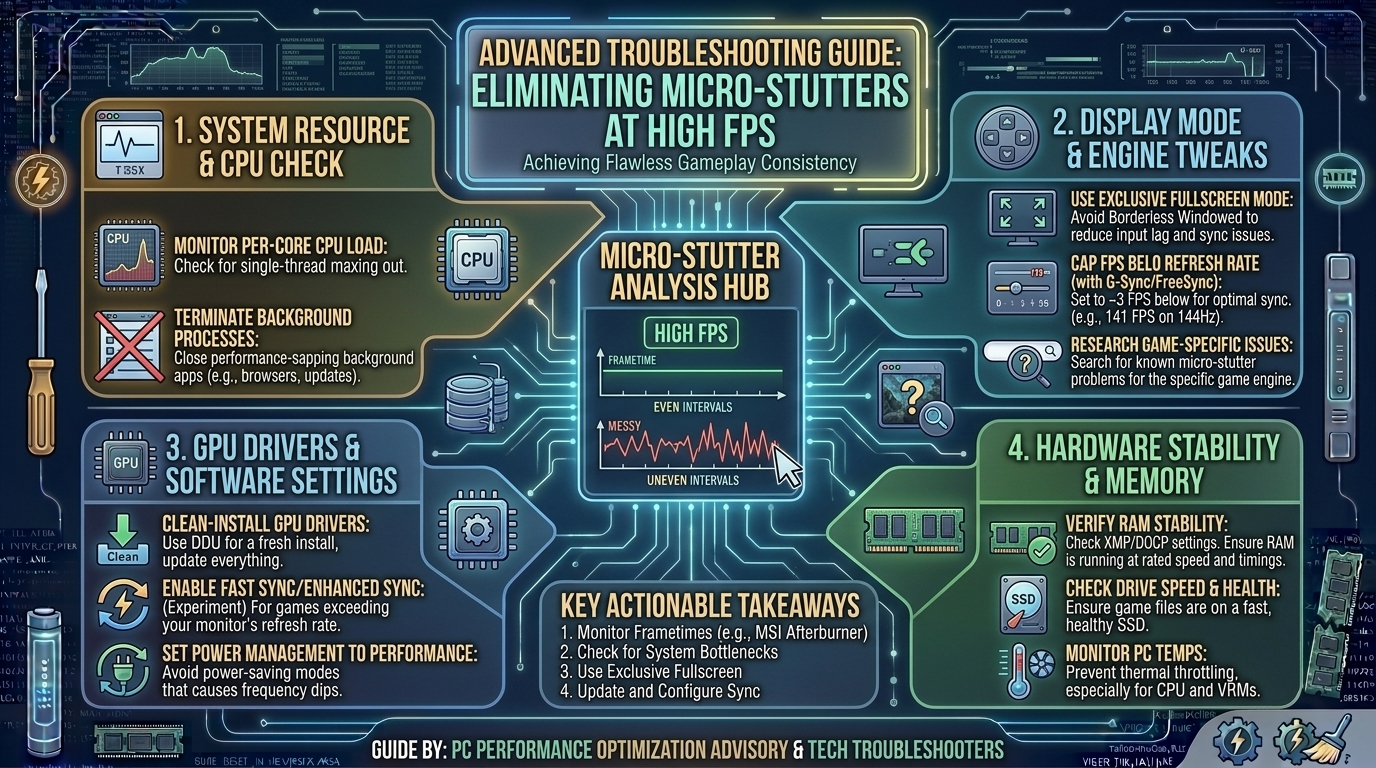
How to Troubleshoot Micro Stutters in Games Even When Your Frame Rate Counter Shows High Numbers
Few things in PC gaming are more frustrating than seeing your FPS counter read a crisp 120 FPS while your gameplay feels jittery, sluggish, and unstable. This jarring disconnect is caused by micro-stuttering—a phenomenon where individual frames take wildly inconsistent amounts of time to render, creating visible hitches despite high overall average frame rates.
Whether you are running an NVIDIA GeForce RTX or AMD Radeon graphics card on Windows 10 or Windows 11, micro-stuttering stems from pacing mismatches between the CPU, GPU, storage drive, and display refresh rate.
This comprehensive technical guide breaks down the difference between average FPS and frame pacing, provides actionable step-by-step diagnostic workflows, and delivers proven fixes to restore fluid performance to your gaming rig.
Micro-Stuttering Diagnostic Matrix
| Primary Symptom | Underlying Cause | Target Metric | Recommended Fix |
| High FPS, but scrolling feels “jerky” | Bad frame pacing / unconstrained FPS | 99th percentile (1% low) FPS | Cap framerate 3 FPS below monitor refresh rate with G-Sync/FreeSync active. |
| Stutter when crossing map boundaries | Asset streaming bottleneck | Disk I/O & VRAM allocation | Move game to high-speed NVMe PCIe 4.0 SSD; lower texture quality slightly. |
| Periodic hitches every few seconds | Background process interrupt / DPC latency | Driver Execution Time (DPC) | Disable background overlays, RGB software, and run LatencyMon driver trace. |
| Stutter after game patch or GPU update | Shader compilation / corrupted cache | CPU Shader Load | Purge DirectX & GPU Shader Caches, then re-compile shaders on main menu. |
| Hitches during intense particle effects | Memory instability or power throttling | CPU/GPU Transient Voltage | Disable aggressive XMP/EXPO or set Power Management to Maximum Performance. |
1. Understanding Average FPS vs. Frame Pacing (1% and 0.1% Lows)
To diagnose micro-stuttering, you must understand why traditional FPS counters lie to you.
The 1-Second Average Trap
Standard benchmark counters display Average FPS, calculated by counting total frames rendered across one second ($1000\text{ ms}$). However, human eye perception relies on Frame Pacing—the exact interval of time (in milliseconds) it takes to display each individual frame.
SCENARIO A (Smooth 60 FPS):
Frame Times: 16.6ms | 16.6ms | 16.6ms | 16.6ms ... (Consistent 16.6ms delivery = Fluid)

SCENARIO B (Micro-Stuttering 60 FPS):
Frame Times: 8.0ms  | 8.0ms  | 100.0ms (HITCH!) | 8.0ms ... (Average is 60 FPS, but frame 3 froze the screen)
$$\text{Frame Time (ms)} = \frac{1000}{\text{Frames Per Second}}$$
At $60\text{ FPS}$, a perfectly smooth delivery presents one frame every $16.67\text{ ms}$. At $144\text{ FPS}$, each frame arrives every $6.94\text{ ms}$. If your GPU renders 130 frames rapidly but takes $80\text{ ms}$ to process a single complex frame (like an explosion or lighting transition), your average FPS stays near 120, but your screen perceptibly freezes for that $80\text{ ms}$ gap.
Monitoring 1% and 0.1% Lows
Instead of relying on average FPS, monitor 1% Lows and 0.1% Lows using telemetry tools like MSI Afterburner or CapFrameX:
- 1% Lows: The average FPS of the worst 1% of rendered frames.
- 0.1% Lows: The average FPS of the single worst frame out of a thousand.
- Target Metric: Your 1% Lows should ideally remain within 80% to 90% of your average frame rate. A wide gap (e.g., 140 average FPS with 40 FPS 1% Lows) confirms active micro-stuttering.
2. Step-by-Step Fixes for Inconsistent Frame Pacing
Method 2.1: Configure VRR (G-Sync / FreeSync) and Frame Rate Caps Correctly
Misconfigured Variable Refresh Rate (VRR) settings are the single most common cause of high-FPS micro-stuttering. When your frame rate exceeds your monitor’s maximum refresh rate (e.g., reaching $150\text{ FPS}$ on a $144\text{ Hz}$ panel), VRR disengages instantly, triggering screen tearing or V-Sync stutter.
1.Enable G-Sync / FreeSync in GPU Control Panel:Enables dynamic refresh synchronization.
Open NVIDIA Control Panel or AMD Adrenalin. Navigate to Display settings, turn on G-Sync/FreeSync, and set it to function for Fullscreen and Windowed modes.
2.Enable Global V-Sync inside GPU Control Panel:Prevents input lag while enforcing smooth frame delivery.
Turn Vertical Sync ON inside the NVIDIA Control Panel or AMD Radeon Software—not inside the in-game settings menu. In GPU control panels, V-Sync acts as a frame pacer for VRR rather than adding classic V-Sync latency.
3.Set a Global FPS Cap 3 to 4 FPS Below Refresh Rate:Keeps frame rates strictly within the active VRR window.
Limit your maximum frame rate just below your monitor’s native refresh ceiling using RTSS (RivaTuner Statistics Server) or your GPU driver software.
• 144Hz Monitor: Cap at 141 FPS
• 240Hz Monitor: Cap at 235 FPS
• 360Hz Monitor: Cap at 352 FPS
Method 2.2: Identify and Fix DPC Latency Spikes
Deferred Procedure Calls (DPC) allow hardware drivers to request high-priority tasks from your CPU. If a poorly coded driver (such as a Wi-Fi card, audio interface, or RGB controller driver) takes too long to execute, it stalls the CPU mid-frame, causing game stutter.
DPC LATENCY DIAGNOSTIC FLOW:
[ Run LatencyMon ] ---> [ Start Monitoring ] ---> [ Play Game for 5 Mins ] ---> [ Check ISR/DPC Execution Time ]
                                                                                         |
                                                    +------------------------------------+
                                                    |
                                                    v
                                      Identify Problematic Driver File:
                                      • ndis.sys    ---> Wi-Fi / LAN Driver Conflict
                                      • nvlddmkm.sys ---> GPU Driver Timeout
                                      • storport.sys ---> Storage Controller / SATA Driver Issue
- Download and install LatencyMon.
- Click the green Start button and launch your game for 5 minutes.
- Switch back to LatencyMon and check the Drivers tab sorted by Highest execution time.
- Update or clean-install the driver corresponding to the highest offending
.sysfile.
Method 2.3: Optimize Windows 10/11 Power & OS Settings
Windows background optimizations can unintentionally throttle CPU core frequencies or park secondary cores mid-game.
- Enable Game Mode: Go to
Windows Settings > Gaming > Game Modeand switch it ON. Game Mode prioritizes system resources for active game processes and halts background Windows Update tasks. - Disable Hardware-Accelerated GPU Scheduling (HAGS) Test: While HAGS (
Settings > System > Display > Graphics Settings) improves performance on high-end GPUs, it can induce frame pacing stutters in specific titles or older CPU configurations. Toggle HAGS off, reboot, and re-test your 1% lows. - Set Power Plan to High Performance: Go to
Control Panel > Power Optionsand select High Performance or Ultimate Performance to prevent the CPU from dropping base clock speeds during light scene loads.
Method 2.4: Eliminate Storage & VRAM Asset Streaming Bottlenecks
Modern games stream textures, mesh data, and audio files continuously into VRAM while you move through open worlds.
ASSET STREAMING PIPELINE:
[ High-Speed NVMe SSD ] ---> [ System RAM (DDR4/DDR5) ] ---> [ GPU VRAM ] ---> [ Smooth Frame Output ]
           |
   (SATA SSD / HDD Bottleneck)
           |
           v
  [ Asset Loading Delay ] ---> [ Temporary CPU Freeze ] ---> [ Micro-Stutter ]
- Move Games off Mechanical HDDs: Open-world titles installed on traditional hard drives or older SATA SSDs will experience micro-stutters whenever new map chunks load. Install modern games on a dedicated PCIe 4.0 or 5.0 NVMe M.2 SSD.
- Check VRAM Allocation Limits: Use MSI Afterburner to monitor VRAM Usage. If your game requests $7.8\text{ GB}$ of VRAM on an $8\text{ GB}$ graphics card, the system will spill extra assets over into system RAM across the PCIe bus, causing severe micro-stutters. Lower your Texture Quality one notch to clear at least $1.5\text{ GB}$ of VRAM headroom.
Hardware vs. Software Stutter Checklist
+---------------------------------------------------------------------------------+
|                       MICRO-STUTTER RESOLUTION CHECKLIST                        |
+---------------------------------------------------------------------------------+
| [ ] Set G-Sync/FreeSync ON + Driver V-Sync ON + FPS Cap (-3 FPS below Hz)       |
| [ ] Purged DirectX and GPU Shader Caches (NVIDIA DXCache / AMD Radeon Reset)    |
| [ ] Ran LatencyMon to detect problematic network or audio DPC drivers           |
| [ ] Disabled background overlays (Discord, GeForce Experience, Steam, Spotify)  |
| [ ] Moved game installation directory to a fast PCIe NVMe M.2 SSD               |
| [ ] Reduced in-game Texture Quality to remain well within total VRAM limits     |
| [ ] Disabled third-party peripheral RGB control software (iCUE, Synapse, L-Connect)|
+---------------------------------------------------------------------------------+
Frequently Asked Questions (FAQ)
Q1: Why does my game stutter even though my FPS counter reads over 100 FPS?
A: Average FPS measures total frames rendered in a full second, hiding millisecond-level delays. If a single frame takes $100\text{ ms}$ to render due to a CPU or storage hitch, your screen will visibly freeze even though the other frames brought the second’s average to 100 FPS.
Q2: Should I turn V-Sync ON or OFF when using G-Sync or FreeSync?
A: Turn V-Sync ON in your GPU Control Panel (NVIDIA Control Panel or AMD Radeon Software) and OFF in the in-game menu. When paired with a framerate cap set 3–4 FPS below your display’s refresh rate, this setup enforces perfect frame pacing without introducing traditional V-Sync input lag.
Q3: Can third-party software overlays cause micro-stuttering?
A: Yes. Multiple active software overlays (such as Discord Overlay, RivaTuner, Steam Overlay, GeForce Experience, and Xbox Game Bar) hooks into the game’s graphics render pipeline simultaneously, which can cause frame delivery collisions and micro-stutters.
Q4: What is the difference between micro-stuttering and thermal throttling?
A: Micro-stuttering refers to brief, millisecond-level frame pacing hitches. Thermal throttling occurs when your CPU or GPU reaches critical thermal limits (typically $90^\circ\text{C}-100^\circ\text{C}$), forcing hardware clock speeds to drop sharply for several seconds, resulting in sustained FPS drops.
Q5: How does XMP or EXPO RAM overclocking affect micro-stuttering?
A: Unstable memory overclocks or running RAM in single-channel mode severely impacts 1% low frame rates. Enabling dual-channel XMP/EXPO ensures high memory bandwidth, reducing CPU wait cycles during asset loading.
Q6: Does Hardware-Accelerated GPU Scheduling (HAGS) cause or fix stutters?
A: It depends on your setup. HAGS offloads frame scheduling tasks from the CPU to a dedicated processor on the GPU. While it improves performance in modern DirectX 12 titles, it can induce micro-stuttering on certain older CPU architectures or driver versions. Testing both states is recommended.
Q7: Can a corrupt GPU driver cause high-FPS micro-stutters?
A: Yes. Residual driver files left behind after multiple GPU upgrades can cause frame pacing conflicts. Performing a clean driver installation in Safe Mode using Display Driver Uninstaller (DDU) frequently resolves stubborn micro-stuttering.
Q8: Why does my second monitor cause stutters on my main gaming screen?
A: Running a secondary monitor with a different refresh rate (e.g., a $60\text{ Hz}$ side monitor alongside a $144\text{ Hz}$ main panel) while playing video content can cause Windows Desktop Window Manager (DWM) to misalign dynamic refresh rates, causing stutter on the gaming display.
Q9: How do I know if my CPU or GPU is causing the micro-stutter?
A: Monitor GPU Utilization in real-time. If your GPU usage drops below 95% during a micro-stutter while a single CPU core spikes to 100%, your system is CPU-bound or waiting on asset data. If GPU usage remains at 99% but frame times spike, the GPU is hit by a heavy shader or VRAM bottleneck.
Q10: Can clearing my shader cache stop micro-stutters?
A: Yes. Corrupted or legacy shader cache files compiled under previous game patches or display drivers cause the GPU to stall when rendering specific visual effects. Clearing the DirectX and driver shader caches forces clean re-compilation.
Conclusion
Resolving high-FPS micro-stuttering requires looking beyond basic average frame rate metrics and optimizing the entire frame rendering pipeline. By establishing proper VRR frame pacing limits, updating problematic drivers using DPC latency analysis, securing adequate VRAM headroom, and running games off fast NVMe storage, you can eliminate erratic frame time spikes and enjoy the smooth gameplay your hardware is capable of delivering.
Leave a Reply