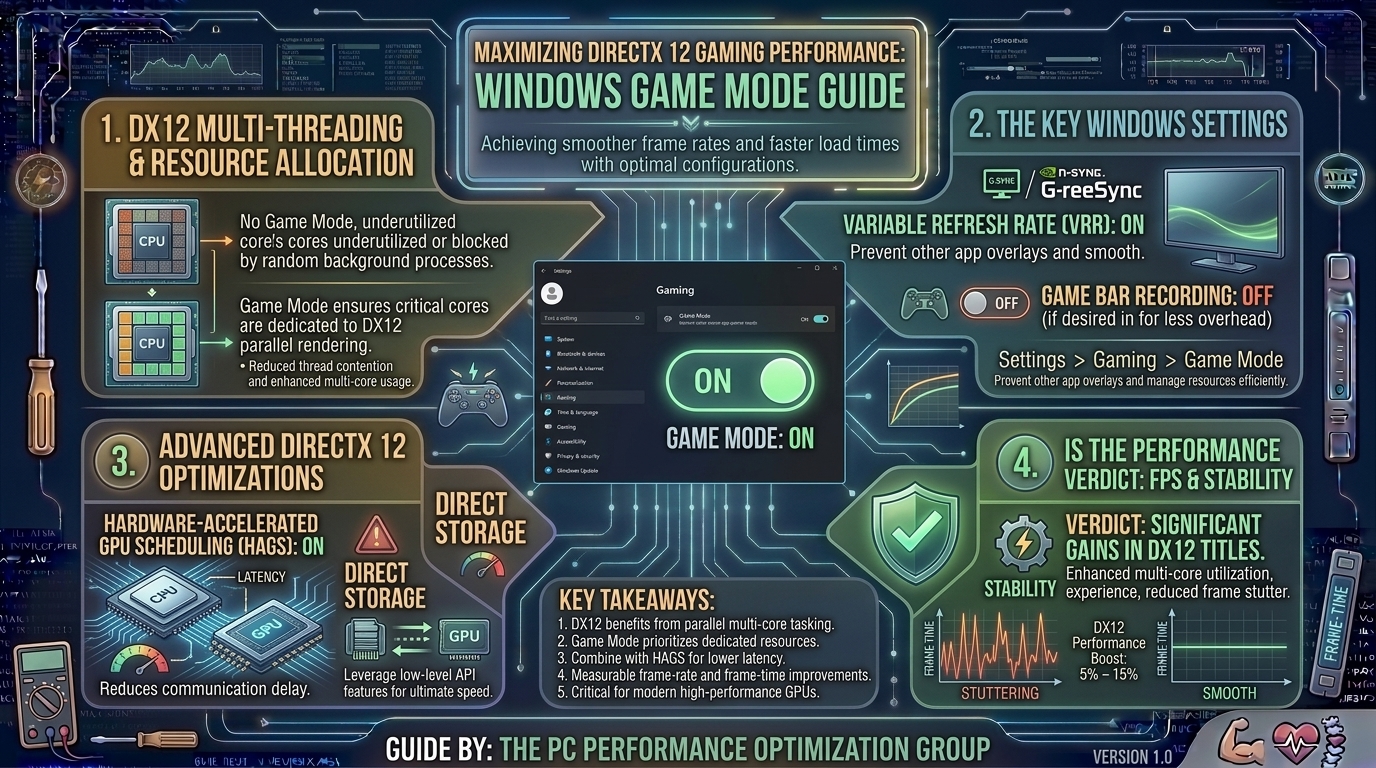
how to configure windows game mode settings for optimal performance in directx 12 video games
Modern Windows operating systems (Windows 10 and Windows 11) come equipped with built-in performance optimization features designed to prioritize system resources for interactive real-time applications. Among these, Windows Game Mode acts as an internal OS-level scheduler manager. When properly configured alongside DirectX 12 (DX12) settings, graphics driver toggles, and hardware scheduling features, Game Mode ensures that high-priority render threads receive maximum CPU cycles while minimizing background interferences.
DirectX 12 is an explicit low-level Graphics API. Unlike legacy APIs (like DirectX 11 or OpenGL) that rely on display drivers to manage hardware resources, DX12 passes low-level hardware control directly to game developers. This drastically lowers CPU draw-call overhead and enables parallel multi-threaded submission to the GPU. However, because DX12 places heavy responsibilities on system resource distribution, improper Windows OS scheduling can cause micro-stuttering, frame pacing inconsistencies, and latency spikes.
This comprehensive guide breaks down how Windows Game Mode operates, how to configure it alongside DX12 feature sets, and how to optimize your system for smooth, high-framerate gaming.
1. How Windows Game Mode and DirectX 12 Work Together
To optimize Windows for DX12 titles, it helps to understand how Game Mode interacts with low-level graphic APIs:
+-------------------------------------------------------------------------+
|                    WINDOWS GAME MODE RESOURCE PRIORITY                  |
+-------------------------------------------------------------------------+
| Game Process (DirectX 12 Execution Threads)                              |
|   ├── Dedicated CPU Cores/Threads (High Priority Priority-Class)        |
|   ├── Exclusive GPU Memory Access (VRAM Allocation Protection)          |
|   └── Direct I/O Priority (Prevents Disk Swapping Stalls)                |
|                                                                         |
| Background OS Tasks (Updates, Indexing, Telemetry)                      |
|   ├── Low-Priority Idle Cores (P-Core / E-Core Routing on Intel)         |
|   └── Memory Paging Throttled                                           |
+-------------------------------------------------------------------------+
The Role of Windows Game Mode
When Windows detects a running game executable, Game Mode alters thread scheduling within the OS kernel:
- CPU Core Allocation: Game Mode prioritizes execution threads of the primary game window across performance cores (P-Cores), suppressing background processes (e.g., Windows Update, virus scans, telemetry) to secondary threads or efficiency cores (E-Cores).
- RAM & VRAM Management: It limits background applications from requesting aggressive memory allocations, ensuring high-frequency access to physical system memory and GPU VRAM.
- Input Latency Reduction: By reducing thread-switching delays between the OS kernel and game process, it helps minimize system latency.
The Low-Level Directivity of DirectX 12
DirectX 12 allows games to manage CPU pipelines directly, distributing command lists across multiple CPU cores simultaneously.
If Windows background tasks interrupt those primary CPU cores mid-frame, the GPU experiences pipeline starvation—waiting for the CPU to finish its command list. Enabling Game Mode helps prevent background interrupts, maintaining a steady flow of draw calls to the GPU pipeline.
2. Step-by-Step: Configuring Windows Game Mode Correctly
Enabling Game Mode on Windows 10 & Windows 11
- Press
Win + Ito open Windows Settings. - Navigate to Gaming in the left sidebar menu.
- Select Game Mode.
- Toggle Game Mode to On.
+-------------------------------------------------------------------------+
|                   GAME MODE SYSTEM SETUP CHECKLIST                      |
+-------------------------------------------------------------------------+
| [X] Game Mode Toggle: ON                                                |
| [X] Hardware-Accelerated GPU Scheduling (HAGS): ON                      |
| [X] Variable Refresh Rate (VRR) / G-Sync / FreeSync: ENABLED            |
| [X] Auto HDR (Optional): User Preference                                |
| [X] Background Game Bar Recording: DISABLED                             |
+-------------------------------------------------------------------------+
Disabling Secondary Game Bar Recording (Crucial for DX12 Frame Pacing)
While Game Mode improves resource scheduling, the built-in Xbox Game Bar background recording feature continuously encodes video buffer loops, creating unwanted disk write I/O and CPU overhead.
- Go to Settings > Gaming > Captures.
- Toggle Record what happened (Background Recording) to Off.
- Toggle Capture audio when recording a game to Off if unneeded.
3. Optimizing DirectX 12 Specific OS Features
Game Mode works best when configured alongside modern Windows graphics features:
1. Enable Hardware-Accelerated GPU Scheduling (HAGS)
Hardware-Accelerated GPU Scheduling offloads memory management tasks from the CPU directly to a dedicated scheduling processor on the GPU.
- Go to Settings > System > Display > Graphics.
- Click Change default graphics settings.
- Toggle Hardware-accelerated GPU scheduling to On.
- Restart your PC to apply changes.
Note: HAGS is particularly effective in DirectX 12 games utilizing NVIDIA DLSS Frame Generation or AMD FSR Fluid Motion Frames, as frame generation tech requires hardware-level scheduling to interleave generated frames without latency bottlenecks.
+-------------------------------------------------------------------------+
|                  HAGS OFF VS HAGS ON THREAD ROUTING                     |
+-------------------------------------------------------------------------+
| HAGS OFF:  CPU Thread ──► OS Kernel Scheduling ──► Driver ──► GPU       |
| HAGS ON:   CPU Thread ──────────────────────────────► GPU Scheduler     |
+-------------------------------------------------------------------------+
2. Configure High-Performance GPU Preference Per Game
Ensure Windows routes your DX12 titles exclusively to your primary discrete graphics card (e.g., RTX 40-Series or RX 7000-Series) rather than integrated graphics:
- Under Settings > System > Display > Graphics, locate your target game from the list (or click Browse to select the game’s
.exefile). - Click on the game and select Options.
- Choose High performance (your discrete GPU) and click Save.
3. Disable Optimizations for Windowed Games (Selective Testing)
In Windows 11, Optimizations for windowed games upgrades legacy presentation models to modern flip-model presentations (similar to borderless windowed mode with full-screen latency benefits).
For DX12 games, this setting is generally beneficial, but if you experience visual stuttering:
- Navigate to Settings > System > Display > Graphics > Default graphics settings.
- Toggle Optimizations for windowed games to On (or test toggling it Off if experiencing frame-pacing anomalies in specific borderless DX12 titles).
4. Complementary OS & Driver Adjustments for DX12 Optimization
To ensure Game Mode delivers peak performance without thermal throttling or driver latency, configure these complementary system settings:
Adjust Windows Power Plan
Ensure your CPU does not down-clock dynamically mid-game:
- Press
Win + R, typepowercfg.cpl, and hit Enter. - Select High Performance or Ultimate Performance.
- Under Advanced Settings, verify Minimum processor state is set to 100% when plugged in.
Manage Shader Cache Size in GPU Control Panels
DirectX 12 games compile shaders dynamically or build shader caches upon initial boot to prevent in-game hitches. Increasing your driver shader cache size prevents old caches from being prematurely overwritten.
- NVIDIA Control Panel: Navigate to Manage 3D Settings > Shader Cache Size and set it to 10GB or Unlimited.
- AMD Radeon Software: Navigate to Gaming > Graphics > Advanced and ensure Shader Cache is set to Enabled / Reset if corruption occurs.
5. Summary Table: Settings Matrix for DX12 Gaming
| Feature | Recommended Setting | Primary Benefit in DX12 Games |
| Windows Game Mode | ON | Suppresses background process interrupts on CPU cores |
| Hardware GPU Scheduling (HAGS) | ON | Reduces CPU memory scheduling overhead; required for Frame Gen |
| Xbox Game Bar Background Recording | OFF | Eliminates continuous drive write I/O & encoder overhead |
| GPU Shader Cache | 10GB / Unlimited | Prevents shader compilation stuttering during gameplay |
| Windows Power Plan | High / Ultimate | Ensures CPU cores maintain maximum boost frequencies |
| Optimizations for Windowed Games | ON (Test per game) | Improves borderless window latency using flip-model presentation |
6. Frequently Asked Questions (FAQ)
1. Does Windows Game Mode actually increase FPS in games?
Game Mode rarely increases raw peak FPS (e.g., boosting 100 FPS to 120 FPS). Instead, its primary benefit is improving 1% and 0.1% low FPS metrics. By preventing background applications from stealing CPU cycles, Game Mode eliminates micro-stuttering and provides a smoother frame-pacing experience.
2. Is Game Mode better on Windows 11 than on Windows 10?
Yes. Early iterations of Game Mode in early versions of Windows 10 sometimes caused stuttering by mismanaging core assignments. In modern Windows 10 updates and Windows 11, Game Mode works reliably alongside modern hybrid CPU architectures (Intel P-Cores/E-Cores and AMD 3D V-Cache thread distribution).
3. Should I keep Hardware-Accelerated GPU Scheduling (HAGS) enabled for all DX12 titles?
For most modern systems and GPUs (NVIDIA RTX series, AMD RX 6000/7000 series), keeping HAGS enabled is recommended—especially if you use DLSS Frame Generation or FSR 3. However, if you play older legacy titles alongside DX12 titles, test toggling HAGS off if you encounter system instability.
4. Why do some DirectX 12 games stutter during the first few minutes of gameplay?
DirectX 12 shifts shader compilation responsibilities to the game engine. During initial gameplay, the system compiles shaders for textures, lighting, and effects in real time. Once shaders are cached to your storage drive, stuttering subsides. Increasing your GPU driver Shader Cache size helps retain these pre-compiled shaders longer.
5. Should I run DirectX 12 games in Fullscreen or Borderless Windowed Mode?
DirectX 12 does not use legacy exclusive fullscreen modes in the traditional DirectX 9/11 sense. DX12 handles borderless windowed mode via low-latency flip presentation models, offering native fullscreen performance with faster Alt-Tab functionality.
6. Can Game Mode interfere with streaming software like OBS Studio?
If you stream or record gameplay using OBS Studio, running Game Mode can occasionally cause OBS to drop frames because Game Mode starves OBS of CPU/GPU resources. To fix this, always launch OBS Studio as Administrator, which grants OBS equal resource priority alongside Game Mode.
7. Does Game Mode affect CPU temperatures or power draw?
Game Mode itself does not directly raise voltages or clock speeds. However, because it allows your game to maintain higher continuous CPU utilization without idling core states, sustained temperatures under load may be slightly higher compared to un-optimized execution.
8. What is the difference between Variable Refresh Rate (VRR) and G-Sync/FreeSync in Windows settings?
Variable Refresh Rate (VRR) is an OS-level toggle in Windows that enables adaptive sync capabilities for generic displays and windowed applications. G-Sync (NVIDIA) and FreeSync (AMD) are hardware/driver-level implementations. Both can operate simultaneously to prevent screen tearing without input lag.
9. Should I disable Windows Game Bar completely using Registry settings or PowerShell?
It is generally unnecessary to strip Game Bar out via registry hacks. Simply toggling off Background Captures inside Settings removes its background performance footprint while preserving useful features like Win+G overlay for audio channel mixing.
10. Does DirectX 12 benefit from CPU hyper-threading / multi-threading?
Yes. DirectX 12 was designed specifically to utilize modern multi-core, multi-threaded processors. Enabling Simultaneous Multithreading (SMT) on AMD or Hyper-Threading on Intel allows DX12 to submit parallel rendering command queues far more effectively than older single-threaded APIs.
Configuring Windows Game Mode alongside DirectX 12 optimizations is one of the easiest ways to ensure your PC delivers stable, stutter-free performance. By keeping Game Mode enabled, turning on Hardware-Accelerated GPU Scheduling, disabling unneeded background recording features, and allocating generous driver shader cache sizes, you ensure your hardware spends its capacity where it belongs: rendering high-framerate gameplay.
Leave a Reply