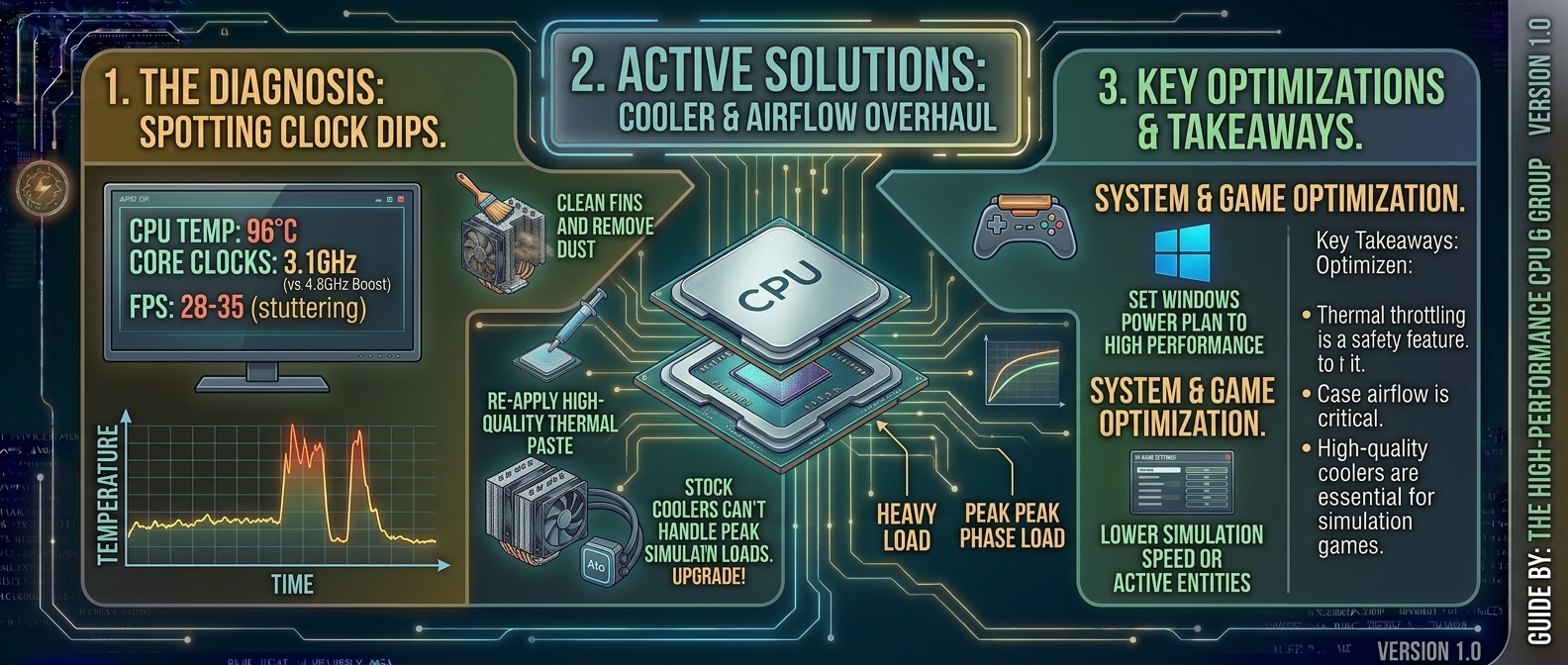
How to Fix High CPU Temperatures and Thermal Throttling While Playing CPU-Intensive Simulation Games
CPU-intensive simulation games—such as Cities: Skylines II, Microsoft Flight Simulator, Stellaris, Dwarf Fortress, Factorio, and BeamNG.drive—push modern computer processors to their absolute limits. Unlike GPU-bound titles that focus heavily on 3D graphics rendering, simulation games continuously calculate thousands of complex, simultaneous background systems: pathfinding AI, physics simulations, economic loops, agent behaviors, and real-time state updates.
This non-stop multi-threaded processing generates immense heat. When your processor reaches critical heat limits—typically 90°C to 105°C depending on the CPU architecture—it triggers thermal throttling. Thermal throttling is a safety mechanism where the processor automatically reduces its clock speed and operating voltage to prevent permanent hardware damage. The result? Sudden micro-stutters, severe FPS drops, input lag, and system crashes right when your in-game empire, city, or flight simulation reaches peak complexity.
This comprehensive guide covers the root causes of simulation-induced CPU overheating and provides step-by-step solutions to fix high CPU temperatures and eliminate thermal throttling.
1. Why Simulation Games Heat Up CPUs More Than Normal Games
To understand why simulation games cause extreme thermal output, you need to examine how game engines distribute computing tasks across your hardware.
+------------------------------------------------------------------------+
|                     GPU-BOUND VS CPU-BOUND LOADS                       |
+------------------------------------------------------------------------+
| GPU-Bound Title (e.g., Cyberpunk 2077, Witcher 3)                       |
|   ├─► GPU: 99% Utilization (Shaders, Ray Tracing, 4K Textures)         |
|   └─► CPU: 30-50% Utilization (Intermittent Draw Calls, Basic Logic)   |
|                                                                        |
| Simulation Title (e.g., Cities: Skylines II, Flight Sim)               |
|   ├─► GPU: Variable Utilization (Renders Frame Buffer)                 |
|   └─► CPU: 85-100% Utilization (Non-Stop Pathfinding, AI, Physics)     |
+------------------------------------------------------------------------+
The Micro-Architecture Challenge of Simulation Engines
- Continuous Execution Loops: In standard games, if nothing is moving on screen, CPU usage drops. In simulation games, background logic (like thousands of citizens commuting or hundreds of trade routes calculating) runs continuously, regardless of where your camera is pointing.
- All-Core Thermal Load: Modern processors (Intel Core i7/i9 and AMD Ryzen 7/9) contain numerous performance and efficiency cores. Simulation titles scale heavily across all available threads. Saturating all cores simultaneously generates significantly more concentrated heat across the CPU silicon die than single-core workloads.
- AVX Instructions and Dynamic Physics: Physics-heavy simulations use advanced instruction sets like AVX-256 or AVX-512. Executing these wide mathematical vectors requires higher current ($I$) and voltage ($V$), which directly increases power consumption and thermal output according to the power dissipation formula:
$$P = C \cdot V^2 \cdot f$$
(Where $P$ is power/heat, $C$ is capacitance, $V$ is operating voltage, and $f$ is clock frequency).
2. Safe vs. Dangerous CPU Temperature Ranges
Before applying fixes, check your CPU’s actual operating temperatures under sustained gaming loads using hardware monitoring tools like HWiNFO64, Core Temp, or MSI Afterburner.
+------------------------------------------------------------------------+
|                 CPU TEMPERATURE ZONES (UNDER SUSTAINED LOAD)           |
+------------------------------------------------------------------------+
|   < 65°C      │  EXCELLENT   │ Optimal headroom, maximum boost clocks   |
|  65°C - 79°C  │  NORMAL      │ Typical for air/AIO cooling under load   |
|  80°C - 89°C  │  WARM        │ High load; inspect airflow & fan curves  |
|  90°C - 99°C  │  HOT         │ Thermal throttling likely occurring      |
|  100°C+       │  DANGER      │ Immediate thermal throttling / Shut down  |
+------------------------------------------------------------------------+
- Intel Processors (12th Gen to 14th Gen / Core Ultra): Thermal junction maximum ($T_{j\text{max}}$) is typically 100°C to 105°C. Temperatures routinely staying above 90°C signal thermal throttling.
- AMD Ryzen Processors (Zen 3, Zen 4, Zen 5): Designed to dynamically boost until hitting thermal targets under heavy loads. For Ryzen 7000/9000 non-X3D parts, 95°C is standard boosting behavior. However, for 3D V-Cache CPUs (e.g., 7800X3D, 9800X3D, 7950X3D), heat must stay strictly below 89°C to protect the sensitive stacked cache layer.
3. Top Hardware Fixes to Lower CPU Temperatures
If your CPU temperatures climb into the danger zone within minutes of loading a heavy simulation save file, inspect your hardware cooling setup first.
+------------------------------------------------------------------------+
|                    HARDWARE OPTIMIZATION CHECKLIST                     |
+------------------------------------------------------------------------+
| 1. Repaste Thermal Compound (High Conductivity Paste or PTM7950)       |
| 2. Optimize Case Airflow (Positive Pressure: In-Take > Exhaust)        |
| 3. Adjust AIO Pump Speed & Fix Radiator Mounting Orientation          |
| 4. Install CPU Contact Frame (Intel LGA 1700 / LGA 1851 Platforms)     |
+------------------------------------------------------------------------+
1. Replace Thermal Paste (or Upgrade to Phase-Change Pads)
Thermal paste degrades over time due to thermal pump-out, drying up and creating microscopic air pockets between the CPU integrated heat spreader (IHS) and the cooler baseplate.
- Pea-Dot or X-Pattern Application: When applying traditional paste, use an “X” pattern with four small dots in the corners to ensure full coverage across large modern IHS surfaces.
- Consider Honeywell PTM7950: Phase-change thermal pads transition from solid to liquid phase as temperature rises, preventing thermal pump-out and outperforming traditional thermal paste over long periods.
2. Correct AIO Liquid Cooler Orientation and Pump Speeds
If you use an All-In-One (AIO) liquid cooler:
- Check Pump Speed: Ensure the AIO pump header in your BIOS (often labeled
AIO_PUMPorW_PUMP) is set to run at 100% constant speed, rather than scaling down with silent fan curves. - Fix Mounting Orientation: The highest point of your AIO loop (radiator top) must always sit higher than the CPU block/pump. Mounting a radiator at the bottom of a PC case traps air bubbles inside the pump head, causing severe cavitation, high pump noise, and immediate thermal throttling.
3. Install a CPU Contact Frame (Intel Platforms)
Intel LGA 1700 and LGA 1851 sockets use a Independent Loading Mechanism (ILM) latch system that applies uneven pressure across the CPU package. Over time, this bends the CPU heat spreader into a slightly concave shape, leading to poor cold-plate contact.
- Installing an aftermarket aluminum CPU Contact Frame (from thermal brands like Thermalright or Thermal Grizzly) replaces the stock latch, leveling the CPU surface and reducing temperatures by 4°C to 10°C under full simulation loads.
4. Optimize Case Airflow Dynamics
Cooling a CPU requires bringing cool ambient air into the chassis and pushing hot air out efficiently.
- Positive Pressure Balance: Configure more intake fans than exhaust fans to maintain positive internal air pressure. This keeps dust out of unfiltered crevices and supplies fresh air to CPU air coolers.
- Clear Front Intakes: Mesh front panels deliver significantly lower internal system temperatures than solid glass or plastic front covers.
4. Software, BIOS, and In-Game Optimization Fixes
You can often drop CPU temperatures by 5°C to 15°C through software adjustments without buying new hardware.
+------------------------------------------------------------------------+
|                     SOFTWARE & BIOS TUNING WORKFLOW                    |
+------------------------------------------------------------------------+
| 1. Undervolt CPU (Offset / Curve Optimizer) ──► Lower Power Draw       |
| 2. Adjust Power Limits (PL1/PL2 or PPT/TDC/EDC) ──► Limit Heat Output  |
| 3. Set Custom Fan Curves ──────────────► Proactive Cooling Response     |
| 4. Tune In-Game Simulation Settings ────► Reduce Thread Bottlenecks    |
+------------------------------------------------------------------------+
1. Undervolt Your CPU (AMD Curve Optimizer / Intel Voltage Offset)
Undervolting lowers the voltage delivered to the CPU at a given clock speed. Because heat scales exponentially with voltage, minor undervolts drastically decrease temperatures without sacrificing performance.
- AMD Ryzen CPUs (Precision Boost Overdrive + Curve Optimizer):
- Boot into BIOS and navigate to PBO (Precision Boost Overdrive) settings.
- Set Curve Optimizer to
All Cores. - Change the Sign to Negative (
-). - Start with a modest value of -10 to -15 (increase gradually up to -30 while testing stability in Prime95 or CoreCycler).
- Intel Core CPUs (Negative Voltage Offset):
- Open Intel XTU (Extreme Tuning Utility) or enter BIOS CPU Voltage configuration.
- Set
CPU Core Voltage Modeto Adaptive Offset. - Apply a Negative (-) offset starting at -0.050V and stress test in steps down to -0.100V.
2. Enforce Enclosure & Power Limits (PL1/PL2 & PPT Control)
Out of the box, many motherboard manufacturers set CPU power limits to unlimited (“Enthusiast” or “Water Cooler” profiles), allowing processors to draw up to 300W+ for negligible gains in frame rates.
- Intel Power Limits: Set PL1 (Long Duration Power Limit) and PL2 (Short Duration Power Limit) to Intel’s official default specification (e.g., 125W / 253W for Core i7/i9 chips) instead of “Unlimited”.
- AMD Eco Mode: Enable Eco Mode in AMD Ryzen Master or BIOS. This drops a 105W TDP processor down to a cool, highly efficient 65W profile with less than a 3-5% impact on simulation frame rates.
3. Tune In-Game Settings that Heavy-Load the CPU
Lowering graphic settings like Resolution, Textures, and Anti-Aliasing targets the GPU, leaving CPU load unaffected. To directly relieve CPU stress in simulation games, adjust these specific settings:
| Setting Category | In-Game Option Example | Thermal & CPU Impact |
| Crowd / Agent Density | Cities: Skylines / Hitman | High: Reduces AI pathfinding iterations |
| Traffic / Vegetation Distance | Flight Simulator / Euro Truck | High: Decreases world-state updates per tick |
| Simulation Speed | Stellaris / Hearts of Iron IV | High: Running 5x speed maxes out all CPU threads |
| Physics Detail / Debris | BeamNG.drive / Teardown | Very High: Relieves real-time rigid-body processing |
| Background App Cap | Windows Power Options | Medium: Prevents background tasks from hijacking cores |
5. Quick Diagnostic Summary Table
| Problem | Root Cause | Primary Fix | Temperature Reduction |
| Instant spike to 95°C+ on game launch | Dry thermal paste / Pump failure | Replace thermal paste / Check AIO pump | 15°C – 30°C |
| Gradual thermal buildup over 30 mins | Poor case airflow / Thermal saturation | Add intake fans / Adjust fan curves | 5°C – 12°C |
| Core voltage pulling 1.35V+ at stock | Aggressive motherboard BIOS defaults | Apply CPU undervolt / Enable Eco Mode | 8°C – 15°C |
| CPU thermal throttling on Intel 13/14th Gen | Curved IHS from stock LGA latch | Install aftermarket CPU Contact Frame | 4°C – 10°C |
| Frame drops during late-game saves | Uncapped CPU simulation tick rates | Limit FPS / Reduce crowd & traffic density | 5°C – 10°C |
6. Frequently Asked Questions (FAQ)
1. Does thermal throttling permanently damage my CPU?
No. Modern CPUs feature built-in hardware protection safeguards. When thermal limits ($T_{j\text{max}}$) are hit, the processor instantly throttles voltage and clock frequency. If temperatures continue to rise dangerously (usually above 105°C-115°C), the system initiates an emergency thermal shutdown to prevent physical damage.
2. Why does my CPU overheat in simulation games but run cool in shooter or action games?
Shooters and action games depend heavily on the GPU to render frames, leaving the CPU operating at partial load. Simulation games run heavy, multi-threaded calculations (like pathfinding, physics, and AI loops) across all CPU cores simultaneously, generating far higher sustained heat output.
3. Is liquid cooling (AIO) mandatory for playing CPU-intensive simulation games?
No. High-end dual-tower air coolers (such as the Thermalright Peerless Assassin 120 or Noctua NH-D15) handle heavy multi-core simulation loads just as effectively as 240mm or 280mm liquid coolers, with fewer mechanical points of failure.
4. What is the maximum safe CPU temperature for long simulation gaming sessions?
Ideally, keep your CPU below 80°C to 85°C during long gaming sessions. While modern CPUs can operate up to 90°C–95°C without immediate failure, staying below 85°C maintains max turbo boost clocks and preserves long-term component efficiency.
5. Will lowering my screen resolution lower my CPU temperatures?
No. Dropping resolution (e.g., from 4K down to 1080p) decreases the load on your GPU, but actually increases the workload on your CPU by allowing the GPU to push higher total frames per second, causing the CPU to generate more heat.
6. What is “Thermal Pump-Out” and how does it affect temperatures?
Thermal pump-out occurs when the CPU heat spreader and cooler baseplate expand and contract under fluctuating thermal cycles. Over time, this mechanical motion squeezes traditional liquid thermal paste out from the center of the CPU die, causing temperatures to rise.
7. Does capping my frame rate (FPS) help lower CPU temperatures in simulation games?
Yes. Setting a global frame rate cap (via NVIDIA Control Panel, AMD Software, or RTSS) prevents your CPU from preparing redundant frame draw calls, reducing unnecessary power consumption and heat.
8. Will enabling AMD Eco Mode or Intel Power Limits hurt my in-game simulation performance?
Enabling Eco Mode or restricting power limits to stock standards usually reduces power draw and temperatures by 20–30% while causing less than a 3–5% drop in actual frame rates, making it an excellent trade-off for quiet, cool system operation.
9. Why is my AIO cooler tubing hot on one side and cold on the other?
This temperature differential indicates normal liquid cooling operation. One tube carries warm liquid from the CPU block to the radiator, while the returning tube carries liquid cooled by the radiator fans back to the CPU block. If both tubes feel extremely hot or one feels completely dormant, your pump may have failed.
10. How often should I clean dust out of my PC case and radiators to keep temperatures down?
Perform a quick dust cleaning using compressed air or an electric air duster every 3 to 6 months. Dust buildup on radiator fins and heatsink fans acts as an insulating blanket, trapping heat and raising CPU operating temperatures.
Fixing high CPU temperatures during heavy simulation gaming requires a balanced approach to hardware maintenance and software configuration. By ensuring clean thermal paste contact, optimizing case airflow, enforcing sensible CPU power limits, and applying a modest undervolt, you can eliminate thermal throttling, maintain peak CPU boost clocks, and enjoy smooth performance—even in complex late-game save files.
Leave a Reply