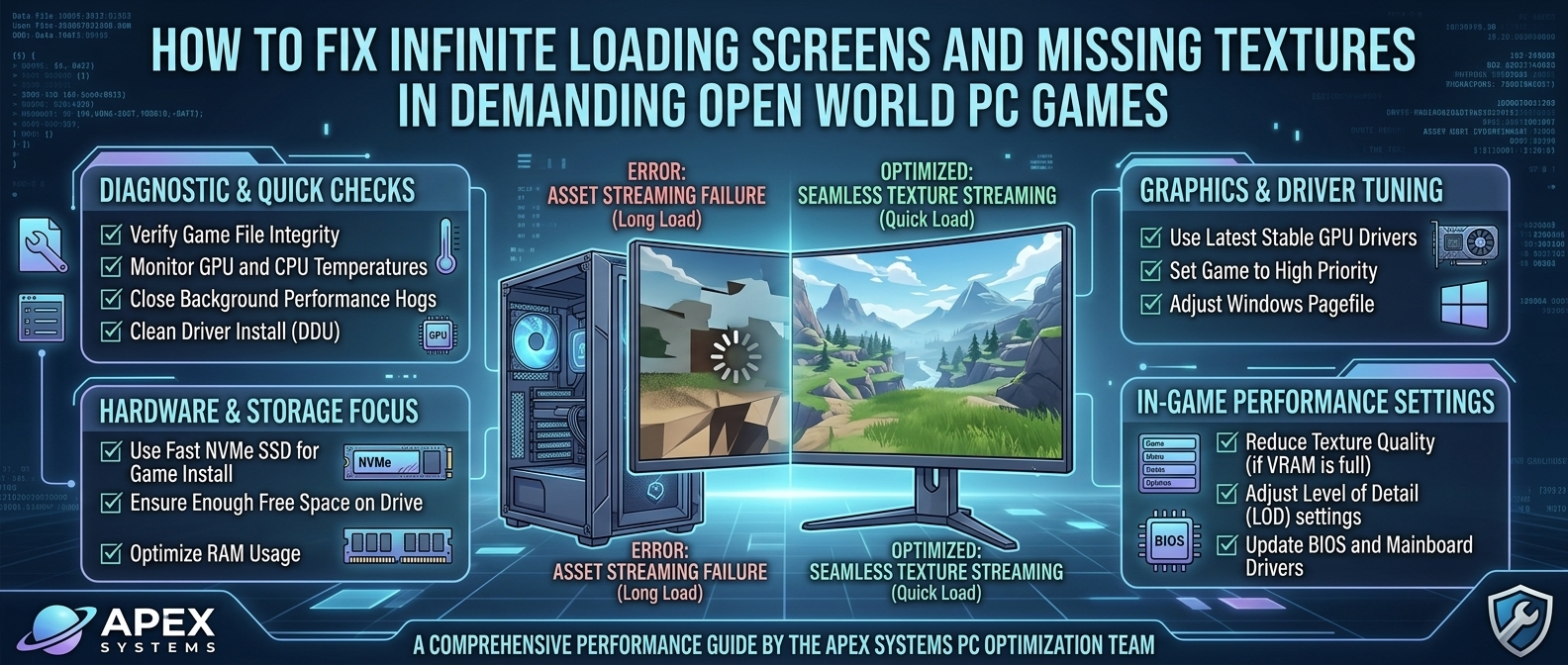
How to Fix Infinite Loading Screens and Missing Textures in Demanding Open World PC Games
There is nothing quite as frustrating as stepping into a massive, visually stunning open-world game like Cyberpunk 2077, Starfield, or Hogwarts Legacy, only to be greeted by an infinite loading screen or an environment filled with invisible geometry, low-polygon “clay” models, and missing textures.
Modern open-world games stream gigabytes of high-resolution textures, geometry, and AI data in real time while you navigate the map. When your hardware, operating system, or storage drive cannot feed assets to your Graphics Card (GPU) fast enough, the game engine chokes. This causes texture streaming delays, visual pop-in, soft low-LOD (Level of Detail) surfaces, and endless loading screens as the system waits for missing data packets.
This technical guide covers the root causes of texture streaming bottlenecks and provides verified troubleshooting procedures to restore your PC gaming performance.
Symptom & Root Cause Diagnostic Matrix
Identify your specific gaming issue below to locate the most likely hardware or software culprit:
| Symptom | Primary Cause | Secondary Cause | Recommended Fix |
| Infinite Loading Screen | Storage I/O Bottleneck / Slow HDD | Corrupted Shader Cache or File Validation | Move game to NVMe SSD; Purge DirectX/GPU Shader Cache. |
| Blurry “Clay” Textures / Pop-In | VRAM Exhaustion (Low GPU VRAM) | Low System RAM / Slow RAM Speed | Lower Texture Quality; Enable Resizable BAR; Expand Pagefile. |
| Invisible Walls & Geometry | Mechanical HDD Read Latency | Corrupted Game Installation | Upgrade to M.2 NVMe SSD; Verify Steam Game Integrity. |
| Game Freezes When Fast-Traveling | Storage Transfer Rate / SysMain | High CPU Thread Saturation | Disable Windows SysMain; Set Game Process Priority to High. |
1. Storage Bottlenecks: Moving Beyond Mechanical Hard Drives
The single most common cause of infinite loading screens and missing textures in modern open-world games is installing the game on a traditional Mechanical Hard Disk Drive (HDD).
Data Pipeline Flow:
[ Storage Drive (HDD / SSD) ] ---> [ System RAM ] ---> [ GPU VRAM ] ---> [ Display Render ]
- The Mechanical HDD Problem: HDDs max out at read speeds around 100–150 MB/s with high access latencies (12–15 ms). When fast-traveling or sprinting through a city, an open-world engine demands 1,500+ MB/s to stream new terrain assets. An HDD simply cannot keep up, resulting in infinite loading screens or environment pop-in.
- The SSD Solution: Modern games are designed around Solid-State Drives (SSDs). A SATA SSD (550 MB/s) improves performance, but an NVMe PCIe 4.0/5.0 M.2 SSD (5,000–7,000+ MB/s) eliminates disk-bound texture pop-in entirely by leveraging DirectStorage technologies.
Action Steps:
- Always install demanding open-world games on an internal NVMe SSD.
- Avoid using external USB hard drives for modern triple-A gaming.
- Ensure your solid-state drive has at least 15–20% free space. SSDs lose read/write performance when completely full.
2. VRAM Over-Allocation: Managing Video Memory
Video RAM (VRAM) is ultra-fast memory dedicated entirely to your graphics card. It stores high-resolution textures, shadow maps, and frame buffers so your GPU can render them instantaneously.
VRAM CAPACITIES & TEXTURE LIMITS:
- 8GB VRAM  : Max Recommended Setting = High / Medium Textures at 1080p/1440p
- 12GB VRAM : Max Recommended Setting = Ultra Textures at 1440p / High at 4K
- 16GB+ VRAM: Max Recommended Setting = Ultra Textures + Ray Tracing at 4K
When a game demands 10 GB of VRAM to load ultra-high-resolution textures but your GPU only has 8 GB, your system is forced to swap data into your System RAM over the PCIe bus. Because System RAM is drastically slower than VRAM, assets fail to load in time, leaving behind blurry low-res textures or see-through environments.
Action Steps:
- Lower Texture Quality: Drop in-game Texture Quality from Ultra to High or Medium. This reduces VRAM consumption by 2–4 GB without significantly impacting overall visual fidelity.
- Disable/Lower Ray Tracing: Ray tracing uses large amounts of VRAM to store Bounding Volume Hierarchy (BVH) structures.
- Turn Off Frame Generation (if low on VRAM): AI Frame Generation (DLSS 3 / FSR 3) consumes additional VRAM buffer space. If you are experiencing texture streaming loss on an 8 GB card, disable Frame Generation.
3. Clear Corrupted GPU Shader Cache & Windows Temp Files
Games compile Shaders (programs that dictate how light, shadows, and surfaces render) into a cache on your storage drive. If a shader cache becomes corrupted after a GPU driver update or game patch, the game engine can get stuck in an infinite loop while trying to render visual assets.
Clearing Shader Cache Workflow:
[ Open Windows Storage Settings ] ---> [ Delete Temporary Files ] ---> [ Clear NVIDIA/AMD Cache ] ---> [ Relaunch Game ]
Step-by-Step Shader Cache Purge:
- Clear Windows Temporary Files:
- Open Settings > System > Storage > Temporary Files.
- Select DirectX Shader Cache and click Remove files.
- Clear NVIDIA Shader Cache (NVIDIA Users):
- Open NVIDIA Control Panel > Manage 3D Settings.
- Set Shader Cache Size to Disabled and click Apply.
- Press
Win + R, type%LOCALAPPDATA%\NVIDIA\DXCache, and delete all files inside the folder. - Return to NVIDIA Control Panel and set Shader Cache Size back to Driver Default or 10 GB.
- Reset AMD Shader Cache (AMD Users):
- Open AMD Software: Adrenalin Edition.
- Navigate to Gaming > Graphics > Advanced.
- Click Reset Shader Cache.
4. Enable Resizable BAR (ReBAR) / Smart Access Memory (SAM)
Resizable BAR (NVIDIA) and Smart Access Memory (AMD) are hardware-level features that allow your CPU to access your graphics card’s entire VRAM pool simultaneously, rather than in small 256 MB chunks.
By enabling ReBAR, your processor transfers heavy open-world game assets to the GPU faster, reducing texture pop-in and eliminating loading screen freezes.
How to Enable Resizable BAR:
- Restart your PC and enter your Motherboard BIOS (press
DELorF2during boot). - Navigate to Advanced / PCIe Settings.
- Set Above 4G Decoding to Enabled.
- Set Re-BAR Support to Auto or Enabled.
- Save changes (
F10) and boot into Windows. - Verify status inside NVIDIA Control Panel (System Information) or AMD Adrenalin Software.
5. Windows Virtual Memory (Pagefile) Optimization
When open-world games saturate your physical System RAM (e.g., hitting 16 GB usage), Windows relies on a virtual memory file on your drive called the Pagefile (pagefile.sys). If your Pagefile is disabled or set too small, games will crash to desktop, fail to load textures, or freeze on loading screens.
Recommended Custom Pagefile Configuration:
- Press
Win + R, typesysdm.cpl, and hit Enter. - Go to Advanced tab > Performance Settings > Advanced tab > Virtual Memory Change.
- Uncheck Automatically manage paging file size.
- Select your fastest NVMe SSD drive.
- Choose Custom size:
- Initial size (MB): Set to
16384(16 GB). - Maximum size (MB): Set to
32768(32 GB).
- Initial size (MB): Set to
- Click Set, then OK, and restart your PC.
Troubleshooting Flowchart
+---------------------------------------------------------------------------------+
|               OPEN WORLD TEXTURE & LOADING TROUBLESHOOTING                      |
+---------------------------------------------------------------------------------+
| Is the game installed on a Mechanical Hard Drive (HDD)?                         |
|   [YES] ---> Move the game to an internal NVMe SSD immediately!                 |
|   [NO]  ---> Is GPU VRAM usage exceeding 90% in software overlays?              |
|              [YES] ---> Lower In-Game Texture Quality from Ultra to High/Med.   |
|              [NO]  ---> Purge DirectX & NVIDIA/AMD Shader Cache files.          |
|                           Enable Resizable BAR in your Motherboard BIOS.        |
|                           Verify Game File Integrity via Steam / Epic Games.    |
+---------------------------------------------------------------------------------+
Frequently Asked Questions (FAQ)
Q1: Why do modern games take so long to load on hard drives?
A: Modern open-world games utilize high-detail 4K texture packages and detailed 3D models. Traditional mechanical HDDs have slow read speeds (100 MB/s) and high physical search latencies, making it impossible to stream gigabytes of game data in real time.
Q2: Can corrupted graphics drivers cause missing textures?
A: Yes. Outdated or corrupted GPU display drivers can disrupt texture streaming protocols. Use Display Driver Uninstaller (DDU) in Windows Safe Mode to completely clean out old GPU drivers before performing a fresh installation.
Q3: Does upgrading System RAM fix texture pop-in?
A: If your system currently has 8 GB or 16 GB of single-channel RAM, upgrading to 32 GB of dual-channel RAM significantly speeds up data transfers between your storage drive, CPU, and GPU.
Q4: What is “Texture Streaming Pool Size” in game settings?
A: This setting allocates a specific portion of your GPU VRAM exclusively for loading textures. Set this value to match your GPU’s actual VRAM capacity (e.g., set to 6 GB if your card has 8 GB total VRAM).
Q5: Will verifying game files fix infinite loading screens?
A: Yes. If a game file or texture archive was corrupted during a patch download, the game engine will hang indefinitely while trying to open the file. Use Steam’s Verify Integrity of Game Files or Epic Games’ Verify feature to re-download damaged files.
Q6: What is DirectStorage, and does it help with texture pop-in?
A: DirectStorage is a technology that allows the GPU to stream game assets directly from an NVMe SSD without burdening the CPU. This reduces loading times to seconds and eliminates texture pop-in.
Q7: Why are my textures invisible or rainbow-colored?
A: Rainbow textures or missing surface meshes indicate corrupted shader caches, extreme VRAM overheating, or instability from an unsafe GPU memory overclock. Reset GPU overclocks to stock values and clear your shader cache.
Q8: Can background apps cause infinite loading screens?
A: Yes. High disk usage from background programs (such as Windows updates, torrent clients, or antivirus scans) starves your game of read/write bandwidth, resulting in extended loading screens.
Q9: Does disabling Windows SysMain (Superfetch) help gaming performance?
A: On older systems or SATA SSDs, the Windows SysMain service can cause high disk usage spikes. Disabling SysMain via services.msc can resolve stutters and texture streaming hangs.
Q10: How do I know if my GPU VRAM is failing?
A: If missing textures are accompanied by visual artifacts like screen flickering, random checkerboard patterns, or driver crash codes (BSODs) across multiple games, your GPU memory modules may be failing hardware tests.
Conclusion
Resolving infinite loading screens and missing textures in demanding open-world games comes down to removing data flow bottlenecks. By moving your games onto a high-speed NVMe SSD, managing your in-game VRAM budget, clearing out corrupted shader caches, and enabling hardware features like Resizable BAR, you ensure game assets stream into memory smoothly—delivering stable frame rates and uninterrupted open-world gaming.
Leave a Reply