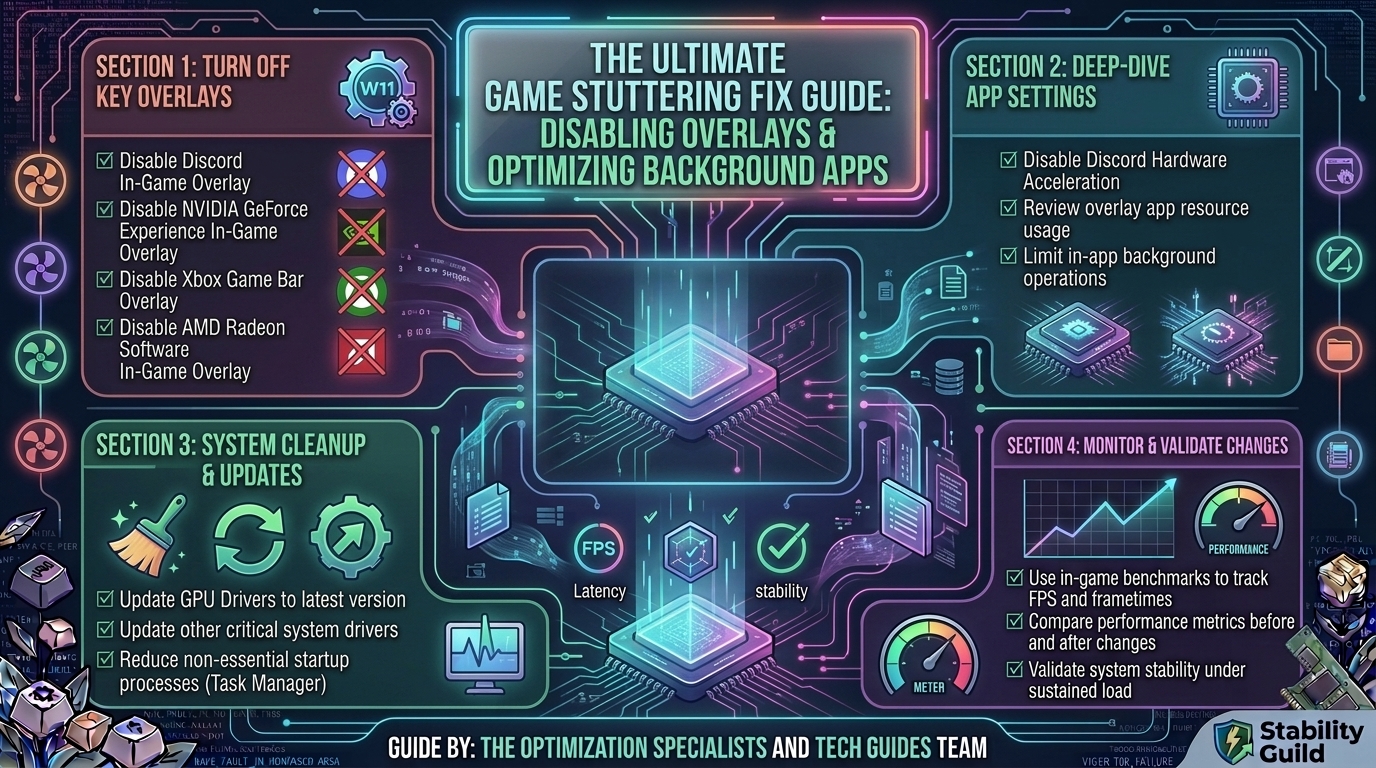
How to Fix Game Stuttering Caused by Background Application Overlays Like Discord and NVIDIA App
Few issues ruin a smooth gaming session faster than sudden, jarring micro-stuttering. You might be pulling off high frame rates according to your counter, yet the game feels hitchy, choppy, and unresponsive.
In modern PC gaming, third-party software overlays are one of the most frequent culprits behind frame-pacing drops. Features built into applications like Discord, NVIDIA App (GeForce Experience), Steam, Spotify, and RTSS hook directly into your game’s rendering pipeline (DirectX or Vulkan). When these overlays request screen redraws, encode background video, or capture hardware telemetry, they interrupt your GPU’s frame generation cycle.
This guide breaks down why software overlays cause frame-pacing stutters, step-by-step instructions to isolate conflicting applications, and hardware-level tweaks to keep your games running smoothly.
Overlay Impact Overview: Hardware vs. Software Overhead
| Background Application | Features Causing Stutter | Core Mechanism of Failure |
| Discord | In-Game Overlay, Hardware Acceleration | Injects dynamic UI render loops into the game’s DirectX pipeline. |
| NVIDIA App / GeForce Experience | Instant Replay, ShadowPlay, In-Game Overlay | Constant background video buffer encoding strains GPU memory bandwidth. |
| RivaTuner (RTSS) / MSI Afterburner | On-Screen Display (OSD), High Polling Rates | Frequent CPU polling interrupts real-time game thread scheduling. |
| Steam / EA / Epic Overlays | Notifications, Browser Injection | Background web-view process spikes CPU usage during popups. |
| Windows Game Bar | Background Recording, Captures | Active screen-capture pipeline causes 1% low FPS frame drops. |
1. Disable Discord Hardware Acceleration and In-Game Overlay
Discord is one of the most resource-intensive background apps for PC gamers. Its overlay places dynamic text, voice avatars, and pop-up notifications on top of active 3D applications.
Turn Off the Discord Overlay:
- Open Discord and click the Gear Icon (User Settings) in the bottom-left corner.
- Scroll down the left sidebar to Activity Settings and click Game Overlay.
- Toggle Enable in-game overlay to OFF.
[ Discord User Settings ] ---> [ Game Overlay ] ---> Toggle "Enable in-game overlay" to OFF
Disable Hardware Acceleration in Discord:
By default, Discord uses your graphics card to render its Electron interface. This competes directly with your active game for GPU resources.
- In Discord Settings, navigate to Advanced under App Settings.
- Toggle Hardware Acceleration to OFF.
- Click Okay to restart Discord.
2. Configure NVIDIA App & GeForce Experience ShadowPlay
The NVIDIA overlay allows quick access to filters, performance metrics, and Instant Replay. However, continuously recording gameplay to VRAM while streaming overlay layers can introduce micro-stutters, particularly in VRAM-heavy AAA titles.
Turn Off the In-Game Overlay:
- Open the NVIDIA App or GeForce Experience.
- Click the Settings (Gear Icon).
- Under the General tab, find In-Game Overlay (or ShadowPlay) and toggle it OFF.
If You Need Instant Replay (ShadowPlay):
If you rely on NVIDIA Instant Replay to capture clips, tune these settings to prevent stuttering:
- Lower Bitrate: Drop the recording bitrate from 50 Mbps down to 25–30 Mbps.
- Change Save Drive: Store temporary recording cache files on a separate physical SSD, away from your primary OS and game installation drive.
3. Adjust RivaTuner Statistics Server (RTSS) Injection Modes
RivaTuner Statistics Server (RTSS) is an excellent tool for frame-rate capping, but aggressive hooked injection can clash with game engine render loops.
- Open RTSS from your system tray.
- Select your game’s executable profile (or Global).
- Set Application detection level to Low or Medium instead of High.
- Set Injection delay to 15000 ms (15 seconds). This allows the game engine to complete initializing its render pipeline before RTSS hooks into it.
- If stuttering persists, turn Enable 60 FPS / OSD Limit off and rely on built-in game frame limiters instead.
4. Turn Off Steam, Epic, and EA App Overlays
Even built-in game launcher overlays can cause background processing stalls when friends join games or achievements unlock.
Disable Steam Overlay:
- Open Steam and navigate to
Steam > Settings > In-Game. - Toggle Enable the Steam Overlay while in-game to OFF.
- Alternatively, right-click a specific stuttering game in your Library >
Properties > General> toggle off Steam Overlay.
Disable EA App & Epic Games Overlays:
- EA App: Click top menu >
Settings > Application > Application Settings> Toggle off In-game overlay. - Epic Games Launcher: Click account icon >
Settings> Scroll to the target game > Uncheck launcher overlay options.
5. Enable Hardware-Accelerated GPU Scheduling (HAGS)
Windows 11 and Windows 10 feature Hardware-Accelerated GPU Scheduling (HAGS), which hands off memory management from the CPU directly to the GPU’s dedicated scheduling processor. This reduces latency when multiple applications (like overlays and games) compete for VRAM.
- Press
Windows Key + Ito open Settings. - Go to
System > Display > Graphics. - Click Change default graphics settings.
- Toggle Hardware-accelerated GPU scheduling to ON.
- Restart your PC.
[ Windows Settings ] ---> [ System > Display > Graphics ] ---> Turn HAGS to ON
6. Set Process Priorities & Disable Fullscreen Optimizations
When Windows treats your background app and your game with similar process priority, frame pacing degrades quickly.
Enforce High Game Priority:
- Launch your game, then press
Ctrl + Shift + Escto open Task Manager. - Go to the Details tab, find your game’s
.exefile. - Right-click the process >
Set priority > High. (Avoid setting to “Realtime”, which can freeze input threads).
Disable Fullscreen Optimizations:
- Right-click the game executable file (
.exe), select Properties. - Go to the Compatibility tab.
- Check the box for Disable fullscreen optimizations.
- Click Apply and OK.
Overlay Troubleshooting Workflow Summary
+---------------------------------------------------------------------------------+
|                        OVERLAY STUTTER FIX CHECKLIST                            |
+---------------------------------------------------------------------------------+
| [ ] Disabled Discord In-Game Overlay & turned OFF Hardware Acceleration        |
| [ ] Disabled NVIDIA App / GeForce Experience In-Game Overlay                    |
| [ ] Disabled Steam, EA App, and Epic Games Store Overlays                       |
| [ ] Added 15,000ms Injection Delay to RTSS / RivaTuner                          |
| [ ] Enabled Hardware-Accelerated GPU Scheduling (HAGS) in Windows               |
| [ ] Checked "Disable fullscreen optimizations" on game executable               |
+---------------------------------------------------------------------------------+
Frequently Asked Questions (FAQ)
Q1: Why do frame rates show high FPS even when the game feels choppy?
A: Average FPS counters measure total frames delivered per second, but they don’t account for frame time consistency. Overlays cause irregular delays between individual frames (e.g., 5ms, then 40ms, then 5ms), creating visible micro-stutter despite a high average FPS readout.
Q2: Does Discord’s screen-sharing feature cause micro-stuttering?
A: Yes. Streaming your game through Discord activates real-time video encoding. If your GPU handles both high-resolution game rendering and Discord stream encoding simultaneously, frame pacing drops significantly.
Q3: Is it better to use in-game frame limiters or RTSS?
A: Native in-game frame limiters introduce the lowest possible input lag and avoid third-party hooking issues. However, RTSS offers flatter frame-time delivery. If RTSS causes stutter in a specific game, switch to the in-game limiter.
Q4: Will turning off Hardware Acceleration in Discord reduce GPU temp?
A: Yes. Disabling Hardware Acceleration forces Discord to render its UI using CPU cycles instead of drawing VRAM and GPU clock speed away from your active game.
Q5: Why does my game stutter only when notifications pop up?
A: Notifications from Discord, Steam, or Windows force the OS Desktop Window Manager (DWM) to interrupt the full-screen rendering pipeline to draw transparency layers, leading to temporary stuttering.
Q6: Does Windows Game Bar overlay impact non-Microsoft games?
A: Yes. If Xbox Game Bar background recording is active, it continuously captures video frames for all running games, which consumes GPU memory bandwidth regardless of whether the game was downloaded from Steam or Xbox App.
Q7: Can running games in Borderless Windowed mode prevent overlay stutter?
A: Borderless Windowed mode makes overlays render more reliably, but it forces the game through the Windows Desktop Window Manager (DWM), which can add input latency. Exclusive Fullscreen often yields lower input lag.
Q8: Why does overlay stuttering happen more frequently on multi-monitor setups?
A: If your primary monitor runs at 144 Hz and your secondary monitor (with Discord/browser active) runs at 60 Hz, Windows DWM can desynchronize refresh rates, triggering stutter whenever media updates on the second screen.
Q9: Does disabling overlays affect game mods or reshade filters?
A: Disabling standard launchers (Steam, Discord, NVIDIA) will not affect game mods. However, programs like ReShade function as custom overlays; if conflicting with RTSS or NVIDIA filters, they can also induce micro-stutter.
Q10: What is the single most effective setting to fix background app stutter?
A: Disabling the Discord In-Game Overlay along with turning off NVIDIA’s In-Game Overlay solves roughly 80% of background application stutter issues for PC gamers.
Conclusion
Software overlays offer convenient social features and clip recording, but they remain a primary cause of micro-stuttering and inconsistent frame times. By turning off non-essential overlays in Discord, Steam, and the NVIDIA App, enforcing Hardware-Accelerated GPU Scheduling, and managing process priorities, you eliminate rendering bottlenecks and restore steady, fluid performance to your PC gaming experience.
Leave a Reply