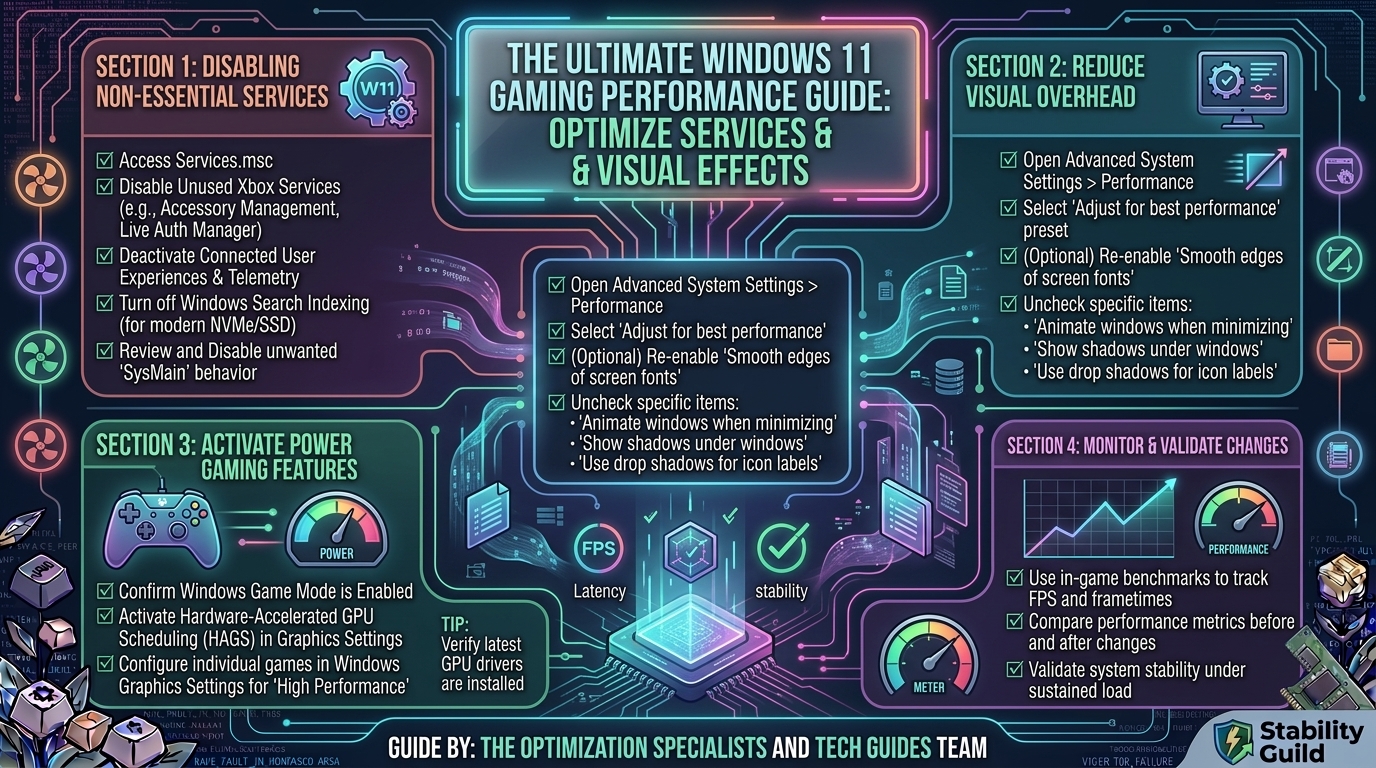
What Are the Best Windows 11 Background Services and Visual Effects to Disable for Better Gaming Performance
Modern PC gaming requires every ounce of system performance your hardware can deliver. While Windows 11 brings advanced features like DirectStorage and Auto HDR to the table, its default installation ships with dozens of background services, telemetry trackers, animations, and visual enhancements running out of the box.
These unneeded background processes constantly consume valuable CPU cycles, hog RAM, trigger background disk reads, and introduce input latency. For competitive gamers looking to maximize frame rates, smooth out 1% low frame drops, and eliminate micro-stuttering, trimming OS bloat is essential.
This guide breaks down exactly which Windows 11 services and visual effects you can safely disable, how to streamline your operating system for raw gaming efficiency, and how to verify your performance gains step by step.
Quick Diagnostic Matrix: Performance vs. Visual Trade-Offs
| Optimization Category | Resource Reclaimed | Expected Performance Impact | Safe for Daily Use? |
| Disabling Telemetry & Diagnostic Tracking | CPU Cycles & Network Bandwidth | Reduces background micro-stutters and latency spikes. | 100% Safe |
| Trimming Unnecessary System Services | RAM (up to 1.5 GB) & Background Threads | Keeps CPU clear for high-frame-rate rendering. | 100% Safe (if following guidelines) |
| Disabling Visual Effects & Transparency | GPU VRAM & Desktop Window Manager (DWM) Overhead | Drops input latency and frees up GPU memory bandwidth. | 100% Safe |
| Turning Off Xbox Game Bar & DVR | CPU/GPU Video Encoding Overhead | Prevents sudden 1% low FPS drops during heavy combat. | 100% Safe |
| Disabling Core Isolation / VBS | Hardware Virtualization Overhead | +5% to +15% FPS boost in CPU-bound games. | Moderate (Reduces hyper-strict isolation security) |
1. Safely Disable High-Overhead Windows 11 Background Services
Windows 11 runs over a hundred background services by default. Many of these are legacy features or enterprise management tasks completely irrelevant to a personal gaming rig.
How to Access Services Manager
- Press
Windows Key + Rto open the Run dialog. - Type
services.mscand hit Enter. - To change any service: Right-click the service name, select Properties, set the Startup type to Disabled or Manual, click Stop if running, then click Apply.
[ Run Dialog (services.msc) ] ---> [ Right-Click Service ] ---> [ Properties ] ---> [ Startup Type: Disabled ]
The Ultimate Safe Services Disabling List
Here is the exact breakdown of non-essential services you can disable for gaming efficiency:
| Service Name | Display Name | Recommended Setting | Why You Should Disable / Set to Manual |
DiagTrack | Connected User Experiences and Telemetry | Disabled | Sends diagnostic data to Microsoft; causes periodic background CPU/disk spikes. |
sysmain | SysMain (formerly Superfetch) | Disabled (if on SSD/NVMe) | Caches apps into RAM for HDDs. On fast NVMe SSDs, it causes unneeded RAM usage and disk writes. |
dmwappushservice | Device Management Wireless Application Protocol | Disabled | Used for telemetry and enterprise data routing. Irrelevant for gaming PCs. |
RemoteRegistry | Remote Registry | Disabled | Allows remote users to modify Windows Registry. Massive security risk and resource hog. |
Fax | Fax Service | Disabled | Outdated legacy service. Completely useless on modern gaming hardware. |
PrintNotify / Spooler | Print Spooler | Disabled | (Only if you do not own a printer) Prevents background printer polling threads. |
MapsBroker | Downloaded Maps Manager | Disabled | Manages offline maps in Windows. Games use their own asset management system. |
RetailDemo | Retail Demo Service | Disabled | Used by store display PCs. Serves zero purpose on home computers. |
WSearch | Windows Search | Manual | Indexing disk files in the background can cause stutters during open-world asset streaming. |
XblAuthManager | Xbox Live Auth Manager | Manual | (Disable if you don’t play Game Pass titles) Required only for logging into Xbox services. |
2. Streamline Windows 11 Visual Effects for Maximum GPU Efficiency
The Desktop Window Manager (DWM) uses GPU acceleration to render translucent windows, drop shadows, smooth animations, and window transitions. Turning off these eye-candy features frees up VRAM and eliminates display pipeline delays.
Optimizing Visual Effects via System Properties
- Press
Windows Key + R, typesysdm.cpl, and hit Enter. - Go to the Advanced tab.
- Under the Performance section, click Settings…
- In the Visual Effects tab, select Adjust for best performance.
[ Visual Effects Settings ]
 ( ) Let Windows choose what's best
 ( ) Adjust for best appearance
 (X) Adjust for best performance  <--- SELECT THIS
 ( ) Custom
- For a clean desktop look while preserving performance, re-check only these two options:
- Smooth edges of screen fonts (Prevents text from looking jagged).
- Show thumbnails instead of icons (Preserves media preview icons in File Explorer).
- Click Apply and OK.
Disable Transparency & Window Animations
- Open Windows Settings (
Windows Key + I). - Navigate to
Accessibility > Visual effects. - Turn Transparency effects to OFF.
- Turn Animation effects to OFF.
3. Disable Virtualization-Based Security (VBS) & Core Isolation
Introduced to bolster enterprise defense, Virtualization-Based Security (VBS) and Memory Integrity (HVCI) create an isolated virtual layer in RAM. Independent benchmarks show that HVCI can reduce gaming performance by up to 15% on modern processors due to strict security validation overhead.
How to Turn Off Memory Integrity for Gaming Performance:
- Open the Start menu, search for Core Isolation, and launch it.
- Toggle Memory Integrity to OFF.
- Reboot your PC.
[ Windows Security ] ---> [ Device Security ] ---> [ Core Isolation Details ] ---> [ Memory Integrity: OFF ]
4. Turn Off Game Bar Recording and Unnecessary Overlays
Windows 11 includes built-in background recording features designed to capture gameplay clips automatically. If active, these features place continuous encoding strain on your graphics card and CPU.
- Open Settings (
Windows Key + I). - Go to Gaming > Captures.
- Set Record what happened to OFF.
- Go to Gaming > Xbox Game Bar and toggle Open Xbox Game Bar using this button on a controller to OFF.
5. Disable Startup Apps and Telemetry Background Tasks
Background apps that launch automatically when Windows boots consume memory bandwidth and CPU execution cycles while running quietly in your system tray.
Clean Up Startup Tasks:
- Press
Ctrl + Shift + Escto launch Task Manager. - Click the Startup apps icon on the left navigation panel.
- Review the list of applications. Right-click non-essential launchers (e.g., Spotify, Discord, Microsoft Teams, OneDrive) and select Disable.
Disable Scheduled Telemetry Tasks:
- Press
Windows Key + R, typetaskschd.msc, and hit Enter to open Task Scheduler. - Navigate to:
Task Scheduler Library > Microsoft > Windows > Application Experience. - Right-click Microsoft Compatibility Appraiser and select Disable.
- Navigate to
Customer Experience Improvement Programand disable all listed tasks.
Step-by-Step Optimization Summary Checklist
+---------------------------------------------------------------------------------+
|                       GAMING PERFORMANCE OPTIMIZATION CHECKLIST                 |
+---------------------------------------------------------------------------------+
| [ ] Set Non-Essential Windows Services to Disabled (DiagTrack, SysMain, etc.) |
| [ ] Adjusted Performance Options to "Adjust for Best Performance"               |
| [ ] Disabled Transparency Effects & Window Animations                           |
| [ ] Turned OFF Memory Integrity / Core Isolation in Windows Security            |
| [ ] Disabled Background Game Recording & Xbox Game Bar Overlays                 |
| [ ] Cleaned up non-essential Startup Apps in Task Manager                       |
| [ ] Disabled Background Telemetry Tasks in Task Scheduler                       |
+---------------------------------------------------------------------------------+
Frequently Asked Questions (FAQ)
Q1: Will disabling Windows background services cause my PC to crash?
A: As long as you follow the verified services list provided above, your operating system will remain completely stable. Essential core services responsible for system boot, network connectivity, and GPU execution are left intact.
Q2: Does disabling SysMain (Superfetch) hurt SSD performance?
A: No. SysMain was engineered primarily to pre-load frequently used applications into RAM for slow mechanical hard drives (HDDs). Modern NVMe SSDs read data fast enough that SysMain only adds unnecessary disk writes and RAM usage.
Q3: How much performance gain can I expect from these Windows 11 tweaks?
A: Depending on your hardware bottlenecks, disabling bloatware, VBS, and visual effects typically improves overall FPS by 5% to 15%, while dramatically improving 1% low frame rates, eliminating micro-stutters.
Q4: Is it safe to disable Virtualization-Based Security (VBS) on a home gaming PC?
A: Yes. For a home gaming system protected by standard antivirus software and safe browsing habits, turning off VBS is safe and recommended by major hardware manufacturers for performance gains.
Q5: Should I turn off Windows Update service to stop background downloads?
A: It is better to set Windows Update active hours rather than disabling the service entirely. Keeping Windows updated ensures your system receives critical security patches and DirectStorage performance updates.
Q6: What is the difference between disabling services and choosing “Disable” in Task Manager?
A: Task Manager’s “Startup apps” tab stops user-level applications (like Discord or Spotify) from booting with Windows. The Services Manager (services.msc) controls low-level kernel and background operating system processes.
Q7: Will disabling visual effects make text look bad on my monitor?
A: If you follow our recommended checklist and keep Smooth edges of screen fonts enabled, text readability will remain sharp while all unnecessary window animations and shadows are removed.
Q8: Why does Xbox Game Bar cause FPS drops in modern games?
A: Xbox Game Bar runs a background overlay and encoding pipeline that hooks into your game’s graphics rendering thread. This can introduce input lag and frame pacing stutters on single-screen setups.
Q9: Does Windows Game Mode actually help after turning off background services?
A: Yes. Windows 11 Game Mode prioritizes CPU and GPU resources for the active game window while suppressing background Windows Update notifications. Keep Game Mode ON in your Settings menu.
Q10: Can I reverse these changes if I want to revert back to default Windows 11 visuals?
A: Absolutely. Every step outlined in this guide is fully reversible. You can re-enable services in services.msc, turn transparency back on under Accessibility settings, or click Let Windows choose what’s best in Performance Options.
Conclusion
Windows 11 is a powerful operating system for gaming, but its factory configuration contains excessive bloatware designed for general office users and enterprise network tracking. By disabling diagnostic telemetry services, trimming background processes, turning off Core Isolation, and stripping away visual effects, you free up vital system resources. The end result is lower input latency, smoother 1% frame rate lows, and a stable, high-performance gaming environment.
Leave a Reply