There is nothing quite as immersion-breaking—or squad-infuriating—than hopping into a high-stakes Discord call for a Counter-Strike 2, Valorant, or Apex Legends match, only for your teammates to be greeted by a relentless barrage of high-pitched clacking. If you game on a mechanical keyboard outfitted with tactile switches, heavy springs, or loud clicky blues, your desk essentially doubles as a percussion instrument every time you hit the WASD keys.
Because high-sensitivity desktop microphones and gaming headset mics are engineered to pick up subtle nuances, they capture every single bottoming-out keystroke with crystal clarity.
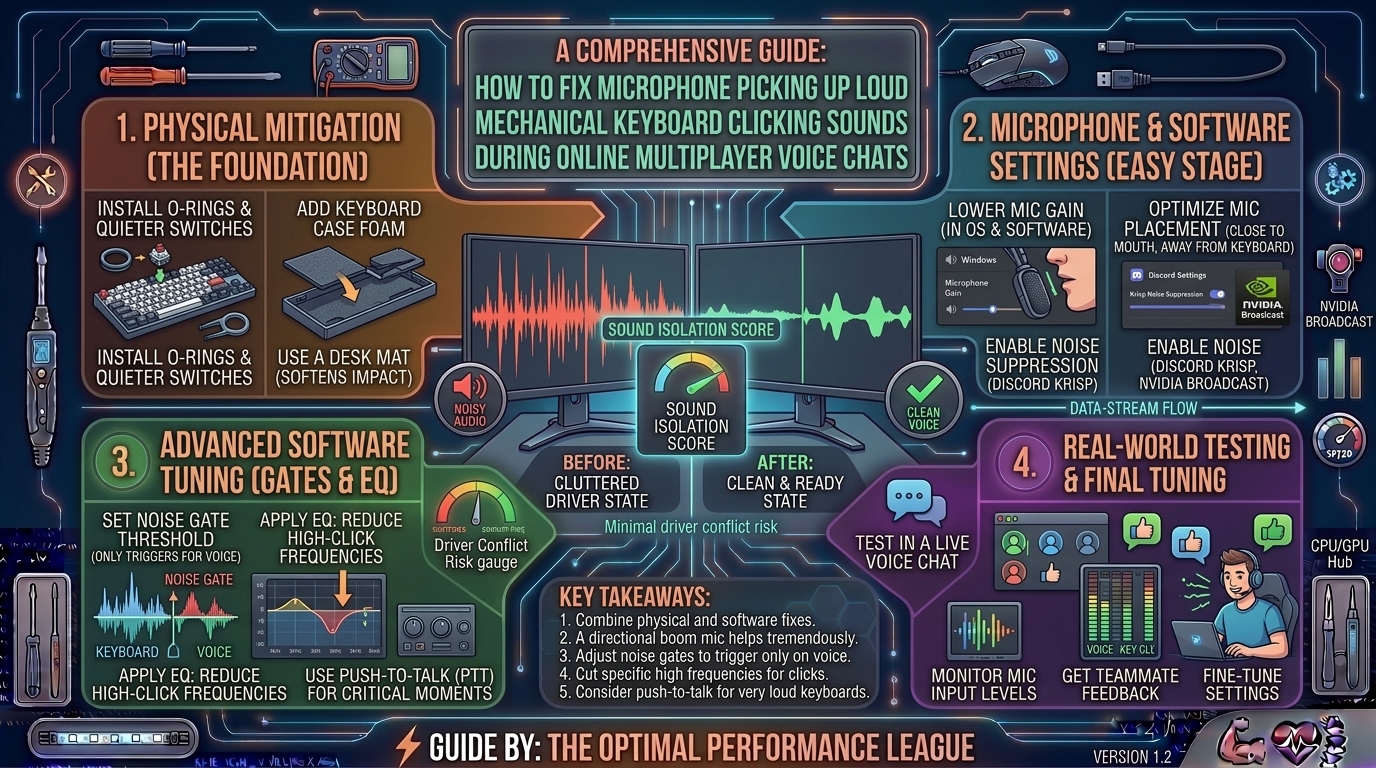
Eliminating keyboard clatter requires a two-pronged approach: physical optimization to maximize acoustic distance, and software-level AI noise suppression to strip out mechanical frequencies in real-time. This exhaustive guide explores every proven method to banish keyboard noise from your voice chats permanently.
1. The Root Cause: Proximity, Gain, and Polar Patterns
Before tweaking software filters, you must understand why your microphone is capturing the keyboard in the first place.
+-------------------------------------------------------------------------+
|                  THE ACOUSTIC CONFLICT ON YOUR DESK                     |
+-------------------------------------------------------------------------+
| Poor Setup: Mic sitting flat on desk, far from mouth, high gain         |
|   ├─► Picks up direct sound waves radiating from keyboard switches      |
|   └─► Picks up low-frequency mechanical thuds vibrating through desk    |
|                                                                         |
| Optimized Setup: Boom arm, close mouth proximity, low gain              |
|   ├─► Voice signal dominates microphone capsule by 15dB to 20dB         |
|   └─► Keyboard sound waves fall below the activation threshold          |
+-------------------------------------------------------------------------+
- The Inverse-Square Law: Sound energy drops off dramatically over distance. If your microphone sits 2 feet away from your mouth on a desk stand, you have to crank your software gain high just to be heard. That high gain turns your keyboard—sitting right underneath the mic—into a megaphone.
- Desk Vibrations: Every time you bottom out a key, mechanical energy travels directly through your wooden or glass desktop, up your desk stand, and into the microphone capsule as a low, muddy thud.
2. Physical Fixes: Restructuring Your Desktop Environment
Fixing your physical layout provides the cleanest baseline, ensuring software filters do not have to work overtime (which can occasionally cause your voice to sound robotic or muffled).
+-------------------------------------------------------------------------+
|                   PHYSICAL ISOLATION CHECKLIST                          |
+-------------------------------------------------------------------------+
| [X] Mount microphone on an articulating boom arm off the desk           |
| [X] Position mic 2 to 4 inches from your mouth, pointing downward       |
| [X] Aim the dead zone (rear) of cardioid pattern toward the keyboard    |
| [X] Place an oversized desk mat underneath keyboard and mic stand     |
+-------------------------------------------------------------------------+
1. Upgrade to a Desk Boom Arm
Never leave a standalone USB or XLR microphone resting on its factory desk tripod. A boom arm lets you suspend the microphone floating just inches away from your mouth. Position the arm so the mic hovers just out of your monitor’s view, pointing downward toward your chin.
2. Leverage Polar Patterns (Cardioid Rejection)
Most desktop streaming and gaming microphones use a cardioid polar pattern. This means they are most sensitive to sound coming directly from the front, and heavily reject sound coming from the rear.
- The Trick: Angle your microphone so that the front capsule faces your mouth, while the rear or dead zone of the microphone points directly down at your mechanical keyboard.
3. Use an Oversized Desk Mat (Desk Pad)
A high-quality, thick 3mm or 4mm cloth gaming mousepad placed under both your keyboard and your microphone stand acts as an acoustic damper. It absorbs high-frequency clacks and stops structural vibrations from traveling through the desk surface.
3. Software Filtering: AI Noise Suppression and Noise Gates
When physical adjustments aren’t enough to silence heavy clicky switches, modern software algorithms come to the rescue.
+-------------------------------------------------------------------------+
|                  SOFTWARE FILTERING HIERARCHY                           |
+-------------------------------------------------------------------------+
| [1] AI Noise Suppression (NVIDIA Broadcast / Krisp)                     |
|     └─► Isolates human vocal frequencies; completely erases keyboard clacks|
| [2] Traditional Noise Gate (OBS / Discord / Elgato Wave Link)           |
|     └─► Mutes mic automatically when you aren't speaking                |
+-------------------------------------------------------------------------+
1. AI-Powered Noise Suppression (The Gold Standard)
Traditional filters struggle to differentiate between a high-pitched keyboard click and the sharp consonants (S, T, P) in your speech. AI noise removal trains neural networks to recognize human speech patterns and strip away all non-human audio.
- NVIDIA Broadcast / RTX Voice: If you own an NVIDIA GeForce RTX graphics card, download the NVIDIA Broadcast app. Set your chat application’s input device to “Microphone (NVIDIA Broadcast)” and turn on Noise Removal. It completely obliterates mechanical keyboard sounds even while you are actively typing and talking simultaneously.
- Krisp / Discord Built-In Suppression: Discord features a built-in noise suppression toggle powered by Krisp. Head to User Settings > Voice & Video > Input Sensitivity / Noise Suppression and select Krisp.
2. Configuring a Noise Gate
If you don’t have AI suppression available, a Noise Gate silences your microphone whenever your voice drops below a specific volume threshold.
- How it helps: It prevents your keyboard clicks from transmitting when you are listening quietly during a match.
- The limitation: A noise gate will not block keyboard sounds if you are typing while talking, because the gate is forced open by your voice. Therefore, pair a noise gate with close mic positioning.
4. Summary Table: Solutions Comparison
| Method | Effectiveness Against Keyboard Clicks | Cost | Impact on Voice Quality |
| Desk Boom Arm & Close Mic Placement | High | Low – Moderate | None (Improves clarity) |
| Oversized Desk Mat / Dampening | Moderate | Low | None |
| Traditional Noise Gate | Moderate (Only when quiet) | Free | Low (Can clip word ends if misconfigured) |
| NVIDIA Broadcast / Krisp AI | Maximum (Permanent Erasure) | Free (Requires RTX GPU / App) | None to Minimal |
| O-Rings / Switch Dampeners | Moderate (Muffles bottom-out thud) | Very Low | Changes keyboard feel |
5. Step-by-Step Ultimate Configuration Blueprint
Follow this step-by-step workflow to completely eliminate keyboard noise from your multiplayer voice channels:
- Reposition Your Mic: Mount your microphone on a boom arm, bringing it roughly 3 to 5 inches away from your mouth, angled slightly downward.
- Lower Your Gain: In Windows Sound Settings or your audio interface software, turn down your analog microphone gain/input volume slider. Compensate by moving the mic closer to your mouth.
- Isolate Vibrations: Place a thick desk mat underneath your keyboard and use a shock mount if your microphone supports one.
- Enable AI Filtering: Turn on Krisp inside Discord or activate NVIDIA Broadcast globally for your system.
- Perform a Test Recording: Record your voice while aggressively typing on your mechanical keyboard. Listen back to ensure your speech sounds natural while the keyboard clicks are completely filtered out.
6. Frequently Asked Questions (FAQ)
1. Why do expensive condenser microphones pick up mechanical keyboards more than cheap headset mics?
Condenser microphones feature highly sensitive, ultra-thin diaphragms designed to capture wide frequency responses and studio-quality vocal warmth. Because they are so sensitive, they pick up ambient room echoes and mechanical clacks easily, whereas cheap headset mics have low sensitivity and sit inches from your mouth.
2. Can I use rubber O-rings to silence my mechanical keyboard?
Yes. Installing silicone rubber O-rings onto the stem of your keycaps cushions the bottom-out impact against the switch housing, significantly dampening the sharp clack sound. However, they do not change the sound of the switch’s internal click mechanism (if you use Cherry MX Blue style click-jacket switches).
3. Does Discord’s Krisp noise suppression affect my voice quality?
Krisp is heavily optimized to target background noise while preserving human speech. In most cases, it removes keyboard noise cleanly with zero noticeable distortion to your voice, though heavy compression can occasionally clip very soft whispers.
4. What is the best type of microphone to avoid keyboard noise?
Dynamic microphones (such as the Shure SM7B, Rode PodMic, or HyperX QuadCast alternative dynamic models) are far better at rejecting background noise than condenser microphones because they have lower sensitivity and require your mouth to be very close to the capsule.
5. Why does my noise gate cut off the first letter of my sentences?
If your noise gate threshold is set too high, the filter treats the initial soft consonants of your speech (like S, T, or P) as background noise and clips them. Lower the close threshold slightly or increase the “attack” time on your gate.
6. Will NVIDIA Broadcast work if I have an older graphics card?
Standard NVIDIA Broadcast requires an NVIDIA GeForce RTX 2060, Quadro RTX 4000, TITAN RTX or higher due to its reliance on dedicated Tensor Cores. If you have an older GTX card or an AMD GPU, you can use Krisp in Discord or open-source OBS noise suppression filters instead.
7. How do I stop my keyboard’s pinging/spring noise from echoing?
Spring ping occurs when the metal leaf spring inside a mechanical switch vibrates. You can fix this by opening your switches and applying a small amount of Krytox 205g0 lubricant to the springs (known as “lube and film”).
8. Is Push-to-Talk still relevant if I have noise suppression?
Many hardcore competitive players still prefer Push-to-Talk (PTT) in high-stakes games. Even the best AI filters occasionally let through an erratic keyboard smash or heavy sigh, making PTT the absolute 100% foolproof way to keep comms crystal clear.
9. Does changing my Windows microphone boost setting help?
Microphone boost increases the electrical amplification of your audio signal. Turning up microphone boost also boosts your keyboard clicks exponentially. Always keep microphone boost as low as possible and rely on physical proximity instead.
10. Can background game audio bleed into my microphone during voice chats?
Yes, if you play audio through external desk speakers instead of gaming headsets, your mic will pick up the game sounds and cause an echo. Always use closed-back gaming headphones or turn down speaker volume when chatting.
Banningishing mechanical keyboard clatter from your online multiplayer voice chats transforms your communication from a distracting annoyance into professional-grade comms. By pairing physical adjustments—like a boom arm and a thick desk mat—with advanced AI noise suppression tools like NVIDIA Broadcast or Discord’s Krisp, you can enjoy the premium tactile feel of your favorite mechanical keyboard without driving your teammates crazy.
Leave a Reply