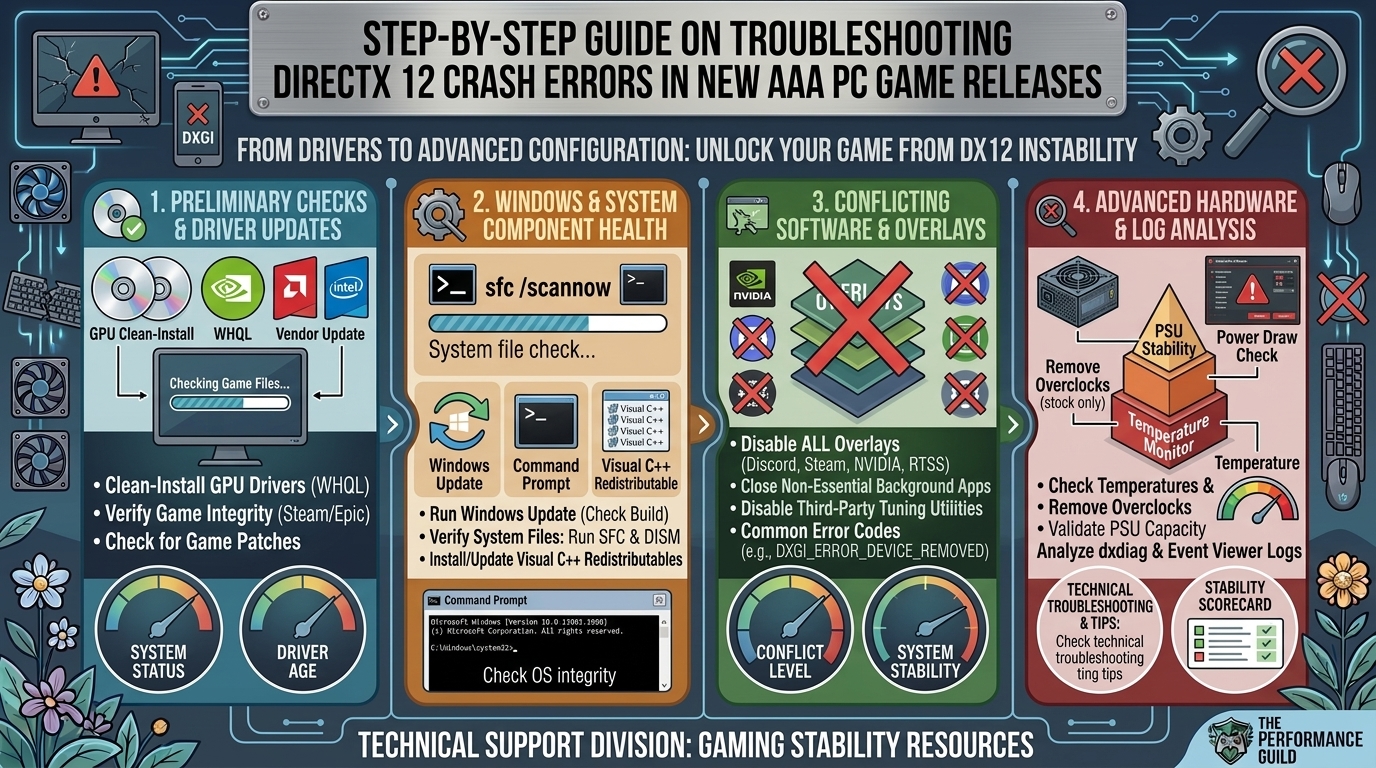
DXGI_ERROR_DEVICE_HUNG: The graphics card took too long to execute a command, causing the driver to reset the hardware pipeline. Frequently triggered by unstable factory overclocks or high GPU memory junction temperatures.DXGI_ERROR_DEVICE_REMOVED: The operating system lost connection to the graphics card. Usually points to aggressive power-saving states, physical PCIe slot power drops, or a total GPU driver crash.D3D12_ERROR_DRIVER_FAILURE: A fundamental failure inside the display driver when attempting to allocate virtual memory or execute pipeline state objects (PSOs).DirectX 12 is Not Supported on Your System: Occurs when game files fail to detect Feature Level 12_0+ support, often caused by out-of-date Windows builds or corrupt runtime libraries.
1.Run a Clean Driver Installation via DDU:Eliminates corrupted registry entries and stale driver caches.
Standard driver updates often leave behind legacy settings that conflict with new DX12 game patches.
- Download Display Driver Uninstaller (DDU) and the latest standalone driver package from NVIDIA, AMD, or Intel.
- Disconnect your internet connection to stop Windows Update from automatically pulling an old generic driver.
- Boot Windows into Safe Mode.
- Run DDU, select GPU as the device type, and click Clean and Restart.
- Once back in normal Windows, run the official driver installer and check Perform a Clean Installation. Reconnect to the internet afterward.
2.Purge Corrupted DirectX Shader Caches:Forces the game engine to recompile clean pipeline state objects.
Stale or corrupted pre-compiled shaders are a primary trigger for startup crashes in modern engines like Unreal Engine 5.
- Open Windows Settings (
Win + I) and go to System > Storage. - Click on Temporary Files and check the box for DirectX Shader Cache.
- Click Remove files and reboot your system.
- If using an NVIDIA GPU, open the NVIDIA Control Panel, navigate to Manage 3D Settings, set Shader Cache Size to 10GB or Unlimited, and apply changes.
3.Disable Overlays and In-Game Hooking Apps:Prevents third-party software from injecting unstable DirectX layers.
DirectX 12 gives games low-level access to the GPU, making background rendering hooks highly unstable.
- NVIDIA GeForce Experience / App: Turn off In-Game Overlay in settings.
- Discord: Go to User Settings > Game Overlay and toggle it off.
- RivaTuner Statistics Server (RTSS) / MSI Afterburner: Close the software entirely or set Application Detection Level to None.
- Steam / Epic Games Launcher: Disable the platform overlay in the launcher properties.
4.Revert Memory and GPU Overclocks to Stock:DX12 exposes subtle system instability that synthetic benchmarks miss.
DirectX 12 exercises GPU memory and system RAM harder than older APIs. An overclock that passes 24 hours of synthetic stress tests can still crash in a DX12 title within minutes.
- Open MSI Afterburner and click the Reset button to restore core and memory clocks to factory defaults.
- Reboot into your system BIOS/UEFI.
- Temporarily disable XMP / EXPO profiles for your RAM to verify if system memory instability is driving the TDR (Timeout Detection and Recovery) reset.
5.Force an Alternative Graphics API via Launch Commands:Bypasses broken DX12 pipelines until a game patch arrives.
If launch crashes persist on a newly released title, force the game engine to fall back to an alternative rendering API.
- Steam: Right-click the game in your library > Properties > General > Launch Options.
- Enter
-dx11,-d3d11, or-vulkanin the command box and launch the game.
Hardware-Accelerated GPU Scheduling (HAGS) & Windows Settings
Windows 10 and 11 feature Hardware-Accelerated GPU Scheduling (HAGS), designed to pass memory management off to the GPU. While it improves frame pacing in some titles, it frequently causes DXGI_ERROR_DEVICE_HUNG errors on fresh AAA releases.
- How to Toggle HAGS: Go to Settings > System > Display > Graphics. Under Default settings, click Change default graphics settings. Toggle Hardware-accelerated GPU scheduling to Off and restart your PC.
- Fullscreen Optimizations: Right-click the game’s main executable (
.exe), select Properties > Compatibility, check Disable fullscreen optimizations, and click Apply.
Frequently Asked Questions (FAQ)
Q1: Why do new AAA games crash on DirectX 12 but run fine on DirectX 11?
DX11 uses high-level abstraction layers managed by the GPU driver to handle memory and CPU threading. DX12 passes memory management directly to the game developer. If a game’s engine has poorly optimized memory pipelines or unhandled race conditions, DX12 crashes directly to the desktop where DX11 would have absorbed the fault.
Q2: Will reinstalling DirectX fix my DX12 crash issues?
DirectX 12 is integrated directly into Windows 10 and Windows 11 as a core OS component and cannot be uninstalled independently. Installing the DirectX End-User Runtime Web Installer only installs legacy DX9, DX10, and DX11 libraries. To fix DX12 runtime errors, you must run Windows Update or perform an in-place OS repair.
Q3: What does a TDR error mean in Windows Event Viewer?
Timeout Detection and Recovery (TDR) is a Windows safety feature. If your GPU does not respond to the OS for 2 seconds, Windows assumes the card is locked up and resets the display driver to prevent a system-wide Blue Screen (BSOD).
Q4: How do I know if my GPU actually supports DirectX 12 Ultimate?
Press Win + R, type dxdiag, and hit Enter. Navigate to the Display tab. Look at the Feature Levels list under the Drivers section. If it includes 12_2, your card supports DirectX 12 Ultimate (Ray Tracing, Mesh Shaders, Variable Rate Shading).
Q5: Why does my game crash specifically during shader compilation on startup?
Shader compilation taxes all CPU cores and system RAM simultaneously. Instability during shader compilation is frequently linked to unstable CPU power limits (such as high-tier Intel 13th/14th Gen processors needing updated motherboard microcode BIOS patches) or system memory errors.
Q6: Can low VRAM cause a DXGI_ERROR_DEVICE_REMOVED crash?
Yes. When a game runs out of Dedicated Video Memory (VRAM), DX12 attempts to swap assets into System RAM via the PCIe bus. If this swapping process causes a memory access violation or stalls the rendering pipeline too long, the operating system drops the device connection.
Q7: Is it safe to delete the DirectX Shader Cache folder manually?
Yes. The shader cache contains pre-compiled binaries created for faster loading. Deleting the cache is safe; the game will simply rebuild clean shader files the next time you launch it.
Q8: Why does disabling my secondary monitor prevent DX12 crashes?
Multi-monitor setups running at mixed refresh rates (e.g., 144Hz paired with 60Hz) or running background hardware-accelerated browsers can desync the GPU’s clock states, triggering a driver timeout in low-level DX12 titles.
Q9: How do I verify if corrupted system files are breaking DirectX 12?
Open Command Prompt as Administrator, type sfc /scannow, and press Enter. Once complete, run DISM /Online /Cleanup-Image /RestoreHealth to repair underlying Windows system files that govern Direct3D dependencies.
Q10: Should I use Studio Drivers instead of Game Ready Drivers for AAA gaming?
If a newly released Game Ready Driver causes persistent DX12 device-hung crashes, switching to the latest NVIDIA Studio Driver or AMD Minimal Setup Driver can offer a more stable code base while game studio patches are developed.
Fixing DirectX 12 launch crashes on new AAA PC games usually comes down to stripping away software conflicts. By systematically conducting a clean DDU driver wipe, clearing stale shader caches, disabling third-party overlays, and disabling aggressive hardware overclocks, you strip away the background noise that destabilizes modern API pipelines. Keep your GPU drivers stable, keep your Windows build updated, and give newly launched titles a few post-launch hotfixes to settle into peak performance.
Leave a Reply