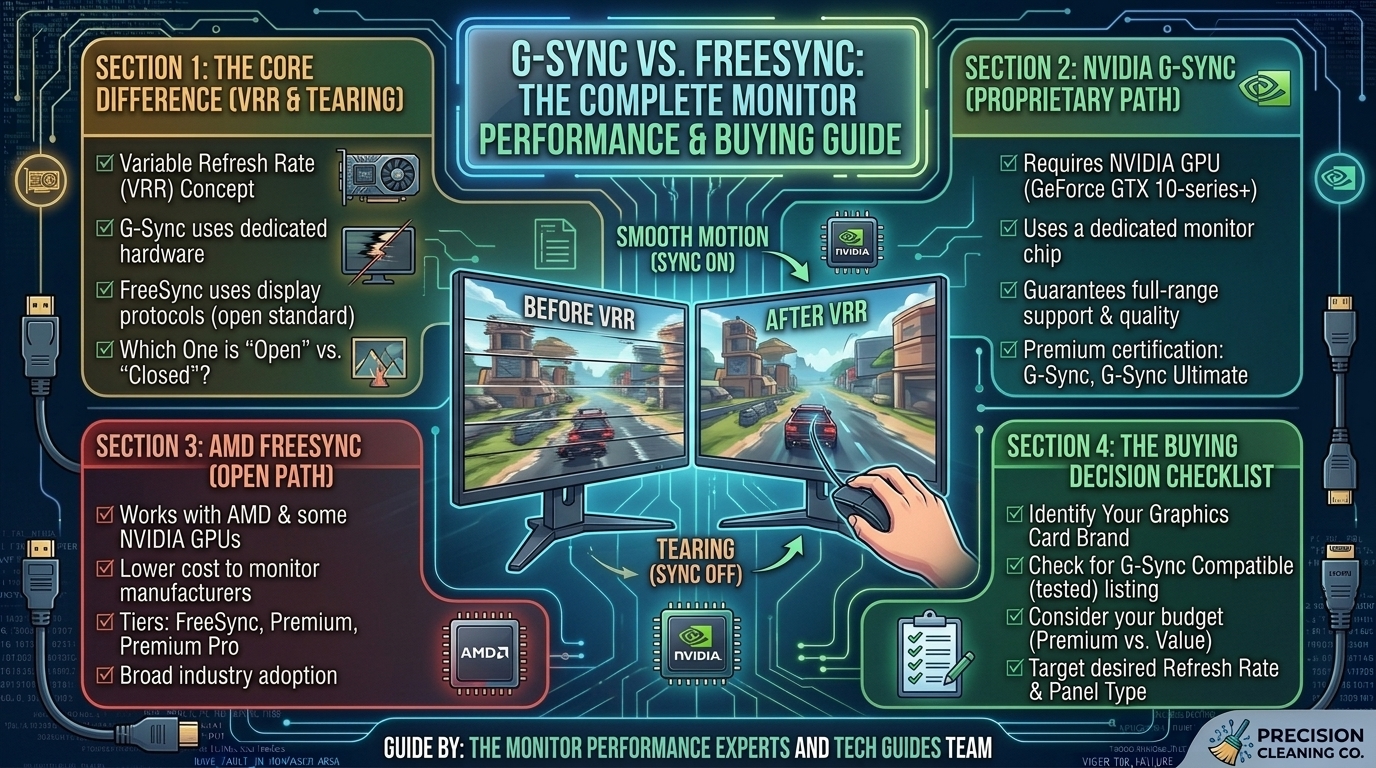
What is the Difference Between G-Sync and FreeSync Monitors and Which One Should You Buy for Your Graphics Card?
When building or upgrading a PC gaming setup, matching your graphics card (GPU) with the right monitor is one of the most critical decisions you will make. You can purchase a high-end graphics card capable of pushing over 140 frames per second, but if your display cannot dynamically synchronize with that output, your gameplay will suffer from jarring visual artifacts like screen tearing, micro-stuttering, and increased input lag.
To solve these visual discrepancies, monitor manufacturers and GPU makers rely on Variable Refresh Rate (VRR) technologies. The two dominant VRR standards on the market today are NVIDIA G-Sync and AMD FreeSync.
While both technologies aim to eliminate screen tearing by synchronizing your monitor’s refresh rate (measured in Hz) to your GPU’s real-time frame rate (measured in FPS), they function differently under the hood, vary in pricing, and offer distinct tiers of performance.
This comprehensive guide breaks down the core architecture of G-Sync and FreeSync, compares their performance tiers, analyzes GPU compatibility, and helps you determine exactly which monitor you should buy for your graphics card.
Variable Refresh Rate (VRR) Overview: G-Sync vs. FreeSync
Before examining individual features, review this side-by-side comparison of how both VRR technologies stack up against each other across essential performance metrics:
| Feature / Metric | NVIDIA G-Sync (Native / Ultimate) | NVIDIA G-Sync Compatible | AMD FreeSync (Base / Premium / Pro) |
| Primary Technology | Hardware-based (Proprietary NVIDIA FPGA chip built into monitor) | Software/Standard-based (VESA Adaptive-Sync standard) | Software/Standard-based (VESA Adaptive-Sync standard) |
| Supported GPUs | NVIDIA GeForce GPUs | NVIDIA GeForce & AMD Radeon GPUs | AMD Radeon & NVIDIA GeForce GPUs |
| Connection Types | DisplayPort (HDMI 2.1 supported on select newer modules) | DisplayPort 1.4+ (and HDMI 2.1 on select displays) | DisplayPort & HDMI (HDMI 2.0 / 2.1 supported) |
| Variable Overdrive | Hardware-tuned, dynamic real-time overdrive | Varies by monitor manufacturer quality | Varies by monitor manufacturer quality |
| Low Framerate Compensation (LFC) | Built-in native support across full Hz spectrum | Supported on validated displays with wide VRR ranges | Supported on FreeSync Premium and FreeSync Premium Pro |
| Price Premium | Higher cost due to physical NVIDIA hardware module | Budget to Mid-Range friendly | Budget to High-End friendly |
| HDR Validation | Standardized via G-Sync Ultimate certification | Varies based on monitor panel specs | Standardized via FreeSync Premium Pro certification |
1. The Core Problem: Why Do You Need VRR in Fast Gaming?
To understand why G-Sync and FreeSync exist, you must first understand what happens when a monitor and a graphics card are out of sync.
Traditional monitors refresh their image at a fixed rate—typically 60 Hz, 144 Hz, or 240 Hz. This means a 144 Hz display updates its picture exactly 144 times every second, regardless of what your computer is doing. However, a graphics card does not produce frames at a constant rate. In complex gaming scenes (such as explosions, dense foliage, or intensive multiplayer gunfights), your GPU frame output fluctuates constantly—jumping from 120 FPS down to 85 FPS and back up to 140 FPS.
Fixed Refresh Rate (144Hz Monitor) :  [ Frame Update ] ------> [ Frame Update ] ------> [ Frame Update ]
Fluctuating GPU Output (FPS)       :  [ Rendered FPS ] ---> [ Drop ] -------> [ Spike ] ---> [ Drop ]
                                                  ||
                                         RESULT: SCREEN TEARING / STUTTER
This mismatch leads to two major visual issues:
1. Screen Tearing
Screen tearing occurs when your graphics card sends a new frame to the display while the monitor is mid-way through drawing the previous frame. The monitor renders the top portion of the old frame alongside the bottom portion of the new frame, causing a visible horizontal “split” across your screen.
2. Stutter and Input Lag (The V-Sync Dilemma)
Historically, gamers enabled V-Sync (Vertical Synchronization) in game menus to fix screen tearing. V-Sync forces the GPU to wait for the monitor to complete its refresh cycle before sending a new frame. However, if your GPU drops even a single frame below the monitor’s target refresh rate, V-Sync holds the old frame on screen for an extra cycle. This creates noticeable micro-stuttering and introduces severe input lag, making your mouse controls feel sluggish.
The Solution: Variable Refresh Rate (VRR)
Variable Refresh Rate technology flips traditional rendering logic on its head: instead of forcing your GPU to match your monitor’s timing, the monitor dynamically adjusts its refresh rate in real-time to match the GPU’s instantaneous FPS output. If your card outputs 87 FPS, the display runs at 87 Hz. If your performance drops to 52 FPS, the display slows down to 52 Hz instantly.
2. Deep Dive: NVIDIA G-Sync Architecture & Tiers
NVIDIA introduced G-Sync to solve VRR challenges using dedicated hardware. Over time, NVIDIA expanded the G-Sync brand into three distinct tiers to accommodate different price points and panel technologies.
                             +-------------------------------+
                             |    NVIDIA G-SYNC ECOSYSTEM    |
                             +-------------------------------+
                                             |
       +-------------------------------------+-------------------------------------+
       |                                     |                                     |
[ G-Sync Compatible ]                [ Native G-Sync ]                   [ G-Sync Ultimate ]
- Software / Adaptive-Sync           - Physical NVIDIA Hardware Chip     - Physical Module + HDR Peak Brightness
- No extra hardware cost             - Full Variable Overdrive           - Advanced Color Calibration & Low Latency
Tier 1: G-Sync Compatible
- How it works: G-Sync Compatible monitors do not contain an NVIDIA hardware chip inside the display. Instead, they are standard VESA Adaptive-Sync / FreeSync displays that NVIDIA has tested and validated in its labs.
- Key Features: Ensures no flickering, blanking, or visual artifacts when running G-Sync on NVIDIA GeForce graphics cards over DisplayPort or HDMI 2.1.
- Best for: Gamers looking for an affordable, high-performance display without paying a hardware premium.
Tier 2: Native G-Sync
- How it works: These displays feature a physical, proprietary NVIDIA hardware module (FPGA board) built directly into the monitor casing, replacing standard scalar chips.
- Key Features: Features Hardware Variable Overdrive. As your FPS fluctuates wildly from 144 FPS down to 50 FPS, the NVIDIA module dynamically tunes the voltage pushed to the monitor’s liquid crystals. This prevents ghosting (slow pixel response) or inverse ghosting (bright halos) across the entire refresh rate spectrum.
- Best for: Competitive players who experience wide frame rate shifts and require zero pixel motion blur at all speeds.
Tier 3: G-Sync Ultimate
- How it works: Combines the physical NVIDIA hardware module with top-tier HDR (High Dynamic Range) display specifications.
- Key Features: Validated for ultra-low latency, multi-zone local dimming (mini-LED or OLED), extreme color accuracy, and high peak brightness levels (1000+ nits).
- Best for: Enthusiast gamers playing cinematic AAA titles who want peak HDR visuals alongside perfect hardware VRR execution.
3. Deep Dive: AMD FreeSync Architecture & Tiers
Introduced by AMD as an open-source alternative to NVIDIA’s hardware approach, AMD FreeSync relies on the royalty-free VESA DisplayPort Adaptive-Sync standard built into standard display scaler chips. FreeSync operates across three certification tiers:
                            +-------------------------------+
                            |     AMD FREESYNC ECOSYSTEM    |
                            +-------------------------------+
                                            |
       +------------------------------------+------------------------------------+
       |                                    |                                    |
[ Base FreeSync ]                   [ FreeSync Premium ]                [ FreeSync Premium Pro ]
- Standard Adaptive-Sync            - 120Hz+ Refresh Rate at FHD        - Includes all Premium features
- Eliminates tearing & stutter      - Low Framerate Compensation (LFC)  - Meticulous HDR Color & Tone Mapping
Tier 1: AMD FreeSync (Base Tier)
- How it works: Utilizes standard DisplayPort Adaptive-Sync or HDMI VRR protocols without physical hardware modules.
- Key Features: Eliminates tearing and stuttering within a defined dynamic refresh rate window (e.g., 48 Hz to 144 Hz).
- Limitation: If your game’s FPS drops below the minimum VRR threshold (such as 40 FPS on a 48–144 Hz screen), base FreeSync deactivates, and screen tearing or stuttering can return.
Tier 2: AMD FreeSync Premium
- How it works: Enforces stricter validation standards on monitor panel performance.
- Key Features: Requires a minimum refresh rate of 120 Hz at FHD (1080p) resolution or higher. It introduces mandatory Low Framerate Compensation (LFC).
- What is LFC? Low Framerate Compensation prevents tearing even when your FPS drops below the monitor’s minimum threshold. If your game drops to 30 FPS on a monitor with a 48 Hz minimum boundary, LFC automatically duplicates frames (rendering each frame twice to run the monitor at 60 Hz), keeping VRR smooth and active.
Tier 3: AMD FreeSync Premium Pro (formerly FreeSync 2 HDR)
- How it works: Combines low-latency VRR execution with strict HDR visual quality standards.
- Key Features: Includes LFC and high refresh rates while adding direct tone-mapping communication between the game engine, AMD Radeon drivers, and the display. This bypasses standard Windows HDR latency, delivering vibrant colors and high dynamic contrast without adding input lag.
4. GPU Compatibility: Which Technology Works with Your Card?
One of the most common questions gamers ask is whether an NVIDIA GPU will work on a FreeSync monitor, or vice versa. The industry has become significantly more cross-compatible over recent years.
NVIDIA GeForce GPU  ---> [ Native G-Sync Monitor ]     = Full Hardware VRR
NVIDIA GeForce GPU  ---> [ FreeSync / Adaptive-Sync ]  = G-Sync Compatible (over DP / HDMI 2.1)
AMD Radeon GPU     ---> [ FreeSync Monitor ]           = Full Native FreeSync / LFC
AMD Radeon GPU     ---> [ Native G-Sync Monitor ]     = Limited (Works only if monitor has newer module)
If You Own an NVIDIA GeForce Graphics Card (GTX 10-Series, RTX 20/30/40 Series or Newer):
- Native G-Sync & G-Sync Ultimate Monitors: Works flawlessly out of the box via DisplayPort.
- FreeSync / Adaptive-Sync Monitors: Works via G-Sync Compatible mode! You can enable G-Sync inside the NVIDIA Control Panel for almost any modern DisplayPort FreeSync monitor.
If You Own an AMD Radeon Graphics Card (RX 5000, 6000, 7000 Series or Newer):
- FreeSync, FreeSync Premium, & Premium Pro Monitors: Works flawlessly out of the box via DisplayPort or HDMI.
- Native G-Sync Monitors: Older Native G-Sync monitors with early hardware modules only worked with NVIDIA GPUs. However, modern Native G-Sync displays (equipped with updated scalar firmware) support standard VESA Adaptive-Sync over DisplayPort, allowing AMD cards to utilize basic VRR functionality.
Step-by-Step Setup Guide: Enabling VRR on Your PC
Simply plugging in a high-refresh-rate VRR monitor does not automatically guarantee that G-Sync or FreeSync is active. Follow these steps to ensure your system is properly configured:
How to Enable G-Sync on an NVIDIA GPU
- Connect your monitor using a certified DisplayPort cable (or HDMI 2.1 for supported GPUs/monitors).
- Right-click your desktop and open NVIDIA Control Panel.
- Under the left menu, expand Display and select Set up G-SYNC.
- Check the box for Enable G-SYNC, G-SYNC Compatible.
- Select whether to enable it for Fullscreen mode or Windowed and fullscreen mode.
- Select your monitor model from the icon list, check Enable settings for the selected display model, and click Apply.
[ NVIDIA Control Panel ] ---> [ Display > Set up G-SYNC ] ---> Check "Enable G-SYNC" ---> Apply
How to Enable FreeSync on an AMD GPU
- Connect your monitor using a high-speed DisplayPort or HDMI cable.
- Open your monitor’s physical On-Screen Display (OSD) menu using the buttons on the panel and ensure FreeSync / Adaptive-Sync is set to ON.
- Right-click your desktop and launch AMD Software: Adrenalin Edition.
- Click the Settings (Gear Icon) in the top right corner and select the Display tab.
- Locate AMD FreeSync and toggle the switch to Enabled.
Optimal In-Game Settings for G-Sync & FreeSync
To achieve the absolute lowest input lag while keeping tearing completely eliminated, use this industry-standard VRR control configuration across your games:
- Turn VRR ON in your GPU Driver Control Panel (G-Sync or FreeSync).
- Turn In-Game V-Sync OFF inside individual game graphics menus (this prevents in-game V-Sync from adding processing buffer delay).
- Turn GPU Control Panel V-Sync ON (e.g., in NVIDIA Control Panel or AMD Software). Why? This acts as a frame framer-cap safety guardrail to keep your frame output from ever exceeding your maximum monitor refresh rate boundary.
- Set a Frame Rate Limit (NVIDIA Reflex / AMD Anti-Lag): Use built-in game frame limiters or GPU control panel caps to set your maximum FPS 3 to 4 frames BELOW your monitor’s native refresh rate.
- On a 144 Hz screen: Cap FPS at 140 FPS.
- On a 240 Hz screen: Cap FPS at 236 FPS.
Why Cap FPS 3-4 Frames Below Maximum Hz?
If your GPU frame rate reaches or exceeds your monitor’s maximum refresh cap (e.g., hitting 145 FPS on a 144 Hz display), VRR turns off automatically, and standard V-Sync takes over—introducing sudden input lag spikes. Capping your FPS slightly below your native Hz keeps VRR active 100% of the time.
Frequently Asked Questions (FAQ)
Q1: What is the main difference between G-Sync and FreeSync?
A: Native G-Sync uses a physical proprietary hardware processor installed inside the monitor to handle variable refresh rates and dynamic pixel overdrive. FreeSync relies on open-source VESA DisplayPort Adaptive-Sync protocols built into standard monitor scalars, making FreeSync monitors generally more affordable.
Q2: Will an NVIDIA graphics card work on an AMD FreeSync monitor?
A: Yes. Modern NVIDIA GeForce graphics cards (GTX 10-series and newer) support Adaptive-Sync. You can enable G-Sync Compatible mode in the NVIDIA Control Panel over DisplayPort or HDMI 2.1 to enjoy smooth variable refresh rate gaming on a FreeSync display.
Q3: Is Native G-Sync still worth the extra cost over FreeSync?
A: Native G-Sync is worth the extra investment primarily for competitive gamers who demand Hardware Variable Overdrive. This feature dynamically tunes pixel response times across the entire refresh rate range, eliminating motion ghosting when your frame rates drop significantly.
Q4: Can I use G-Sync or FreeSync over an HDMI cable?
A: FreeSync works across both DisplayPort and standard HDMI cables. G-Sync historically required DisplayPort; however, newer G-Sync Compatible displays and HDMI 2.1 connections allow G-Sync to operate over HDMI on modern GPUs (such as RTX 20/30/40 series and newer).
Q5: What is Low Framerate Compensation (LFC)?
A: LFC is a feature included in FreeSync Premium, FreeSync Premium Pro, and G-Sync displays. When your game’s FPS drops below the monitor’s supported minimum refresh threshold (e.g., dropping to 35 FPS on a 48–144 Hz screen), LFC automatically doubles or triples frame renders to keep the monitor within its active VRR window, preventing sudden stutters.
Q6: Does enabling FreeSync or G-Sync add input lag?
A: No. VRR technologies add virtually zero input lag compared to running unconstrained frames, and they provide significantly lower input lag than traditional software V-Sync. When properly set up with a frame rate cap 3–4 FPS below your max Hz, VRR delivers the lowest latency experience alongside tearing-free visual clarity.
Q7: Why is my G-Sync Compatible monitor flickering in game menus?
A: Brightness flickering on unvalidated FreeSync/Adaptive-Sync displays usually occurs when frame rates fluctuate rapidly around the minimum VRR boundary (such as loading screens dropping to 15–30 FPS). Using a validated G-Sync Compatible or FreeSync Premium display prevents this issue.
Q8: What is the difference between FreeSync Premium and FreeSync Premium Pro?
A: FreeSync Premium adds mandatory 120Hz+ refresh rate support and Low Framerate Compensation (LFC). FreeSync Premium Pro includes all Premium features while adding strict high-dynamic-range (HDR) certification and low-latency HDR tone mapping.
Q9: Does G-Sync or FreeSync work on modern gaming consoles like PS5 and Xbox Series X?
A: Xbox Series X supports both AMD FreeSync and standard HDMI 2.1 VRR. PlayStation 5 supports standard HDMI 2.1 VRR. If you plan to connect your console to a gaming monitor, ensure the display supports HDMI 2.1 VRR or AMD FreeSync over HDMI.
Q10: Should I turn off G-Sync or FreeSync for fast-paced competitive shooters like VALORANT or CS2?
A: If your PC consistently outputs frame rates far higher than your monitor’s maximum refresh rate (e.g., 400 FPS on a 240 Hz panel), pure competitive esports players sometimes disable VRR completely to minimize every fraction of a millisecond of input processing. However, for 99% of gamers, keeping VRR active with a sub-Hz frame cap provides superior motion clarity and tracking consistency.
Decision Framework: Which Monitor Should You Buy?
To select the ideal display technology for your system, match your setup to these recommendations:
- Buy an AMD FreeSync / FreeSync Premium Monitor If: You are on a budget, own an AMD Radeon GPU (or an NVIDIA GPU), and want excellent tearing-free performance across 1080p or 1440p high-refresh displays without paying a hardware markup.
- Buy a G-Sync Compatible Monitor If: You own an NVIDIA GeForce GPU and want verified, flicker-free Adaptive-Sync performance at a competitive price point over DisplayPort or HDMI 2.1.
- Buy a Native G-Sync / G-Sync Ultimate Monitor If: You own a high-end NVIDIA GeForce GPU, play demanding AAA titles with varying frame rates, want perfect variable hardware overdrive to eliminate motion ghosting, and demand peak HDR performance.
By matching your graphics card to the right VRR standard and configuring your driver settings properly, you eliminate screen tearing, smooth out frame drops, and unlock the true visual potential of your gaming rig.
Leave a Reply