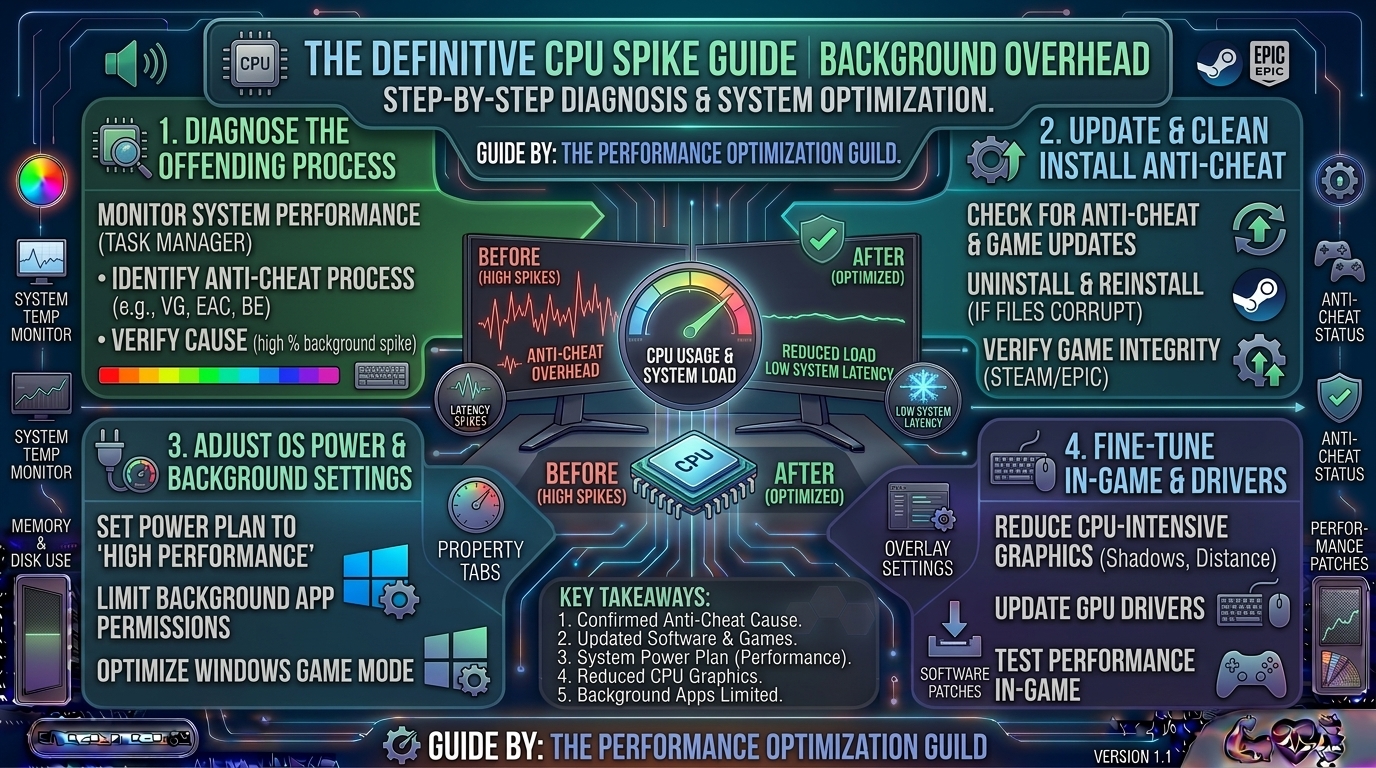
How to Fix High CPU Usage Spikes Caused by Anti-Cheat Software Running in the Background of Online Games
Welcome back to The Gamer Buzz—your ultimate destination for elite hardware performance guides, deep-dive troubleshooting, and competitive gaming optimization, proudly serving players from New York and San Francisco to Texas, Washington, and California.
There is nothing more frustrating than experiencing sudden micro-stutters, frame rate drops, or complete system freezes during a high-stakes competitive match in games like Valorant, Apex Legends, Call of Duty: Warzone, or Destiny 2. While you might immediately suspect your GPU, overheating, or background browser tabs, a hidden culprit is frequently draining your processor cycles: modern anti-cheat software.
Because modern multiplayer titles rely on sophisticated security measures—often operating at the kernel level—anti-cheat programs constantly monitor system memory, driver calls, and background processes. When these programs misbehave, they can trigger massive CPU spikes, degrade frame rates, and even cause Blue Screens of Death (BSODs).
This comprehensive, expert-backed guide will walk you through everything you need to know about why anti-cheat software causes high CPU usage, how to pinpoint the exact culprit, and step-by-step methods to reclaim your system performance.
1. The Anatomy of Modern Anti-Cheat: Why Does It Spike CPU Usage?
To understand how to fix anti-cheat CPU spikes, it helps to understand what these programs are doing behind the scenes. Unlike traditional software that rests idle when you aren’t actively interacting with it, competitive anti-cheat systems must remain fiercely active to prevent kernel-level exploits, memory injections, and automated scripts.
- User-Mode vs. Kernel-Mode Anti-Cheat: User-mode anti-cheats run with standard Windows permissions. However, sophisticated cheaters bypass user-mode easily. Consequently, major games utilize kernel-mode anti-cheats (Ring 0 access). This means the software operates at the same administrative level as your hardware drivers, giving it deep, continuous insight into system memory and CPU instructions.
- Continuous Scanning & Heuristics: Instead of just checking files once during launch, many anti-cheat systems continuously scan running processes, evaluate signatures, and monitor thread behavior in real time.
- Driver Conflicts: Because kernel anti-cheats hook directly into your operating system’s kernel, conflicts with third-party software—such as custom RGB controllers, overclocking utilities, antivirus packages, and outdated motherboard chipset drivers—can send CPU usage skyrocketing as processes fight for resource prioritization.
2. Step 1: How to Diagnose and Identify Anti-Cheat CPU Spikes
Before applying fixes, you need absolute confirmation that the anti-cheat software is the root cause of your system slowdowns.
Using Windows Task Manager
- Press
Ctrl + Shift + Escto open the Task Manager. - Click on the Processes tab and look at the CPU column header to sort tasks by highest utilization.
- Launch your game or play until you experience a performance spike, then quickly alt-tab back to check the active list.
- Look for common anti-cheat executable names:
vgc.exe/vgk.sys(Riot Vanguard – Valorant)EasyAntiCheat.exeor game-specific EAC services (Apex Legends, Fortnite)BEService.exe/BattlEye(Rainbow Six Siege, Destiny 2)cod.exeor associated kernel components (Call of Duty / Ricochet)
Using Advanced Diagnostic Tools (Resource Monitor & Process Explorer)
If Task Manager isn’t giving you clear enough data, use Resource Monitor (type resmon in your Windows search bar):
- Navigate to the CPU tab.
- Expand the Associated Handles or Services section to see if system interrupts or specific anti-cheat driver services (
.sysfiles) are consuming excessive Deferred Procedure Calls (DPCs).
3. Comprehensive Step-by-Step Fixes for Anti-Cheat CPU Spikes
Implement the following troubleshooting steps systematically to eliminate high CPU usage and restore smooth frame rates.
Fix 1: Update Your Motherboard Chipset Drivers (Crucial for Thread Scheduling)
Many CPU spikes caused by anti-cheat software stem from poor communication between the anti-cheat kernel driver and your CPU’s thread scheduler—especially on modern hybrid processors featuring Performance (P) and Efficiency (E) cores (Intel 12th/13th/14th/15th Gen) or AMD Ryzen processors with 3D V-Cache.
- Go to your motherboard manufacturer’s support page (ASUS, MSI, Gigabyte, ASRock) or directly to AMD / Intel.
- Download and install the latest Chipset Drivers.
- Update your BIOS to the latest version to ensure optimal microcode instructions and kernel-level stability.
Fix 2: Disable Conflicting Overlays and Background Utilities
Anti-cheat programs frequently clash with background overlay hooks and monitoring software because both attempt to inject code into running games.
- Disable Discord, GeForce Experience, Steam, and Xbox Game Bar overlays while testing.
- Completely close aggressive hardware monitoring or RGB software like RivaTuner Statistics Server (RTSS), MSI Afterburner, Razer Synapse, Corsair iCUE, or ASUS Armoury Crate, as their polling rates often trigger false positives or high CPU loops inside anti-cheat scanners.
Fix 3: Adjust Windows Core Isolation and Memory Integrity Settings
Windows includes a built-in security feature called Core Isolation (Memory Integrity) designed to protect system core memory from malicious driver injections. However, running Memory Integrity alongside kernel-level anti-cheat software can cause severe performance overhead and double-scanning CPU spikes.
- Open Windows Security by typing it in your taskbar search.
- Go to Device Security > Core Isolation details.
- Toggle Memory Integrity to Off (Note: Lowering this slightly reduces hypervisor-protected code integrity, but drastically improves game performance and resolves anti-cheat stuttering on many rigs).
- Restart your computer.
Fix 4: Clean and Reinstall the Anti-Cheat Service
Corrupted installation files or interrupted updates can cause anti-cheat services to loop infinitely, devouring CPU cycles in the background.
- Close your game completely.
- Navigate to your game’s installation directory (e.g.,
C:\Program Files\Riot VanguardorC:\Program Files (x86)\EasyAntiCheat). - Run the dedicated uninstaller or setup executable (
vanguard_uninstall.exeorEasyAntiCheat_Setup.exe). - Restart your PC, launch the game launcher as Administrator, and let it reinstall a fresh, uncorrupted copy of the anti-cheat module.
Fix 5: Configure Antivirus Exclusions
Windows Defender or third-party antivirus suites (Norton, McAfee, Malwarebytes) often real-time scan anti-cheat .sys files and game directories as they execute, creating a massive CPU bottleneck.
- Open Windows Security > Virus & threat protection.
- Click Manage settings under Virus & threat protection settings.
- Scroll down to Exclusions and click Add or remove exclusions.
- Add your entire game folder and anti-cheat installation directory (e.g.,
C:\Riot Games) to the exclusion list.
4. Hardware & BIOS Optimizations for Hybrid and Multi-Core CPUs
If you are running a high-end multi-core processor, certain hardware-level settings can dramatically alter how background software interacts with your cores.
- Disable or Configure E-Cores (Intel): If you experience micro-stutters caused by anti-cheat threads jumping onto Efficiency cores instead of Performance cores, consider using tools like Process Lasso to restrict the game and its anti-cheat to P-cores only.
- Enable Resizable BAR (ReBAR) / Above 4G Decoding: Ensure ReBAR is enabled in your BIOS. This allows your CPU to access the entire GPU frame buffer at once, reducing overall system bus congestion and freeing up background processing bandwidth.
5. Summary Comparison Table: Common Anti-Cheat Software & Optimization Strategies
| Anti-Cheat Software | Associated Game(s) | Primary CPU Impact Cause | Best Fix Strategy |
| Riot Vanguard | Valorant, League of Legends | Always-on boot service (vgk.sys) | Set service to manual/delayed start or reinstall via admin launcher. |
| Easy Anti-Cheat (EAC) | Apex Legends, Fortnite, Rust | Driver conflicts with background overlays | Clear temp cache, disable RTSS/MSI Afterburner hooks. |
| BattlEye | Rainbow Six Siege, Destiny 2 | High memory polling / Antivirus scanning | Add game directory to Windows Defender exclusions. |
| Ricochet | Call of Duty: Warzone | Shader compilation & kernel telemetry | Update chipset drivers, disable Memory Integrity. |
6. Expert Tips for Maintaining Long-Term System Health
- Avoid Unsupported Tweaker Apps: Avoid using unverified “Windows De-bloater” scripts that strip out essential Windows telemetry services, as anti-cheat engines frequently rely on these underlying services to verify system authenticity.
- Keep Windows Up to Date: Microsoft regularly releases cumulative updates that patch kernel-level communication bugs with major anti-cheat providers.
- Monitor Temperatures: High CPU spikes generate sudden thermal loads. Ensure your CPU cooler pump or fans are functioning properly to prevent thermal throttling during spikes.
7. Frequently Asked Questions (FAQ)
1. Is it safe to disable kernel-level anti-cheat software when not gaming?
Yes, most kernel anti-cheats (like Vanguard) allow you to right-click their system tray icon and select “Exit” or “Disable” when you aren’t playing, though you will need to reboot your PC to play again.
2. Why does anti-cheat software run even when the game is closed?
Many kernel anti-cheats launch automatically with Windows so they can monitor your system environment for unauthorized modifications before the game even starts up.
3. Can anti-cheat software cause Blue Screens of Death (BSOD)?
Yes. Conflicts between anti-cheat kernel drivers and third-party overclocking utilities, outdated BIOS versions, or conflicting antivirus drivers are a leading cause of gaming-related BSODs.
4. Does lowering graphics settings fix anti-cheat CPU spikes?
No. Anti-cheat CPU usage is tied to processor cycles, kernel monitoring, and system threads, not GPU rendering workloads. Lowering in-game graphics will not reduce anti-cheat CPU strain.
5. Will uninstalling Memory Integrity make my PC vulnerable?
Disabling Memory Integrity (Core Isolation) slightly reduces Windows’ hypervisor-protected isolation against advanced malware, but it remains safe for standard consumer gaming PCs and drastically improves CPU performance.
6. How do I stop Vanguard from running on Windows startup?
Open Task Manager, go to the Startup apps tab, locate Riot Vanguard, right-click, and select Disable. Note that you must reboot your PC before launching Valorant again.
7. Why did my anti-cheat CPU usage suddenly skyrocket after a game update?
Game updates frequently bundle updated anti-cheat signatures or altered scanning frequencies that can temporarily conflict with cached system drivers or third-party overlays.
8. Does closing background browser tabs help reduce anti-cheat CPU overhead?
While closing browser tabs frees up general RAM and CPU, anti-cheat spikes are independent processes. However, reducing overall background load gives your CPU more headroom to handle the spikes smoothly.
9. Should I use Process Lasso to manage anti-cheat core priorities?
Advanced users can use Process Lasso to pin anti-cheat services to specific CPU cores or lower their priority, but be careful—some anti-cheats will terminate the game if they detect external thread manipulation.
10. How can I report a persistent anti-cheat bug to game developers?
Check the official support forums or Discord servers of the game developer to submit a diagnostic log package (often generated via a support tool provided by the anti-cheat vendor).
8. Conclusion
High CPU usage spikes caused by background anti-cheat software can turn an enjoyable gaming session into a stuttering nightmare. By understanding how these kernel-level programs interact with your hardware, updating your chipset drivers, tuning Windows security settings, and keeping your system clean of conflicting overlays, you can completely eliminate performance bottlenecks.
Leave a Reply