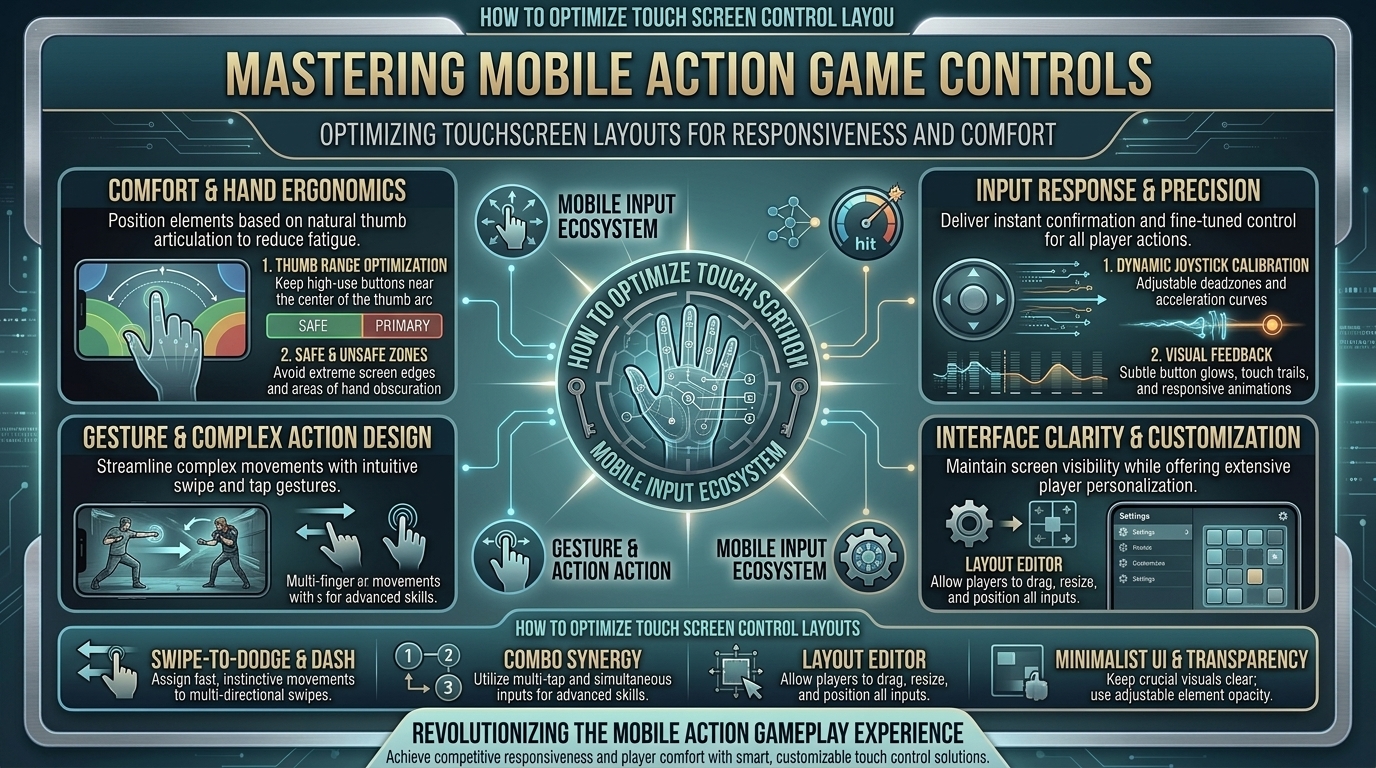
Mobile action games—ranging from fast-paced battle royales like Call of Duty: Mobile and PUBG Mobile to complex action RPGs like Genshin Impact and Zenless Zone Zero—demand precise inputs, quick reaction times, and high spatial awareness. However, relying on default touchscreen controls often leads to input lag, missed taps, screen clutter, and severe hand fatigue.
Customizing and optimizing your touchscreen control layout is the single most effective way to improve your in-game performance, increase responsiveness, and prevent physical discomfort during extended gaming sessions.
At The Gamer Buzz, we focus on competitive mobile gaming, display responsiveness, ergonomics, and touch interface optimization. This definitive guide covers advanced claw grip techniques, layout design principles, sensitivity calibration, screen surface preparation, and hardware accessories to maximize your mobile gaming potential.
Whether gaming in tech and creative centers across Texas and California, optimizing mobile esports setups in San Francisco and Washington, or gaming on the commute in New York, this guide ensures your touch controls operate at peak efficiency.
1. Ergonomics vs. Responsiveness: The Science of Touch Layouts
To build an optimal touch layout, you must balance screen visibility, thumb reach, and muscle memory:
+--------------------------------------------------------------------------+
|                     TOUCH LAYOUT OPTIMIZATION MATRIX                     |
+------------------------------------+-------------------------------------+
| 1. ERGONOMIC REACH ZONES           | Keep high-frequency buttons in natural|
|    Natural thumb sweep radius      | arc; avoid awkward joint hyperextension|
+------------------------------------+-------------------------------------+
| 2. MULTI-FINGER FINGERPRINTING     | Move aim/fire/jump to index fingers |
|    Transition from 2-Thumb to Claw | Increases simultaneous actions (APM)|
+------------------------------------+-------------------------------------+
| 3. VISUAL CLUTTER REDUCTION        | Lower button opacity to 20%-40%     |
|    Clear central viewing area      | Maximizes target visibility & tracking|
+------------------------------------+-------------------------------------+
Comparing Touch Grip Techniques
| Grip Style | Active Fingers | Aim & Fire Separation | Ergonomic Comfort | Competitive APM Capability |
| 2-Thumb (Default) | 2 Thumbs | Poor (Shared right thumb) | High (Short sessions) | Low (Cannot move, aim & shoot simultaneously) |
| 3-Finger Claw | 2 Thumbs + 1 Index | Moderate (Left index fires) | Moderate | Medium-High |
| 4-Finger Claw | 2 Thumbs + 2 Indexes | High (Separate aim/fire) | Requires practice | High (Esports standard) |
| 5-to-6 Finger Claw | 2 Thumbs + 4 Fingers | Maximum (Tablet exclusive) | Low without support | Maximum |
2. Step-by-Step Layout Building for Action Games
1.Step 1: Implement a 4-Finger Claw HUD Blueprint:Divide responsibilities across your thumbs and index fingers.
- Left Thumb: Movement Joystick (placed low to mid-left). Make the joystick static rather than dynamic to prevent accidental drift.
- Right Thumb: Camera Aiming, Crouch, Prone, and Reload. Keep this region mostly open for smooth panning.
- Left Index Finger: Dedicated Shoot/Fire button placed at the top-left screen edge.
- Right Index Finger: Jump, Scope-In (ADS), and Special Ability buttons placed at the top-right screen edge.
2.Step 2: Calibrate Button Sizes, Opacity, and Spacing:Maximize button hitboxes while freeing up central visual real estate.
- Increase Critical Button Sizes: Scale high-frequency buttons (Fire, Jump, ADS) to 120%–150% of their default size to eliminate missed inputs.
- Lower Opacity: Reduce button opacity to between 20% and 40%. This lets you see enemies through your control elements while maintaining muscle memory.
- Enlarge Spacing: Leave a 5mm-to-10mm buffer zone between adjacent action buttons to avoid misclicks during frantic firefights.
3.Step 3: Fine-Tune Touch Sensitivity & Gyroscope:Dial in camera speed, acceleration, and gyroscope controls.
- Disable Touch Acceleration: Use fixed-speed panning so camera movement scales 1:1 with swipe distance.
- Enable Gyroscope (Always On or Scope-Only): Use physical phone tilting for micro-aim adjustments and recoil control while keeping touch thumbs free for movement.
3. Physical Comfort, Accessories, and Display Tips
Software layouts are only half the battle—hardware surface conditioning prevents friction and physical fatigue:
- Use Conductive Touchscreen Finger Sleeves: Sweaty or dry fingers create friction spikes across glass screens. Nylon/silver-fiber finger sleeves remove friction, delivering consistent gliding motion for tracking targets.
- Attach Ergonomic Mobile Grips: Holding a flat, thin smartphone for hours causes hand cramping. Clip-on ergonomic grips provide controller-like palm supports, shifting your wrist into a natural angle for claw grips.
- Clean Your Screen & Use Matte Screen Protectors: Dust and skin oils reduce touch registration. Apply a high-quality matte or anti-glare screen protector to reduce fingerprint drag and glare.
- Maximize Touch Sampling Rate: In your phone’s developer or game booster settings, enable the highest available touch sampling rate (e.g., 240Hz to 720Hz) to lower input latency.
10 Frequently Asked Questions (FAQ)
1. How long does it take to switch from 2-thumb to a 4-finger claw layout?
Most players require 3 to 7 days of consistent practice in training grounds and casual modes to build muscle memory and stop missing inputs.
2. Is a 4-finger claw layout safe for my hands and wrists?
Yes, provided you take regular breaks. To avoid wrist strain, use ergonomic phone grips or rest your elbows on a cushion to relieve pressure on your ring and pinky fingers.
3. Should I use dynamic or fixed joysticks in mobile action games?
A fixed joystick placed at a set coordinate is generally superior for competitive play because it provides consistent muscle memory for directional movement.
4. What is touch sampling rate, and why does it matter?
Touch sampling rate (measured in Hz) is how many times per second a screen checks for finger contact. Higher rates (e.g., 360Hz vs. 120Hz) significantly reduce input lag.
5. Are physical touch triggers/buttons better than claw layouts?
Clip-on capacitive triggers offer great tactile feedback without steep learning curves. However, custom claw HUD layouts allow faster multi-button combinations and higher overall APM.
6. Does a matte screen protector reduce touchscreen responsiveness?
High-quality glass matte protectors do not affect touch registration, but they significantly reduce surface friction and finger drag caused by sweat.
7. How does using a Gyroscope improve touch controls?
Gyroscope micro-aiming delegates fine recoil control to your wrists, allowing your right thumb to focus on macro camera turns and panning.
8. Why do my touch inputs drop when my phone gets hot?
Thermal throttling causes mobile CPUs to drop frame rates and lower touch sampling frequencies to manage heat. Using a clip-on semiconductor phone cooler prevents touch dropouts.
9. Should button layouts be different on tablets versus smartphones?
Yes. Tablets feature significantly larger screen real estate, making 5-finger or 6-finger claw layouts easier to execute without crowding your view.
10. How do I prevent pulling down the notification bar accidentally during gameplay?
Enable your device’s built-in Game Mode or Guided Access (iOS) / App Pinning (Android) to block system gestures and notification drop-downs while playing.
Conclusion
Mastering touchscreen controls in mobile action games comes down to thoughtful layout design, friction management, and muscle memory. By shifting to a 4-finger claw HUD, tuning your touch sensitivity and gyroscope, and using tools like finger sleeves and ergonomic grips, you eliminate input lag and physical strain.
For more mobile gaming optimization guides, hardware breakdowns, and esports setups across Texas, California, San Francisco, Washington, and New York, stay tuned to The Gamer Buzz.
Leave a Reply